
The first three PC fixes worth doing in 007 First Light are simple: back up the save folder tied to Steam app ID 1659040, use the current FOV mod because there is no in-game FOV slider, and apply the separate ultrawide cutscene fix if you play on 21:9 or 32:9. Those three changes solve the most common “I lost progress,” “this feels too zoomed in,” and “why are cutscenes boxed in?” problems before they waste a night of setup.
The important part is that these fixes do not live in one universal settings menu. Saves are in Steam’s user-data structure, the FOV tweak currently depends on a file-based mod, and the ultrawide cutscene fix uses a separate executable replacement in the game’s Retail folder. If you keep that split straight, the whole process is much easier.
Table of Contents (6)
Where 007 First Light save files are on PC
On Steam, the local save data is tied to the game’s app ID folder: 1659040. The safest practical method is not to hunt for individual save files. Back up the entire 1659040 folder instead. That preserves all save slots and avoids missing a profile or metadata file the game expects.
The common path starts from your Steam install directory and then goes through userdata. In plain terms, you are looking for something like ...\Steam\userdata\[your Steam ID]\1659040\. If Steam is installed on another drive, the folder structure is the same even if the drive letter is different.
007 First Light supports up to five save slots, which makes manual backups worth doing early. If a patch, sync conflict, or mod experiment causes trouble, restoring that whole app ID folder is much faster than trying to rebuild progress slot by slot.
- Open your Steam install folder.
- Go to
userdata. - Open the folder named with your Steam account’s numeric ID.
- Find
1659040. - Copy that whole folder to another location such as your desktop, a backup drive, or a cloud storage folder you control manually.
If you cannot find it immediately, Windows search is faster than browsing blind. Search your Steam drive for 1659040, then confirm you are inside userdata before copying anything.
How to avoid Steam Cloud and progress reset problems
Cloud sync is useful, but it is not the same thing as a proper backup. The easiest way to create a bad save mismatch is to close the game and shut down Steam before the sync finishes, or to launch the game on a second PC while the first machine has not uploaded the newest progress yet.
If you swap machines, use this routine:
- After quitting the game, wait for Steam to finish syncing.
- Do not launch the game on another PC until that sync is complete.
- Before installing any mod or verifying files, make a manual copy of the
1659040folder. - If Steam reports a cloud conflict, stop and verify which timestamp is newer instead of clicking through quickly.
That last point matters more than it sounds. A lot of players treat conflict pop-ups like harmless admin prompts, but this is where older progress can overwrite newer progress. If you are using any account-linked progression features, the same rule applies: do not assume the cloud copy is the best copy unless you have checked when it was last updated.
How to change FOV in 007 First Light
Right now, 007 First Light does not include an in-game FOV slider on PC. If the default camera feels too tight, the working route is a community FOV mod with preset values such as 70, 90, and 110. That makes this one of the first quality-of-life changes many PC players will want, especially on larger monitors where default FOV can feel claustrophobic.
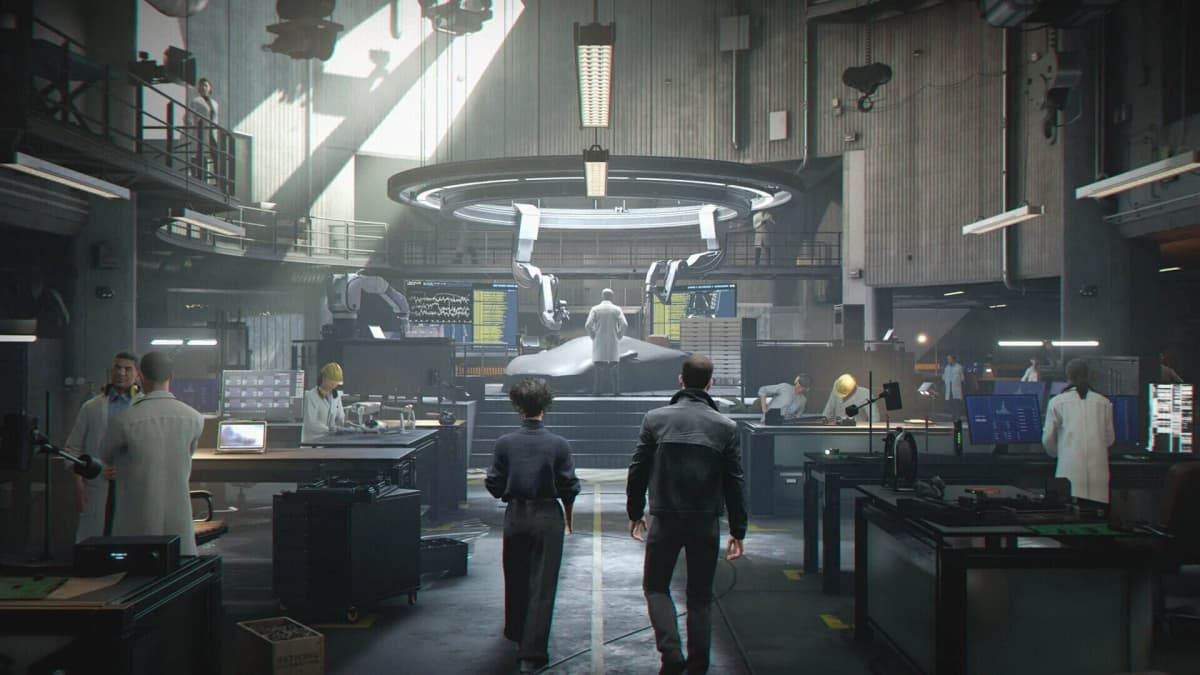
The clean way to install it is to back up the file the mod changes, then copy the mod files into the game’s main folder exactly as instructed by the mod package. Current setup notes indicate the mod works by editing or replacing packagedefinition.txt, so back that file up before you do anything else.
- Go to the main 007 First Light installation folder.
- Find
packagedefinition.txtand make a backup copy. - Extract the FOV mod files into the main game folder.
- Choose the preset that matches your display and comfort level.
- Launch the game and test both normal movement and aiming before you commit to the widest option.
If you are unsure which preset to use, 90 is the safest starting point for most desk setups. 70 stays close to the default cinematic framing, while 110 is better reserved for players who know they prefer a very wide first-person view. Going too wide can make weapon viewmodels and edge distortion feel worse, even if the extra peripheral vision sounds attractive on paper.
The other thing to watch is file conflicts. Because this tweak is file-based rather than menu-based, the last mod you copy over usually wins if two mods touch the same file. If you plan to use other PC fixes, keep a separate backup of the original game file and a separate copy of the FOV version you like. That makes rolling back far easier after an update.
How to fix ultrawide cutscene pillarboxing and letterboxing
007 First Light already supports ultrawide gameplay, but its in-engine cutscenes can still show pillarboxing and letterboxing. That is why the game may look correct during play, then suddenly throw black bars around a scene transition. The current fix uses a separate modded executable aimed at correcting in-engine cutscenes for 21:9 and 32:9 displays.
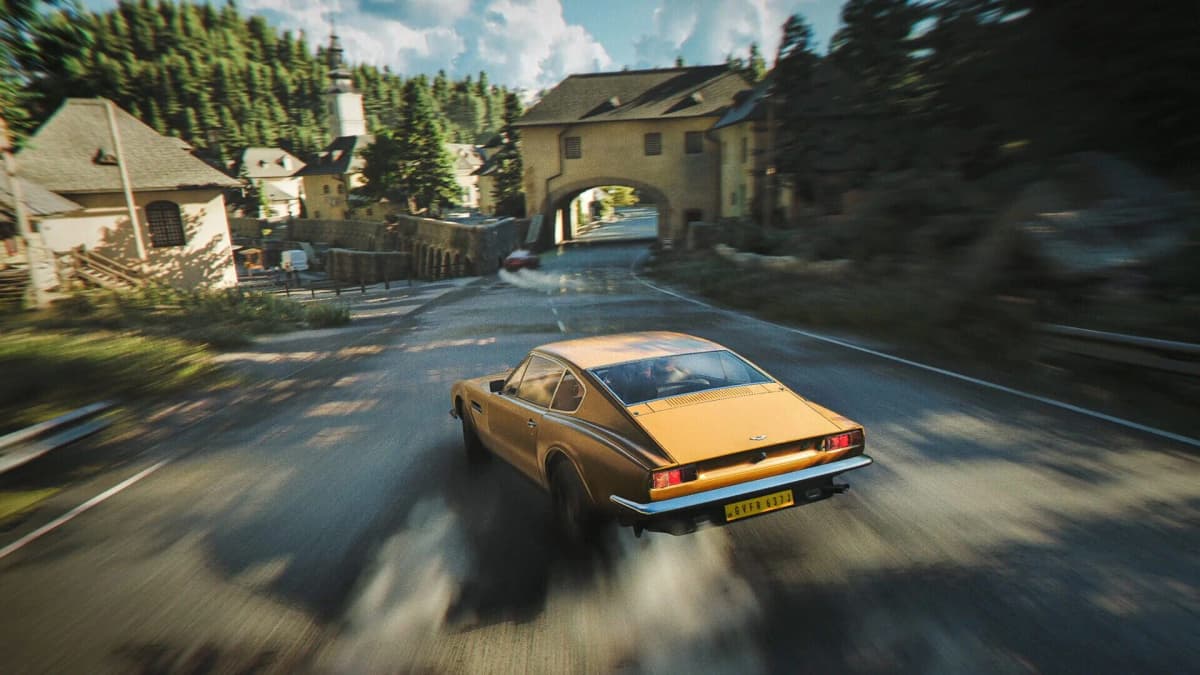
This is not the same mod as the FOV tweak, and it does not fix every video in the game. Pre-rendered FMVs are still excluded, so some scenes may remain boxed simply because they are video files and not real-time rendered cutscenes.
- Open the game install directory and then the
Retailfolder. - Back up the original executable before replacing anything.
- Extract the ultrawide cutscene fix into
Retailas instructed by the mod package. - Launch the game and test a known in-engine cutscene rather than judging the fix from gameplay alone.
If the fix seems to do nothing, check which kind of scene you are testing. A pre-rendered cinematic will usually keep its original framing. The mod is useful because it targets the real-time cutscenes that should scale properly on ultrawide but currently do not.
What usually breaks these fixes after a patch
The common failure point is not a bad install. It is an update, a file verification, or a repair pass that quietly restores original game files. That affects both the FOV mod and the ultrawide cutscene fix, because both rely on replaced or edited files rather than a built-in menu option.
- If the FOV suddenly resets, re-check the main folder files and restore your preferred preset.
- If ultrawide cutscenes return to boxed framing, reapply the executable fix in
Retail. - If something feels corrupted after experimenting, verify files through Steam, then reapply only the fixes you still want.
- If you verify files, assume your modded files were overwritten unless proven otherwise.
That is also why the save backup comes first. File verification is great for cleaning up a broken install, but it does not protect your progress from sync mistakes or user error. Keep the backed-up 1659040 folder, keep a copy of the original executable, and keep your preferred FOV files in a clearly named backup folder. That gives you a clean reset path without having to rebuild your whole PC setup every time the game updates.
FinalBoss // Gear
Level up your setup
01Graphics cardson Amazon→02Gaming laptopson Amazon→03High-refresh gaming monitorson Amazon→04Discounted game keyson Kinguin→
Affiliate links · As an Amazon Associate, FinalBoss earns from qualifying purchases.
Want to Level Up Your Gaming?
Get access to exclusive strategies, hidden tips, and pro-level insights that we don't share publicly.
Ultimate Guide Strategy Guide + Weekly Pro Tips