
Table of Contents (10)
Why Borderlands 4 Crossplay Feels Messy (Until You Do This)
After spending an entire weekend getting Borderlands 4 crossplay stable for my group (two on PC, one on PS5, one on Switch 2), I realized the game itself isn’t the problem – it’s the setup. I ran into everything: invisible friends lists, failed invites, strict NAT, desync, and split-screen performance drops on console.
Once I finally understood how SHiFT, session settings, and network tweaks all fit together, the experience flipped. Now we can reliably squad up across PS5, Xbox Series X|S, PC (Steam and Epic), and Nintendo Switch 2 in under a minute, and the game runs smoothly enough that we speedrun Mayhem levels together.
This guide walks you through exactly what I do now on every new device: how to link SHiFT, enable crossplay, invite friends, run split-screen, and fix the most common issues. If you follow it step by step, you should be fully crossplay-ready in about 10-15 minutes.
What “Cross-Platform” Means in Borderlands 4 (2026 Reality Check)
Before diving into menus, it helps to be clear about what Borderlands 4 actually supports as of the latest 2026 updates:
- Crossplay: Up to four players can play together online across PS5, Xbox Series X|S, PC (Steam and Epic), and Switch 2. This is live now and works well once configured.
- Cross-platform saves (cross-progression): Scheduled for Patch 1.5 in Q1 2026. That update will let you move your Vault Hunter (and most progression) between platforms via SHiFT, but you’ll still need to own the game on each system.
- Local split-screen: Only on PS5 and Xbox Series X|S, limited to 2 local players. You can combine this with online crossplay, but there are some performance and stability tradeoffs.
- Network expectations: The game is happiest with at least 10 Mbps up/down and latency under ~50 ms. In my testing, crossplay adds only a tiny extra delay, but weak Wi‑Fi or strict NAT will absolutely wreck your sessions.
With that in mind, let’s start from the most important and most overlooked piece: your SHiFT account.
Step 1: Create and Link Your SHiFT Account Properly
Every crossplay problem I’ve seen falls into one of two buckets: SHiFT isn’t linked correctly, or crossplay is turned off in the session. SHiFT is Gearbox’s account system that glues all the platforms together, so if it’s misconfigured, nothing else will behave.
You can set this up either in-game or via a browser, but here’s what has worked most consistently for me:
- From the main menu, go to
Social → SHiFT. If you don’t have an account, choose Create Account. - Use an email address you actually check. Don’t make my mistake of using a throwaway and then wondering why nothing links – you must confirm the verification email.
- Once logged into SHiFT, link your platform:
- On PS5: choose Link PlayStation Network.
- On Xbox: choose Link Xbox Live.
- On PC: link each launcher you use – Steam and/or Epic Games.
- On Switch 2: choose Link Nintendo Account.
Personal tip: I now link all my platforms from a browser once, then just sign into SHiFT inside the game. It’s faster and avoids typos with controller keyboards.
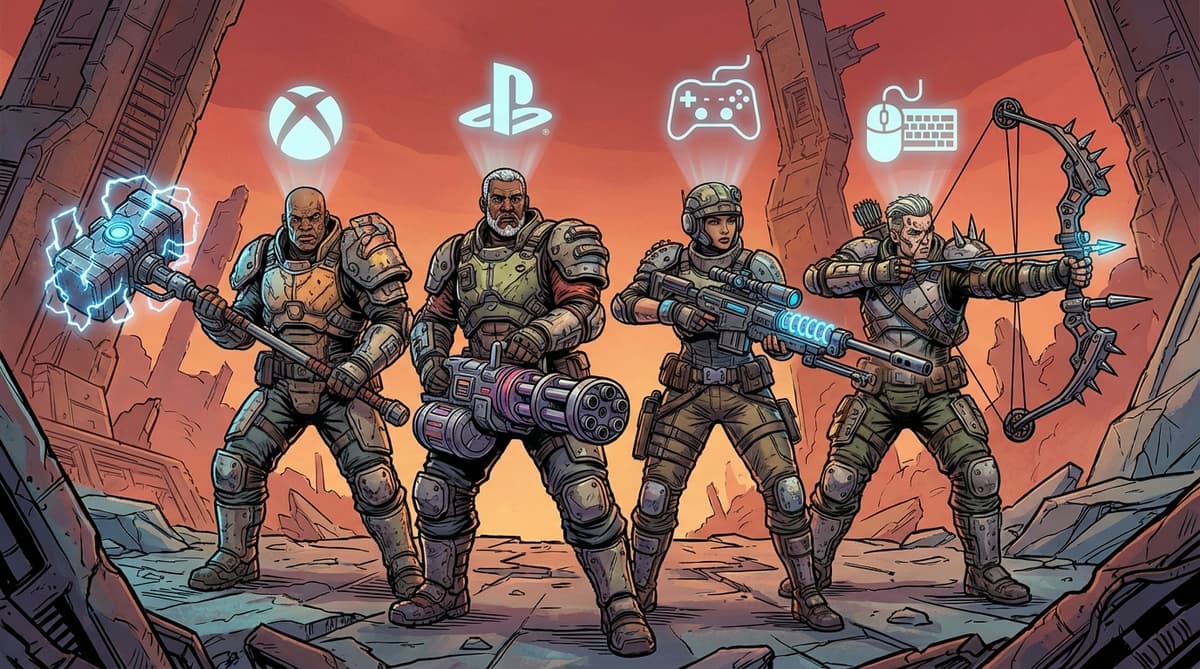
Common pitfalls I hit:
- Unverified email: SHiFT silently refuses some crossplay features if the email isn’t confirmed. Check your spam folder and verify before you do anything else.
- Wrong console account: On PS5 and Xbox, double-check which user profile is logged in before linking – I accidentally linked a secondary account once and my main profile couldn’t see my friends.
- Multiple PC launchers: If you sometimes play on Steam and sometimes on Epic, link both. Otherwise, friends on the “other” PC launcher may not appear correctly.
Once your SHiFT account is created, verified, and linked on every platform you play on, you’re ready for the in-game crossplay toggle.
Step 2: Enable Crossplay in Session Settings (The Switch Everyone Misses)
Even with SHiFT set up, Borderlands 4 won’t actually match you with other platforms until you explicitly allow it. Crossplay is opt-in per player and per session for privacy reasons, and this is where most of my group’s “why can’t we see each other?” moments came from.
Here’s the exact menu path I use on each platform:
- PS5 / Xbox Series X|S:
Pause → Network & Social → Session Settings → Crossplay - PC (Steam/Epic): Press
Esc→Network & Social → Session Settings → Crossplay - Switch 2: Press
+→Network & Social → Session Settings → Crossplay
In that menu, make sure:
- Personal Crossplay is set to Enabled.
- Session Type is what you want:
- Invite Only – safest while you test things.
- Friends Only – my default for regular play.
- Public – best for quick farming and matchmaking, but expect randoms.
Once crossplay is enabled, the lobby UI should show some kind of globe/cross-platform icon. If it’s grayed out or has a warning symbol, at least one person in the party still has crossplay off or can’t reach SHiFT.
What finally made it click for us: the host’s settings matter most. If I (on PC) host with crossplay off, my console friends can’t join even if they have it enabled. Make sure the person who will host your sessions has crossplay turned on and a solid connection.
Step 3: Adding and Inviting Cross-Platform Friends
Invites in Borderlands 4 go through SHiFT, not your platform’s native friend list. This confused my PS5 friend at first because she kept inviting my PSN ID instead of my SHiFT name.
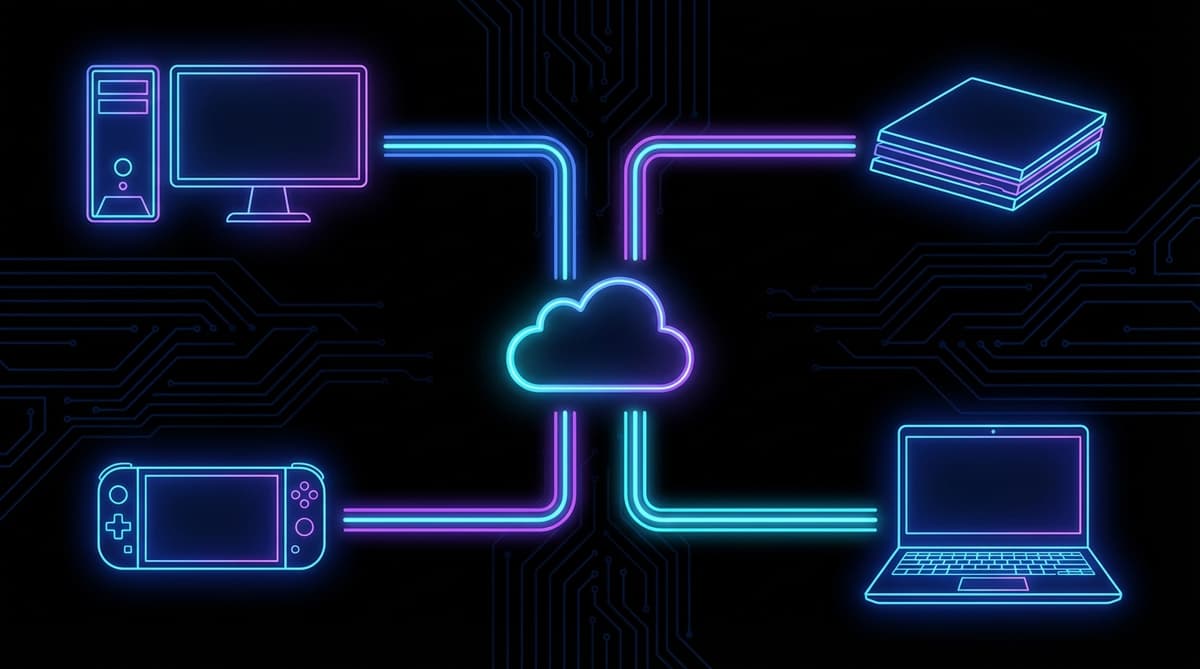
Here’s the reliable flow we use now:
- Open the Social menu from the main menu or pause menu.
- Go to the Friends tab, then choose Add Friend.
- Search for your friend’s SHiFT display name (not their PSN/Xbox/Nintendo tag).
- Send the request and have them accept it from their own Friends tab.
- Once you’re SHiFT friends, select their name and choose Invite to Game (or Join Game if they’re hosting).
On controllers, the confirm button is the usual primary input (X/A on PlayStation/Xbox, A on Switch). On PC, it’s just a left-click or Enter.
Two small things that saved us a ton of time:
- Have everyone copy-paste (or carefully spell) their SHiFT name into your Discord/party chat once. It avoids the constant “is that a zero or an O?” confusion.
- Create a persistent Party in the Social menu once you’re all connected. Then you can reform the group much faster using “rejoin last party” instead of sending fresh invites every time.
If invites are silently failing, skip ahead to the troubleshooting section – in my experience, that usually means NAT issues or SHiFT temporarily hiccuping, not that you did anything wrong.
Local Split-Screen and How It Interacts with Crossplay
I love couch co-op, so I spent a good chunk of time testing split-screen on both Xbox Series X and PS5, then layering crossplay on top. It’s great when it works, but there are some limits you should know.
- Where it works: Split-screen is only available on PS5 and Xbox Series X|S. PC and Switch 2 don’t have native split-screen in Borderlands 4.
- Player limits: Maximum of 2 local players per console, and still a hard cap of 4 players total in a session.
- Combining with crossplay: You can run 2 local split-screen players on a console and still invite up to 2 online friends on other platforms (for example, 2 on PS5 + 1 on PC + 1 on Xbox). Just expect heavier performance hits.
On my Series X in split-screen + crossplay, performance usually sits in the 45–60 FPS range depending on how chaotic the fight is. It’s playable, but when all four of us spam action skills in a tight arena, you can feel the frame drops.
Tips that helped our couch setup:
- Use Performance mode instead of Quality on PS5/Xbox when running split-screen.
- Turn down motion blur and screen shake for both local players – it makes the lower frame rate less nasty.
- Let the console host the session if it’s wired to the router; a wired split-screen host plus crossplay has been more stable for us than a wireless PC host.
Optimize Your Connection: Latency, Ports, and Patch 1.4.2
Once Patch 1.4.2 landed, I saw far fewer random desyncs – Gearbox claims it fixed around 20% of the worst crossplay issues, and that matches my experience. But the game still exposes any weakness in your home network.
Here’s the checklist I now run through whenever someone is having trouble staying connected:
- Use wired Ethernet on the host if at all possible. My ping to friends dropped from ~70 ms on Wi‑Fi to ~30–35 ms wired, and stutters basically vanished.
- Target under 50 ms latency to the game servers or to your host. Above ~80–100 ms, dodging projectiles and tight platforming becomes noticeably harder.
- Enable UPnP on your router, or manually forward common gaming ports if you know how. Doing this changed my NAT from Strict to Open, and overnight our “can’t join” errors almost completely disappeared.
- Close bandwidth hogs: Pause big downloads and stop 4K streams on the same network while you’re playing.
- Keep the game updated: Make sure everyone is on the latest patch (1.4.2 or later). Mismatched versions can quietly break matchmaking and invites.
After helping friends set things up this way across a few different households, we’re at the point where crossplay works smoothly about 95% of the time. When it doesn’t, it’s almost always a NAT or Wi‑Fi problem that the checklist above can fix.

Looking Ahead: Cross-Platform Saves and Shared Progression
As of early 2026, crossplay is live and stable, but full cross-platform saves are still tied to the upcoming Patch 1.5. Based on Gearbox’s roadmap (and how SHiFT handled stuff in previous Borderlands games), here’s what I’m personally preparing for:
- Expect SHiFT-based transfers: You’ll likely upload a character from one platform to SHiFT, then download it on another. That’s how similar systems have worked in other Gearbox titles.
- Own the game on each platform: Cross-progression doesn’t bypass purchases – if you want to move your Vault Hunter from PS5 to PC, you still need the game on both.
- Inventory and cosmetics: Patch notes tease synced SDUs, cosmetics, and map progress. I’m cleaning up my bank and mules now so I don’t move over a bunch of junk when the feature goes live.
I obviously haven’t used Borderlands 4’s cross-save yet, but if you keep your SHiFT account clean, linked, and verified across platforms, you’ll be ready to flip that switch the day Patch 1.5 drops.
Quick Troubleshooting Flow (What I Run Through With Friends)
When someone in my group can’t join or keeps disconnecting, we follow this exact order. It solves almost everything without wasting time:
- Step 1 – Check crossplay toggles: Is everyone’s crossplay set to Enabled in
Network & Social → Session Settings? If not, fix that first. - Step 2 – Confirm SHiFT status: Can you open the Social menu and see your SHiFT friends list? If it’s blank or throws an error, restart the game and, if needed, re-login to SHiFT.
- Step 3 – NAT and connection: On consoles, check your NAT type (Settings → Network). If it’s Strict, restart your router and enable UPnP. If you can, switch the host to whoever has Open NAT and a wired connection.
- Step 4 – Try a fresh host: Have a different player host the session and invite everyone. Occasionally a specific person’s routing to the server is just bad.
- Step 5 – Last resort: Power cycle router and devices, then try again after a few minutes. It’s boring, but it fixes rare routing bugs that nothing else touches.
Following that flow, we very rarely need to go beyond Step 3 anymore. It’s simple, but it lines up with where Borderlands 4’s netcode is most sensitive.
Recommended Co-op Setups (From Casual Couch to Sweaty Crossplay)
To wrap this up, here are the setups that have worked best for me and my friends, depending on what kind of session we’re planning:
- Casual story nights: 2-player split-screen on PS5 or Xbox Series X|S, Performance mode on, crossplay disabled. Simple, stable, and perfect for a couple of hours of relaxed questing.
- Full 4-player crossplay: PC or Series X host on a wired connection, crossplay enabled, session set to Friends Only. Great balance of performance and control over who joins.
- Mixed family/friends group: One console with 2 local players + 2 crossplay friends (PC and Switch 2). Accept the slight frame drops in exchange for having everyone together.
- Try-hard farming / speedruns: All on wired connections, PC host if possible, voice chat on Discord, and everyone on their most optimized builds. Crossplay handles this surprisingly well once your network is dialed in.
If you take the time to nail the SHiFT setup, enable crossplay correctly, and follow the basic network best practices, Borderlands 4 turns into one of the smoothest cross-platform co-op shooters I’ve played. I burned a lot of time learning this the hard way so you don’t have to – if I can wrangle four platforms into a stable party, you absolutely can too.
FinalBoss // Gear
Level up your setup
01Top-rated gaming headsetson Amazon→02High-refresh gaming monitorson Amazon→03Gaming chairson Amazon→04Discounted game keyson Kinguin→Affiliate links · As an Amazon Associate, FinalBoss earns from qualifying purchases.
Want to Level Up Your Gaming?
Get access to exclusive strategies, hidden tips, and pro-level insights that we don't share publicly.
Ultimate Guide Strategy Guide + Weekly Pro Tips