
Table of Contents (25)
Borderlands 4 PC Performance Guide: Turn the Chaos Smooth
My first reaction to Borderlands 4 on PC was basically: “Wow, this looks great… why is my FPS on life support?” Unreal Engine 5 lighting, dense foliage, and all that cel-shaded chaos are fantastic until your frame time graph starts looking like an EKG. The good news is that this is one of those games where smart tweaks matter more than brute-forcing with hardware.
This Borderlands 4 performance guide – best PC settings and optimization tips – is built around that reality. You don’t have to nuke the visuals to make it playable. You just have to attack the right settings, in the right order, and give the game some room to breathe with VRAM and CPU time.
If you’re sitting on a mid-range GPU like an RTX 3060 or RX 6600 and wondering whether you can hit a solid 60 FPS at 1080p or 1440p, the answer is yes – with a bit of surgery. High-end cards obviously get more headroom, but even RTX 40-series setups can tank if you leave certain options on “Badass” and call it a day.
So this isn’t just a list of sliders. It’s a complete tune-up: hardware targets, best graphics settings by resolution, a step-by-step FPS boost checklist, stutter and crash fixes, and even Steam Deck optimization. Let’s turn Borderlands 4 from “janky but pretty” into “buttery chaos.”
System Requirements, Realistic Targets, and What They Actually Mean
On paper, Borderlands 4’s minimum specs don’t look terrifying. The game wants a mid-tier 6-core CPU, 16GB of RAM, and a last-gen 6GB card for 1080p at 30 FPS on Low. The recommended spec bumps that to a stronger 8-core CPU and something in RTX 3070 / RX 6700 XT territory for 1440p at 60 FPS on Medium.
In reality, the game leans hard on both GPU and VRAM when you crank up foliage, reflections, and volumetric effects. Think of it like this:
- GPU horsepower determines your raw FPS ceiling at a given resolution.
- VRAM capacity decides how often you get micro-stutters and streaming hitches when the game is busy.
- CPU + storage control how bad streaming and traversal stutter feel in hub areas or big fights.
Here’s the practical baseline you should be aiming for if you care about smoothness more than bragging rights.
Specifications
One big thing to keep in mind: Borderlands 4 loves to compile shaders after you change graphics settings. Expect 10–15 minutes of jank the first time you load in with a new preset. Don’t panic. Let it settle before you judge your performance.
The Real Performance Killers (and the “Free” Settings)
Not all sliders are created equal. Some absolutely hammer your GPU for a tiny visual bump; others look scary but are basically free. The moment this game “clicked” for me performance-wise was when it became clear that a handful of settings were doing most of the damage.
- Heavy hitters (huge FPS impact): Reflections quality, volumetric fog/clouds, foliage density, global lighting quality, and very high textures if you’re tight on VRAM.
- Moderate impact: Geometry quality, HLOD distance, shadow quality, and post-processing.
- Basically free on modern GPUs: Anisotropic filtering (x16), motion blur off, film grain off, FOV tweaks.
If you’re chasing the biggest wins with the least pain, reflections, volumetrics, and foliage are your first stop. You can claw back 20–40% FPS just by putting those in their place while still making the game look like a current-gen looter-shooter instead of a smeared comic book.
Core Video Settings for Every PC
Before splitting it by resolution, a few global choices I strongly recommend, regardless of hardware:
- Display Mode: Fullscreen (not Borderless) – usually the most stable and lowest-latency mode.
- VSync: Off – then use your GPU control panel or in-game FPS cap instead.
- Motion Blur: 0% – it costs performance and makes this kind of twitchy shooter harder to read.
- Anisotropic Filtering: x16 – visually sharpens surfaces at a negligible cost.
- NVIDIA Reflex / AMD Anti-Lag: On (or On + Boost on NVIDIA) – shaves off input latency without a big FPS penalty.
From there, we start tuning by resolution and GPU tier.
1080p Settings: Getting 60–100+ FPS on Mid-Range GPUs
If you’re on something like an RTX 3060, RTX 2060 Super, RX 6600, or RX 5700 XT and playing at 1080p, you can absolutely push past 60 FPS without downgrading the game into mud. The trick is to start from Medium and selectively punch down the expensive options.
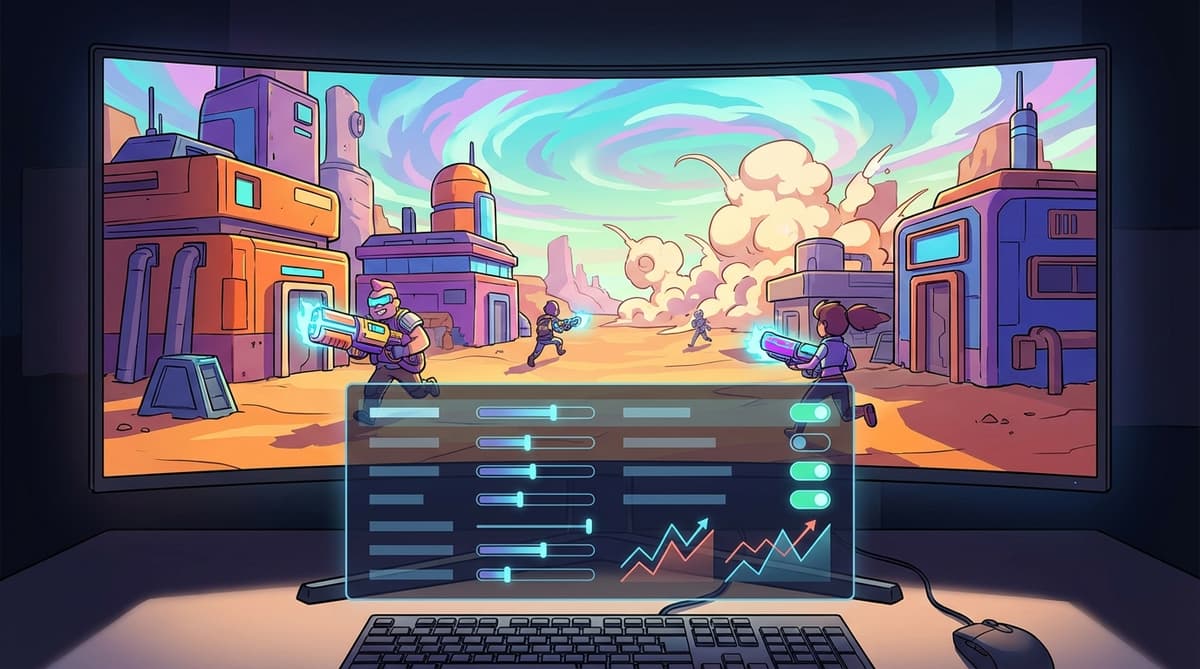
Recommended 1080p Configuration (RTX 3060 / RX 6600 Class)
- Preset: Medium (as a starting point)
- Upscaling: FSR Balanced (or DLSS Balanced on RTX cards)
- This alone can net you roughly 20–30% more FPS vs native 1080p with a minimal clarity hit.
- Texture Quality: Medium (drop to Low on 6GB cards)
- Helps avoid VRAM spikes that cause hitching in dense combat or hub areas.
- Geometry Quality: Medium
- Foliage Density: Low
- Borderlands’ art style hides a lot here; Low foliage is an easy ~5–10% FPS gain.
- HLOD / Level of Detail Range: Medium
- Going higher mainly hits your CPU and VRAM while only slightly cleaning up distant objects.
- Reflections Quality: Low
- This is one of the biggest hogs. Dropping to Low can easily give you another 10–15% FPS.
- Lighting Quality: Medium
- Shadows / Directional Shadows: Medium
- Volumetric Fog / Clouds: Low or Off
- A huge win in big open areas and heavy fights; the game still looks fine with toned-down fog.
- Post-Processing: Medium (with film grain off if available)
- Texture Streaming Speed: Medium
- On lower-end GPUs, this helps reduce texture pop-in and nasty 1% lows.
With this setup on a typical mid-range card, you’re looking at roughly 80–100 FPS in quieter hub areas and around 70+ FPS in busy firefights. Compared to the out-of-the-box “Badass” preset, the FPS uplift can be in the ~30% range while the game still looks very close at normal play distances.
1440p Settings: The Sweet Spot for Modern GPUs
1440p is where Borderlands 4 really starts to shine visually. If you’re running something around an RTX 3070, RTX 4070, RX 6700 XT, or RX 7800 XT, you can comfortably chase 80–120 FPS with the right compromises and some help from DLSS or FSR.
Recommended 1440p Configuration (RTX 4070 / RX 7800 XT Class)
- Preset: High (as your baseline)
- Upscaling: DLSS or FSR on Quality
- Quality mode keeps the image crisp at 1440p while easing GPU strain enough to jump a whole refresh tier for many rigs.
- Texture Quality: High (8GB+ VRAM recommended)
- Geometry Quality: High
- Foliage Density: Medium (bump to High only if your CPU isn’t sweating)
- HLOD / LOD Range: Far
- Reduces pop-in and keeps those big vistas looking clean. This is the first thing to drop back to Medium if your CPU is older.
- Reflections Quality: Low or Medium
- On an RTX 4070 or similar, Medium is usually safe; lower it if you notice sudden drops in rainy or neon-heavy areas.
- Lighting Quality: High
- Shadows: High (but keep contact shadows or extra shadow detail optional if listed)
- Volumetrics (Fog/Clouds): Medium
- Medium gives you the “next-gen” atmosphere without completely melting your FPS in large combat arenas.
- Cloud Shadows: Off
- Minor visual gain, surprisingly annoying for performance.
- Frame Generation: On for RTX 40-series / FSR 3-capable GPUs, but only if your “raw” FPS (before FG) is around 60+.
In this configuration, 90+ FPS in social hubs and 75+ FPS during heavy combat is a realistic target on modern 1440p-capable GPUs. If your baseline is dipping below 60 even with Quality upscaling, that’s your cue to either drop volumetrics to Low or shift the upscaler to Balanced before reaching for Frame Generation.
4K Settings: Chasing High FPS in Badass Mode
4K is where things get spicy. This is high-end GPU territory – think RTX 4080 and above, or AMD equivalents. The priority here is simple: let upscalers and Frame Generation do the heavy lifting while you dial in a “faux-ultra” look.
Recommended 4K Configuration (RTX 4080-Class and Up)
- Preset: High or “Badass”, then trim back the usual suspects
- Upscaling: DLSS on Quality (drop to Performance if needed), or FSR equivalent
- Frame Generation: On, ideally with a raw 60+ FPS baseline
- Texture Quality: Very High (12–16GB VRAM recommended)
- Geometry & HLOD: High/Far
- Foliage Density: Medium or High (start at Medium; only push to High if you’re still above your refresh rate cap)
- Reflections: Medium
- High looks gorgeous, but Medium is usually the better balance between “wow” and frame-time consistency.
- Volumetric Fog/Clouds: Medium
- Shadows: High
Used this way, a strong 4K-capable rig can hold 60–100+ FPS in most content while still looking like the “full-fat” PC experience. The usual rule applies: reflections and volumetrics are what you sacrifice first if you’re chasing a locked 120 FPS on a fast monitor.
A 10-Minute FPS Boost Checklist
If you don’t want to crawl through every submenu and just need a clean, structured plan, this is the order I recommend tackling things. Treat it like a checklist you can run through in under 10 minutes (plus a bit of shader compile time).
- Update your GPU drivers. Grab the latest Game Ready (NVIDIA) or Adrenalin (AMD) release that explicitly mentions Borderlands 4 support. Drivers tuned for a specific title can easily recover 10–15 FPS on problem launchers.
- Set Windows to prioritise performance. Switch your Power Plan to “High Performance” or the equivalent “Ultimate Performance” preset, disable unneeded overlays (Xbox Game Bar, third-party recorders), and close browser tabs chewing through RAM.
- Use Fullscreen, disable VSync, and set an FPS cap. Fullscreen generally lowers input lag. Turn off in-game VSync and use either the in-game frame limiter or your GPU control panel to cap FPS at or just below your monitor refresh rate.
- Enable DLSS/FSR/TSR as your primary tool. At 1080p, start with Balanced; at 1440p and above, start with Quality. Only drop to Performance if you cannot maintain 60 FPS any other way.
- Drop the three big killers: Set Reflections to Low/Medium, Foliage to Low/Medium, and Volumetric Fog/Clouds to Low if you’re still below your FPS target. These are responsible for a chunky slice of “why did my FPS just die?” moments.
- Right-size your textures and streaming. On 6GB GPUs, Medium textures and Medium/Low streaming speed can drastically reduce stuttering. On 8GB and higher, High textures are fair game, but avoid the absolute max settings unless you know you have headroom.
- Only then, consider Frame Generation. If you’re on an RTX 40-series or FSR 3-capable card and your native/upscaled FPS is hovering above 60, enable Frame Generation to jump into 90–120 FPS territory. If your base is lower than 60, FG tends to produce more artifacts and weirdness than it’s worth.
Once you’ve done this pass, give the game at least 10–15 minutes of continuous play so shader compilation can complete. Judging performance during that initial compilation phase will just drive you mad.

Dealing with Stutter, Hitching, and Random Crashes
Almost every modern PC game has the same three villains: shader compilation stutters, VRAM over-commit, and CPU spikes when too much is streaming in at once. Borderlands 4 hits all three if you’re unlucky, but it’s fixable.
1. Accept (and Manage) Shader Compilation
Whenever you change a major graphics preset, the game will quietly recompile shaders in the background. During that period, frame times are inconsistent and the game can feel like a slideshow in certain spots.
- Pick a single preset and tuning combo.
- Load into a hub like the main launch area and play for 10–15 minutes.
- Only then, start judging whether a specific setting is “too heavy.”
2. Fix VRAM-Driven Hitching
If you notice frequent micro-stutters when turning quickly, driving, or entering a new area, there’s a good chance your GPU’s VRAM is the bottleneck rather than raw compute power.
- On 6GB cards: keep Textures on Medium or Low, and Texture Streaming Speed on Medium.
- On 8GB cards: Textures High is fine, but avoid Very High unless you’re clearly under budget.
- On 12GB+ cards: Textures Very High is generally safe, especially paired with an SSD.
If you’re comfortable editing config files, you can also tweak streaming pool size in the game’s config folder to better match your VRAM, but for most people, sticking to the in-game options is plenty.
3. Tame CPU-Bound Stutters
Older CPUs, or even modern ones with a ton of background stuff running, will struggle when the game is trying to stream in lots of geometry and foliage at once.
- Set HLOD / LOD Range to Medium.
- Drop Foliage Density a notch.
- Close background tasks that love chewing CPU (browsers, launchers, RGB control apps, etc.).
4. Crashes, Black Screens, and Launch Issues
If you can’t even get into the game, or it keeps crashing after a few minutes, the fixes are more old-school but still worth running through.
- Verify game files through your launcher.
- Temporarily disable overlays (Discord, GeForce Experience, AMD ReLive, etc.).
- Update your GPU driver cleanly (using a clean install option if available).
- Ensure the game is installed on an SSD, ideally with DirectStorage support enabled on your system.
One recurring cause of both stutters and crashes in demanding scenes is running reflections and lighting too high on an 8GB GPU. If you’re hitting a wall, locking Reflections to Low is often the single most impactful “stability” tweak you can make.
Steam Deck & Handheld: Making Borderlands 4 Actually Playable on the Couch
Borderlands has always been a great “grind on the couch” series, and Borderlands 4 is no different. On a Steam Deck-class device, you obviously can’t chase desktop-level visuals, but with the right compromises you can get a surprisingly enjoyable 40–60 FPS experience at 800p.
Recommended Steam Deck Setup (800p)
- Compatibility: Proton Experimental or the latest recommended Proton version.
- Resolution: 1280×800 (native).
- Refresh Rate & FPS Cap: 40Hz/40 FPS cap is a great sweet spot for the Deck.
- Preset: Low, then tweak manually.
- Upscaling: FSR on Performance or Balanced, depending on your tolerance for softness.
- Foliage: Off or Low – easy win.
- Reflections: Low.
- Volumetrics: Off or Low – the Deck does not need fancy fog to be fun.
- Textures: Low/Medium, depending on which Deck storage model you have and how aggressive you want to be about stutter.
Expect something in the 40–50 FPS range in hubs and closer to 40 FPS in heavy combat with that setup, with battery life around 2–3 hours depending on your TDP and brightness. For handheld play, that’s a solid trade: still recognisably Borderlands 4, just a bit softer and less fancy in the distance.
Advanced Tweaks for High-End Rigs
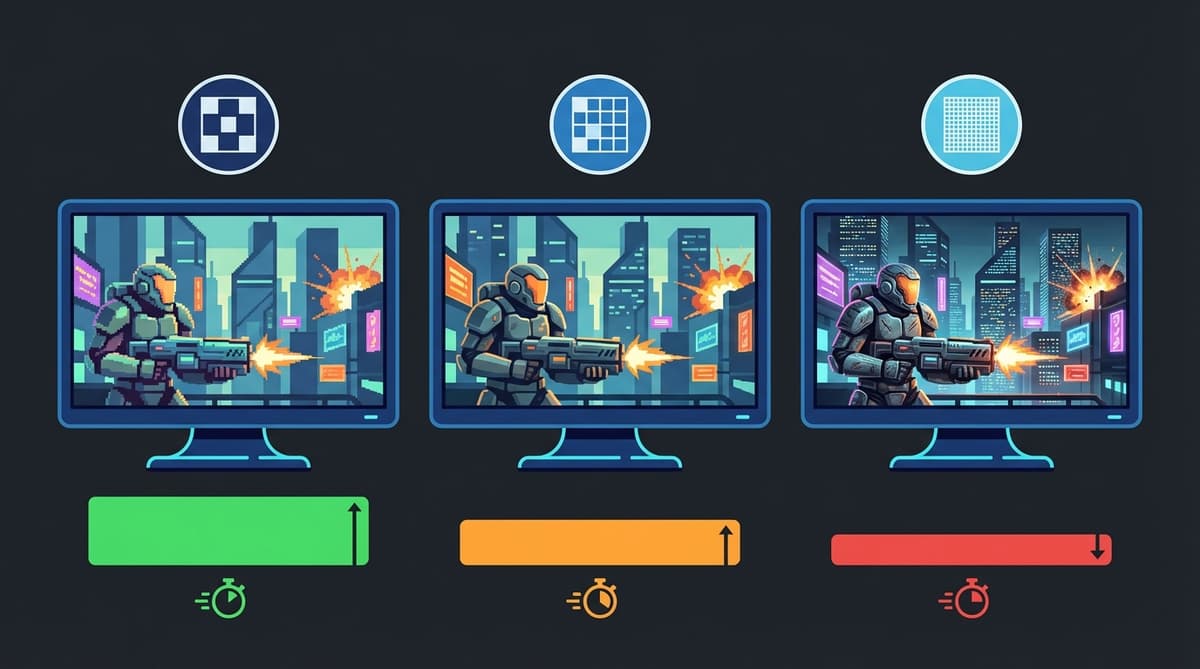
If you’re running a monster rig – high-end CPU, RTX 4080/4090-class GPU, plenty of RAM – your goals are a little different. You’re not just trying to hit 60; you’re trying to sit at 120+ FPS on a high-refresh monitor without losing the “wow” factor.
- Start from the “Badass” or Ultra preset at 1440p.
- Enable DLSS/FSR Quality + Frame Generation if supported.
- Dial Volumetric Clouds / Fog to High – this is where powerful rigs can flex with minimal downside.
- Keep Reflections at Medium for sanity; High is where frame times can suddenly spike, especially in effects-heavy missions.
- Use an FPS cap slightly under your monitor’s max refresh rate (for example, 117 on a 120Hz display) to keep frame times stable and reduce power/heat.
With smart tuning, it’s absolutely possible for a top-tier GPU to chew through Borderlands 4 at triple-digit FPS while still looking miles better than any console version. Just remember: no amount of hardware can fully save you from badly chosen settings like maxed reflections and volumetrics on top of raw 4K with no upscaling.
How Good Is the PC Port, Really? Pros and Cons
Performance guides like this tend to exist for two reasons: games that are absurdly scalable and games that are a bit of a mess at default settings. Borderlands 4 sits awkwardly in between. The engine can scale very well if you hold its hand, but the presets don’t always respect mid-range hardware or smaller VRAM budgets.
✓ PROS
+
Highly scalable once tuned
+
DLSS/FSR and Frame Generation support
+
Art style holds up even on Medium/Low settings
+
Can hit 60+ FPS on mid-range GPUs at 1080p/1440p
+
Steam Deck and handheld play are surprisingly viable
✗ CONS
–
Heavy reflections and volumetrics nuke FPS on default presets
–
Shader compilation and streaming can cause early stutter
–
6GB GPUs are very constrained at higher settings
–
Some settings (like foliage and HLOD) are badly labeled for how CPU-heavy they are
–
Requires real tweaking; “set to Ultra and forget” is not realistic for most rigs
Re-Test After Patches – Don’t Lock Your Settings Forever
One more thing that’s easy to forget: live games change. Post-launch patches often tweak CPU threading, VRAM allocation, or how specific effects are rendered. That can turn yesterday’s “must have” settings into today’s performance landmines or free wins.
- When a major patch lands, re-run your favorite hub area as an informal benchmark and check FPS/stability.
- If the game suddenly feels smoother, try nudging a single setting up (e.g., Foliage from Low to Medium, or Volumetrics from Low to Medium) and test again.
- Keep a note (or even a screenshot) of your “known good” config so you can roll back if a change makes things worse.
It’s worth spending 15–20 minutes after big updates to see whether the devs have effectively handed you free performance or fixed a bottleneck you previously had to work around manually.
Final Thoughts: Stop Chasing Ultra, Start Chasing Frame Time
Borderlands 4 is one of those games that looks far more expensive than it actually needs to, if you judge it purely by the labels on the graphics menu. The moment it really comes together is when you stop asking, “Can I run Ultra?” and start asking, “What’s the cleanest 60–120 FPS I can get without betraying the art style?”
The short version of this entire guide is: use DLSS/FSR intelligently, bully reflections and volumetrics into submission, give your VRAM some breathing room with sensible texture choices, and never judge performance during the first 10 minutes after a big settings change. Do that, and even a solid mid-range rig suddenly feels “next-gen enough” for the latest Borderlands chaos.
Once you’ve dialed things in, the difference is night and day. What used to feel like a jittery slideshow in busy arenas becomes the kind of smooth, responsive shooter experience where every crit, slide, and ability pop feels right. And honestly, that’s the whole point of a PC performance guide: not to make the benchmark graph happy, but to make the game feel as good to play as it looks.
8.5/10 (as a PC port after tuning)
VERDICT
With smart settings, upscaling, and a bit of patience for shader compilation, Borderlands 4 goes from rough first impression to legitimately smooth, stylish chaos on a wide range of PCs and even handhelds.
FinalBoss // Gear
Level up your setup
01Graphics cardson Amazon→02Gaming laptopson Amazon→03High-refresh gaming monitorson Amazon→04Discounted game keyson Kinguin→Affiliate links · As an Amazon Associate, FinalBoss earns from qualifying purchases.