Build a Gaming PC in 2025: A Beginner’s Hands-On Guide
Why This Guide (and What I Learned the Hard Way)
After spending a long weekend helping two friends build their first PCs and fixing three common “no display” disasters, I distilled everything I wish I’d known when I built my first rig. The breakthrough came when I started “breadboarding” parts outside the case and using the motherboard manual like a map, not an afterthought. This 2025 guide walks you from parts list to first boot, with the exact BIOS options I enable and the troubleshooting flow I use when things don’t post. Expect 2-4 hours for assembly if it’s your first time, plus 1-2 hours for OS and drivers.
Plan Your Build and Tools (Budget-Safe and Compatible)
Don’t make my mistake of buying parts on sale without checking fit. I once had to return a gorgeous 360 mm AIO that wouldn’t fit my case. Use a compatibility tool like PCPartPicker while you plan, and read the case and motherboard spec pages for clearance notes.
Tools I actually use: #2 magnetic Phillips screwdriver, a few zip ties/Velcro straps, isopropyl alcohol + microfiber (for thermal paste redo), and an anti-static strap or frequent grounding on the PSU.
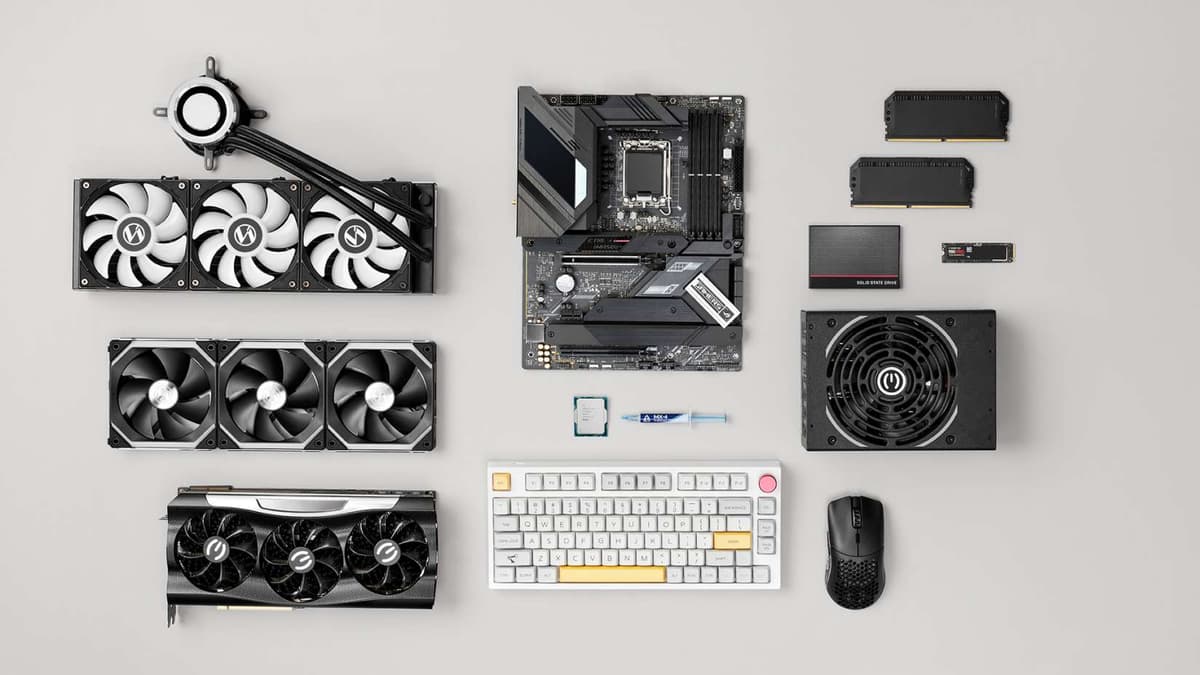
Parts to prioritize for gaming: GPU first, then CPU, then a fast NVMe SSD. 16-32 GB RAM is the sweet spot in 2025; I run 32 GB for headroom.
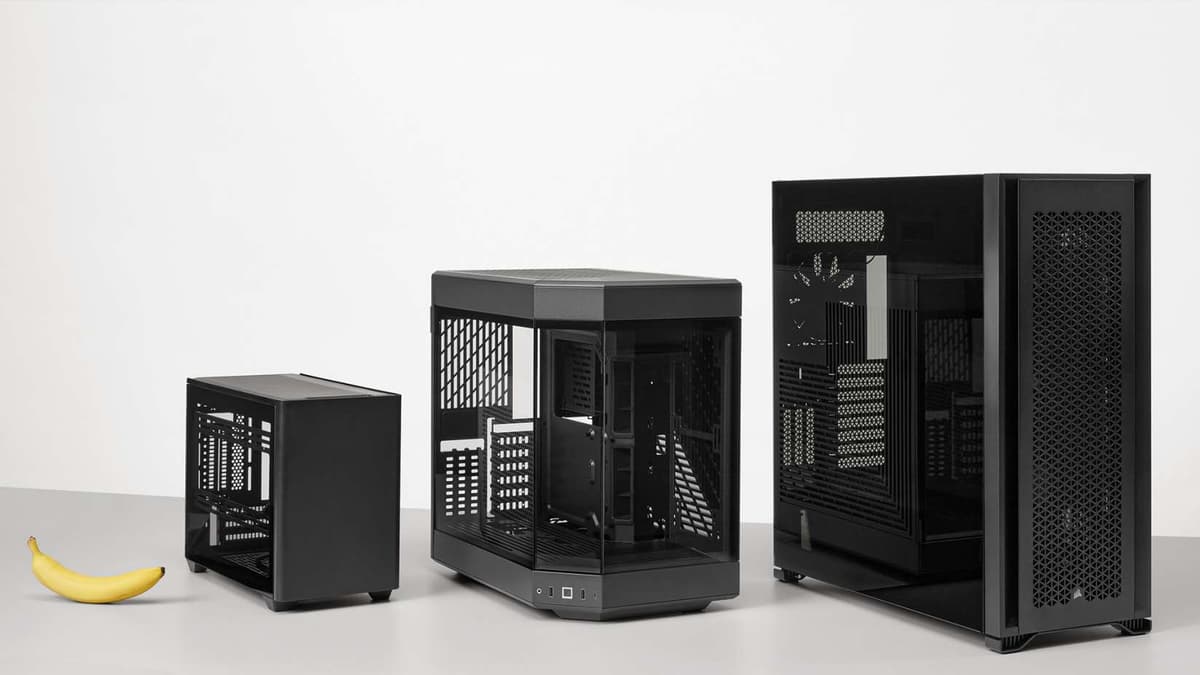
Form factor reality: ATX is easiest, micro-ATX saves some space, mini-ITX is a puzzle-plan cables and cooler height carefully.
Step 1: Breadboard Outside the Case
What finally worked for me on stubborn builds was assembling the core parts on the motherboard box first. It’s faster to diagnose problems before everything is screwed in.
Place motherboard on the box. Install CPU, cooler, one RAM stick in the recommended slot (usually A2), and your GPU.
Connect PSU’s 24-pin and 8-pin CPU power, plus PCIe power to the GPU. Hook up your monitor to the GPU.
Short the two PWR_SW pins with a screwdriver to test power-on (or use the case button if reachable). You should reach BIOS or see a vendor logo.
If you get lights/fans but no display, jump to the troubleshooting section below. Breadboarding saves hours of rework inside the case.
Step 2: CPU and Cooler (Don’t Overtighten)
I’ve seen bent pins and high temps from rushed installs. Slow down here.
Lift the socket arm, align the triangle on the CPU with the socket corner, and let it drop in-no force.
Thermal paste: a pea-sized dot in the center usually works. If your cooler has pre-applied paste, use that.
Mount the cooler in an X-pattern, tightening a little at a time. Connect the fan to CPU_FAN (not CHA_FAN).
For M.2 heatsinks: peel the protective film off thermal pads. I once forgot and lost 10–15°C of cooling.
Step 3: RAM and Storage (Dual-Channel Done Right)
I wasted an hour on a boot loop that was just RAM in the wrong slots. Your board’s manual shows the exact order-often A2/B2 for two sticks.
Install RAM firmly until both latches click. If only one side clicks, it’s not seated.
M.2 NVMe SSDs: insert at a slight angle, press down, and secure with the tiny screw. Reinstall any heatsinks.
2.5”/3.5” drives: mount in bays, then attach SATA data to the motherboard and SATA power from the PSU.
Step 4: Prepare the Case (Airflow and Standoffs)
Don’t make my rookie mistake: I once skipped standoffs and shorted a board. Confirm they’re aligned to your motherboard holes before installing.
Install the I/O shield if your board has one (some modern boards have it preinstalled).
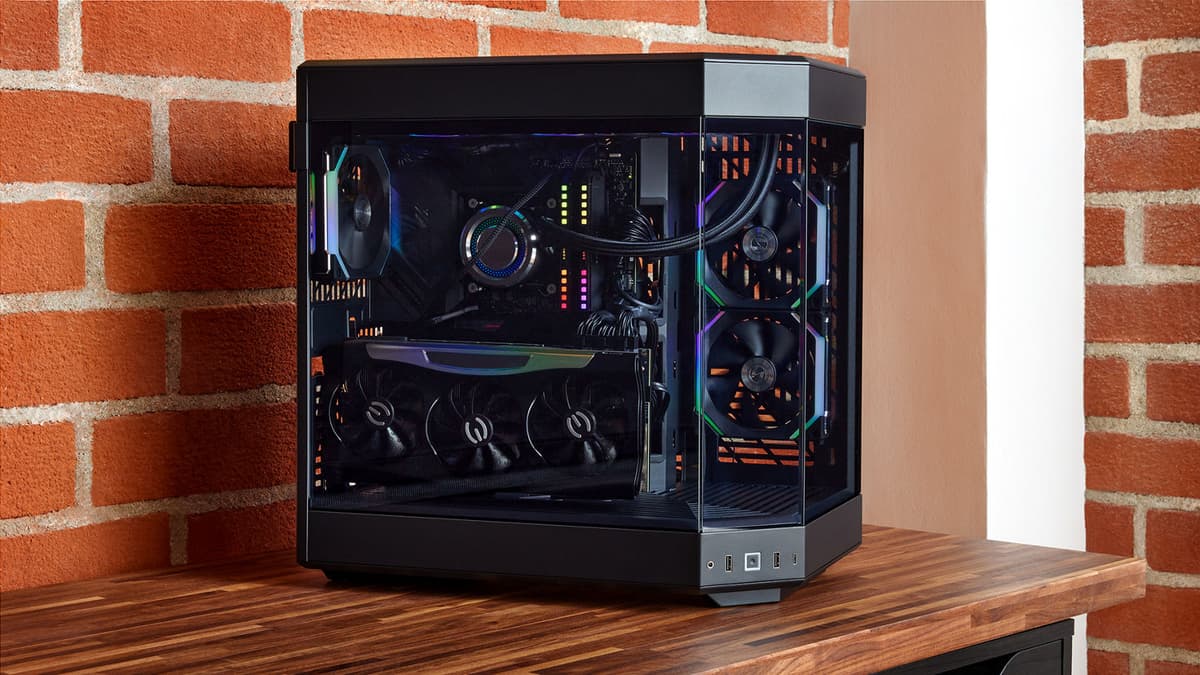
Fan direction: the arrows on the frame show airflow. Typical pattern is front/bottom intake, top/rear exhaust.
Place the PSU (fan down if there’s a filtered vent), secure with 4 screws, and pre-route the 24-pin, 8-pin CPU, and PCIe cables.
Step 5: Motherboard, GPU, and Cables
Lower the motherboard in, align with the I/O shield and standoffs, and screw down gently. I hand-start each screw to avoid cross-threading.
Front panel connectors: follow the manual’s diagram for PWR SW, RESET, HDD LED, PWR LED. It’s fiddly—use tweezers if needed.
Connect 24-pin ATX and 8-pin (or 8+4) CPU power. Missing the CPU power is the most common “no boot” issue I see.
Install the GPU in the top PCIe x16 slot. Remove the correct case slot covers, seat it until it clicks, and secure with screws.
12VHPWR/12V-2×6 GPU power: push until it fully seats—look for the click and ensure no visible gap. Avoid sharp cable bends within 3–4 cm of the connector.
Step 6: Cable Management That Actually Helps Temps
I route cables behind the motherboard tray first, then tighten with Velcro so I can reopen bundles later. Make sure nothing touches fan blades. Clean cables aren’t just pretty—they improve airflow and cut a few degrees off GPU/CPU temps.
Step 7: First Boot and BIOS/UEFI Setup
Plug in monitor, keyboard, and mouse. Power on. Tap DEL or F2 to enter BIOS. Here’s my standard pass:
Check hardware detection: CPU name, total RAM, storage listed.
Enable RAM profile: XMP (Intel) or EXPO (AMD). Some boards label it A-XMP or D.O.C.P.
Fan control: set a quiet curve or use the board’s “Smart/Quiet” mode. Ensure CPU and case fans are recognized.
Boot order: set your USB installer first. On many boards you can also press F11/F8 for a one-time boot menu.
Optional but helpful: enable Resizable BAR/Above 4G Decoding for modern GPUs (NVIDIA/AMD) for a small performance bump.
BIOS updates: On brand-new CPUs (especially AMD AM5), I typically update BIOS via the built-in EZ Flash/Flashback using a USB stick. Don’t interrupt power during a flash.
Step 8: Install OS, Drivers, and Essentials
I install Windows 11 for gaming, but I’ve also run Linux with Proton for specific setups. Either way:
Install the OS to your fastest NVMe drive. Partitioning can wait.
Install motherboard chipset drivers first (Intel or AMD), then LAN/Wi‑Fi, audio, and finally GPU drivers from NVIDIA/AMD.
Run Windows Update until there are no critical updates left. Reboot between big driver installs.
Grab monitoring tools like HWInfo/HWMonitor and MSI Afterburner to verify temps and fan behavior.
If you’re swapping GPUs or fixing a messy driver state, I’ve had great results with a clean install using safe-mode driver cleanup before reinstalling—worth it if you see crashes or black screens.
Troubleshooting: My Real-World Flow
Nothing powers on: Ensure the PSU switch is on, the wall socket works, 24-pin and CPU 8-pin are connected, and the case power button is on the right header.
Fans spin, no display: Connect the monitor to the GPU, not the motherboard; reseat the GPU and RAM; try a single RAM stick in the recommended slot; clear CMOS via jumper/button.
Boot loop/beeps/LEDs: Use the board’s debug LEDs or beep codes (manual!). Nine times out of ten it’s RAM seating or profile—test at default speeds.
High temps: Reseat cooler with fresh paste, confirm fan orientation (front in, rear/top out), and set a better fan curve. For AM5, ensure the cooler’s mounting pressure is correct.
Random crashes in games: Update GPU drivers, disable any aggressive overclocks, test RAM with MemTest, and check SSD firmware in the vendor utility.
Optimization: Quiet, Cool, and Fast
Enable XMP/EXPO for rated RAM speed—this is “free” performance many forget.
Fan curves: I set case fans to ramp with GPU temps (if your board/software supports it) since games stress the GPU most.
Storage layout: OS and frequently played titles on NVMe; archive the rest on a second NVMe or SATA SSD.
GPU tuning: I often apply a simple undervolt in MSI Afterburner—same performance at lower noise/temps on NVIDIA and AMD cards.
Maintenance: Clean dust filters every 1–2 months; deep clean every 6 months. Dust is the silent FPS killer.
Platform and Case-Specific Tips (2025 Reality)
Intel vs AMD: Steps are the same. On Intel LGA1700, ensure your cooler has the proper bracket to avoid poor contact. On AMD AM5, EXPO memory profiles are mature—still test stability.
Motherboard brands: I’ve used MSI, ASUS, and Gigabyte in recent builds; BIOS labels differ but features are similar. Learn where XMP/EXPO and Fan Tuning live.
SFF builds: Use an SFX PSU, check GPU length and cooler height, and pre-plan cable paths. I pre-install front panel and EPS cables before mounting the board—it’s tight near the top edge.
12VHPWR/12V-2×6 connectors: Fully seat until it clicks and avoid lateral stress. Route gently to the side panel.
Windows vs Linux: For maximum game compatibility, Windows 11 is still easiest. Linux with Proton is great for many titles; check anti-cheat support before committing.
Time and Cost Expectations
Research and part selection: 1–3 hours (faster if you reuse a known-good list).
Assembly: 2–4 hours first time; I budget 90 minutes when I’m not filming/explaining.
OS and drivers: 1–2 hours including reboots and updates.
Cable cleanup and fan curves: 20–30 minutes for a neat, quiet finish.
Common Pitfalls I See (Avoid These)
Forgetting motherboard standoffs—instant short risk.
Plugging the monitor into the motherboard when using a discrete GPU.
Leaving M.2 heatsink film on (temps spike fast).
Not enabling XMP/EXPO—your 6000 MT/s kit will sit at 4800/5200 and you’ll lose performance.
Loose 12VHPWR connector—reseat until it’s flush.
Wrap-Up: You’ve Got This
If you take one thing from my experience, it’s this: build slow, test early, and don’t be afraid to reset and reseat. Breadboard first, follow the motherboard manual for headers and RAM placement, enable XMP/EXPO, and you’ll avoid 90% of first-timer headaches. The rest is just patience and a few reboots. Once you boot into your first game and see the FPS you built with your own hands, it’s worth every minute.