
Table of Contents (10)
Why This Guide and What I Learned the Hard Way
After spending three weekends helping friends build their first rigs this year (and rebuilding my own twice), I boiled the process down to what actually matters for a smooth, first-try success. I’ve made every classic mistake-forgetting motherboard standoffs, mixing up EPS and PCIe cables, and wondering why RAM only ran at 4800 until I toggled EXPO. The breakthrough came when I started planning by target resolution and framerate first, then picking parts that cleanly match those goals. This guide gives you concrete builds, button-press paths, and a realistic assembly workflow with the exact checks I now do every single time.
Pick a Build by Your Target: 1080p, 1440p, or 4K
GPU decides your gaming experience more than anything else. Start here, then match CPU, motherboard, and PSU. I’ve listed parts I’ve tested or installed in 2024-2025 builds that delivered the expected results.
- Entry (1080p, 60-144 FPS, $500-$800)
– GPU: Intel Arc A750 or AMD Radeon RX 6600 XT
– CPU: AMD Ryzen 5 5500 or Intel Core i5‑13400F
– Motherboard: ASRock B550M Pro4 (Ryzen) or MSI B760M Pro (Intel)
– RAM: 16GB (2×8) DDR4‑3200
– Storage: 1TB NVMe (Crucial P3 Plus or WD Black SN770)
– PSU: 550W 80+ Bronze (Corsair CX550, MSI MAG A550)
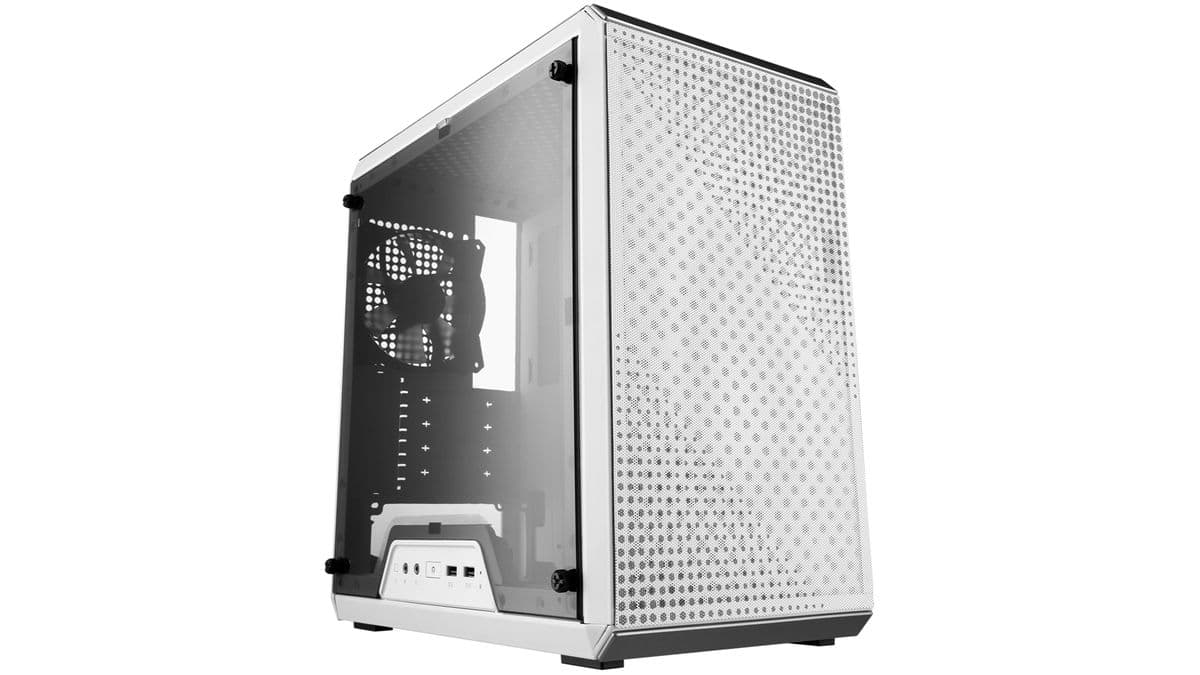
– Case: Cooler Master MasterBox Q300L or similar mATX with two 120mm fans
– Cooler: Stock is fine - Mid (1440p high, 100–165 FPS, $1,000–$1,500)
– GPU: Nvidia RTX 4060 Ti 8/16GB or AMD RX 6700 XT
– CPU: Ryzen 7 7700 or Intel Core i5‑13600K/13400F
– Motherboard: B650 (e.g., ASRock B650M Pro RS) for AM5; Z790/B760 for Intel (Gigabyte Z790 Gaming X AX if you want PCIe 5.0 + Wi‑Fi 6E)
– RAM: 32GB (2×16) DDR5‑5600 EXPO/XMP
– Storage: 1TB NVMe Gen4 (WD Black SN850X)
– PSU: 650–750W 80+ Gold (Seasonic Focus, Corsair RM750e)
– Case: Lian Li Lancool 216 or Fractal Pop Air (great airflow)
– Cooler: 240mm AIO or tower air cooler (e.g., Thermalright Peerless Assassin) - High (4K ultra, 60–120 FPS, $2,000+)
– GPU: RTX 4080/4090 or AMD RX 7900 XTX
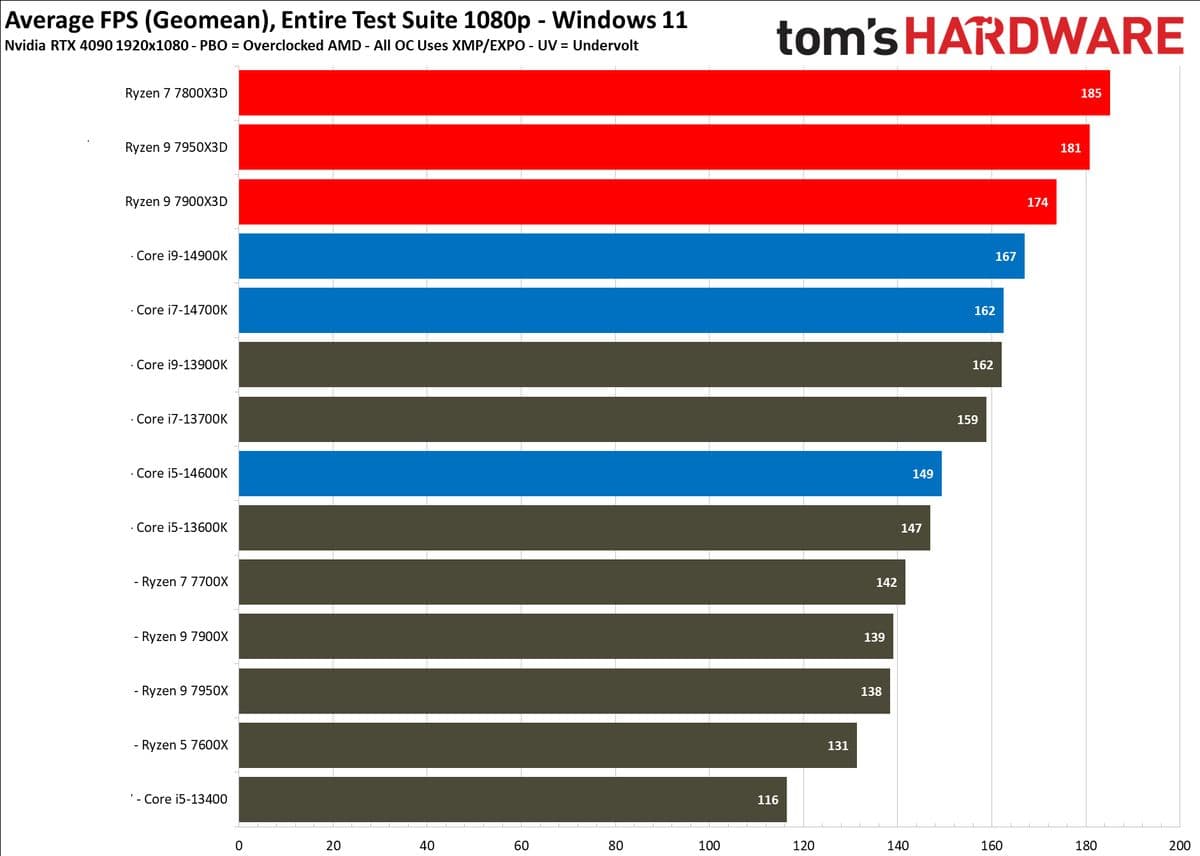
– CPU: Ryzen 9 7900X or Intel Core i7‑13700K/i9‑13900K
– Motherboard: AM5 X670E or Intel Z790 with robust VRM and Wi‑Fi 6E
– RAM: 32GB (2×16) DDR5‑6000
– Storage: 2TB NVMe Gen4
– PSU: 850W+ 80+ Gold/Platinum (1000W if RTX 4090)
– Case: Full ATX with front mesh and top radiator support
– Cooler: Quality 360mm AIO or top-tier air cooler
Tip: If you’re unsure between Intel and AMD in 2025, AM5 (Ryzen 7000 series) gives a clearer upgrade path for future CPUs and native DDR5; Intel 13th Gen on LGA1700 is excellent right now, but the platform sunsets sooner.
Step‑by‑Step Assembly Workflow (With Realistic Timers)
This is the exact flow I follow to avoid backtracking. Total hands-on time: about 2–3 hours if it’s your first build (OS/updates add another hour).
- Prep (15–30 min)
– Clear a well-lit table, grab a magnetic Phillips screwdriver and zip ties.
– Ground yourself: wear an anti-static strap or touch the PSU chassis plugged into a grounded outlet (switch off).
– Lay out motherboard, CPU, RAM, SSD, cooler, case hardware. - CPU install (5 min)
– Open socket lever. Align the CPU’s triangle with the socket marker. Gently place it-no force. Lock lever. Common mistake: touching the CPU pins/contacts; hold by edges. - NVMe SSD + RAM (10–15 min)
– Remove M.2 heatsink, insert SSD at a 30° angle, press flat, screw lightly. Don’t forget the tiny standoff.
– Populate the recommended dual-channel RAM slots (check your manual; usually A2/B2). Press until both latches click. - Cooler (10–20 min)
– If stock cooler: confirm pre-applied paste. If not, apply a pea-sized dot in the center.
– Mount evenly in a cross pattern. Plug the fan intoCPU_FAN. For AIOs, mount radiator at front/top with tubes down or level when possible to avoid pump gurgle. - Case & motherboard (15–20 min)
– Install the I/O shield (if separate). Add standoffs where marked for your form factor.
– Lower the board gently; align with I/O and standoffs. Secure with all screws snug, not over-tight. - PSU and front-panel (15–20 min)
– Mount PSU fan-down if your case has a bottom intake filter.
– Route 24‑pin ATX, 8‑pin EPS (CPU), PCIe GPU cables behind the tray.
– Connect front-panel headers: power/reset/LEDs, audio, and USB. Your case and board manuals show the pin map-don’t guess. - GPU (5–10 min)
– Use the top x16 slot. Remove the right slot covers. Insert firmly until it clicks, then screw down.
– Power: use dedicated PCIe cables, not splitters. For RTX 4090’s 12VHPWR, push fully until you feel/hear a click; avoid sharp bends for 3–4 cm from the connector. - Drives and fans (10–15 min)
– SATA drives: mount in trays, connect SATA data to board, SATA power from PSU.
– Case fans: plug intoSYS_FANheaders or a fan hub. Aim for front/bottom intake, top/rear exhaust. - First boot & BIOS (10–15 min)
– Connect display to GPU, keyboard, and power. Flip PSU switch, press case power.
– MashDELorF2to enter BIOS. Check CPU/RAM/SSD detection.
– Enable memory profile:BIOS → Ai Tweaker/Overclock → XMP(Intel) orEXPO(AMD).
– Set boot order to your Windows USB installer.
Don’t make my mistake of forgetting standoffs—shorting the board is a fast way to ruin your day. I now count the standoffs twice before seating the motherboard.
Install Windows 11 and Drivers (Fast Track)
- Windows 11 (30–60 min)
– Boot from your installer USB. Choose Custom → select your NVMe drive, let Windows create partitions.
– After desktop loads, runSettings → Windows Update → Check for updatesuntil none remain. - Drivers (10–20 min)
– Chipset first (from your motherboard’s support app/utility), then LAN/Wi‑Fi, then GPU via Nvidia/AMD software.
– Optional: install your board’s RGB/fan suite if you’ll tune fan curves outside BIOS.
What finally made my new builds feel “snappy” was enabling EXPO/XMP and installing chipset drivers before anything else—games stutter without proper power/IO drivers.
Troubleshooting Flow I Actually Use
- No power: Confirm PSU switch is on “I”, 24‑pin and 8‑pin EPS fully seated, front panel power switch on the correct header. Try jump-starting the pins with a screwdriver tap to rule out a bad case button.
- Powers on, no display: GPU in top slot, monitor cable on GPU (not motherboard). Reseat RAM; try one stick in A2. Clear CMOS (jumper or remove battery for a minute). For AM5, first boot can take a few minutes—be patient.
- Overheating: Check cooler plastic film removal (yes, it happens). Reapply paste; ensure fans oriented correctly (intake vs exhaust). Pump header set to 100% for AIOs.
- RAM at wrong speed: Enable
XMP/EXPO, update BIOS to latest stable. Some DDR5 kits prefer lowering to 5600 for stability—better stable than fast-but-crashy. - Random crashes in games: Update GPU drivers cleanly; lower aggressive factory OCs; test with
MemTestand monitor temps withHWiNFO. Consider a mild GPU undervolt in vendor software—has solved stability for me more than once.
Optimization: Quiet, Cool, and Fast
- Fan curves: In BIOS, set a curve that keeps case fans ~30% under 40°C and ramps to 70–80% by 70°C. This keeps idle nearly silent without cooking the GPU.
- Game-ready drivers: Use Nvidia GeForce Experience or AMD Software to grab the latest “Game Ready/Adrenalin” releases. I avoid optional beta drivers on fresh builds.
- Storage layout: OS + current games on your 1TB NVMe. Old/backlog titles or captures on a SATA SSD/HDD. Keep at least 15% free space on the NVMe for sustained speeds.
- Monitoring: Keep
MSI Afterburneroverlay minimal—GPU temp, CPU temp, FPS. If temps exceed mid‑80s regularly, revisit airflow or fan curves. - Avoid early overclocking: Stability first. Once you’ve run a week crash-free, consider mild RAM tuning or a GPU undervolt for quieter operation.
Common Beginner Pitfalls (That Cost Me Hours)
- EPS vs PCIe cable mix-up: EPS 8‑pin goes to the CPU socket area; PCIe 8‑pin(s) go to the GPU. They’re keyed differently—force nothing.
- M.2 heatsink screws: Don’t overtighten; warped heatsinks can hurt SSD temps. If your board includes a thermal pad, peel both sides.
- I/O shield alignment: If ports don’t line up perfectly, loosen motherboard screws, reseat gently, then retighten.
- Airflow direction: Fan frames usually exhaust on the side with struts/logo. Front = intake, rear/top = exhaust for a slight positive pressure.
- Forgetting BIOS updates: On AM5 especially, a BIOS update can dramatically improve memory stability and boot times.
Upgrade Paths and Expectations
Plan like a builder, not a buyer. Here’s what I’ve done for friends to stretch value over 2–4 years:
- Entry build: Add 16GB more RAM later and swap GPU first (A750 → RTX 4060/RX 6700 XT) when you move to 1440p.
- Mid build: Keep the AM5 board and RAM; upgrade GPU (4060 Ti → 4070/7900 XT) down the line for higher FPS or better ray tracing.
- High build: You’re set; focus on quality PSU and cooling now to support future GPUs without a full rebuild.
Framerate targets I’ve actually seen: RX 6600 XT crushes esports at 1080p 144 Hz; RTX 4060 Ti holds 100–144 FPS at 1440p in most AAA titles with smart settings; RTX 4080/7900 XTX handle 4K 60–100 FPS with DLSS/FSR where needed.
Quick Build Checklist (Print This)
- Count motherboard standoffs → match holes
- CPU triangle aligned → lever locked
- NVMe installed → heatsink on → screw snug
- RAM in A2/B2 → click both sides
- Cooler mounted evenly →
CPU_FANplugged - 24‑pin + 8‑pin EPS seated fully
- Front panel headers matched to diagram
- GPU top slot → PCIe power connected (no splitters)
- Fans oriented (front/bottom in, top/rear out)
- BIOS: update → enable
XMP/EXPO→ boot order set
Final Thoughts and Next Steps
If you follow the resolution-first parts picks and this assembly order, your first boot should feel anticlimactic—in the best way. My biggest time-saver is sticking to modern platforms (AM5 or Z790/B760), a 1TB NVMe, and at least 16GB (preferably 32GB) of DDR5‑5600. Build it clean, keep it cool, and save the tweaks for week two. When you’re ready, dial in fan curves, try a gentle GPU undervolt, and enjoy the frame-time smoothness you built yourself.
And hey—if something doesn’t work on the first press of the power button, don’t panic. Work the troubleshooting list top to bottom. I’ve brought “dead” builds to life more times than I can count with a simple RAM reseat and an EXPO toggle. You’ve got this.
FinalBoss // Gear
Level up your setup
01Graphics cardson Amazon→02Gaming laptopson Amazon→03High-refresh gaming monitorson Amazon→04Discounted game keyson Kinguin→Affiliate links · As an Amazon Associate, FinalBoss earns from qualifying purchases.
Want to Level Up Your Gaming?
Get access to exclusive strategies, hidden tips, and pro-level insights that we don't share publicly.
Ultimate Guide Strategy Guide + Weekly Pro Tips