
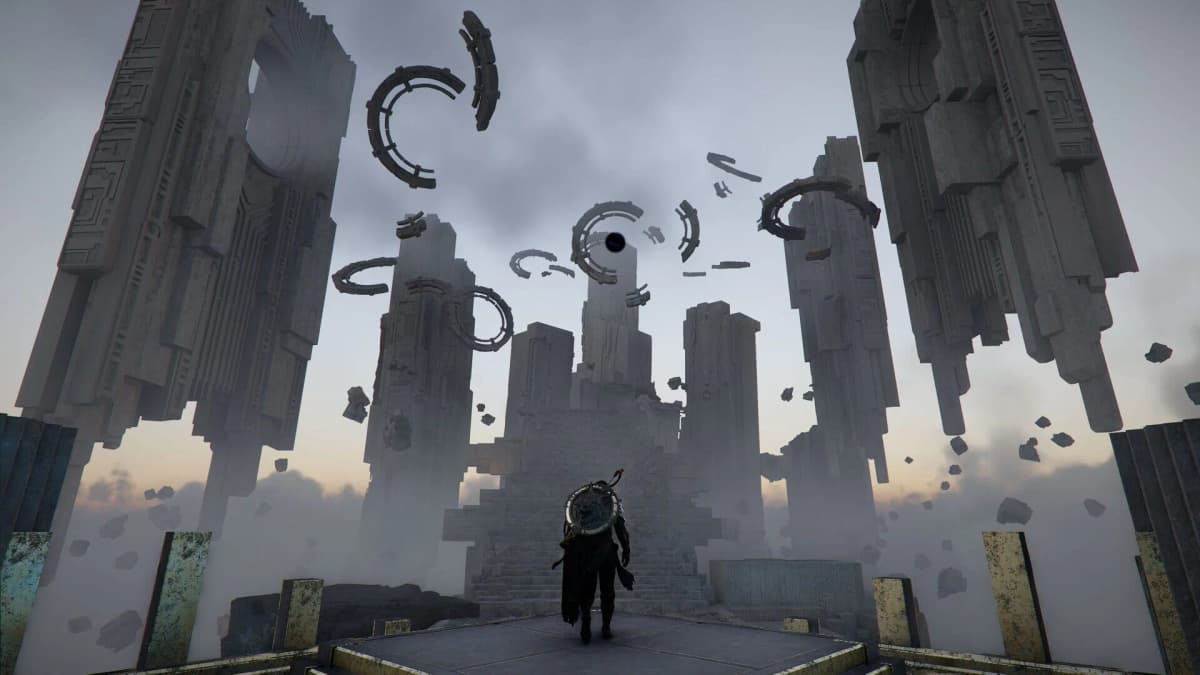
The ugly version of this bug hits when the Enhanced 2.0 download is finished, a main-story cinematic starts, and Spanish has vanished from the Voice Language list. Crimson Desert Version 2.00.00 added Spanish voice-over on August 25, 2026, but Pearl Abyss has documented a configuration issue that can hide Spanish after the update — especially when a voice language was changed before 2.00.00. The clean first fix is to make sure the Spanish language data is installed through your platform, reset Language and Audio to Default or Restaurar, restart the game, and then choose Spanish again.
Important: the Default/Restaurar button resets Crimson Desert’s language configuration. It does not download missing voice files. If the Spanish pack is incomplete, paused, removed, or never selected in your launcher or console content menu, the in-game reset has nothing to detect.
Table of Contents (9)
Confirm You Have the Enhanced 2.0 Voice Content First
Version 2.00.00 introduced five additional voice languages: German, French, Spanish, Japanese, and Brazilian Portuguese. They are delivered as optional platform-level language data rather than living entirely inside the base Crimson Desert installation.
Before changing any in-game setting, run through these checks. This prevents the common loop of resetting the menu repeatedly while the actual Spanish audio download is still waiting in a launcher queue.
- Confirm Crimson Desert is on Version 2.00.00 or later. Spanish voice-over arrived with the Enhanced update.
- Check that the main update and every additional language download have fully completed before launching the game.
- Leave enough free storage for optional voice content. The game does not provide a public fixed size for the Spanish pack, so do not rely on a bare-minimum storage margin.
- Check the platform’s download manager for paused, failed, or pending Crimson Desert content.
- Remove unofficial language modifications before troubleshooting. Modified language files can interfere with the game’s official language list after an update.
Use the Official Default Reset for the Missing Spanish Bug
The documented issue is very specific: players who changed their voice language at least once before Version 2.00.00 can update, download the new language files, and still find that Spanish does not appear among the available voices. That makes the problem look like a failed download even when the pack is present.
- Launch Crimson Desert after the Spanish language data has finished installing.
- Open Menu → Others → Options → Settings → Language and Audio. Some versions label the route as Menu → Others → Settings → Language and Audio.
- Select Default. In Spanish-language menus, this can appear as Restaurar or Restore.
- Exit the Language and Audio screen, then open it again and inspect the Voice Language list.
- If Spanish is still missing, fully close Crimson Desert, restart the game client, and return to the same menu.
- Select Spanish under Voice Language once it appears.
If your interface is already in Spanish, the same path reads Menú → Otros → Ajustes → Idiomas y audio, the reset button is Restaurar, and the voice entry to pick is español (España). On PC, fully close and relaunch the game after the reset or after new language files finish downloading so the language configuration is reloaded.
Keep the two settings separate in your head: Game Language controls the interface and text, while Voice Language controls spoken dialogue. You can keep menus and subtitles in English, French, or another supported language while using Spanish voices, provided the Spanish audio content is installed.
The language support listing distinguishes Spanish (Spain) and Spanish (Latin America) as full-audio languages. Version 2.00.00’s patch notes label the newly added track more broadly as “Spanish,” so the platform menu may use a shorter Spanish label rather than spelling out the regional version. Select the installed Spanish voice item, then verify it with spoken dialogue in a cutscene rather than judging from the UI language alone.
Install or Recheck the Spanish Pack on Your Platform
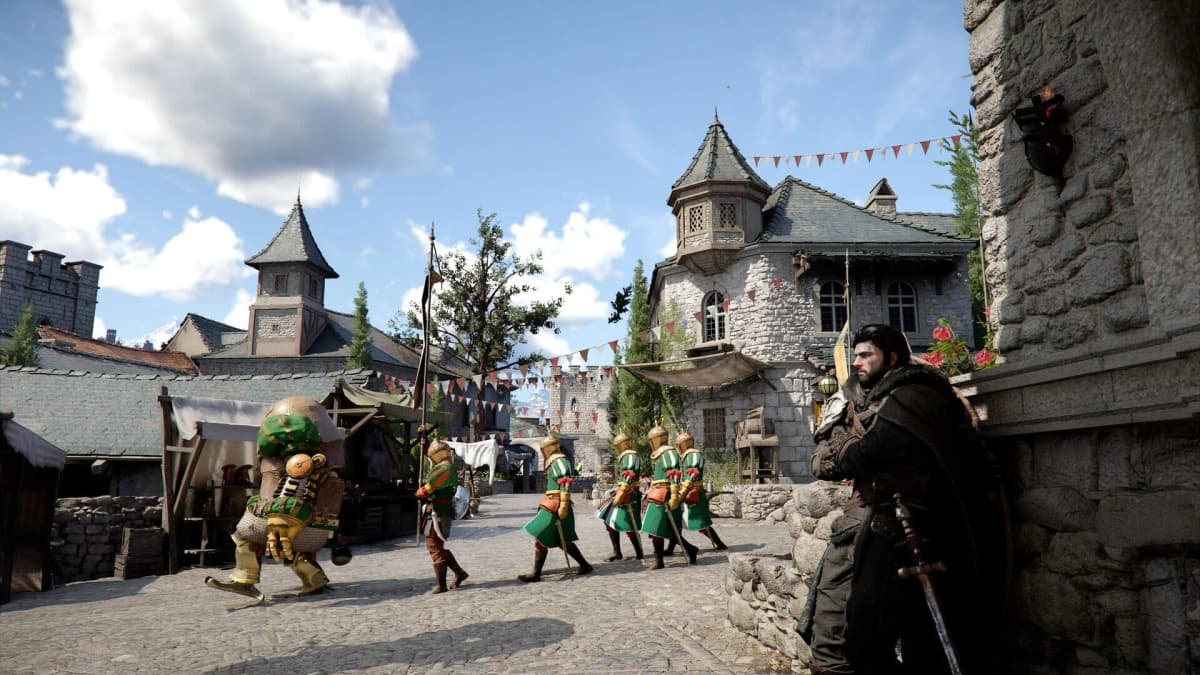
Each platform exposes Crimson Desert’s optional language content in a different place. Install Spanish there first, then perform the Default/Restaurar reset inside the game.
| Platform | Where Spanish voice data is managed | Best verification step | Key warning |
|---|---|---|---|
| Steam | Library → right-click Crimson Desert → Properties → Language | Set Language to Spanish and confirm the related download finishes in Steam Downloads. | Steam can delay the language download until the client or game is restarted. |
| PlayStation 5 | Highlight Crimson Desert → Options button → Manage Game Content | Confirm Spanish is installed, then check Downloads/Uploads before launching. | Installing a pack does not automatically switch the in-game Voice Language setting. |
| Xbox Series X|S | Crimson Desert game page → Manage → Manage game and add-ons | Confirm the Spanish voice pack is still selected and present after the queue completes. | Adding or deleting other language packs can remove Spanish or all installed language packs. |
| Epic Games Store | Library → three dots beside Crimson Desert → Options | Tick Spanish and wait for Epic to complete the additional download. | Spanish must still be chosen in Crimson Desert’s Language and Audio menu afterward. |
Steam: Trigger the Missing Download Before Resetting the Game
On Steam, open your Library, right-click Crimson Desert, choose Properties, and use the Language tab to select Spanish. Steam should queue the related voice-language content. Check the Downloads page and wait until that content has completed before you open Crimson Desert.
If selecting Spanish does not create a download immediately, exit Steam completely and relaunch it. A client restart can make Steam recognize the pending language update. Toggling Steam offline and back online, or changing the Steam download region, has also prompted stalled language downloads for some players, but those are launcher workarounds rather than the official Crimson Desert fix.
Once Steam shows the language content as complete, enter Crimson Desert, use Language and Audio → Default/Restaurar, restart the game, and select Spanish under Voice Language. If other new voices are visible but Spanish alone is missing, that is the exact situation the Default reset targets.
PlayStation 5: Check Manage Game Content, Not Only the Game Menu
Highlight Crimson Desert on the PS5 home screen, press the Options button, and open Manage Game Content. The optional language packs appear there separately from the main game install. Install the Spanish item, then watch Downloads/Uploads until the additional content has finished.
Only then launch Crimson Desert and set Spanish under Menu → Others → Settings → Language and Audio. If Spanish is absent from the voice list despite appearing installed on PS5, use Default/Restaurar, close the game fully, and check the menu again after relaunching.
A PS5 install can look complete at the dashboard while an optional pack remains unavailable in the game. The deciding check is whether the Spanish content is marked installed in Manage Game Content and whether it is visible after the in-game reset and restart.
Xbox Series X|S: Install Spanish Once and Avoid Language-Pack Churn
Open Crimson Desert’s Xbox game page, choose Manage, and go to Manage game and add-ons. Find the voice-language features, select the Spanish pack, and verify the download has completed in the Xbox queue. Afterward, launch the game, reset Language and Audio to Default/Restaurar, restart Crimson Desert, and select Spanish as the voice language.
Xbox needs extra care here. Enhanced 2.0 has two known language-pack problems on the platform: downloading a second language can remove a language that was already installed, and deleting one language pack while several are installed can make every language pack disappear. Recheck the Manage game and add-ons screen after installing Spanish. If it is gone, reinstall Spanish and avoid cycling through extra language downloads or deletions while troubleshooting.
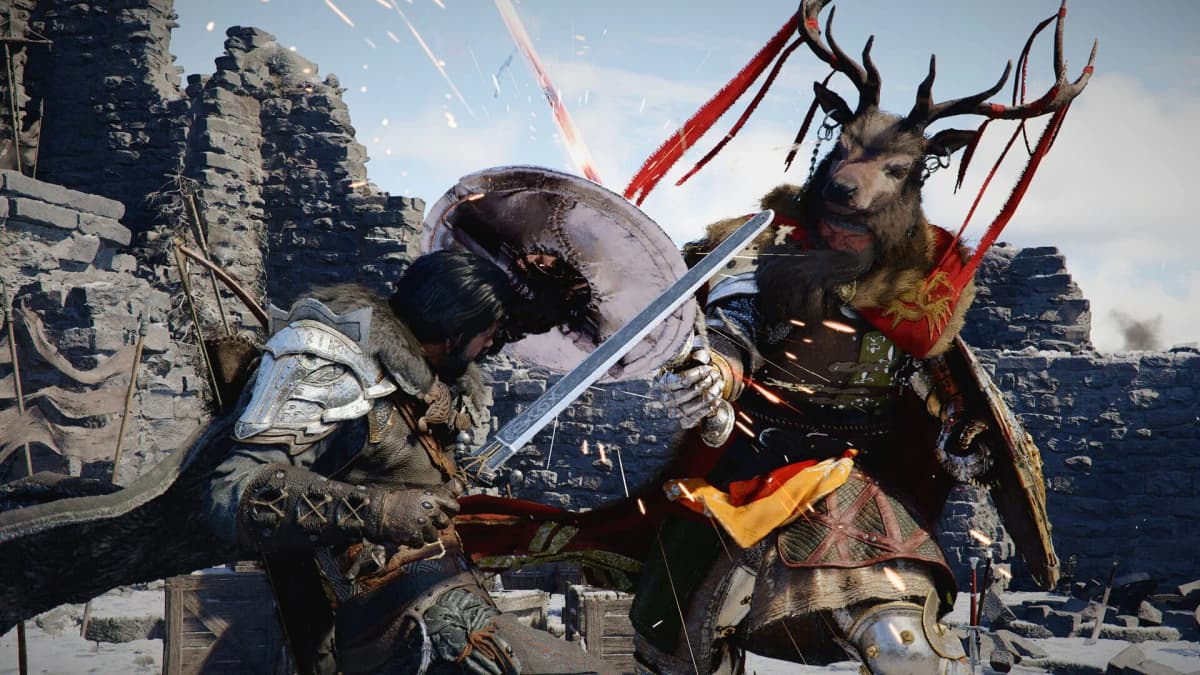
That makes Xbox the platform where “try every language until one works” is the worst possible troubleshooting approach. Install Spanish, confirm it remains present, run the in-game reset, and leave the other packs alone.
Epic Games Store: Select Spanish in the Launcher Options
In the Epic Games Launcher, find Crimson Desert in your Library, click the three dots beside the game, and choose Options. Select or tick Spanish in the language list. Epic then downloads the additional voice data, so wait for the launcher to finish before starting the game.
After the download is complete, enter Crimson Desert and choose Spanish under Voice Language. If the option remains missing, use Default/Restaurar in Language and Audio, restart the game client, and check the list again. The launcher selection supplies the files; the in-game selection activates the spoken track.
When Spanish Still Does Not Appear
Work through the failure point that matches what you see instead of repeating every reset blindly.
- Spanish is absent and no platform download exists: return to Steam Properties, PS5 Manage Game Content, Xbox Manage game and add-ons, or Epic Options. The voice files have not been installed yet.
- The platform says Spanish is installed, but the game list is missing it: run Default/Restaurar inside Language and Audio, leave the menu, reopen it, then restart Crimson Desert completely.
- Spanish appears but the dialogue remains in another language: check Voice Language, not only Game Language. The settings are independent.
- Spanish disappeared on Xbox after downloading another voice: inspect Manage game and add-ons, reinstall Spanish if it was removed, and stop adding or deleting language packs for the moment.
- Steam never starts the Spanish download: restart Steam before changing game files. A full client relaunch is the least disruptive way to refresh the pending language update.
- The setting resets after updates or custom changes: remove unofficial language files, confirm the official pack is intact, then repeat the Default reset.
What Enhanced 2.0 Changed — and Why Older Language Advice Fails
Crimson Desert Enhanced is a free Version 2.0 update, not a separate paid edition. Alongside new story cutscenes, additional narrative moments, eight new Kliff skills, and the Abyss Link resource connected to Abyss Artifacts, the update expanded full voice support beyond the existing English track.
Older pre-Enhanced language information can therefore send players in the wrong direction by treating Spanish as subtitle-only support. In Version 2.00.00, Spanish is intended to be a full spoken-language option. A missing entry in the Voice Language menu is an update-and-configuration problem to troubleshoot, not an expected limitation of the game’s Spanish localization.
FinalBoss // Gear
Level up your setup
01Top-rated gaming headsetson Amazon→02High-refresh gaming monitorson Amazon→03Gaming chairson Amazon→04Discounted game keyson Kinguin→
Affiliate links · As an Amazon Associate, FinalBoss earns from qualifying purchases.
Want to Level Up Your Gaming?
Get access to exclusive strategies, hidden tips, and pro-level insights that we don't share publicly.
Ultimate Guide Strategy Guide + Weekly Pro Tips