
Lose your Dead as Disco progress to a bad patch or a Windows reinstall and there is no in-game undo. The fix is a habit, not a feature: know exactly where the PC saves live and copy them before anything risky.
Table of Contents (10)
The short version
- Save path (Windows):
%USERPROFILE%\AppData\Local\Pagoda\Saved\SaveGames - Slots: three, chosen from the main menu when you start a New Game.
- Best backup: copy the whole
Pagodafolder, dated, before each patch. - Steam Cloud: supported — convenient, but not a substitute for a manual backup.
- Imported music: stored in a separate folder, so back that up too.
Where the Dead as Disco save file is on PC
On Windows the saves live at:
%USERPROFILE%\AppData\Local\Pagoda\Saved\SaveGames
The key part is the Pagoda folder. That is just the local data folder name the game writes to — it is not the publisher. Dead as Disco is developed and published by Brain Jar Games, Inc. Inside Pagoda you will find Saved, and inside that the SaveGames folder with the actual files. Windows hides AppData by default, which is why players assume their saves are gone when they are simply buried in a hidden directory.
The fastest way to open it
Press Win + R, paste %USERPROFILE%\AppData\Local\Pagoda\Saved\SaveGames, then hit Enter. That jumps straight to the folder without turning hidden items on first.
Prefer File Explorer? Enable hidden items, then browse Users → your Windows username → AppData → Local → Pagoda → Saved → SaveGames.
What to back up instead of grabbing one file
Copy the full Pagoda folder, not just the contents of SaveGames. That gives you a cleaner restore point and avoids the case where you bring back a slot but lose related data the game expects to find nearby.
- Minimum backup:
Pagoda\Saved\SaveGames - Safer backup: the entire
Pagodafolder - Best habit: dated copies like
Pagoda-backup-2026-05-11
One thing the folder copy does not fully cover is custom music. Imported tracks (MP3/OGG) and their BPM and beat-offset sync metadata are stored in a separate folder — Pagoda\Saved\MusicFiles (also referred to as ImportedSongs) — not alongside the .sav slot data in SaveGames. So if you use custom songs, back up that folder too, and keep your original audio files somewhere safe regardless.

An easy mistake is confusing the Steam install folder with the save folder. Steam → Library → Dead as Disco → right-click → Manage → Browse Local Files reaches the game directory, but your Windows saves are in the AppData\Local\Pagoda path above. Back up only the install directory and you miss the files that actually hold your progress.
How Dead as Disco save slots work
Dead as Disco has exactly three save slots. You pick between them from the main menu when you start a New Game, and each slot keeps its own progress — handy for one clean run, one experimental run, and one slot reserved for testing playlists.
Because there are three slots, SaveGames can hold multiple .sav files. You can back those up individually for a smaller, targeted restore, but that is where players create avoidable mix-ups: restoring one slot while leaving stale data from another, or overwriting the wrong save after a patch. For most people, the full-folder copy is the safer, faster method.
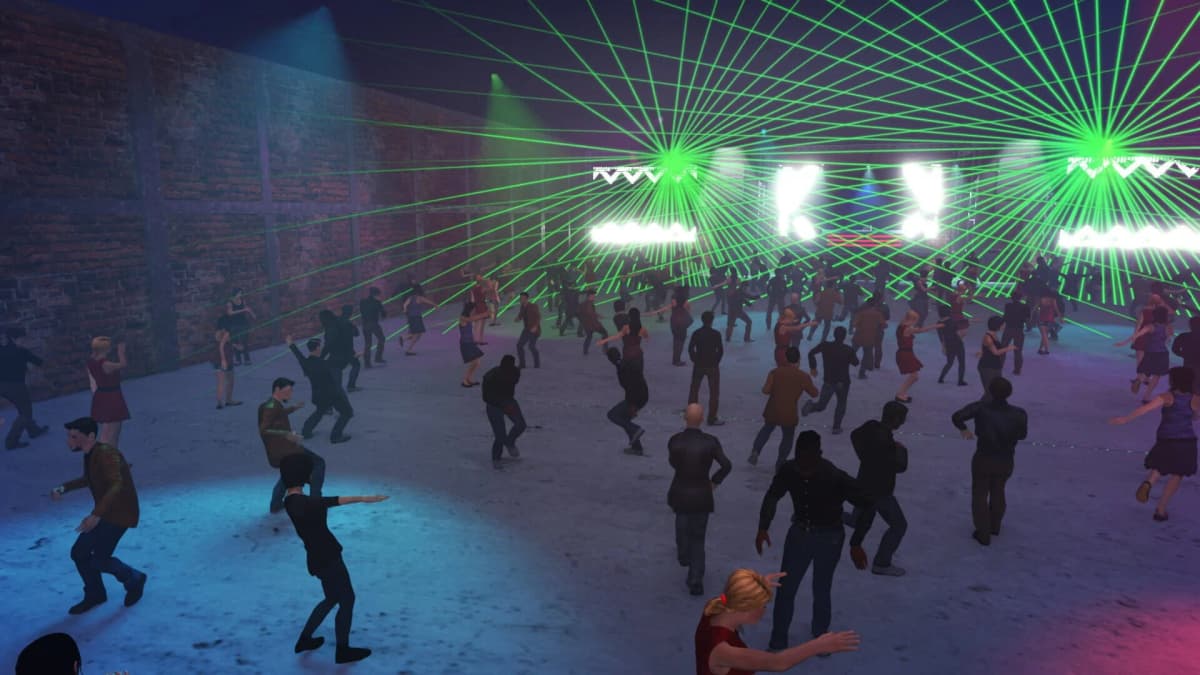
If you rotate between slots, label backups by purpose as well as date. “Main,” “practice,” and “custom-music” beats a pile of unnamed copies made on different days.
Steam Cloud, Steam Deck, and console notes
Dead as Disco supports Steam Cloud. It is great for moving between machines, but do not treat it as your only safety net: it can just as happily sync a bad state if a file gets corrupted. Manual backups are still the better insurance before a big patch, a Windows reinstall, or any file shuffling.
Restoring a manual backup on Steam? Close the game first. Copy your backup back into place while the game is fully closed, then launch and confirm the correct slot appears before you do anything else. If Steam Cloud immediately replaces your restored files with newer-but-broken ones, you can lose the recovery you were trying to make.
The game is Steam Deck Verified, so playability on Deck is solid. The saves still live inside the game’s Proton prefix rather than a normal Windows Explorer path, so manual save management on Deck means working through Linux folders and the Proton prefix instead of AppData directly. If you are setting a Deck up from scratch, our Dead as Disco controls and controller setup guide covers getting input working before you worry about saves.

Console players are in a different spot: there is no user-browsable Pagoda save folder the way there is on PC. If you play a console version later, use the platform’s own save backup and cloud features. File-level copy-and-restore is mostly a PC workflow.
How to restore a backup safely
- Close Dead as Disco completely.
- Open
%USERPROFILE%\AppData\Local\Pagoda. - Copy the current folder somewhere else first, even if you think it is broken.
- Paste your backup
Pagodafolder back intoAppData\Local. - Launch and check your save slots before creating new progress.
That “back up the broken backup” step matters. Dead as Disco is still in early access, and a file that looks dead after one patch can become useful again for troubleshooting or partial recovery. Overwriting it too early removes that fallback.
Common mistakes
- Slot is missing: you restored to the Steam install folder, not
AppData\Local\Pagoda. - Save will not load after an update: keep both the old and current folders — early access patches can break compatibility.
- Custom music gone: it lives in
Pagoda\Saved\MusicFiles, notSaveGames, so it needs its own backup. - Crash on load with custom packs: test again with custom content disabled before assuming the save is corrupted.
- Trusting Steam Cloud alone: always make one manual backup before patching and another after confirming the new build loads.
The practical takeaway
The path you want on Windows is %USERPROFILE%\AppData\Local\Pagoda\Saved\SaveGames, but the folder you should usually copy is the full Pagoda directory. That covers all three slots, plays better with Steam Cloud recovery, and — if you add a copy of Pagoda\Saved\MusicFiles — keeps your custom playlists intact through any early access patch that touches save compatibility.
FinalBoss // Gear
Level up your setup
01Graphics cardson Amazon→02Gaming laptopson Amazon→03High-refresh gaming monitorson Amazon→04Discounted game keyson Kinguin→Affiliate links · As an Amazon Associate, FinalBoss earns from qualifying purchases.
Want to Level Up Your Gaming?
Get access to exclusive strategies, hidden tips, and pro-level insights that we don't share publicly.
Ultimate Guide Strategy Guide + Weekly Pro Tips