
Table of Contents (11)
Why I Turned Off Depth of Field in Death Stranding 2
After a couple dozen hours in Death Stranding 2: On the Beach on PC, the combination of ultrawide support, ray-traced reflections, and DLSS looked incredible on my 34″ monitor – right up until the depth of field (DOF) kicked in. Every time a cutscene leaned on heavy foreground blur or the camera pulled focus, my eyes fought the image instead of enjoying it. The big annoyance: there’s no native “DOF Off” toggle in the graphics menu, only post-processing presets that never fully remove the effect.
I wasted a good evening trying to fix it with sharpening filters and in-game tweaks before I finally landed on modder Lyall’s DeathStranding2Fix. The latest version adds a DisableDOF option that actually nukes depth of field across gameplay, cutscenes, menus – the works. It’s not plug-and-play, but once I walked through the install and edited the config properly, DOF was gone and the game felt dramatically clearer.
This guide walks you through exactly how I set up DeathStranding2Fix on the Steam version of Death Stranding 2, including safe backups, the correct folder to drop files into, the config line you need to change, and what to do if the game stops launching.
Before You Start: What You Need and What You Risk
Modding Death Stranding 2 on PC is fairly safe because it’s a single-player game with no anti-cheat, but you’re still injecting third-party code into the executable folder. That comes with some responsibility.
- Platform: This guide assumes the Steam version on Windows.
- Privileges: A Windows account that can write to your Steam library (no weird admin locks).
- Tools: A basic unzip program (Windows built-in is fine) and a text editor like Notepad.
- Time required: About 10-15 minutes for a careful first-time setup.
Important safety tips I learned the hard way:
- Back up the game folder first. At minimum, copy the executable folder to a safe place so you can revert quickly if something breaks.
- Expect breakage after patches. Major updates to Death Stranding 2 can temporarily break DeathStranding2Fix until Lyall updates it. Be ready to remove the mod and wait.
- Only download from the official project page. The mod is hosted on Codeberg; avoid random re-uploads.
With that out of the way, here’s the exact process I use now whenever I refresh the mod after a patch.
Step 1: Locate Your Death Stranding 2 Install Folder
The mod files must sit in the same folder as the game executable. On Steam, the easiest way to find this is through the client instead of guessing file paths.
- Open
Steam. - Go to
Libraryand right-click Death Stranding 2: On the Beach. - Click
Manage → Browse local files.
This opens the game’s root folder in File Explorer. You should see the main executable (something like DeathStranding2.exe), plus folders like bin, data, or similar, depending on the build.
Now make your backup:
- Go one level up so you see the Death Stranding 2 folder itself.
- Right-click the folder →
Copy. - Paste it somewhere safe (another drive or a backup folder), or zip it.
This saved me once when I messed up an earlier version of the patch and the game refused to launch – I just deleted the broken folder and dropped my backup back in place.

Step 2: Download the DeathStranding2Fix Mod
Lyall maintains DeathStranding2Fix on Codeberg. The archive usually contains:
DeathStranding2Fix.asi(the actual plugin / config host)- A loader or hook file if required (varies by version)
- A readme or instructions file explaining new options like
DisableDOF, FOV tweaks, and ultrawide fixes
What I do:
- Go to the official DeathStranding2Fix project page on Codeberg.
- Download the latest release build (not the source code archive).
- Save the
.zip(or.7z) file somewhere easy to find, like your desktop.
Tip: Before I update the mod, I quickly check the release notes to confirm it’s marked as compatible with my current game version. If I’ve just had a big Steam patch, I sometimes wait a day or two for Lyall to push an updated build.
Step 3: Install DeathStranding2Fix into the Game Folder
With the download ready, you need to drop the mod files into the right place. This part is simple but easy to mess up if you extract into the wrong folder.
- Right-click the downloaded archive →
Extract All…(or use your unzip tool of choice). - Open the extracted folder so you can see files like
DeathStranding2Fix.asi. - In another File Explorer window, open the Death Stranding 2 local files folder you found in Step 1 (the one with the game executable).
- Drag and drop all mod files into the game root – the same level as the main
.exe, not into a subfolder unless the readme specifies otherwise.
If Windows asks whether you want to overwrite older versions of the same files (for an update), choose Replace the files in the destination.
At this point, the mod is physically installed, but DOF is still active. You now need to tell the mod to turn it off.
Step 4: Edit the Config to Set DisableDOF=true
This is where I initially got stuck: simply dropping the files in didn’t change anything because the default config ships with DOF still enabled. You have to flip a specific value inside the config-host file.
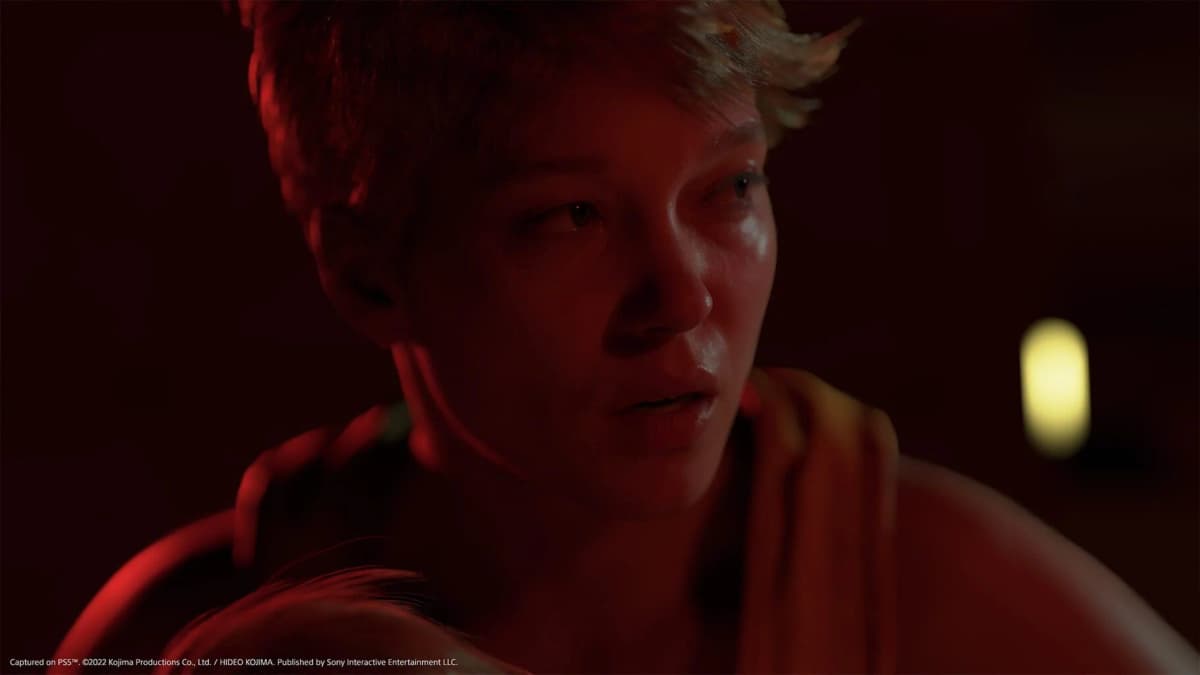
Here’s what I do:
- In the game folder, find
DeathStranding2Fix.asi. - Right-click it →
Open with → Notepad(or your preferred text editor). - If Windows doesn’t offer Notepad, choose
Choose another appand pick Notepad manually.
In the current versions I’ve used, the file is a plain text configuration host despite the .asi extension. Scroll or use Ctrl + F and search for:
DisableDOF
You should see a line similar to:
DisableDOF=false
Change it to:
DisableDOF=true
Then:
- Press
Ctrl + Sto save the file. - Close the editor.
While you’re here, you can also glance at the other options DeathStranding2Fix exposes. On my build, these included:
- FOV adjustment (super helpful if the default feels claustrophobic)
- Ultrawide and pillarbox fixes for cutscenes
- Various HUD and camera tweaks
I recommend changing one setting at a time and testing, so you always know which tweak caused a problem if something feels off.
Step 5: Test In-Game and Confirm DOF Is Actually Gone
With DisableDOF=true saved, it’s time to boot the game and make sure the mod is doing its job.
- Launch Death Stranding 2 from Steam as usual.
- Load a save in an area with lots of depth – e.g., outdoors with distant terrain and something close to the camera.
- Slowly rotate the camera and watch foreground objects that used to blur out.
On my setup, the difference was immediate: previously soft background and foreground elements stayed sharp during traversal and cutscenes. I also ran a quick comparison by toggling my earlier ReShade sharpening on and off – with DOF disabled via the mod, I no longer needed nearly as aggressive sharpening to make things readable.
If DOF still seems active everywhere, either the mod didn’t load or the config isn’t being read correctly. That leads us to troubleshooting.
Troubleshooting: When DeathStranding2Fix Misbehaves
I ran into two main issues while getting this working: the game not launching at all, and the game launching but the DOF clearly still being there.

Issue 1: Game Won’t Launch or Crashes on Boot
- Check file placement: Make sure the mod files sit in the same folder as the game executable, not nested inside another subfolder created by your unzip tool.
- Undo the mod: Temporarily move
DeathStranding2Fix.asi(and any other mod files) out of the game folder to your desktop. Try launching again. If it now works, the mod is indeed the culprit. - Verify game files: In Steam, right-click the game →
Properties → Installed Files → Verify integrity of game files. This restores any damaged core files but usually leaves mod files alone. - Version mismatch: If this started right after a big Steam update, you may need to wait for a matching DeathStranding2Fix version. In the meantime, keep the game vanilla.
Issue 2: Game Launches, But DOF Is Still There
- Re-open the config: Double-check that
DisableDOF=trueis spelled correctly and actually saved. I once forgot to save before closing Notepad. - Encoding problems: If you edited the file in a fancier editor and changed encoding, try opening it in Notepad and re-saving with default settings to avoid weird characters.
- Conflicting tools: If you run ReShade, NVIDIA Freestyle, or other overlays, test with them disabled to ensure nothing is interfering.
- In-game settings: Under
Options → Graphics → Post-processing, try toggling the preset (medium/high) after enabling the mod. In my case, the DOF removal persisted regardless, but it’s worth refreshing the pipeline once.
If none of that helps, I usually revert to a clean backup, confirm vanilla behavior, then reinstall the latest DeathStranding2Fix from scratch in case I used an outdated archive.
Alternatives if You Don’t Want to Use Mods
If you’re uncomfortable injecting a third-party plugin into your game, you can’t fully disable depth of field on PC right now – but you can reduce its impact.
- NVIDIA Freestyle / ReShade sharpening: Crank up image sharpening and a bit of clarity to counteract some of the perceived blur. This doesn’t turn DOF off, but it makes the image less mushy.
- Performance / lower post-processing: Using performance-oriented presets can reduce how aggressive some post-process effects feel, including blur, though DOF is still baked into many scenes.
- Sit farther from the screen: This sounds silly, but with a big ultrawide, backing off a bit made the DOF less eye-straining for me even before I installed the mod.
None of these came close to the clarity boost I got from DeathStranding2Fix’s DisableDOF, but if you’re on a locked-down setup or just don’t want to mod, they’re better than nothing.
FinalBoss // Gear
Level up your setup
01Graphics cardson Amazon→02Gaming laptopson Amazon→03High-refresh gaming monitorson Amazon→04Discounted game keyson Kinguin→Affiliate links · As an Amazon Associate, FinalBoss earns from qualifying purchases.
Want to Level Up Your Gaming?
Get access to exclusive strategies, hidden tips, and pro-level insights that we don't share publicly.
Ultimate Guide Strategy Guide + Weekly Pro Tips