
Table of Contents (23)
DLSS vs FSR vs XeSS: The Upscaling Cheat Codes, Finally Explained
The first time I opened a graphics menu and saw DLSS, FSR, XeSS, “Quality”, “Balanced”, “Performance”, I did what a lot of people do: randomly picked one, hoped my FPS went up, and prayed nothing looked too blurry. It worked… sort of. But it took me a while to really understand what these things were actually doing to my games.
If you’ve ever searched for “dlss vs fsr vs xess – complete upscaling guide for beginners” and bounced off jargon-filled explainers, this is the one that’s written for you. No marketing fluff, no fake benchmark flexing-just how these upscaling “cheat codes” actually work, what you should turn on for your specific GPU, and where the trade‑offs really are.
On my main rig (Ryzen 7, RTX 3070, 1440p 144Hz monitor), DLSS is basically a default toggle at this point. On my secondary PC with a humble RX 6600, FSR 2 is the hero. And on an Intel Arc A770 box I built just to see what Intel was up to, XeSS ended up being way better than I expected. Each of these has a “sweet spot”-the trick is knowing which one fits your hardware and your expectations.
The One‑Minute Version: What Upscaling Actually Does
Modern games are brutal at high resolutions. Rendering every pixel of 4K in real time with nice lighting and ray tracing is like asking your GPU to sprint a marathon in a sauna.
Upscaling is the hack: instead of rendering at full resolution, the game renders at a lower internal resolution (say, 1440p) and then uses clever algorithms—or literal AI models—to reconstruct an image that looks close to 4K. Your GPU does less raw work, you get more FPS, and ideally you don’t notice much loss in quality.
At a high level:
- DLSS (NVIDIA) uses AI running on dedicated Tensor Cores. It’s usually the sharpest and most stable, but it only works on RTX GPUs.
- FSR (AMD) is open and runs on almost anything: AMD, NVIDIA, Intel, even some consoles. Quality can be slightly softer, but compatibility is king.
- XeSS (Intel) is Intel’s AI upscaler. It looks best on Intel Arc cards but also works on many AMD and NVIDIA GPUs.
The moment this clicked for me was when I realized: you’re basically choosing where the extra magic happens. DLSS and XeSS lean into specialized AI hardware. FSR leans into being everywhere, even on old and low‑end cards.
Quick Comparison: DLSS vs FSR vs XeSS at a Glance
Before we dive into the nerdy details, here’s the “specs table” that actually matters for real people, not just for slide decks:
Specifications
If all you care about is “what should I use right now?” the rough rule is: DLSS if you can, FSR if you can’t, XeSS when it’s offered and especially if you’re on Intel Arc. But there’s a bit more nuance, especially once frame generation enters the chat.
How These Upscalers Actually Work (Without the Buzzwords)
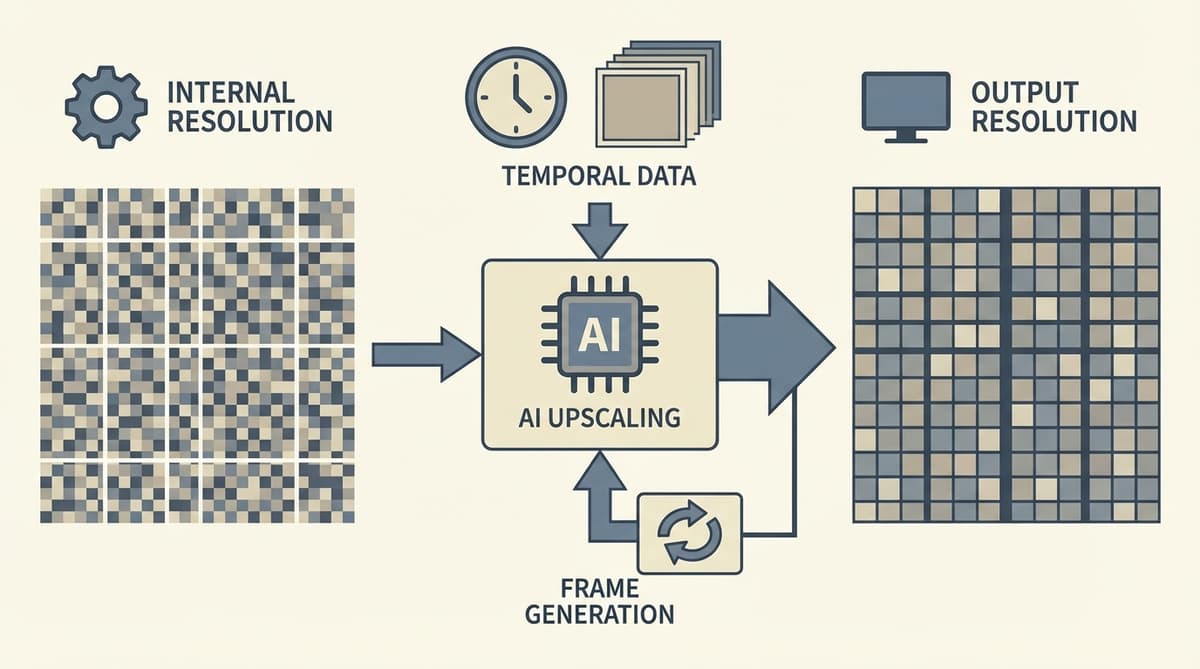
All three modern techniques—DLSS 2+, FSR 2/3, and XeSS—are what’s called temporal upscalers. That just means they don’t look at a single frame in isolation. They combine:
- The low‑resolution frame that was just rendered;
- Motion vectors (the game tells the upscaler how objects are moving);
- Several previous frames (history);
- And sometimes extra info like depth or roughness.
Then they reconstruct a higher‑resolution image that tries to be as close as possible to what the game would look like if you rendered it natively at that resolution. The main differences are:
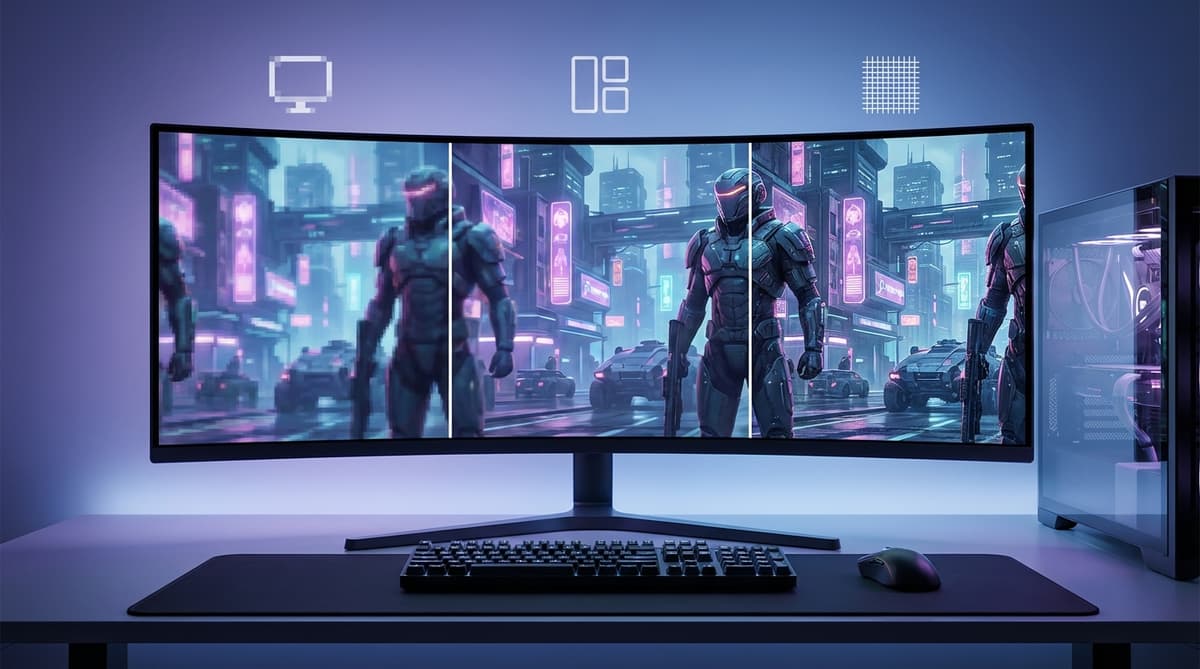
- DLSS and XeSS run a trained neural network (AI model) to do that reconstruction. That’s where NVIDIA’s Tensor Cores and Intel’s XMX units come in.
- FSR 2 / 3 use very sophisticated but non‑AI algorithms running directly on the GPU’s shader cores. No dedicated AI hardware required.
From a player’s perspective, you don’t need to care how many layers the neural net has. What you care about is: does it look clean in motion, is text readable, and does it stop my FPS from tanking? That’s where the modes and each vendor’s implementation matter.
DLSS: NVIDIA’s AI Upscaling and Why It Usually Looks Best
DLSS (Deep Learning Super Sampling) was the one that changed my mind from “upscaling is a dirty word” to “why would I ever not use this?”
Modern DLSS (from DLSS 2 onwards) does a few key things really well:
- AI reconstruction: It uses an AI model trained on super high‑res images of games to guess what a lower‑res frame “should” look like at higher resolution.
- Temporal stability: It’s really good at avoiding flickering and shimmering, especially on fine details like fences, foliage, and power lines.
- Baked‑in anti‑aliasing: DLSS usually replaces the game’s TAA, so you’re getting upscaling and anti‑aliasing in one pass.
There are a couple of important caveats though:
- You must have a NVIDIA RTX card (RTX 20‑series or newer). GTX cards are out of luck; they don’t have Tensor Cores.
- Frame Generation (the thing that can almost double your FPS on RTX 40 cards) is separate from regular DLSS upscaling. The menu often just calls it “DLSS Frame Generation” or “Frame Generation”.
On my RTX 3070 at 1440p, DLSS “Quality” usually feels like a free FPS boost with no real downside. I rarely bother with “Performance” unless I’m pushing ray tracing to stupid levels, because that’s where you start to see that slightly “reconstructed” look in motion.
FSR: AMD’s Open, Runs‑On‑Almost‑Anything Upscaler
FSR (FidelityFX Super Resolution) is AMD’s answer—and it has a very different philosophy.
Where NVIDIA went all‑in on AI hardware, AMD said: what if this worked everywhere? PC, consoles, even older or low‑end GPUs. So:
- FSR 1 is a simple spatial upscaler—good for raw performance, weaker on image quality. It only looks at the current frame.
- FSR 2 is the real competitor to DLSS: temporal upscaling with motion vectors, much better detail and stability.
- FSR 3 builds on FSR 2 and adds a separate frame generation system (AMD Fluid Motion Frames).
The magic of FSR is that you don’t need an AMD GPU to use it. On that RTX 3070 machine, I’ve run FSR 2 in plenty of games that didn’t bother adding DLSS. On the RX 6600 system, FSR 2 and FSR 3 are basically lifelines at 1440p.
The downside? When you really push FSR (e.g., “Performance” or “Ultra Performance” modes), it tends to look softer and show more ghosting than DLSS. At more conservative settings—“Quality” especially—it can be remarkably close while still running on hardware that DLSS simply doesn’t support.
XeSS: Intel’s Underdog That’s Better Than You Think
Intel jumping into discrete GPUs was already weird enough. Intel also shipping its own AI upscaler, XeSS (Xe Super Sampling), sounded like a side quest. Then I actually tried it on an Arc A770, and it went from “cute” to “oh wow, this is legit.”
XeSS works a lot like DLSS conceptually:
- On Intel Arc cards, it uses dedicated XMX cores for AI inference (Intel’s answer to Tensor Cores).
- On many NVIDIA and AMD cards, it falls back to using DP4a instructions (a type of integer math) to run a slightly different model.
Image quality is surprisingly good on Arc, often very competitive with DLSS and FSR 2 when you compare at the same mode. On NVIDIA/AMD, it can be a bit more variable, but in some titles I prefer XeSS to FSR when DLSS isn’t an option.
The catch is game support: there are fewer XeSS titles than DLSS or FSR. So it’s more of a “nice to have when it’s there” unless you’re specifically building an Intel Arc box—where it becomes a core feature.
Modes Decoded: Quality, Balanced, Performance, Ultra Performance
Every one of these upscalers hits you with the same four magic words: Quality, Balanced, Performance, Ultra Performance (exact names vary slightly per game, but that’s the idea).
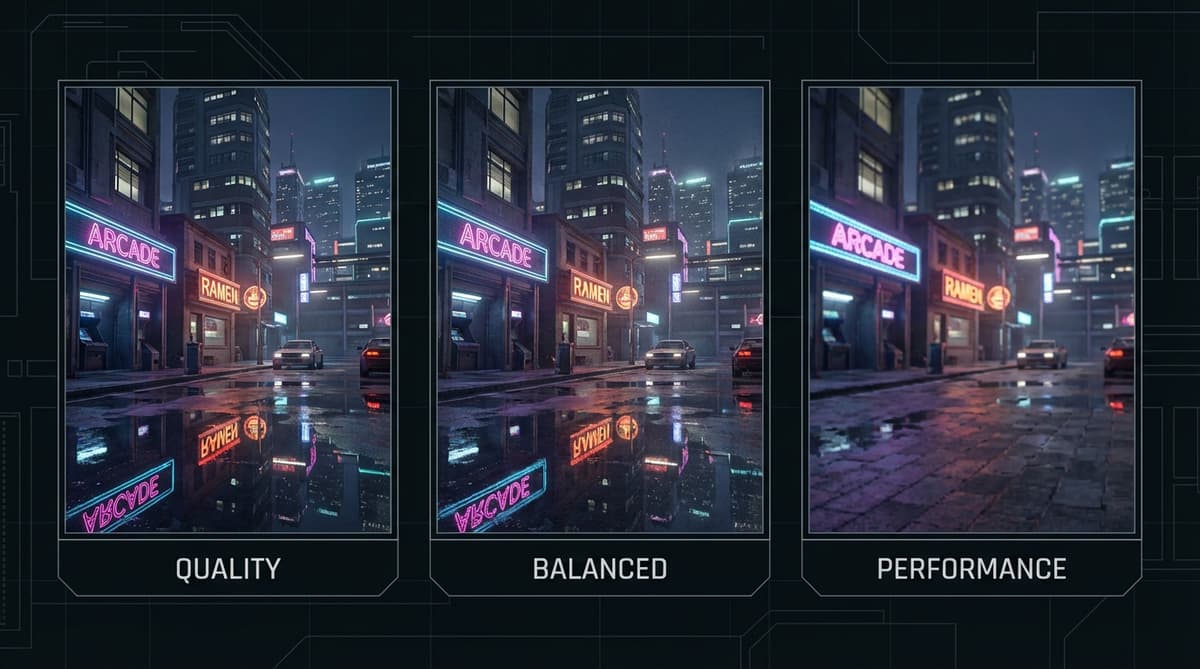
The names are marketing; what they really control is the internal resolution the game is rendered at before upscaling:
- Quality: Highest internal resolution (roughly 66-77% of your target resolution each way). Best visuals, modest FPS boost.
- Balanced: Middle ground. Noticeable FPS bump, very acceptable image quality in most games.
- Performance: Much lower internal resolution (around 50% each way). Big FPS boost, more visible reconstruction artifacts.
- Ultra Performance: Honestly, mostly for 8K or people chasing absurd FPS numbers. Internal resolution is very low; you’ll see it.
For 1080p gaming, I usually avoid Performance and Ultra Performance completely—they just don’t have enough pixels to work with. At 1440p, Quality or Balanced is the sweet spot. At 4K, Balanced and sometimes Performance become much more respectable because the target resolution is so high that small artifacts are harder to notice.
GPU Compatibility in Plain English
Here’s where most guides either drown you in SKU lists or gloss over the important part. You don’t need a spreadsheet; you need to know what category you’re in.
- NVIDIA RTX 20‑series, 30‑series, 40‑series
✅ DLSS (image upscaling) supported
✅ DLAA (DLSS used for anti‑aliasing at native res) in some games
✅ DLSS 3 Frame Generation only on RTX 40‑series
✅ FSR supported whenever the game includes it
✅ XeSS supported in many titles (using DP4a) - NVIDIA GTX 10‑series, 16‑series, older
❌ No DLSS at all (no Tensor Cores)
✅ FSR supported in games that offer it (huge win here)
✅ XeSS sometimes supported via DP4a (depends on the game) - AMD Radeon RX 5000 / 6000 / 7000
❌ No DLSS (NVIDIA only)
✅ FSR 1/2/3 in supported games (FSR is AMD’s baby)
✅ XeSS in some titles (DP4a path) - Intel Arc A‑series
❌ No DLSS
✅ FSR 1/2/3 (game‑dependent)
✅ XeSS with best‑quality XMX path on Arc hardware - Consoles (PS5, Xbox Series X/S)
✅ FSR 1/2 in some titles
❌ No DLSS, no XeSS on current consoles
If you remember nothing else from this section: DLSS needs RTX. FSR runs on almost everything. XeSS is best on Intel Arc, but often works elsewhere if the game dev added it.
How to Actually Turn These On (And What to Watch For)
The menus vary a bit per game, but the process is always roughly the same. Let’s walk through it as if you’re doing this in something like Cyberpunk 2077, Starfield, or any modern AAA title that supports multiple upscalers.
- Step 1: Update your GPU drivers
Use GeForce Experience (or NVIDIA App), AMD Adrenalin, or Intel Arc Control. Upscaling bugs and performance issues are often fixed in driver updates. - Step 2: Go to Settings → Graphics / Video
Look for a section called Upscaling, Resolution Scaling, or something like “DLSS / FSR / XeSS”. - Step 3: Choose your upscaling technology
On RTX: pick DLSS if it’s offered. On AMD: pick FSR 2/3. On Arc: pick XeSS if available, otherwise FSR. If your GPU is older (like GTX 1060), FSR will often be your only option. - Step 4: Choose the mode
Start with Quality. If you’re still not hitting your FPS target (say 60 or 120), drop to Balanced. Only go to Performance or worse if you’re desperate. - Step 5: Check sharpness sliders
Many games give you a “sharpness” or “detail” slider when using upscaling. Don’t crank this to 100%; it can make the image look crunchy. Somewhere between 20-60% is usually a good range.
I always do a quick A/B test: look at static fine details (wires, distant buildings, foliage) and then pan the camera slowly to see if anything shimmers or ghosts. If Quality looks clean but Balanced starts to break down, I stick to Quality and tweak other settings (shadows, volumetrics) instead.
Frame Generation: The FPS Multiplier with Strings Attached
Frame generation is where things get spicy. This isn’t upscaling; this is your GPU literally making up entirely new frames and inserting them between the real ones.
Right now, two big players do this:
- DLSS 3 Frame Generation (RTX 40‑series only)
Uses optical flow and motion vectors to generate extra frames. Huge FPS boosts in many games, especially with ray tracing. - FSR 3 Frame Generation (AMD Fluid Motion Frames)
Works on recent AMD cards, and in many titles also runs on NVIDIA and Intel. Again, lots of extra FPS when it behaves.
Here’s the catch: those generated frames are guesses. Good guesses, but guesses. And while your FPS counter may say 120, your input is still tied to the “real” frames, so input latency doesn’t go down as much as the FPS number suggests.
My practical rules for frame generation:
- Use it in single‑player cinematic games where responsiveness isn’t life or death (big RPGs, story shooters, etc.).
- Avoid it in competitive shooters and high‑precision games. Latency and occasional visual artifacts are not worth it in ranked matches.
- Try to have a decent native FPS baseline first (say, 50-60 FPS) and use frame gen to smooth things out, not to save a completely unplayable setup.
When I first enabled DLSS Frame Generation on an RTX 4070 build in a heavy ray‑traced game, the jump from “barely holding 60” to “feels buttery at 120+” was honestly wild. But the moment I hopped into a twitchy multiplayer shooter, I turned it off again. The extra smoothness isn’t worth the subtle disconnect between mouse movement and on‑screen response.
Real‑World Recommendations by GPU Type
This is the part I wish someone had just told me plainly years ago. Here’s what I’d do, based on the hardware you actually have.
If You Have an NVIDIA RTX 20 / 30 / 40‑Series GPU
- Default choice: Use DLSS whenever possible.
- Mode: Start with Quality (1440p or 4K) or Balanced (4K, ray‑traced games).
- Frame Generation: If you’re on RTX 40‑series, try DLSS Frame Generation in single‑player games; leave it off for competitive titles.
- When DLSS isn’t available: Prefer FSR 2/3 or XeSS if the game offers them. They still work great on RTX cards.
If You Have a NVIDIA GTX 10 / 16‑Series or Older
- No DLSS for you. Don’t waste time looking for it—it simply won’t show up.
- Use FSR 2/3 whenever a game supports it. This is your main performance lever.
- For lighter games, you can also lean on dynamic resolution scaling if FSR isn’t available.
- If XeSS shows up in a game, give it a shot—it may look better than FSR in that specific title.
If You Have an AMD Radeon RX 5000 / 6000 / 7000
- Default choice: FSR 2 (or FSR 3 if offered).
- Mode: Quality or Balanced at 1440p/4K; avoid Performance at 1080p unless you really need the frames.
- Frame Generation: If a game supports FSR 3 frame gen and your baseline FPS is okay, try it for smoother single‑player experiences.
- If a game offers XeSS as well, it’s worth A/B testing; sometimes XeSS can edge out FSR 2 in certain engines.
If You Have an Intel Arc GPU
- Default choice: XeSS on Arc—this is where it shines.
- Use Quality or Balanced first; these modes tend to look very solid on Arc hardware.
- When XeSS isn’t present, FSR 2/3 is your backup.
If You’re on a Handheld or Low‑Power Device (Steam Deck, Minisforum, etc.)
- FSR 2 is your best friend. Many Deck‑verified games use it under the hood.
- Run games at a lower native resolution (like 720p or 800p) and let FSR help clean things up.
- Prioritize stability and battery life over razor‑sharp image quality; Quality or Balanced are usually ideal.
Common Visual Issues (And How to Fix Them)
Upscaling isn’t magic; when it goes wrong, it goes wrong in very specific and often fixable ways. Here’s what I routinely tinker with.
- “Everything looks a bit blurry”
Try moving from Performance → Balanced → Quality. Also reduce any extra sharpening filters the game or driver is adding on top; oversharpened blur is the worst of both worlds. - “UI and text look off”
Some games don’t render UI at native resolution when using upscaling. Look for a “Render UI at Native Resolution” toggle in settings. If it’s not there and text really bothers you, you may want to use a milder mode or turn up resolution instead. - “Ghosting or trails behind moving objects”
This is a temporal artifact. Sometimes switching from FSR to DLSS/XeSS (or vice versa) helps. Otherwise, try a higher mode (Quality instead of Performance) or disable motion blur, which makes it more noticeable. - “Shimmering on distant details when I move the camera”
Again, often a scaling factor issue. Higher internal resolution (Quality) and turning off post‑process sharpening can help. In rare cases, the game’s implementation is just bad and nothing but a patch will fix it.
It took me a while to learn this, but upscalers are like camera lenses: they’re incredible tools, but every once in a while you get a bad one (or a bad implementation) and no amount of tweaking will make it perfect. Don’t be afraid to fall back to native rendering plus simpler options like TAA if a specific game’s upscaler just looks wrong to you.
Pros and Cons: DLSS vs FSR vs XeSS
✓ PROS
+
Strong image quality on Intel Arc with XMX; works on many NVIDIA/AMD GPUs via DP4a; often competitive with DLSS/FSR in well‑implemented games.
✗ CONS
–
Smaller game support list; best results require Arc hardware; behavior can vary more across non‑Intel GPUs.
Once you get comfortable with DLSS, FSR, and XeSS, graphics menus stop being a confusing wall of options and start feeling like a toolkit. And honestly, that’s when PC gaming gets fun again—not because you’re chasing every last FPS, but because you finally understand what all those switches actually do.
FinalBoss // Gear
Level up your setup
01Mobile gaming controllerson Amazon→02Top-rated gaming headsetson Amazon→038BitDo controllerson Amazon→Affiliate links · As an Amazon Associate, FinalBoss earns from qualifying purchases.