
Table of Contents (17)
Why Controls Matter in Fatal Frame II: Crimson Butterfly Remake
Fatal Frame II: Crimson Butterfly Remake lives or dies on how comfortable you are with its inputs. Between Search mode, Camera mode, holding Mayu’s hand, and lining up Fatal Frame shots under pressure, a single confused input gets you grabbed, knocked down, or worse. The fix is not better reflexes — it is knowing exactly what every button does in each mode, then rebinding the awkward ones before you reach Minakami Village.
The short version
- Two control layers: Search mode (explore) and Camera mode (raise the Camera Obscura). Many buttons swap roles between them.
- The key flip: on a controller,
RT (R2)is Interact/Hold Hands in Search mode and Shoot in Camera mode. - Three controller presets: Modern, Classic, and Custom. Everything is rebindable from
Options → Control Settings(sometimes listed under Basic Settings). - Fatal Time is earned, not a button: it triggers from landing a Fatal Frame on a wraith during a Shutter Chance — not from the Special Shot button.
- PC players: if your pad drops out after alt-tabbing, toggle Steam Input or plug in via USB.
Search vs. Camera Mode: The Core Concept
The game runs on two main control layers:
- Search Mode: normal exploration – walking, running, interacting, holding hands, using items, and opening the map.
- Camera Mode: when you raise the Camera Obscura – aiming, zoom/focus, switching film, shooting, evading, and locking onto ghosts.
Many buttons change function between these two modes. On a controller, the right trigger is Interact/Hold Hands in Search mode but becomes Shoot when the camera is up. Don’t memorize by button name alone — memorize by mode + button, and combat stops feeling chaotic.
Default Controller Layouts (Modern & Classic)
The game offers three controller presets: Modern, Classic, and a fully Custom option. The basic functions are the same across PlayStation and Xbox; only the button labels differ. Below the Xbox label comes first, with the equivalent PlayStation button in parentheses.
Search Mode – Controller Defaults
In Search mode you’re moving around, managing items, and interacting with the environment.
- Open Map:
D-Pad Up - Switch Item (Left):
D-Pad Left - Use Item:
D-Pad Down - Switch Item (Right):
D-Pad Right - Run:
Left Stick Click (L3) - Interact / Hold Hands:
RT (R2) - Turn Around (Quick 180°):
RB (R1) - Camera Obscura (enter Camera Mode):
LT (L2) - Reset Camera Behind You:
Right Stick Click (R3)
The quick 180° turn on RB/R1 is a lifesaver. Don’t make the early mistake of trying to slowly rotate when something screams behind you — snap around instead.
Camera Mode – Controller Defaults
When you hold LT/L2 in Search mode, you raise the Camera Obscura and switch to Camera mode. Now most inputs are dedicated to combat and fine aiming.
- Flashlight Toggle:
LB (L1) - Focus: Long Range:
D-Pad Up(requires the relevant Camera Obscura upgrade before it works) - Switch Film (Left):
D-Pad Left - Focus: Close Range:
D-Pad Down(also requires a Camera Obscura upgrade) - Switch Film (Right):
D-Pad Right - Quick Aim:
Left Stick Click (L3)– snaps the camera for fast framing - Shoot / Take Photo:
RT (R2) - Special Shot:
RB (R1)– fires the equipped special filter/lens at the cost of willpower - Camera Obscura (lower camera / exit Camera Mode):
LT (L2) - Switch Filter: Shift:
X (Square)– cycles camera filters - Evade:
A (Cross) - Crouch:
B (Circle) - Target Lock:
Right Stick Click (R3)– useful for tracking mobile ghosts
The habit that matters most: keep your right trigger mentally tied to “shoot when the camera is up” and “interact/hold hands when it is down.” Forget which mode you’re in and you’ll take useless photos of doors instead of opening them.
Fatal Time: how it actually triggers
Fatal Time is one of the remake’s most misunderstood mechanics, so be clear on it: Special Shot does not activate Fatal Time. Special Shot just fires your equipped filter at the cost of willpower. Fatal Time is earned in the moment — you trigger it by landing a Fatal Frame shot, capturing a wraith mid-attack when the filament flashes red, and specifically a Fatal Frame taken during a Shutter Chance. Pull that off and you get a short window of consecutive, film-free shots. Treat it as a reward for nerve, not a button you can mash on demand.
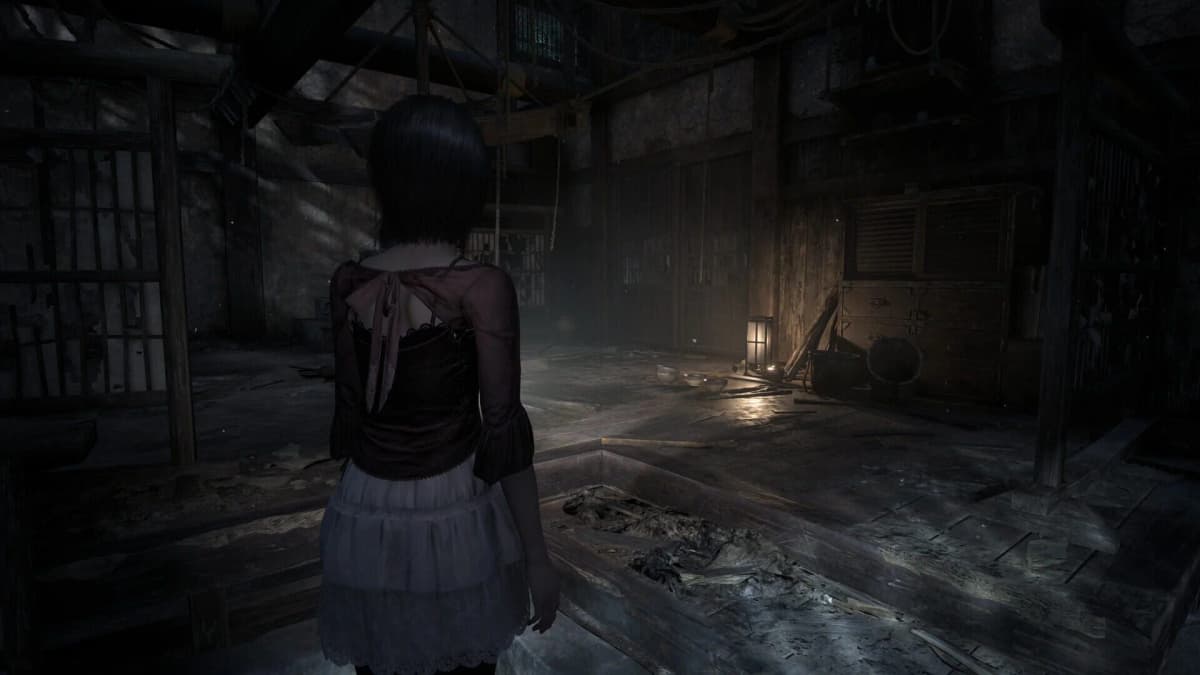
As for Modern vs. Classic, both presets share the layout above. The differences mainly affect how movement and the camera feel — Modern leans toward over-the-shoulder controls, Classic stays closer to the PS2 original. If you grew up on tankier survival horror, Classic may feel more natural; otherwise start with Modern and tweak from there. For a sense of how the remake handles overall, see how the remake actually plays.
Keyboard & Mouse Controls (PC)
On PC, movement and camera behave like a typical third-person game, with some keys dedicated to Camera Obscura actions.
- Move:
W / A / S / D - Camera Look: Mouse movement
- Camera Controls (alternative):
I / K / J / Lcan also move the camera if you prefer keyboard-only aiming - Crouch / Stand:
Left Ctrl - Hold Hands:
Space - Open Menu:
Tab - Reset Camera: middle mouse (mouse-wheel click)
- Shoot (Attack):
Left Mouse Button - Switch Zoom / Focus:
Left Shift(cycles focus modes when aiming)
The full list is visible in-game under Options → Control Settings, and every key can be rebound from there.
🎮 Get This Game at the Best Price
Compare prices instantly and save up to 80% on Steam keys with Kinguin — trusted by 15+ million gamers worldwide.
*Affiliate link — supports our independent coverage at no extra cost to you
Keyboard/mouse aiming makes lining up zero-range Fatal Frame shots easier, but evasive maneuvers feel better on a controller. If you struggle with right-stick precision, start on mouse, then switch to a controller once you’re comfortable with enemy behavior.
How to Rebind Controls (Controller & Keyboard/Mouse)
Everything in this remake is rebindable, and a slightly nonstandard layout makes a real difference in comfort. Here’s the process.
Step-by-Step: Custom Controller Layout
- From the main menu or in-game, press
Start / Options. - Go to
Options. - Open
Control Settings(sometimes underBasic Settingsdepending on platform). - Find the Controller Preset section.
- Switch from Modern or Classic to Custom.
- With Custom selected, you’ll see a list of actions (Run, Evade, Shoot, etc.). Highlight any action you want to change.
- Press the confirm button (usually
A / Cross) to start rebinding. - Press the new button you want to assign — the binding updates immediately.
- Repeat for both Search Mode and Camera Mode actions; they’re listed separately, so don’t forget the Camera actions.
- Back out and the game saves your layout.
A layout tweak worth stealing: move Evade off the bottom face button and onto something you naturally reach for (RB/R1 works well), and push Special Shot elsewhere. Your survival rate against fast spirits climbs once your thumb isn’t fumbling between shoot and dodge.
Step-by-Step: Rebinding Keyboard & Mouse
- Open
Optionsfrom the main menu or in-game pause. - Go to
Control Settings. - Switch to the Keyboard/Mouse tab if there’s a platform-specific split.
- Highlight the action you want to change — e.g., Shoot, Crouch, or Hold Hands.
- Press the confirm key (usually
Enter) to start rebinding. - Press the keyboard key or mouse button you want to assign.
- The game shows the new binding; repeat for any others.
Put Hold Hands and Crouch on keys you won’t hit by accident. Bound too close to movement, they’ll have you crouching in doorways when you only meant to reposition — not great when something is bearing down on you.
On-Screen Button Prompts & Control Type
If you swap controllers — say, a DualSense on PC played through Steam — match the game’s on-screen prompts to your actual pad so the icons stop fighting you.
- Open
Options. - Go to
Control SettingsorBasic Settings. - Find the control-type / button-prompt setting and switch it to the icon set that matches your hardware. The remake also exposes a keyboard-and-mouse option here.
It sounds minor, but seeing the wrong button icons when you’re already nervous in a boss fight is a great way to fumble a Fatal Frame window.
Comfort & Sensitivity Tips
Once your buttons are where you want them, fine-tune how the camera feels. For a game built around precise framing, this directly affects difficulty.
- Lower camera sensitivity a notch if you feel jittery lining up faces — you’ll hit Fatal Frames more consistently.
- Reduce aim acceleration if the camera overshoots when you push the stick; smoother, more linear motion helps in tight spaces.
- Practice Camera Mode in a safe area: raise/lower the camera, swap film, and drill Quick Aim on static objects until it’s automatic.
- Revisit your layout after upgrades: the Long Range and Close Range focus actions on the D-Pad only matter once you’ve upgraded the Camera Obscura, so check your bindings again after big milestones.
If the camera ever feels like it’s fighting you, adjust — don’t muscle through. Ten minutes in the options menu saves hours of frustration later.
Troubleshooting Controller Issues (PC)
If your controller stops responding properly after tabbing out, run this checklist:
- Toggle Steam Input: in your Steam Library, right-click the game →
Properties → Controller, then try switching between Use default settings, Enable Steam Input, and Disable Steam Input. - Use a wired connection: plug your controller in via USB to rule out wireless stutters and random disconnects.
- Close other input software: older DS4 wrappers or macro tools can confuse the game. Shut them down and relaunch.
- Restart Steam and the game: basic but effective when the pad only half-works.
If it persists, confirm the game is detecting your device in Options → Control Settings. The in-game control screen is the authoritative source: if your presses don’t highlight there, the problem is at the OS/Steam level, not in Fatal Frame II itself.
Common mistakes
- Treating Special Shot as Fatal Time. Special Shot just fires a willpower filter. Fatal Time only comes from a Fatal Frame landed during a Shutter Chance.
- Forgetting the quick 180° turn.
RB/R1snaps you around; slow manual rotation gets you grabbed. - Rebinding only Search actions. Camera Mode bindings are a separate list — change both or your Custom layout will feel half-finished.
- Leaving Evade on the bottom face button. It clashes with shooting; move it somewhere your thumb already lives.
- Expecting D-Pad focus to work early. Long Range and Close Range focus need a Camera Obscura upgrade first.
Practical takeaway
Learn the Search-vs-Camera split, accept that Fatal Time is earned through Shutter Chance kills rather than a button, switch to the Custom preset and move Evade off the face button, match your on-screen prompts to your pad, and drop camera sensitivity a notch. Do that before Minakami Village and the tension shifts from “I’m fighting the controls” to “I’m dancing on a knife’s edge with these ghosts.” When you’re ready to push deeper, the Fatal Frame II Remake walkthrough hub covers the full route, and if you’re still deciding whether to start, here’s how approachable this remake is.
FinalBoss // Gear
Level up your setup
01Top-rated gaming headsetson Amazon→02High-refresh gaming monitorson Amazon→03Gaming chairson Amazon→04Discounted game keyson Kinguin→Affiliate links · As an Amazon Associate, FinalBoss earns from qualifying purchases.
Want to Level Up Your Gaming?
Get access to exclusive strategies, hidden tips, and pro-level insights that we don't share publicly.
Ultimate Guide Strategy Guide + Weekly Pro Tips