
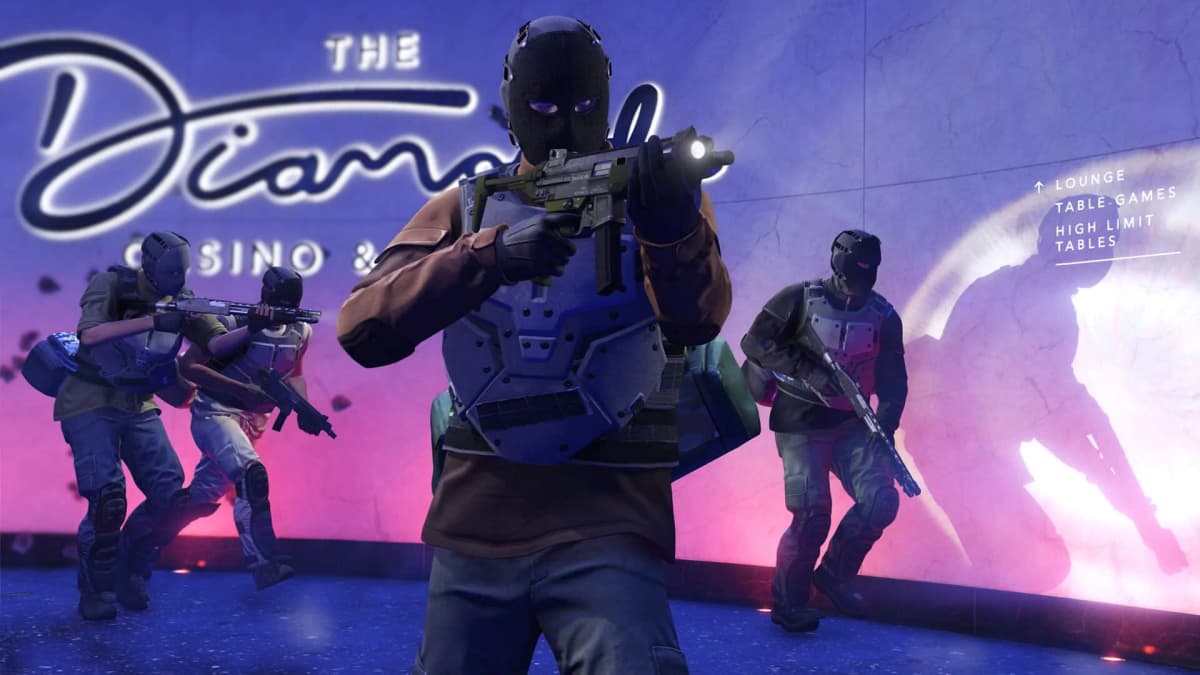
Grand Theft Auto Online: How to Claim GTA$2 Million Brand Wars Bonus
Claiming the GTA$2,000,000 Brand Wars maximum starts on Twitch, not in a GTA Online job lobby. Link your Twitch account to your Rockstar Games account, confirm that the Brand Wars campaign is visible in Twitch Drops, watch an eligible Drops-enabled creator, and claim every completed reward from your Twitch inventory. No Shark Card purchase is part of this process.
The Brand Wars Twitch Drops window runs from August 13 through August 26, 2026. Treat the deadline as firm: watch time earned after the campaign closes cannot be added to the event rewards. The payout also arrives through several rewards rather than as a single GTA$2,000,000 transaction, so claiming each completed Drop matters as much as filling the watch-time tracker.
Set up the account link before watching
Do the account setup before opening a stream. Twitch can only pass completed Brand Wars rewards to the Rockstar Games account that is already connected when the campaign is tracking your watch time.
- Sign in to your Rockstar Games account.
- Open
Manage Account → Connections. - Select Twitch and complete the authorization prompt.
- Return to the Connections page and confirm that Twitch is shown as linked.
A linked Twitch account is the key condition for players on PC, PlayStation 5, Xbox Series X|S, PlayStation 4, and Xbox One. Check that you are using the Rockstar account tied to the GTA Online profile where you want the money credited. Linking a spare or old Rockstar account can send the reward to the wrong place or leave it unavailable on your active character.
Confirm the Brand Wars Drops campaign is active
Before committing hours to a broadcast, open Twitch and go to Profile Menu → Drops and Rewards → All Campaigns. Search for Grand Theft Auto Online, then open the Brand Wars campaign entry.
The campaign page should show the Brand Wars rewards and indicate that your Twitch and Rockstar Games accounts are connected. This check catches the two problems that waste the most time: an unfinished account link and watching outside the active campaign window.

Keep this page available while earning rewards. It is the reliable place to see whether Twitch is recording progress and whether a completed milestone is waiting to be claimed.
Watch an eligible Drops-enabled GTA Online stream
Choose a live GTA Online creator who is participating in Brand Wars and has Drops Enabled displayed on Twitch. The eligible broadcasts are tied to the Team Sprunk versus Team eCola event. A general GTA stream without the Drops label does not count toward the campaign tracker.
Stay with one confirmed eligible broadcast until Twitch records the next threshold. Moving between unrelated GTA channels makes it harder to verify where progress stopped, while a single eligible stream gives you one clear tracker to follow.
Brand Wars watch-time milestones
The campaign’s named milestones include themed apparel and several GTA$ rewards. Check the Twitch campaign card as you progress, then claim each item immediately instead of leaving multiple completed rewards in the inventory.
| Eligible watch time | Reward | What to do next |
|---|---|---|
| 2 hours | Brand Wars themed apparel | Open Drops and Rewards and claim it once available. |
| 4 hours | GTA$250,000 | Claim the cash Drop before continuing to the next threshold. |
| 6 hours | Another GTA$250,000 | Confirm that Twitch marks the reward as claimed. |
| 10 hours | GTA$500,000 | Claim it, then allow Rockstar time to credit the connected account. |
The listed cash milestones above total GTA$1,000,000. The GTA$2,000,000 figure is the Brand Wars campaign maximum across its full reward offering, rather than a single 10-hour Twitch payment. Keep following the active campaign listing and complete every additional reward requirement displayed there; stopping once the 10-hour tracker ends can leave part of the advertised maximum unclaimed.
FinalBoss // Gear
Level up your setup
01Top-rated gaming headsetson Amazon→02High-refresh gaming monitorson Amazon→03Gaming chairson Amazon→04Discounted game keyson Kinguin→
Affiliate links · As an Amazon Associate, FinalBoss earns from qualifying purchases.
Want to Level Up Your Gaming?
Get access to exclusive strategies, hidden tips, and pro-level insights that we don't share publicly.
Ultimate Guide Strategy Guide + Weekly Pro Tips
Claim every Twitch Drop as soon as it unlocks
Completing the watch time only makes a reward available. Open Drops and Rewards, find the completed Brand Wars item, and select Claim. Repeat this for apparel and every GTA$ reward as each one becomes available.
This manual claim is the handoff point between Twitch and Rockstar. A full progress bar with an unclaimed reward is incomplete from a payout perspective, so do not assume the money is already heading to Maze Bank simply because the stream timer reached its target.
Wait for the GTA$ payout to reach GTA Online
After Twitch records a claim, Rockstar credits the connected account through its reward delivery process. The money does not have to appear at the exact moment the Twitch timer finishes. Check your GTA Online balance and Maze Bank after the Twitch reward is marked claimed.
If the cash is delayed, leave the account link in place. Repeatedly unlinking and reconnecting Twitch can create more confusion while the reward is processing. First confirm that the Twitch item says Claimed, then confirm that the Rockstar account shown under Connections is the account you use for GTA Online.
Fix the common Brand Wars claim failures
- The watch-time bar does not move: Return to the Twitch campaign page and confirm that the broadcast is marked Drops Enabled and belongs to the Grand Theft Auto Online Brand Wars campaign.
- You watched before linking accounts: Complete the Rockstar-to-Twitch connection first, then verify that the campaign page recognizes both accounts before earning further time.
- A reward is complete but GTA$ has not arrived: Open Twitch Drops and make sure the item was manually claimed. Then check that the correct Rockstar account remains linked and allow the delivery process to finish.
- You expected GTA$2,000,000 after one milestone: The maximum is spread across Brand Wars rewards. The known 4-, 6-, and 10-hour cash milestones should be treated as separate claims.
- You are checking a login promotion instead: The separate GTA$1,000,000 login bonus and the GTA+ member bonus use different eligibility rules and deadlines. They do not replace the Brand Wars Twitch Drops requirements.
- You started after August 26, 2026: The Brand Wars Drops window has ended, so new watch time cannot earn the campaign rewards.
Use this claim order to keep the payout on track
- Link Twitch through
Manage Account → Connectionson your Rockstar Games account. - Open Twitch
Drops and Rewardsand verify that Brand Wars is visible and active. - Watch a participating Grand Theft Auto Online stream with Drops Enabled.
- Check the campaign tracker at each watch-time milestone.
- Claim every available Drop from Twitch immediately.
- Check GTA Online after each claimed cash reward has had time to process.
The low-error route is simple: verify the link first, verify the campaign second, then count only time spent on a confirmed Drops-enabled Brand Wars stream. Claim every completed Twitch reward before the August 26 deadline, and treat the GTA$2,000,000 figure as the campaign ceiling that requires completing all active qualifying rewards.