
Table of Contents (7)
Ultra Has a Performance Cost That the Campaign Barely Shows
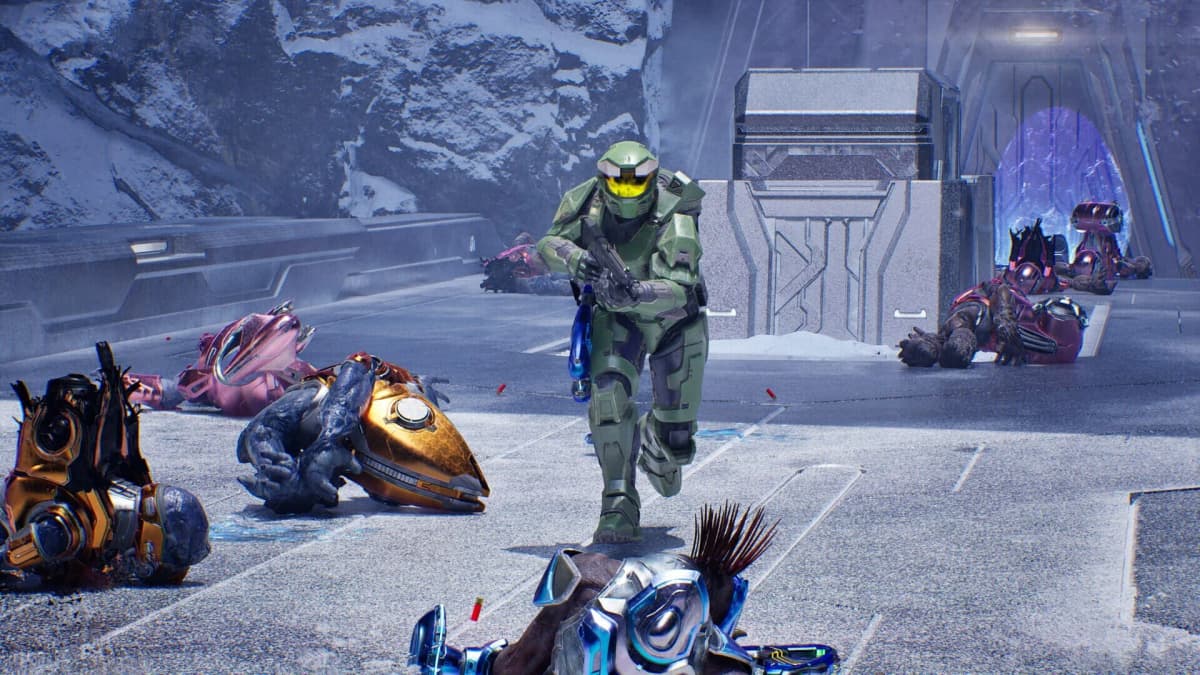
A roughly 20% performance penalty needs a visible return. In Halo: Campaign Evolved, Ultra settings often fail that test. Halo Studios’ Unreal Engine 5 remake gives Halo Combat Evolved a much denser presentation, but the gap between Low and Ultra is subtle through most active campaign scenes while the frame-rate gap is far easier to detect.
That changes the sensible settings target. A stable frame rate, controlled frametimes, and a clear image matter more during combat than additional global-illumination bounce or denser vegetation at the edge of the screen. Strafing Elites are easier to track, pistol and precision-rifle corrections land more cleanly, and movement reads better when the game is not repeatedly dipping below its target.
The practical answer for PC players is straightforward: begin on Low, disable motion blur, then raise only the settings that create an obvious improvement on the display being used. Ultra is a screenshot preset until a system can run it without compromising frame-time consistency.
Halo: Campaign Evolved Settings Reality Check
Why Low Can Feel Better Than Ultra
Graphics settings affect more than average FPS. They affect the rhythm of every input. A higher frame rate reduces the time between controller or mouse input and the next rendered frame, while lower frame-time variance prevents the small hitches that disrupt tracking. That is relevant in a Halo campaign built around fast target acquisition, shield management, and repeated micro-corrections.
The difference is most obvious during motion. Low retains the broad scene composition, lighting direction, enemy readability, and the rebuilt Halo atmosphere. Ultra spends more GPU time on smaller scene details. Those details can hold up under a paused comparison, but they compete poorly against cleaner motion and steadier control response during an encounter.
For a 60 fps target, a drop into the 50s is not a trivial benchmark detail. It changes pacing. Frame delivery becomes less even, motion becomes less stable, and aiming corrections feel less direct. The RTX 4070 Super result at 1440p illustrates the point clearly: Low can maintain approximately 60 fps without upscaling, while Ultra can slip below the same line.

Motion Blur Should Be Disabled First
Motion blur is the most disruptive visual setting in the current configuration. It softens the image during the exact moments when a player needs to read enemy movement and make small aiming adjustments. The effect is particularly distracting when turning quickly or tracking targets across a bright, detailed background.
Disable motion blur in the Video settings before changing resolution or quality presets. Higher frame rates can reduce how intrusive the effect appears, but removing it produces the cleaner result. This is a comfort and readability setting, not a minor visual preference.
The Best Stable PC Settings Recipe
- Graphics preset: Start at Low. The campaign retains most of its visual identity while avoiding Ultra’s disproportionate performance hit.
- Motion blur: Off. It interferes with target tracking and makes the image less stable during combat.
- Resolution: Use native resolution where the GPU can sustain the intended frame-rate target. At 1440p, an RTX 4070 Super can hold approximately 60 fps on Low without upscaling.
- Upscaling: Use DLSS, FSR, or TSR when native rendering cannot hold the desired target. Upscaling is a tool for stabilizing performance, not a reason to push every visual option to Ultra.
- Quality increases: Raise settings individually only after the baseline is stable. Keep an increase if its visual improvement remains visible during normal movement and combat.
This sequence avoids the usual PC-settings trap: setting everything to maximum, seeing occasional frame-rate drops, then using aggressive upscaling to compensate. Low at native resolution can produce a cleaner and more consistent image than Ultra paired with a heavily compromised reconstruction mode.
Handheld Play Requires a Different Compromise
The Asus ROG Xbox Ally X does not have enough headroom for a native-like rendering approach. Native modes sit around 20-22 fps, which is below a comfortable floor for a campaign where tracking and rapid turning are routine. TSR, FSR, and DLSS provide the necessary escape route, with Very Low graphics, 720p, and FSR Medium targeting around 30 fps.

That configuration improves playability, but it exacts a clear image-quality cost. Texture detail, vegetation, and reconstructed image quality take a visible hit. The result is functional rather than attractive, and it is a poor showcase for Halo Studios’ Unreal Engine work.
Handheld players should treat 30 fps with upscaling as the practical target rather than attempting to preserve native-like image quality at 20-22 fps. The performance gain matters, but the visual compromise remains substantial enough that lower-end handheld play is the least convincing way to experience the remake.
Who Should Use Each Profile
Use Low at native resolution for a stable 60 fps target, clearer combat readability, and the best balance between the remake’s upgraded visual design and responsive play. This is the default recommendation for a mid-to-upper-range PC such as an RTX 4070 Super at 1440p.
Use Ultra only when the system can maintain the required frame-rate target without recurring drops. It is most appropriate for players with substantial GPU headroom, high-resolution displays, and a preference for inspecting fine environmental detail over maximizing response consistency.
Use Very Low with FSR Medium on Ally X when handheld access is the priority. It is the workable route toward roughly 30 fps, although the visual downgrade is severe enough that it should be considered a portability compromise rather than an ideal presentation.
FinalBoss // Gear
Level up your setup
01Best-selling Xbox Series X|S gameson Amazon→02Xbox controllerson Amazon→03Top-rated gaming headsetson Amazon→04Discounted game keyson Kinguin→
Affiliate links · As an Amazon Associate, FinalBoss earns from qualifying purchases.