
If KB5002907 appears in Windows Update history and Word or Excel now shows “Unlicensed Product,” start with Office’s built-in activation screen. If the apps have disappeared entirely, reinstall the exact Office 2016 or Office 2019 edition you purchased. Microsoft suspended distribution of the optional update while it investigates the fault.
Table of Contents (7)
Check whether KB5002907 affected this PC
KB5002907 was an optional update intended for Microsoft 365 Apps installations that had gone more than 90 days without receiving updates. Its repair process also affected some perpetual-license Office 2016 and Office 2019 installations on Windows 10 and Windows 11.
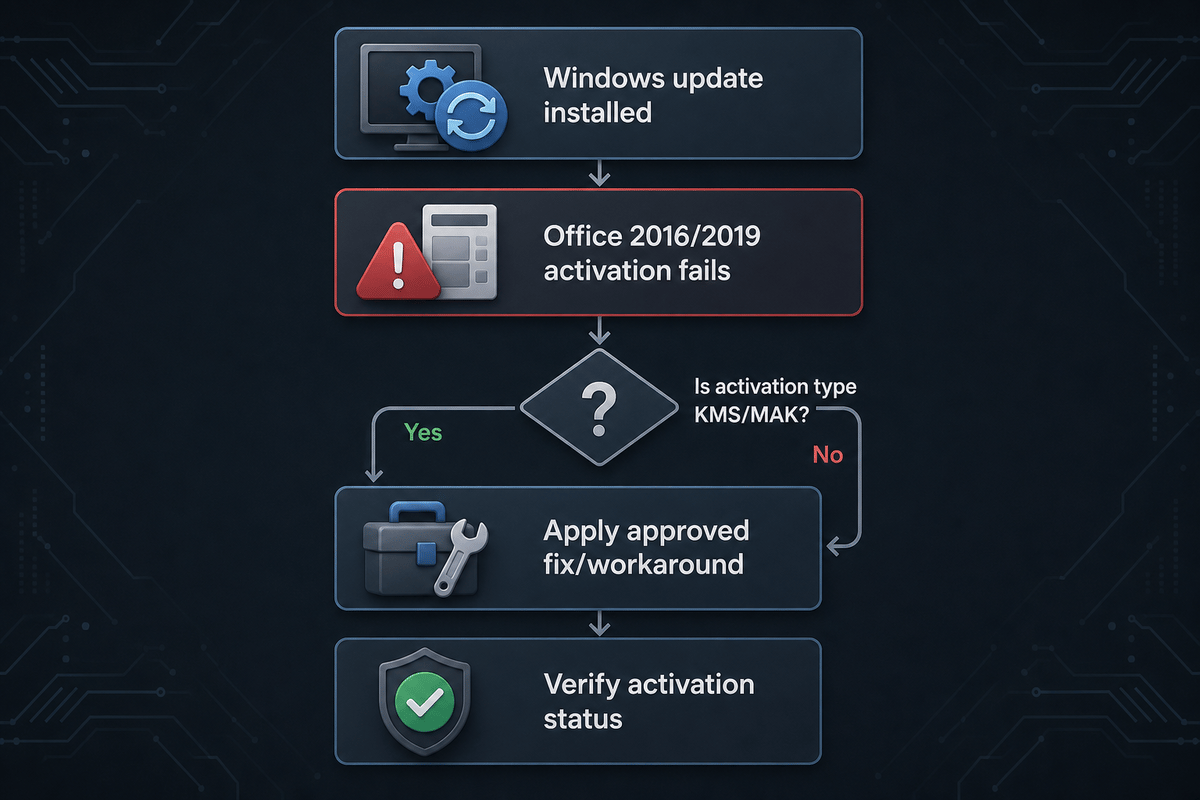
Open Settings > Windows Update > Update history > Quality updates and look for KB5002907. Then open Word or Excel and go to File > Account. The useful distinction is simple: Office is either still installed but listed as Unlicensed Product, or the applications are missing.
If Office is installed but says “Unlicensed Product”
- Open Word or Excel and select Activate or Reactivate.
- Sign in with the Microsoft account used to buy or redeem the Office license.
- For a retail, boxed, Professional Plus, or similar key-based copy, go to File > Account > Change Product Key and enter the original key.
- Return to File > Account and confirm that Product Information changes to Product Activated.
Do not confuse the prompt with a permanently lost license. The update disrupted activation status; it did not turn a valid purchase into an invalid one. Re-entering the original key or signing into the account tied to that key restores activation on affected installations.
If Word, Excel, or the rest of Office has disappeared
The recovery path is a reinstall of the same edition. Sign in to the Microsoft account used for the purchase or redemption, locate the Office 2016 or Office 2019 license, download its matching installer, install it, then activate Office when prompted.
A normal Office reinstall does not delete documents saved in Documents, OneDrive, SharePoint, or another folder you selected. Still, save any open files first and make a copy of critical local documents before changing Windows updates or reinstalling software.
What to avoid during recovery
- Do not install KB5002907 manually from third-party download sites while Microsoft has paused it.
- Do not use KMS activators, “license repair” downloads, registry cleaners, or unofficial Office installers. Those tools create a second problem: altered licensing files, malware exposure, or both.
- Do not delete Office licensing folders or registry entries to force a fresh activation prompt.
- Do not remove unrelated Windows security updates in a blind rollback attempt.
- Do not repeatedly uninstall individual Office components. Reinstall the purchased edition only if Office itself is gone.
Should you uninstall KB5002907?
Microsoft’s recovery guidance centers on reactivating Office or reinstalling the purchased copy. It does not require every affected machine to uninstall KB5002907. If Office remains unusable after the normal activation or reinstall path, an administrator can check Settings > Windows Update > Update history > Uninstall updates for a rollback option.
Back up documents, note the Office edition, preserve the product key, and record the Microsoft account before attempting that step. Uninstall availability varies by Windows configuration, and removing the update does not replace the activation or reinstall process.
Recovery paths at a glance
- Office opens but is unlicensed: Reactivate through Word or Excel, sign in to the license-linked Microsoft account, or enter the original product key.
- Office apps are missing: Reinstall the same purchased Office 2016 or Office 2019 edition, then activate it.
- Microsoft 365 Apps are affected: Select Reactivate and sign in; if needed, sign out of all Office apps, restart one app, then sign in again.
Support dates make this problem more awkward
Office 2016 and Office 2019 reached end of support on 14 October 2025. Office 2021 support ends on 13 October 2026, while Office 2024 is scheduled to receive support through October 2029. That does not stop a valid 2016 or 2019 license from being reactivated, but it does mean these editions no longer receive security fixes.
FinalBoss // Gear
Level up your setup
01Top-rated gaming headsetson Amazon→02High-refresh gaming monitorson Amazon→03Gaming chairson Amazon→04Discounted game keyson Kinguin→Affiliate links · As an Amazon Associate, FinalBoss earns from qualifying purchases.
Want to Level Up Your Gaming?
Get access to exclusive strategies, hidden tips, and pro-level insights that we don't share publicly.
Ultimate Tech Strategy Guide + Weekly Pro Tips