
Table of Contents (14)
Marvel Rivals Season 7 Twitch Drops – Fast Explanation
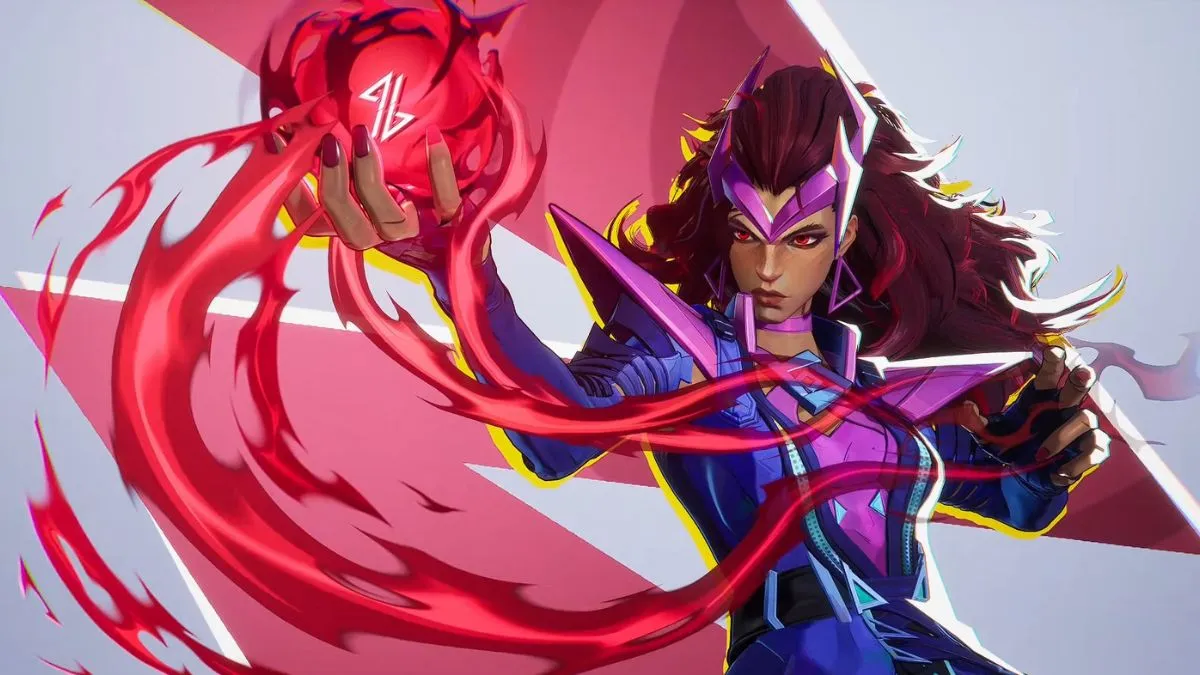
Season 7’s Twitch Drops for Marvel Rivals are live from March 20 to April 17, 2026. If your Marvel Rivals and Twitch accounts are linked and you watch Drops Enabled Marvel Rivals streams, you can unlock four Scarlet Witch cosmetics, including the premium Will of Galacta costume, just by keeping a stream open.
Here’s the full reward track and watch-time requirements:
- 30 minutes: Scarlet Witch Spray
- 60 minutes total: Scarlet Witch Nameplate
- 120 minutes total: Scarlet Witch Emote
- 240 minutes total: Will of Galacta Scarlet Witch costume
The important catch: your time only counts if your accounts are properly linked, you’re watching a Marvel Rivals stream with Drops Enabled, and you manually claim each Drop on Twitch, then redeem it from your in-game inbox within 30 days.
One-Page Checklist (Do These in Order)
- Link accounts: On the official Marvel Rivals site, link your game account to your Twitch account, and approve the connection on both sides.
- Verify the link: Double-check on Twitch under
Settings → Connectionsthat Marvel Rivals is listed and connected. - Pick a valid stream: On Twitch, open a stream in the Marvel Rivals category that clearly shows the Drops Enabled tag.
- Watch one channel at a time: Keep that stream open; only one channel will accumulate progress. Multi-streaming doesn’t speed it up.
- Claim each Drop on Twitch: When the progress bar hits 100%, click Claim in your Twitch Drops & Rewards page.
- Redeem in-game: Log into Marvel Rivals, open your in-game Mail/Inbox, and accept the reward within 30 days.
If you follow that checklist, four hours of total viewing will secure the Will of Galacta Scarlet Witch costume before the Season 7 campaign ends on April 17.
Step 1 – Link Your Marvel Rivals and Twitch Accounts Properly
This is where most people accidentally lose progress. If the link isn’t correct, Twitch will happily show you a stream, but your Drop bar never moves.
Here’s the process I use:
- Log out of any extra Twitch accounts in your browser so you don’t accidentally link the wrong one.
- Open the official Marvel Rivals website and go to the Twitch Drops or account linking section from the main menu.
- Sign in with the same Marvel Rivals account you play on (Steam, console, or NetEase account, depending on your platform).
- Click the option to Connect Twitch. A Twitch window will pop up asking for permission.
- Sign into Twitch (if needed), confirm it’s the account you actually watch streams on, then hit Authorize.
Once that’s done, verify the connection from the Twitch side:
- On Twitch, click your profile icon →
Settings → Connections. - Scroll until you see Marvel Rivals or a section for connected game accounts.
- Make sure Marvel Rivals shows as Connected.
If it doesn’t appear, repeat the link process from the Marvel Rivals site. Occasionally, browser pop-up blockers or strict privacy settings can block the authorization window; turning off those temporarily has fixed it for me more than once.
Step 2 – Choose a Proper “Drops Enabled” Marvel Rivals Stream
Once your accounts are linked, it’s all about picking the right stream. Watching the wrong category or a channel without Drops will waste your time.
- On Twitch, search for Marvel Rivals and open the game’s category page.
- Pick any live channel you like, but confirm two things:
- The game category under the stream title is Marvel Rivals.
- The stream has the Drops Enabled tag visible under the title or in the tags row.
- Open that stream and keep it running. You can watch actively, but passive viewing with the tab in the background also works, as long as Twitch still detects you as watching.
A few important details from actual use:
- Only one channel counts at a time. Having multiple Marvel Rivals streams open doesn’t multiply your progress; it just splits your attention.
- You can lower the video quality to save bandwidth or mute the tab. Just avoid browser features that completely pause the video in the background.
- If you’re on mobile, make sure the Twitch app is actually playing the stream and hasn’t auto-paused when minimized.
While big names like Jay3 are usually safe bets for consistent Drops Enabled streams, don’t rely on a name alone-always check the tag on each broadcast.
Step 3 – Track and Claim Your Twitch Drops
Twitch doesn’t automatically push the cosmetics to your game. You have to claim each Drop on Twitch before the next one starts tracking. This is the step that quietly slows people down.
Step 3 – Track and Claim Your Twitch Drops
Twitch doesn’t automatically push the cosmetics to your game. You have to claim each Drop on Twitch before the next one starts tracking. This is the step that quietly slows people down.
🎮 Get This Game at the Best Price
Compare prices instantly and save up to 80% on Steam keys with Kinguin — trusted by 15+ million gamers worldwide.
*Affiliate link — supports our independent coverage at no extra cost to you
While watching a Drops Enabled Marvel Rivals stream:
- Click your profile icon on Twitch and go to Drops & Rewards (sometimes labeled just Drops).
- You’ll see a Marvel Rivals Season 7 campaign with a progress bar for the current reward.
- Once that bar hits 100% (e.g., after 30 minutes for the spray), a Claim button appears.
- Click Claim. Only after you claim does the timer for the next reward start.
Repeat that for each reward: claim at 30 minutes, 60 minutes, 120 minutes, and finally 240 minutes total. If you walk away for hours and forget to claim, your progress will sit capped at the current reward until you click that button.

The progress applies account-wide, so you can switch between different Marvel Rivals channels as long as they have Drops Enabled and you keep claiming as you go.
Step 4 – Redeem Rewards from Your Marvel Rivals Inbox
Claiming on Twitch is only half the process. The cosmetics become available in-game via your Marvel Rivals mail system, and there’s a strict 30-day window.
- After you click Claim on Twitch, launch Marvel Rivals on your usual platform.
- From the main menu, go to
Main Menu → MailorMain Menu → Messages(the exact label may vary slightly by version). - Look for system or event messages titled along the lines of Twitch Drops Reward or Season 7 Drop.
- Open each message and press the button to Collect / Claim All.
Two timing rules matter here:
- You have up to 30 days after claiming a Drop on Twitch to redeem it in-game before it expires.
- The overall Season 7 campaign ends on April 17, 2026. After that, you can’t earn more progress, even if you never hit 240 minutes.
If you don’t see your items after collecting the mail, restart the game client once. In my experience, a quick restart has made missing cosmetics appear in the hero customization screen more than once.
Troubleshooting Common Twitch Drops Problems
If something feels off, it usually falls into one of a few patterns. Here’s how I deal with the most common ones:
No progress showing on Twitch
- Confirm the stream is in the Marvel Rivals category and has the Drops Enabled tag.
- Refresh the Twitch page and reopen the Drops & Rewards section.
- Double-check in
Twitch → Settings → Connectionsthat Marvel Rivals is still listed as connected. - Try switching from a mobile browser to the official Twitch app or a desktop browser; some mobile setups don’t track reliably in the background.
Linked the wrong account
- On Twitch, disconnect Marvel Rivals from
Settings → Connections. - On the Marvel Rivals site, log out, then back in with the correct game account.
- Repeat the linking process and approve the authorization with the Twitch account you actually use.
Items not appearing in-game
- Verify on Twitch that each Drop shows as Claimed, not just “Earned”.
- Restart Marvel Rivals completely after claiming on Twitch.
- Re-check your in-game Mail/Inbox for any unread system messages.
- Look directly in the hero customization menus for Scarlet Witch: sprays, nameplates, emotes, and the Will of Galacta costume should be selectable there once redeemed.
Why You Should Finish Before the Last-Minute Rush
Past Marvel Rivals Drop campaigns have ended cleanly on their announced dates, with no way to get the items afterward. The Season 7 window is March 20 to April 17, 2026, and that Will of Galacta Scarlet Witch costume is flagged as a premium Twitch-exclusive reward.
Four hours of watch time sounds like a lot, but it’s easy to break up:
- One hour a night for four evenings while you’re doing other things.
- Two 2-hour sessions across a weekend, leaving Twitch running in a second monitor or background tab.
- Short sessions spread across your favorite Drops Enabled creators.
The key is to start early and claim each tier as soon as it unlocks. Waiting until the final days of the campaign risks server issues, busy schedules, or simply forgetting to claim in time. Once April 17 passes, there’s no indication these Season 7 Drops will return.
Practical Wrap-Up: Securing Your Scarlet Witch Skin
To walk away with every Season 7 Twitch Drop in Marvel Rivals, including the Will of Galacta Scarlet Witch costume, treat the process as four simple tasks:
- Link Marvel Rivals and Twitch once, and confirm the connection.
- Watch any Marvel Rivals stream with Drops Enabled until you hit 240 minutes total.
- Claim each of the four Drops on Twitch as soon as their progress bars complete.
- Redeem everything from your in-game inbox within 30 days of each claim.
If you start now rather than near the deadline, you can let the watch time build up in the background and avoid any last-minute issues. Follow the checklist, double-check the Drops tag on every stream, and you’ll have the full Scarlet Witch cosmetic set ready for the rest of Marvel Rivals Season 7 and beyond.
FinalBoss // Gear
Level up your setup
01Capture cards (Elgato & more)on Amazon→02USB microphoneson Amazon→03Gaming keyboardson Amazon→04Gaming deskson Amazon→
Affiliate links · As an Amazon Associate, FinalBoss earns from qualifying purchases.
Want to Level Up Your Gaming?
Get access to exclusive strategies, hidden tips, and pro-level insights that we don't share publicly.
Ultimate Guide Strategy Guide + Weekly Pro Tips