
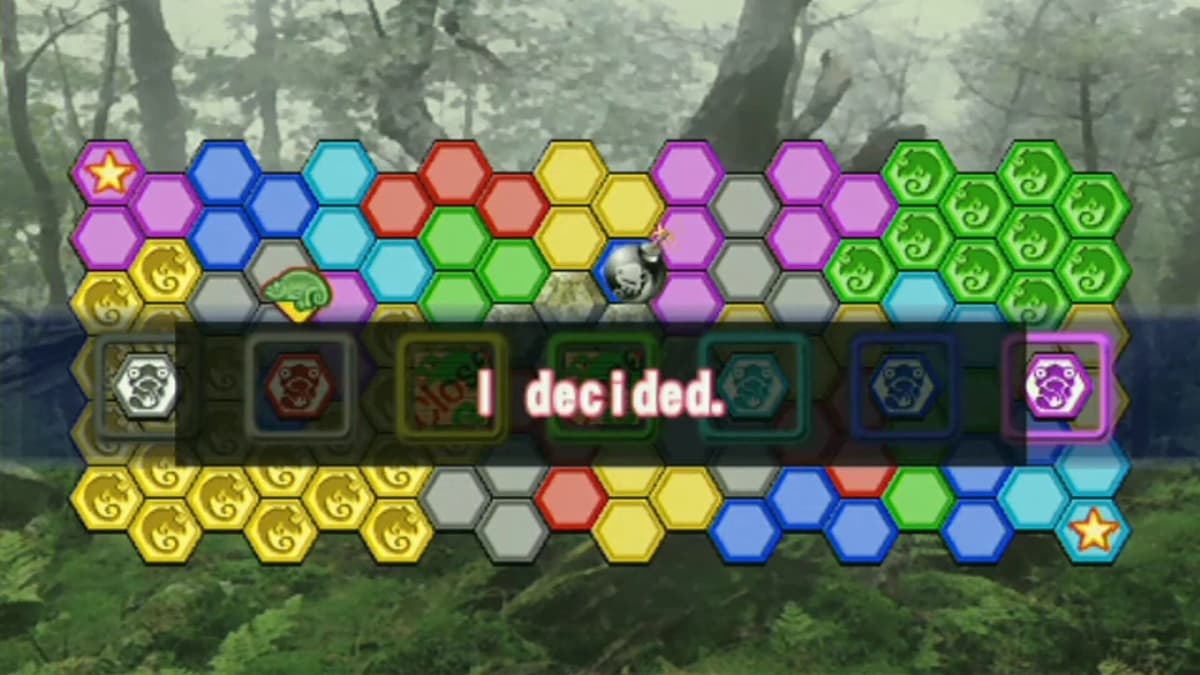
Steam Workshop maps usually behave like ordinary game content, but the Meccha Chameleon incident crossed that boundary. Malicious custom maps including Laser Tag Neon and Chroma Grid Arena used the game’s custom-map vulnerability to run a Command Prompt process, write a .bat file into the Windows Documents folder, and attempt a PowerShell download from an external server when the map was launched.
The important cutoff is Meccha Chameleon version 3.1.0. That update closes the custom-map execution vulnerability, and known malicious Workshop items have been removed. Players who launched suspicious maps before installing 3.1.0 should still clean their subscriptions, local Workshop files, Documents folder, temporary folders, startup entries, and scheduled tasks. A small Workshop library usually takes around 30-40 minutes to check; a heavily modded setup can take 60-90 minutes.
Table of Contents (11)
Decide Which Cleanup Level Applies to You
The map needed to be loaded into a match for the reported script chain to trigger. A subscription by itself was not the reported execution point, though leaving old downloads and subscriptions in place still creates unnecessary risk.
| What happened | Risk level | Recommended response |
|---|---|---|
| You subscribed to a suspicious map but never launched it | Lower | Update to 3.1.0 or later, unsubscribe, delete local custom-map files, and run a normal malware scan. |
| You launched Laser Tag Neon, Chroma Grid Arena, or another suspicious map before 3.1.0 | Potential compromise | Complete every section of this guide, including Documents, Temp, startup, Task Scheduler, and a full system scan. |
| You launched custom maps only after confirming version 3.1.0 or later | Reduced by the patch | Remove untrusted subscriptions and local map folders anyway, then scan if an unexpected Command Prompt or PowerShell window appeared. |
Do not launch a map again to “test” whether it is malicious. The useful evidence is its subscription history, local files, and any unexpected scripts or persistence entries left on the PC.
Step 1: Update Meccha Chameleon Before Opening Any More Maps
Start with the patched game client. Cleaning local maps first helps, but opening a remaining custom map on an older build leaves the original vulnerability in play.
- Close Meccha Chameleon completely.
- Open Steam and find Meccha Chameleon in your Library.
- Open
Properties → Updatesand make sure automatic updates are enabled. - Wait for any queued update to finish before launching the game.
- Launch the game only long enough to confirm its version number in the main menu or under
Settings → About.
The installed version must be 3.1.0 or later. If Steam still shows an older build, exit the game and use Properties → Installed Files → Verify integrity of game files. Steam will check the managed base-game installation and reacquire missing or altered files.
The patched base game is separate from the harmful Workshop content. Verifying files is useful after cleanup, but it does not replace deleting old custom-map folders or scanning for scripts that may already have been written outside the Steam library.
Step 2: Remove Risky Meccha Chameleon Workshop Subscriptions
Unsubscribing stops Steam from updating or restoring a Workshop item through your active subscription list. It also gives you a clean record of the maps you intentionally keep once this incident is over.
- Open Steam and go to
Community → Workshop. - Search for the Meccha Chameleon Workshop hub.
- Open Subscribed Items to view every map currently tied to your account.
- Unsubscribe from Laser Tag Neon, Chroma Grid Arena, and any suspicious reuploads or maps you cannot confidently identify.
- Sort by Date Subscribed if available. Items added around July 15-25, 2026 deserve an immediate review.
Maps with disabled comments, no meaningful community feedback, a brand-new uploader, or a title that resembles a recently removed item deserve extra caution. A renamed upload can still carry the same unsafe content, so a different map title is not a safety check.

Keep a short list of maps you genuinely trust before removing files locally. Legitimate content can be downloaded again later from known authors after the system is clean.
Step 3: Delete Local Custom Maps Instead of Leaving Stale Copies
Unsubscribing changes what Steam manages going forward. Downloaded Workshop data can remain on the drive, which is why the next step is a physical cleanup of Meccha Chameleon’s local custom-map content.
In Steam, right-click Meccha Chameleon and open Manage → Browse local files, or use Properties → Installed Files → Browse. The default installation is commonly located at:
C:\Program Files (x86)\Steam\steamapps\common\Meccha Chameleon\
Look inside the game folder and nearby Steam Workshop directories for folders used for custom maps or mods. Common locations include a folder such as ...\Meccha Chameleon\Workshop\ or another directory clearly labelled for downloaded maps, Workshop content, or mods.
- Close Meccha Chameleon before deleting any custom content.
- Delete the folders containing downloaded custom maps and Workshop assets you no longer trust.
- Do not delete the entire
Meccha Chameleoninstallation folder unless you intend to reinstall the game. - Run Steam’s file verification after cleanup if you removed anything that may have been mixed with normal game files.
The practical goal is a fresh custom-content state. Steam can recover official base-game files, while trusted maps can be downloaded later. Old map assets provide no benefit during an incident response check.
Step 4: Check Documents and Temp for Dropped Scripts
The reported malicious map behavior involved a batch file placed in the user’s Documents folder. That makes Documents the first non-Steam location to inspect, followed by Windows temporary directories where downloaded or unpacked files may remain.
- Open
C:\Users\<YourUserName>\Documentsand look for unexpected.batfiles, especially ones created around the time you played suspicious maps. - Check
C:\Windows\Tempfor unfamiliar scripts or recently created files associated with the incident period. - Check
C:\Users\<YourUserName>\AppData\Local\Tempfor the same reason. - Scan suspicious files with your installed security software rather than opening them.
Do not double-click a batch file, PowerShell script, shortcut, or unknown executable to identify it. A filename alone is weak evidence; the safer route is to let security software inspect and quarantine it, then remove it through that tool if it is flagged.
Step 5: Review Startup Apps and Task Scheduler for Persistence
A dropped script matters most if it was configured to run again after reboot or at a scheduled time. The reported payload chain attempted to use PowerShell, so startup and scheduled-task checks are worth doing for anyone who launched an affected or unknown map before the patch.
Startup Apps
Open Task Manager and review the Startup apps section. Focus on entries you do not recognize, especially ones with a vague name, no clear publisher, or a file path pointing to Documents, Temp, or another unusual user folder.
Task Scheduler
Open Windows Task Scheduler and inspect the entries in the Task Scheduler Library. Pay close attention to tasks created around the time the suspicious map was launched, or tasks configured to run cmd.exe, PowerShell, a batch file, or an executable located outside a normal application folder.
Record the task name and the file path before removing anything. If an entry points to a suspicious script or Temp/Documents location, scan the linked file first and remove the task after confirming it is unwanted. Deleting only the script while leaving a scheduled task behind can leave a broken persistence entry that repeatedly tries to run.
Step 6: Run a Full Malware Scan After the Manual Cleanup
Manual deletion removes obvious map folders and scripts. A full scan checks the rest of the system for downloaded payloads, remote-access-trojan-style components, and files that may have been copied outside the locations you inspected.
- Update Windows Defender or your reputable antivirus software before scanning.
- Run a full system scan, not only a quick scan.
- Allow the security tool to quarantine or remove detections.
- Scan the Documents and Temp folders again if the tool supports a targeted scan.
- Restart Windows after remediation, then check Startup apps and Task Scheduler one more time.
A clean scan is the point where the Workshop cleanup and the system cleanup meet. If your security tool finds a malicious script, payload, or remote-access malware, follow its remediation guidance before returning to custom maps.
How to Use Meccha Chameleon Workshop Maps More Safely Afterward
Version 3.1.0 closes the vulnerability used in this incident, but safer Workshop habits still reduce the chance of downloading harmful or abandoned content in the future.
- Keep Meccha Chameleon updated and avoid launching custom maps when Steam shows a pending update.
- Subscribe to maps from creators with a visible history and established community feedback.
- Treat disabled comments, zero feedback, sudden reuploads, and unfamiliar external-file instructions as warning signs.
- Review your subscribed items periodically instead of letting old maps accumulate indefinitely.
- Keep Windows security protection enabled and updated while using community-made content.
What a Finished Cleanup Looks Like
A complete response leaves Meccha Chameleon on version 3.1.0 or later, removes suspicious Workshop subscriptions and downloaded map folders, clears or quarantines unexpected scripts, and finds no unknown startup or scheduled-task entries after a full scan.
FinalBoss // Gear
Level up your setup
01Top-rated gaming headsetson Amazon→02High-refresh gaming monitorson Amazon→03Gaming chairson Amazon→04Discounted game keyson Kinguin→Affiliate links · As an Amazon Associate, FinalBoss earns from qualifying purchases.
Want to Level Up Your Gaming?
Get access to exclusive strategies, hidden tips, and pro-level insights that we don't share publicly.
Ultimate Guide Strategy Guide + Weekly Pro Tips