
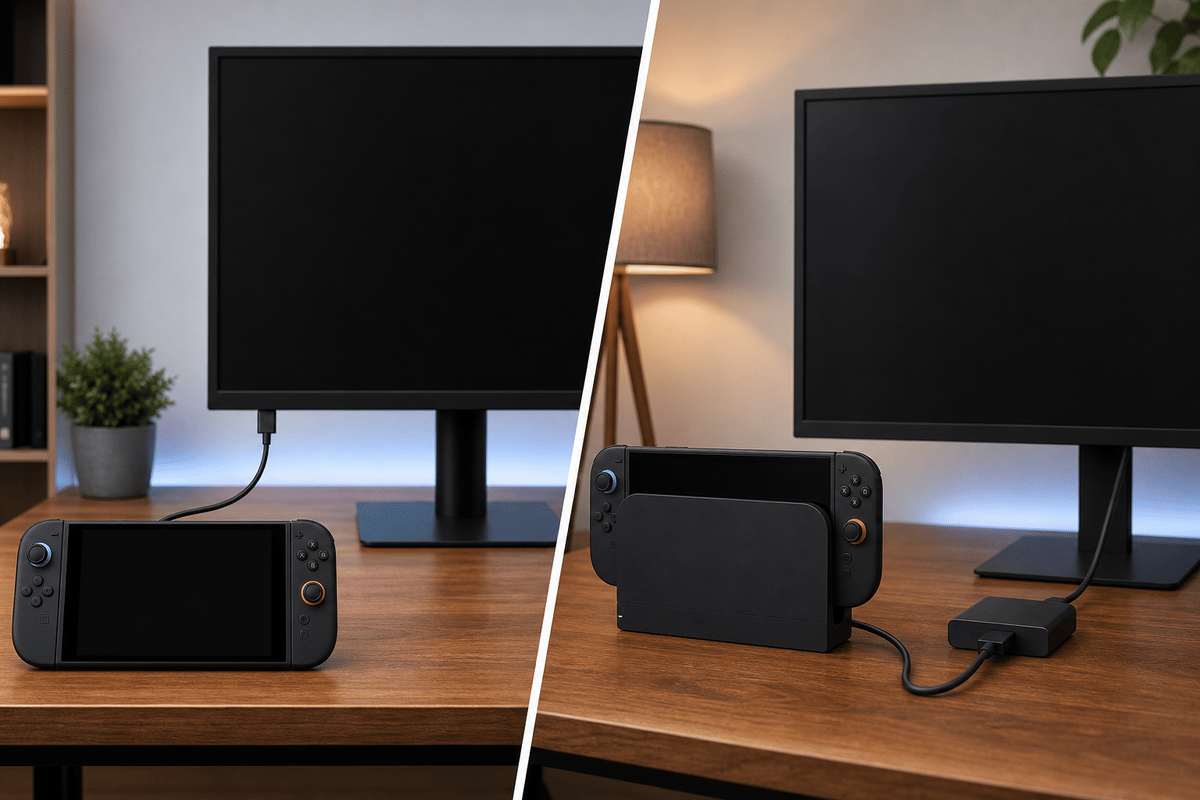
The fastest fix for a Nintendo Switch 2 portable-monitor black screen is to remove direct USB-C video from the setup first. Put the console in the official dock, power the dock and monitor separately, connect the dock to the monitor with HDMI, then manually select the monitor’s HDMI input. If that produces an image, the monitor is working and the failed point is the direct USB-C connection, cable, hub, or power arrangement.
Table of Contents (8)
Use the Right Display Path Before Replacing Hardware
USB-C is a connector shape, not a guarantee of video output. A portable monitor can have a USB-C port that handles charging or data while lacking the video and power behavior required for a Switch 2 connection. Direct USB-C can work with specific monitor-and-cable combinations, but dock-to-HDMI is the dependable baseline when the screen stays black.
| Connection path | Best use | What to expect | First troubleshooting move |
|---|---|---|---|
| Switch 2 directly to a USB-C monitor | Minimal-cable portable setups with explicitly compatible hardware | Conditional; video, cable, power delivery, and input mode must all line up | Confirm the monitor has a USB-C video input and use a video-capable cable |
| Official Switch 2 dock to monitor over HDMI | Reliable desk, TV, and portable-monitor play | The recommended baseline for external video output | Power the dock and monitor, then select HDMI on the monitor |
| Third-party dock or USB-C hub to HDMI | Extra ports, compact travel setups, or storage-focused desks | Can work, but accessory compatibility can vary | Remove the hub and test the official dock directly |
Fix a Black Screen With the Dock-to-HDMI Baseline
Run this sequence in order. The goal is to give the portable monitor stable power before the Switch 2 and dock attempt their video handshake.
- Disconnect the Switch 2, dock, HDMI cable, hub, and monitor from each other.
- Connect the portable monitor to its own USB-C power source or wall power input. Do not assume the HDMI cable or the dock will power the monitor.
- Connect power to the official Switch 2 dock.
- Run an HDMI cable directly from the dock’s HDMI output to the monitor’s HDMI input.
- Turn on the monitor and manually choose
HDMIin its input/source menu. Portable monitors often retain their previous USB-C input after reconnecting. - Place the Switch 2 in the dock, then wake the console.
- If the monitor still says “No Signal,” reseat both ends of the HDMI cable and test another HDMI input or another HDMI cable.
Keep the chain simple for this test: Switch 2, official dock, HDMI cable, monitor. Leave capture devices, USB-C hubs, HDMI splitters, switchers, and adapters out until this direct setup works. Each extra device adds another point where power or display negotiation can fail.
Black Screen Symptoms and the Fastest Fix
| What you see | Likely cause | Fix |
|---|---|---|
| The monitor stays black when connected directly by USB-C | The USB-C path is not providing compatible Switch 2 video output | Move to the official dock and use HDMI as the display connection |
| The monitor turns on but says “No Signal” | The wrong input is selected or the monitor lacks separate power | Power the monitor independently and select the correct HDMI or USB-C video source manually |
| The monitor works with a laptop but not with Switch 2 over USB-C | The monitor, cable, or power-delivery setup is compatible with the laptop but not the console | Use dock-to-HDMI, then only revisit USB-C after confirming the monitor’s specific video-input support |
| The image appears briefly, then drops to black after reconnecting | An unstable handshake, hub issue, or power interruption | Power-cycle the monitor and dock, reconnect in the baseline order, and remove hubs or adapters |
| The docked Switch 2 is black over HDMI as well | Dock power, HDMI cable, HDMI port, or monitor input failure | Check dock power, select HDMI, swap the HDMI cable, and test on another known-working HDMI display |
Set Up a USB-C Portable Monitor Correctly
Direct USB-C is worth testing only when the monitor explicitly supports USB-C video input. A port labelled only with a USB symbol, charging icon, or power rating may be for power or data rather than video. The monitor also needs the correct power arrangement; portable displays commonly need their own power source to wake reliably and maintain the connection.
- Confirm that the monitor’s specifications explicitly list USB-C video input.
- Use the monitor’s included USB-C video cable or another known video-capable USB-C cable.
- Power the portable monitor separately before connecting the Switch 2.
- Set the monitor’s source to
USB-Cor its specific USB-C display mode. - Connect the Switch 2 only after the monitor is powered and waiting on the correct input.
- If the screen remains black, stop troubleshooting the direct path and verify the setup through the official dock and HDMI.
A charge-only USB-C cable can power a device while carrying no video at all. A data cable can also be unsuitable for display output. That is why a USB-C cable that charges the Switch 2 successfully does not prove that it can send an image to a portable monitor.
Why USB-C Hubs and Adapters Cause Extra Problems
Third-party hubs can combine USB-C PD, HDMI output, storage, Ethernet, and USB ports in one travel-friendly unit, but the Switch 2 can be more selective about USB-C accessories than a laptop. A hub may charge the console in handheld use yet fail to provide video when the system needs to switch into external-display mode.
If a hub or compact dock gives you a black screen, do not start by changing monitor settings repeatedly. First replace the hub with the official dock and a direct HDMI cable. If the official dock works, the monitor and console are fine; the hub, its power input, or its HDMI output is the component to investigate.
- Use the official dock as the control test before buying another adapter.
- Connect USB-C PD power to the dock or hub before inserting the Switch 2.
- Do not chain a hub into another hub, display adapter, or HDMI switch while diagnosing.
- Test the hub with one HDMI display and one HDMI cable before reconnecting storage or other USB devices.
- Keep the monitor independently powered if it is a portable model.
Check the Monitor Input, Not Only the Cable
Portable monitors often have several similarly sized ports: USB-C power, USB-C data or video, mini-HDMI, and full HDMI. The display can be physically connected correctly while listening to the wrong source. Open the monitor’s on-screen controls and choose the exact input in use rather than leaving it on automatic detection.
For the official dock path, select HDMI. For a direct USB-C display attempt, select USB-C, Type-C, or the monitor’s equivalent display-input label. If the monitor has two USB-C ports, check its labels closely: one may accept power only while the other accepts video.
When the Dock-to-HDMI Setup Still Fails
A black screen through the official dock narrows the problem to four practical checks: dock power, HDMI cable, monitor input, and the monitor’s HDMI port. Start with the cable because it is the easiest component to swap. Then test the dock on another known-working HDMI display. If the Switch 2 displays there, return to the portable monitor and test its other HDMI input if it has one.
If the portable monitor works only after a full reconnect, keep using the stable order: monitor power first, dock power second, HDMI third, Switch 2 last. This prevents the monitor from waking on the wrong source or attempting the display handshake before the dock has stable power.
The Reliable Portable Switch 2 Setup
For consistent external play, use the official Switch 2 dock, a direct HDMI cable, a separately powered portable monitor, and the monitor’s manually selected HDMI input. Treat direct USB-C monitor output as a compatibility-specific setup rather than the default path, and test any hub only after the dock-to-HDMI baseline is working.
FinalBoss // Gear
Level up your setup
01Best-selling Switch 2 gameson Amazon→02Switch 2 accessorieson Amazon→038BitDo controllerson Amazon→04Discounted game keyson Kinguin→Affiliate links · As an Amazon Associate, FinalBoss earns from qualifying purchases.
Want to Level Up Your Gaming?
Get access to exclusive strategies, hidden tips, and pro-level insights that we don't share publicly.
Ultimate Guide Strategy Guide + Weekly Pro Tips