
Table of Contents (14)
Why Nioh 3 Is Rough on Handhelds (and Why This Guide Exists)
After sinking dozens of hours into Nioh 3 on various PC handhelds, I ran into the same wall every time: the game felt amazing moment-to-moment, but performance and battery life were all over the place. On my original Steam Deck it was more of a tech demo than a playable experience, so I moved to stronger handhelds like the ROG Ally X, the ROG Xbox Ally X, Lenovo Legion Go 2 and MSI’s Claw models. That’s where Nioh 3 finally clicked.
This guide walks through exactly how I set up Nioh 3 on those “Steam Deck Pro”-style handhelds to get a stable framerate, responsive controls, and reasonable battery life. The principles work across:
- Asus ROG Ally X
- Asus ROG Xbox Ally X
- Lenovo Legion Go 2
- MSI Claw A8
- MSI Claw 8 AI+
Even if your exact device isn’t on that list, if it’s a modern Windows or Linux-based handheld with an AMD Ryzen Z2 / Z2 Extreme or an Intel Core Ultra chip, you can follow the same process.
Step 1 – Pick a Realistic Performance Target
The biggest breakthrough came when I stopped forcing 60 fps at all costs. Nioh 3 is fast and timing-based, but it plays beautifully at a locked 40-45 fps as long as frametimes are consistent. Chasing 60 fps on a handheld usually just burns battery and introduces wild swings between 35 and 60.
Here’s what worked best for each class of device:
- ROG Ally X / ROG Xbox Ally X / Lenovo Legion Go 2 (Ryzen Z2 Extreme): Target 40-60 fps at 800p–900p. Use 40 fps for long battery sessions, 60 fps when docked or plugged in.
- MSI Claw A8 (Ryzen Z2 Extreme): Very similar to the Ally X class – 40 fps handheld, 60 fps only if you’re OK with more fan noise and heat.
- MSI Claw 8 AI+ (Intel Core Ultra 7): Better efficiency at moderate TDP. A 45 fps cap strikes a good balance between smoothness and battery life.
Before touching any in-game sliders, I recommend:
- Setting your device’s refresh rate to 40, 45 or 60 Hz (depending on what it supports).
- Enabling a frame rate cap to match in your vendor software or via the GPU driver.
- Choosing a performance or balanced TDP mode around 15–25 W for handheld play, higher only when plugged in.
This turns the optimization problem into something manageable: you’re not guessing, you’re tuning Nioh 3 to comfortably sit under a known power and framerate ceiling.
Step 2 – Core Nioh 3 Graphics Settings to Dial In
Most of the heavy options in Nioh 3 are the same culprits you see in other modern action games: resolution, shadows, lighting, and post-processing. The trick is to cut the expensive stuff your eyes barely notice during combat while keeping clarity for enemy telegraphs and animations.
2.1 – Resolution, Render Scale and Anti-Aliasing
On 7–9 inch 1080p or 1440p handheld screens, brute-forcing native resolution is rarely worth it in a fast-paced game like this. I’ve had the best experience with this approach:
- Output resolution: Set your handheld desktop to its native resolution (e.g. 1920×1080 or 2560×1600), but in Nioh 3’s
Graphicsmenu set the render resolution to 1280×720 or 1600×900. - Resolution scaling / upscaling: If the game offers a render scale or upscaler (like FSR/DLSS-style options), start at 85–90%. Only go lower if you’re still under your fps cap.
- Anti-aliasing: Use the cheapest decent-looking AA mode. On handheld screens, a lightweight temporal AA is usually fine, and you can skip extremely heavy modes.
This combo alone is often enough to push Nioh 3 from the 30s into the 40–50 fps range on Z2 Extreme handhelds without making the image look smeared.
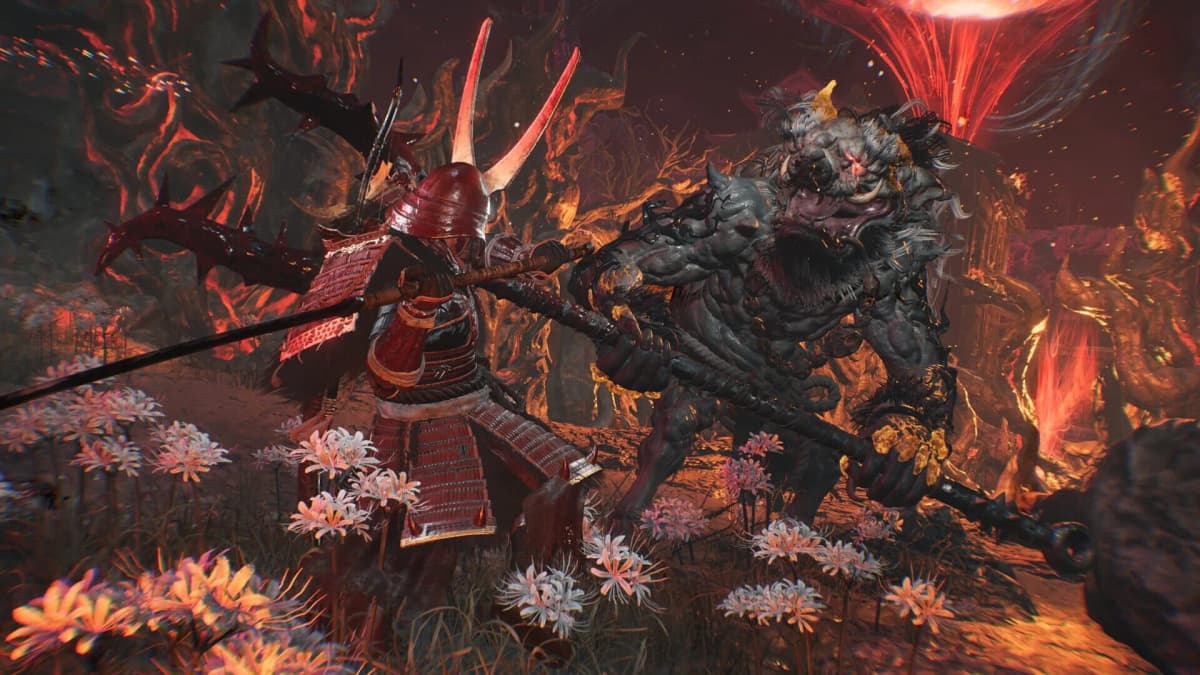
2.2 – Shadows and Lighting (Biggest Performance Wins)
Shadows and advanced lighting are the biggest FPS killers in dense levels and boss arenas. These are the settings I always hit first:
- Shadow Quality: Drop this to Low or Medium. Going from High to Medium usually gives a big boost with minimal gameplay impact. Only crank it higher if you consistently meet your fps target.
- Shadow Distance: Reduce this one notch from default. Far shadows in the distance don’t matter when you’re locked in melee.
- Ambient Occlusion: Set to Low or turn it off if you’re desperate for extra frames. You’ll lose some subtle depth, but the image is still perfectly readable.
- Volumetric Lighting / Fog: If Nioh 3 lets you separate these, turn them down or off. They are expensive and only really noticeable in cutscenes.
On the ROG Xbox Ally X and Lenovo Legion Go 2 in particular, simply dropping shadows and volumetrics brought heavy boss arenas from stuttery mid-30s up to a comfortable locked 40 fps.
2.3 – Effects, Post-Processing and Frills
Nioh 3 throws a lot of particles, sparks, and screen effects at you. These can add latency and visual noise on a small screen.
- Effects Quality: Set to Medium. High looks pretty but can create chaos in group fights.
- Motion Blur: Turn it Off. It harms clarity without helping performance.
- Depth of Field: Optional, but I prefer it Off to keep background enemies sharp.
- Screen Space Reflections: Set to Low or Off. These are demanding and easy to miss on a handheld screen.
Once you’ve changed these settings, run a demanding scenario (busy shrine area, large boss arena) and watch your framerate. If you’re still below target, reduce render resolution by one step or lower shadows further; avoid gutting everything else first.
Step 3 – Device-Specific Power and Refresh Settings
The in-game settings are only half the story. Each handheld has its own power profiles and refresh rate controls that can make or break your experience. This is where I made the biggest mistakes early on, either wasting battery or accidentally throttling my CPU.
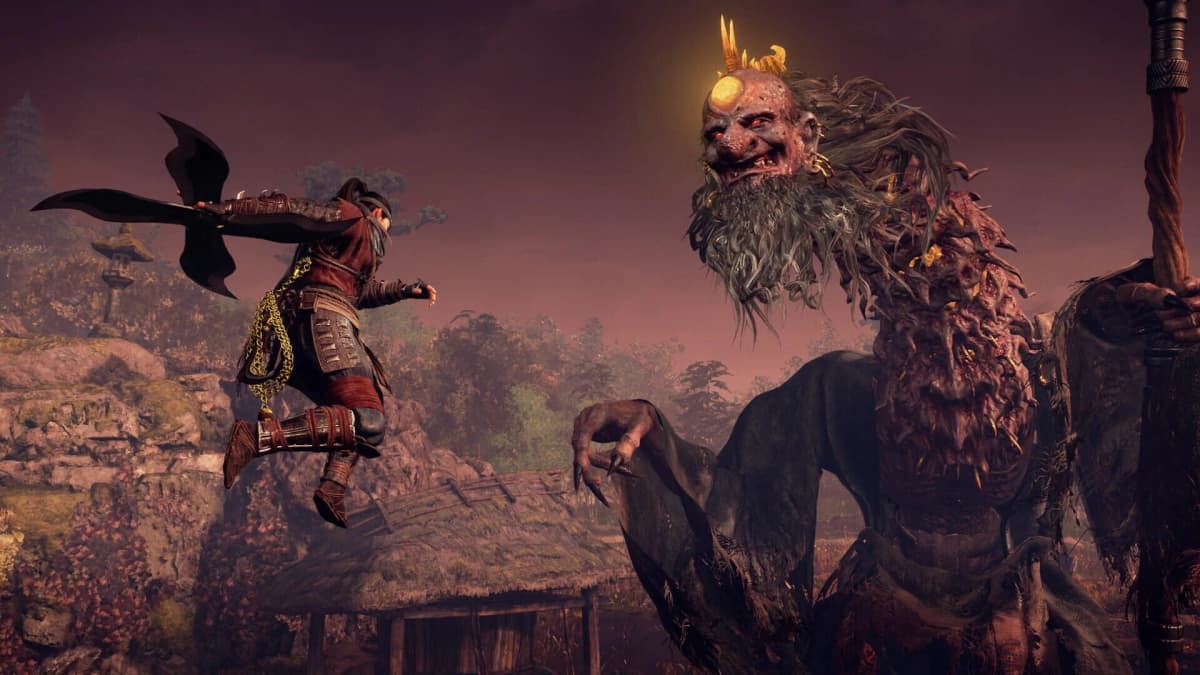
3.1 – Asus ROG Ally X & ROG Xbox Ally X
On these devices, the vendor software (Armoury Crate / Xbox full-screen layer) is where you define the power envelope:
- Open the control center and choose a Performance or Balanced profile around 15–20 W for handheld play.
- Set the display to 45 or 60 Hz. If the panel supports 40 Hz, that’s ideal for a 40 fps cap.
- Use the built-in framerate limiter or AMD driver to cap Nioh 3 to match your refresh rate.
On Windows 11, also set the system power mode to Best performance while plugged in and Balanced on battery. If you’re running a Linux-based OS like BazziteOS to mimic SteamOS, keep an eye on Proton versions for stability with Nioh 3.
3.2 – Lenovo Legion Go 2
The Legion Go 2’s massive OLED at up to 144 Hz is stunning, but for Nioh 3 on battery it’s better to tame it:
- In the Legion power app, lock TDP around 20 W for demanding games like Nioh 3.
- Drop the refresh rate to 40, 45 or 60 Hz instead of leaving it at 120/144 Hz.
- Use VRR (variable refresh rate) if available to smooth out minor dips without tearing.
Because the display is larger and higher-res, sticking to 900p internal resolution with the settings from Step 2 keeps the image sharp without tanking performance.
3.3 – MSI Claw A8 & Claw 8 AI+
The MSI Claw A8 (Ryzen Z2 Extreme) behaves similarly to the Ally X class. The Claw 8 AI+ with Intel Core Ultra is a bit more finicky but can be very efficient once tuned.
- In MSI’s control software, choose a gaming profile around 18–22 W for Nioh 3.
- Limit refresh rate to 45/60 Hz, and use the iGPU’s frame cap if available.
- On the AI+, keep Intel’s driver updates current – they often improve stability and performance in newer games.
On Intel iGPUs, be a little more conservative with resolution and effects. Prioritize stable frametimes and reaction speed over visual bells and whistles.
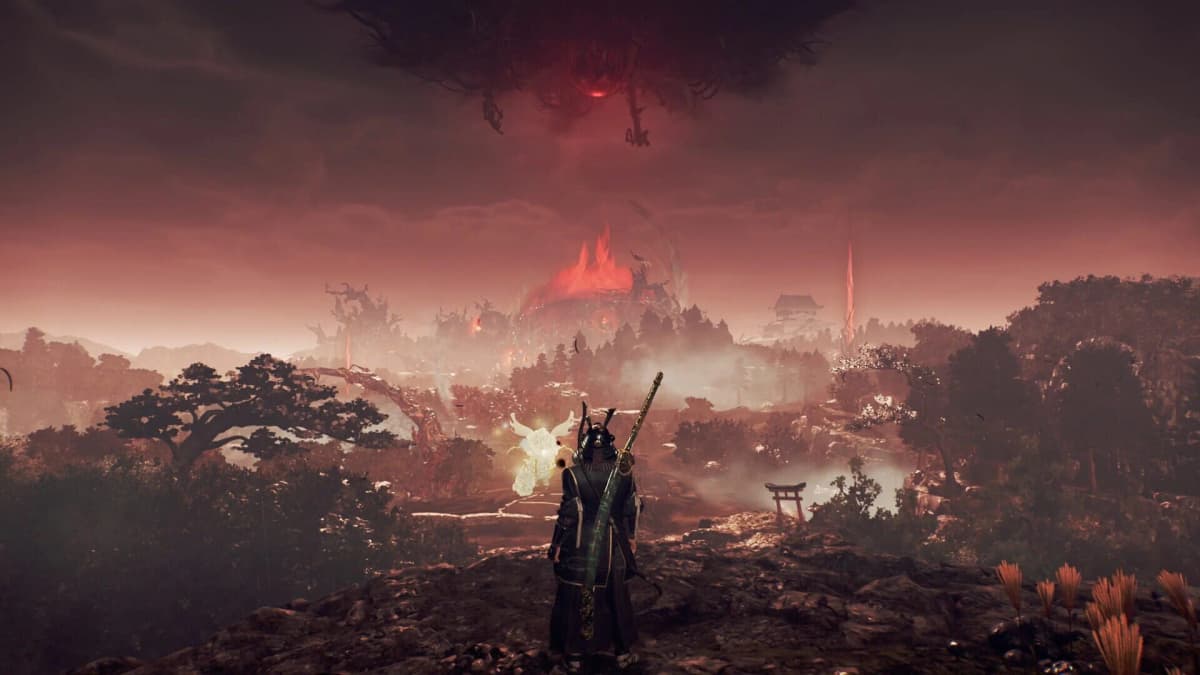
Step 4 – Controls and Camera Tuning for Handheld Combat
Even with a perfect framerate, Nioh 3 feels bad if your dodge, guard and camera controls aren’t tuned for handheld ergonomics. I lost more runs to clumsy inputs than to raw performance drops before fixing this.
Start in Options → Controls and adjust:
- Dodge / Dash: Map this to a comfortable face button or bumper you can spam without hand strain. On bigger handhelds like the Legion Go 2, putting dodge on a rear paddle works wonders.
- Lock-on / Target Switch: Keep this near your right thumb (e.g. click-in of the right stick or a nearby face button). Reliable lock-on is crucial in tight spaces.
- Camera Sensitivity: Increase horizontal sensitivity slightly for faster enemy tracking, but leave vertical sensitivity a bit lower for precise dodges and jumps.
- Gyro Aiming (if supported at OS level): If your handheld or OS layer offers gyro, consider binding it to fine-tune camera adjustments while keeping stick sensitivity moderate.
Then head to Options → Gameplay and:
- Reduce camera shake or combat camera effects if possible. On a small screen, heavy shake makes tracking attacks harder.
- Increase HUD size slightly so stamina and buffs are readable at arm’s length.
Once this is dialled in, fights feel less like wrestling the controls and more like reading and reacting to enemy moves, which is exactly what you want in a Nioh-style action game.
Step 5 – Troubleshooting Stutter, Heat and Battery Drain
There are a few recurring problems I ran into across all handhelds. Here’s how to handle the tricky parts before they ruin a session far from a charger.
- Random stutters in new areas: Many PC games hitch when loading shaders or assets. Running the game once at low graphics for a few minutes or enabling any built-in shader precompilation option (if available) can reduce later stutter.
- Device gets uncomfortably hot: Drop TDP by 2–3 W in your power app and cap fps 5 frames lower. Also lower shadows one step. The slight visual loss is worth keeping your hands cool.
- Battery drains too fast (under 2 hours): Move from 60 to 40/45 fps, lower refresh rate to match, and reduce render resolution one tier. Battery life jumps dramatically once the CPU/GPU aren’t sprinting constantly.
- Input latency feels muddy: Turn off additional post-processing, cap fps at a stable number (not “unlimited”), and avoid heavy background apps on Windows (browsers, launchers, overlays).
- Linux / SteamOS-like setups (e.g. BazziteOS): If you’re not on Windows, test different Proton versions in Steam, and expect that some anti-cheat updates might temporarily break compatibility. Keep a small Windows partition or external SSD as a fallback if Nioh 3 is your primary game.
Recommended Presets – Copy-Paste Starting Points
To save time, here are baseline presets that worked well for me on each class of device. Treat them as starting points to nudge up or down depending on your tolerance for fan noise and battery drain.
- “Balanced 40” (great for handheld play)
- FPS cap: 40
- Refresh rate: 40 Hz (or 45 Hz with 45 fps cap if 40 is unavailable)
- Output resolution: Native; render resolution: 1280×720 or 1600×900
- Graphics: Shadows Medium, Effects Medium, Ambient Occlusion Low, Volumetrics Low/Off
- TDP: 15–20 W
- “Performance 60” (plugged-in or short sessions)
- FPS cap: 60
- Refresh rate: 60 Hz
- Render resolution: 1600×900 (drop to 720p if needed)
- Graphics: Everything Medium, Shadows Medium/Low, Post-processing trimmed
- TDP: 22–25 W on Z2 Extreme / Core Ultra
- “Endurance 30–40” (travel mode)
- FPS cap: 30–40 depending on taste
- Refresh rate: Match your cap
- Render resolution: 720p, many effects Low or Off
- TDP: 10–15 W
Wrapping Up – Nioh 3 Feels Next-Gen on the Right Handheld
If your current Steam Deck struggles or can’t run Nioh 3 reliably, the good news is that modern PC handhelds already act like a “Steam Deck Pro” for this kind of demanding action game. With a bit of targeted tweaking – picking a sensible fps target, lowering the right graphics options, and taming power profiles – Nioh 3 goes from choppy and battery-hungry to smooth and responsive.
Once you get past the initial setup, the rest is smooth sailing: future sessions are just pick-up-and-play, and you can focus entirely on mastering bosses instead of wrestling your hardware. If these tweaks make Nioh 3 feel great on your handheld, you can reuse the same approach for almost any other demanding PC action game you throw at it.
FinalBoss // Gear
Level up your setup
01Graphics cardson Amazon→02Gaming laptopson Amazon→03High-refresh gaming monitorson Amazon→04Discounted game keyson Kinguin→Affiliate links · As an Amazon Associate, FinalBoss earns from qualifying purchases.
Want to Level Up Your Gaming?
Get access to exclusive strategies, hidden tips, and pro-level insights that we don't share publicly.
Ultimate Guide Strategy Guide + Weekly Pro Tips