
A gaming desk gets messy in one specific spot: the rat’s nest of power bricks, monitor cables, and charging leads that piles up behind and under it. Most “cable management kits” don’t fix that — they just hide it until the next time you swap a device.
Table of Contents (10)
The short version
Five boring, cheap accessories, used in this order, tame about 90% of desk cable mess without drilling or wrecking a rental deposit:
- High-strength mounting tape or pads to stick the power strip under the desk.
- An under-desk cable tray for power bricks and adapters (not the strip itself).
- Reusable cable ties to bundle and shorten slack.
- Adhesive cable clips — small underslung ones plus larger edge “cord holders” — to fix each cable’s route.
- Cable trunking and curled cord protectors for the runs you can still see.
- Optional: an under-desk USB-C / USB4 dock to collapse a laptop setup down to one cable.
Below is the exact order I follow when I redo a desk, plus the mistakes I stopped making.
Step 1: Mount the Power Strip Under the Desk (Properly)
If you only do one thing, mount your power strip under the desk. Getting those bulky plugs off the floor instantly makes everything look cleaner and stops cables from draping everywhere.
Here’s the process after a lot of trial and error:
- Unplug everything. It’s tempting to work live, but you’ll mis-route cables and end up redoing it.
- Decide which side of the desk needs power most (PC side, console side, or central).
- Clean the underside where the strip will go with isopropyl alcohol or a damp cloth and let it dry.
- Use high-strength mounting tape (or heavy-duty double-sided pads) along the length of the power strip’s back.
- Press it firmly to the underside, lengthwise near the back edge of the desk, not in the middle where your knees are.
- Hold it in place for 30-60 seconds so the adhesive really bonds.
Skip cable boxes for power strips — they fill up instantly and big power bricks don’t fit cleanly. Mounting the strip itself under the desk is far more reliable, as long as the desk underside is clean and dry before the adhesive goes on.
What about the cable from the strip to the wall? This is where cable trunking comes in. If the outlet isn’t right under the desk, fix low-profile trunking along the skirting board or wall from the leg of the desk to the outlet. That keeps the thick power cable from snaking across open floor or getting kicked.
Step 2: Use a Cable Tray for Bricks and Adapters (Not the Strip)
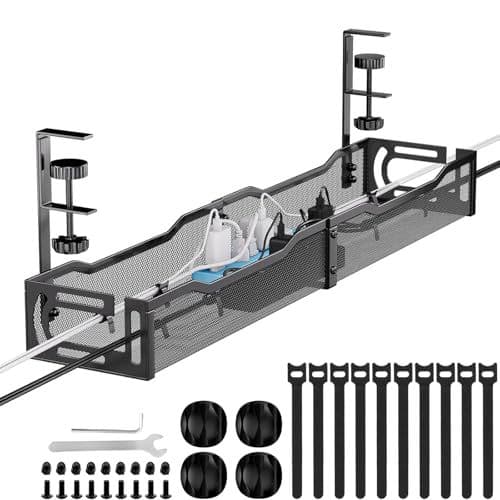
The next big upgrade is a simple under-desk cable tray. Not a fancy branded one — just a basic metal or mesh tray that either screws in or clamps to the back edge.
The trick is to not treat this tray as a power strip shelf. That’s the common mistake. Instead, use it for all the bulky power bricks and charging blocks:
- Monitor power brick
- Laptop charger
- Console or capture card power bricks
- Cooling pad adapter
- Docking station power brick
The layout looks like this:
- Power strip is stuck to the underside near the back edge.
- Cable tray is mounted behind it or slightly offset, also under the desk.
- Each brick plugs into the strip and then rests in a row inside the tray.
That way nothing heavy hangs directly from the sockets, nothing sits on the floor, and when you need to unplug a device you can see which brick is which without a tangled nest.
For a standing desk this is especially useful: all the weight and connections move with the desktop, and you only need one or two flexible “umbilical” runs going down to the wall and network.
Step 3: Shorten and Bundle Slack with Reusable Cable Ties
Short cables are king, but you won’t always hit perfect lengths. That’s where reusable cable ties come in. Avoid single-use plastic zip ties for desks — they’re a pain to adjust and you end up cutting them every time you change gear.
How to use reusable ties effectively:
- Start from the device end. Plug your monitor, PC, console, speakers, etc. in first.
- Run each cable toward the power strip or dock, loosely following the same path.
- Gather cables that travel in the same direction (for example, all rear-right cables) and bundle them every 15-20 cm with a tie.
- For extra slack, coil it into a loose loop and secure the middle with a tie, then tuck that loop into the tray.
- Don’t cinch ties so tight that cables crease sharply — tight pressure and sharp bends can damage thinner wires over time.
The rule of thumb is to turn five messy cables into one controlled “mega-cable” heading toward the tray. This alone does a huge amount of visual cleanup, especially when you look under the desk.
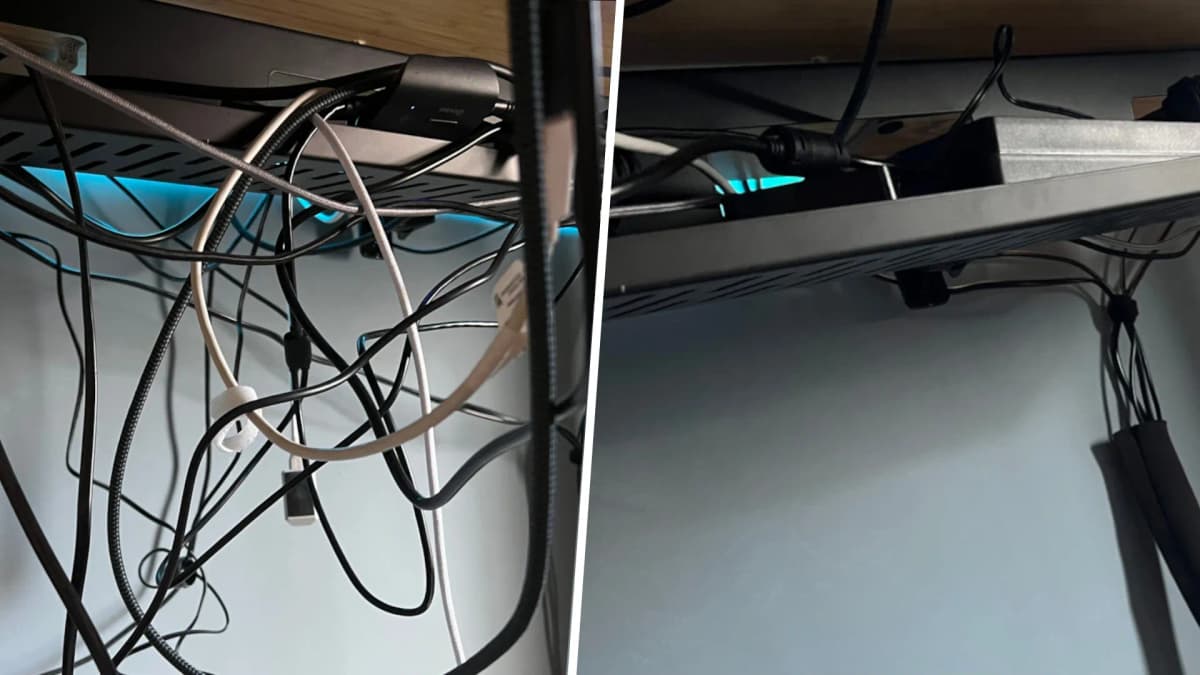
Step 4: Train the Cables with Adhesive Clips
Reusable ties control groups of cables, but adhesive cable clips control the route they take. This is where most of the polish comes from.
Use two different styles:
- Small, single-cable clips for the underside of the desk
- Larger “cord holder” clips with multiple slots for the top or desk edge
Underside routing is simple but powerful:
- Clean the underside of the desk where you’ll stick the clips.
- Stick a clip near the back of each device, catching the cable as soon as it leaves the device.
- Add more clips every 20-30 cm, guiding cables straight toward the tray and power strip instead of letting them hang freely.
- Use corners and edges of the desk underside to hide direction changes.
For the upper side, clip a few larger cord holders along the front or side edge of the desk. Those hold:
- Phone charging cable
- Controller or headset USB-C cable
- Spare USB-A / USB-C lead for drives or accessories
Those cables stay neatly parked, never slide off the desk, and the slack is still managed underneath with ties and clips. It’s the difference between a desk that only looks tidy in photos and one that stays tidy while you actually use it.
Step 5: Hide Exposed Runs with Trunking and Curled Cord Protectors
Once the underside is cleaned up, you’re usually left with two types of visible runs:
- Cables going down from the desk to the floor (especially on standing desks)
- Cables running along walls or skirting boards to outlets or routers
For wall and baseboard runs, use adhesive cable trunking. It’s just a slim plastic channel with a snap-on cover. Stick it along the skirting, route the cable inside, and click it shut. It looks intentional instead of messy, and you can pop it open later if you change things.
For the vertical bundle from the desk to the floor, fabric zip sleeves tend to sag and make it awkward to remove a single cable. Curled cord protectors (the spring-like sleeves) work better:
- They wrap snugly around a small bundle of cables.
- They keep the run neat without sliding down as easily.
- They’re easier to open up if you need to add or remove one cable.
On a standing desk, leave a gentle loop in this vertical bundle so the desk can move up and down without stretching anything. The loop stays tidy inside the curled protector.

Optional: Stick a Dock Under the Desk to Cut Visible Cables
This part isn’t essential, but it’s a big quality-of-life upgrade for laptop-based setups. Instead of plugging half a dozen things into the laptop directly, mount a USB-C or USB4 dock under the desk near the tray.
The concept is simple:
- Dock is stuck under the desk with strong adhesive strips.
- Monitors, Ethernet, external drives, and audio plug into the dock and route into the tray.
- A single short USB-C / USB4 cable pops up to the laptop on the desk.
You don’t need to overspend here. Razer’s USB4 Dock is actually the value pick in its own lineup — it lists at $229.99, roughly $100 less than Razer’s Thunderbolt 4 Dock Chroma at $329.99, and it competes on price and broad compatibility rather than premium positioning. Cheaper docks from brands like Ugreen do the same consolidation job for even less. The main payoff is the same either way: visible cables on top of the desk drop to almost nothing, and the dock itself disappears into your under-desk setup.
If your dock is feeding external monitors, it’s worth knowing how your hardware actually drives them before you buy — see how VRR and external monitors behave on Steam Deck and why a “dual-mode” monitor switch doesn’t work how most players think.
Putting It All Together: A Simple 5-Phase Workflow
When I redo a gaming desk, I follow this order. It usually takes 30-60 minutes, depending on how much gear is plugged in.
- Phase 1 – Power first: Mount the power strip under the desk and run trunking to the wall outlet.
- Phase 2 – Heavy hardware: Install the cable tray and move all power bricks and adapters into it.
- Phase 3 – Route and bundle: Plug everything in, then bundle cables with reusable ties into larger groups.
- Phase 4 – Clip the paths: Use small adhesive clips under the desk and larger holders at the edge to fix each cable’s route.
- Phase 5 – Hide the last runs: Use trunking and curled protectors for the vertical and wall runs you can still see.
Common mistakes
- Starting with fancy sleeves before planning the power layout. Sort the strip and bricks first, then route everything else.
- Putting the power strip inside a cramped cable box. Bricks don’t fit, it overheats with clutter, and you can’t see what’s plugged in. Stick the strip to the underside instead.
- Relying on single-use zip ties. Every gear change means cutting and re-tying. Reusable ties make adjustments painless.
- Sticking adhesive to a dusty or greasy surface. Tape, clips, and docks only hold if the desk underside is wiped with isopropyl and fully dry first.
- Cinching bundles too tight. Sharp bends and crush pressure damage thinner wires over time.
Practical takeaway
If you’re renovating or upgrading your gaming desk, start with the basics before any gimmicky solutions: get the power strip off the floor, give your bricks somewhere to live in a tray, bundle slack with reusable ties, fix each route with adhesive clips, and hide the last visible runs with trunking and curled protectors. Add an under-desk dock only if you’re on a laptop. Everything else is just fine-tuning on top of that foundation.
FinalBoss // Gear
Level up your setup
01Graphics cardson Amazon→02Gaming laptopson Amazon→03High-refresh gaming monitorson Amazon→04Discounted game keyson Kinguin→Affiliate links · As an Amazon Associate, FinalBoss earns from qualifying purchases.
Want to Level Up Your Gaming?
Get access to exclusive strategies, hidden tips, and pro-level insights that we don't share publicly.
Ultimate Guide Strategy Guide + Weekly Pro Tips