
Table of Contents (19)
Why your next gaming SSD choice matters right now
SSDs went from “nice upgrade” to “mandatory” for gaming years ago, but 2026 is the first time I’ve seen both games and prices push this hard at the same time. Modern titles with big streaming worlds (and patches like Cyberpunk 2077’s Phantom Liberty update) increasingly list an SSD as a minimum requirement. At the same time, NAND prices have shot up because data centers and AI are buying up capacity, and SSDs that were cheap a few months ago now cost significantly more.
The point of this guide is simple: help you buy the right SSD for gaming once, without overpaying for speed you won’t feel or getting stuck with old tech that bottlenecks your system. I’ll walk through interfaces (M.2, SATA, external), PCIe Gen4 vs Gen5, capacity, concrete model types that have worked well, and where HDDs still make sense.
Step 1: Pick the right interface – M.2 NVMe, SATA, or external USB
When I first moved off spinning drives, I underestimated how much the form factor and interface matter. Here’s the practical breakdown for a gaming PC today.
M.2 NVMe – default choice for any modern gaming PC
If your motherboard is from roughly the last 5-6 years, it almost certainly has at least one M.2 slot. These slots take small “gumstick” SSDs (usually 2280 size) and connect via PCIe:
- PCIe Gen3 – good baseline, still much faster than SATA for random access.
- PCIe Gen4 – the current sweet spot for gaming; around 7,000+ MB/s peak throughput.
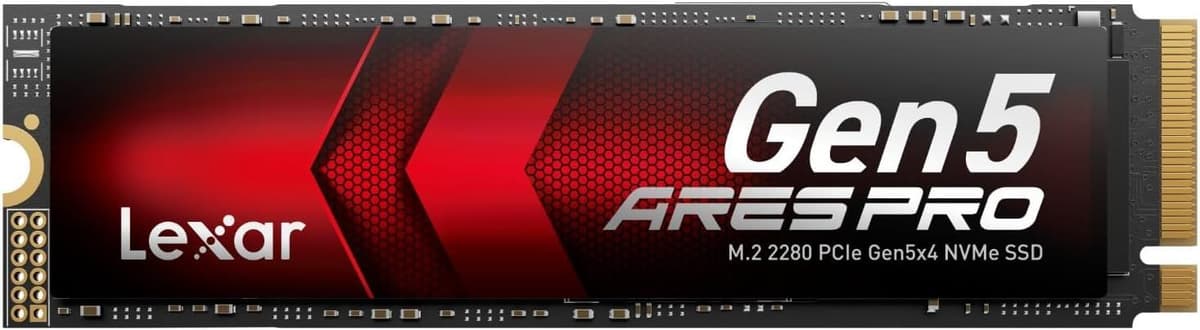
- PCIe Gen5 – cutting edge; up to ~14,000 MB/s but hotter and more expensive.
For a new gaming build, an M.2 NVMe SSD should be your primary OS and games drive. You get the lowest latency, clean cable-free installation, and motherboards are optimized for them now.
Common mistake I’ve made: filling the first M.2 slot with a cheap Gen3 or DRAM-less drive because it was on sale, then later buying a high-end Gen4 or Gen5 drive and discovering that the fastest slot is already taken. Check your manual and reserve the best slot (usually the one wired directly to the CPU) for your fastest SSD.
SATA SSD – only for older systems or extra cheap storage
SATA SSDs look like 2.5″ laptop drives and connect with data + power cables. They’re far faster than HDDs but capped around 550 MB/s. In 2026, I only recommend SATA SSDs if:
- Your motherboard does not have an M.2 slot (older pre-2016 boards).
- Your M.2 slots are all full and you still want solid-state storage cheaply.
- You find a genuinely good deal compared to NVMe at the same capacity.
They’re fine for game libraries, but if you’re building a new PC or doing a big upgrade, go NVMe first and treat SATA as a fallback or secondary drive option.
External USB SSD – seriously viable for gaming now
USB SSDs used to be “backup only” in my head. That changed once I tried running several large games off a decent USB 3.2 Gen2 drive on a modern port. With today’s controllers:
- Even budget USB SSDs usually match or beat a SATA SSD.
- High-end USB 3.2 Gen2x2 or USB4 drives can hit multiple GB/s.
- Latency is close enough that launch and loading times feel similar to an internal SATA SSD.
For gaming desktops low on internal slots or for sharing a library between PC and laptop, a good external SSD is now a genuinely solid option. Just make sure you plug into a fast USB port (check your manual; look for USB 3.2 Gen2 or better).
Step 2: Decide between PCIe Gen3, Gen4, and Gen5
Raw benchmark numbers for SSDs can be misleading. I’ve run everything from a basic Gen3 NVMe to a high-end Gen4 and a hot-running Gen5 in the same rig, and this is how it shakes out for gaming.
PCIe Gen3 – minimum acceptable, still fine for many builds
Gen3 drives top out around 3,500 MB/s sequential read. If you’re on an older platform that only supports Gen3, don’t panic: games still load dramatically faster than from HDD, and most in-game performance is unchanged.
I wouldn’t buy an expensive Gen3-only drive in 2026, but if you find a cheap 1–2 TB Gen3 NVMe, it can absolutely serve as a budget games drive.
PCIe Gen4 – the real sweet spot for gaming PCs
Gen4 is where I’ve had the best balance in 2026:
- Top drives like the Samsung 990 Pro hit about 7,450 MB/s read / 6,900 MB/s write.
- WD’s newer SN7100 sits a bit lower on paper (~7,250 MB/s), but with excellent 4K random reads it feels very “snappy” in Windows and game loading.
- Thermals are manageable with a simple heatsink, and power draw is reasonable.
In my experience, the jump from HDD → any SSD is huge, the jump from Gen3 → midrange Gen4 is noticeable in big installs, level transitions, and Windows responsiveness. The jump from good Gen4 → Gen5 is mostly bragging-rights and heavy-workload territory.
PCIe Gen5 – only if you know why you want it
Gen5 SSDs like the WD Black SN8100 or Corsair MP700 Pro XT push rated speeds above 14,000 MB/s. I’ve played around with a couple of these and the reality is:
- Heat: They run hot. Nearly every Gen5 drive needs a chunky heatsink, sometimes with a fan.
- Power: Higher power draw than Gen4, which adds to system heat/noise.
- Price: Still noticeably more expensive per TB, even with recent price fluctuations.
- Gaming benefit: Tiny, unless a specific DirectStorage workload scales very well.
Where I did see a difference was in big file transfers (moving 100+ GB games between drives) and certain synthetic benchmarks. For normal gaming, my Gen4 Samsung 990 Pro and WD SN7100 feel indistinguishable from the Gen5 drive.
So my rule: build around Gen4. Consider Gen5 only if you’re on a top-end CPU/GPU platform already, have excellent case airflow, and are okay paying a premium for cutting-edge storage.
So my rule: build around Gen4. Consider Gen5 only if you’re on a top-end CPU/GPU platform already, have excellent case airflow, and are okay paying a premium for cutting-edge storage.
🎮 Get This Game at the Best Price
Compare prices instantly and save up to 80% on Steam keys with Kinguin — trusted by 15+ million gamers worldwide.
*Affiliate link — supports our independent coverage at no extra cost to you
Step 3: Choose capacity based on real game libraries
Modern games are brutal on storage. A few examples from my own library:
- Big open-world AAA titles with 4K textures can hit 100–150 GB each.
- Live-service shooters and MMOs regularly sit at 80–120 GB, then grow with patches.
- Modded games (Skyrim, Cities: Skylines, etc.) can quietly eat hundreds of GB.
Because of that, most players I’ve helped lately end up happy with:
- 1 TB – absolute minimum I’d recommend for a primary gaming SSD in 2026.
- 2 TB – sweet spot if you play several AAA titles at once; this is what I use for my OS + main games drive.
- 4 TB – ideal if you hate uninstalling anything or run lots of huge titles simultaneously.
Given how SSD prices are trending up, I generally tell people: buy the largest Gen4 drive you can reasonably afford, up to 4 TB, rather than paying a big premium to jump from Gen4 to Gen5 at a smaller capacity.
Step 4: Picking specific SSD types that actually make sense
I’ll avoid super-long model lists and focus on the types of drives that have worked well across multiple gaming builds, plus what role they’re best suited for.
High-end PCIe Gen4 NVMe – best all-rounders
These are the “buy once, forget about it for years” choices:
- Samsung 990 Pro – My go-to recommendation when someone wants “the good one” and doesn’t mind paying a bit more. Fast sequential speeds (~7,450/6,900 MB/s), great random IO, strong reliability history, and available up to 4 TB.
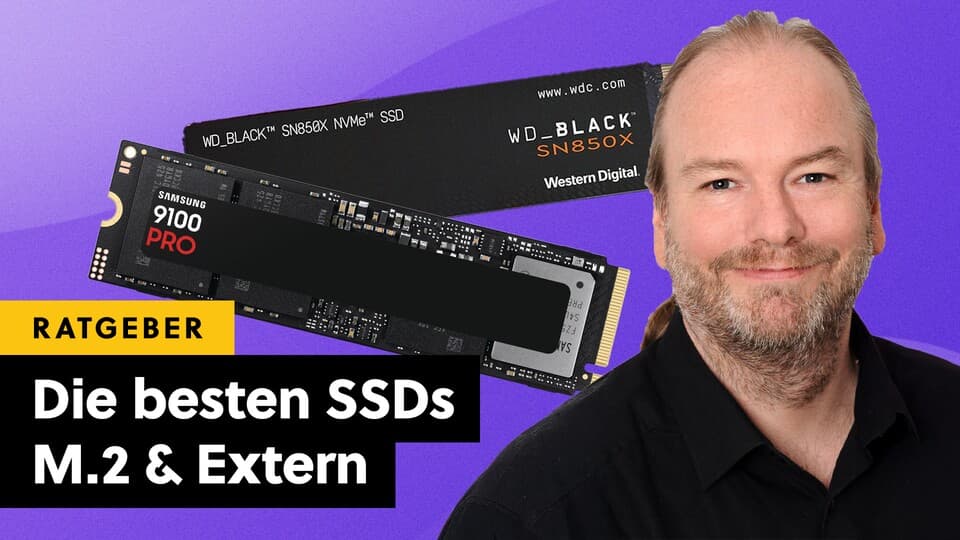
- WD Black SN850X – Another proven Gen4 gaming drive. Slightly older now but still very fast, often comes with a pre-installed heatsink, which is handy for cramped builds or consoles.
Use these as your primary OS + games drive if you want a premium feel and don’t plan to upgrade storage again soon.
Best value PCIe Gen4 – fast but sensible on price
With SSD prices up, I’ve leaned more on “value fast” drives like:
- WD Black SN7100 – Essentially replaces the SN850X as the new value king. Around 7,250 MB/s peak throughput, excellent random performance (which matters most for load times), and much friendlier pricing per TB.
This kind of drive is perfect if you want near-flagship performance without paying the brand-new tech tax. For most gaming rigs, especially 1440p/4K builds where the GPU is the main cost, pairing that GPU with a 2 TB SN7100-type drive hits a very good balance.
PCIe Gen5 NVMe – niche, but fun
If you’re set on Gen5, look for drives that ship with a robust heatsink and have clear thermal specs. In my systems, I had to:
- Ensure the Gen5 slot wasn’t sharing lanes with GPU or extra devices in a weird way.
- Verify case airflow right over the SSD area (front fans actually hit the heatsink).
- Leave some thermal headroom in fan curves, as SSD temps spike under sustained writes.
You won’t break your build by going Gen5, but you will pay extra and spend more time on thermal tuning for a gain that is modest in current games.
Budget NVMe & SATA – still fine for secondary storage
For secondary drives, DRAM-less or cheaper controllers are perfectly usable in gaming PCs:
- Budget NVMe (PCIe Gen4 or Gen3) like Crucial P3 or WD Blue SN580 – slower on paper, but still miles ahead of HDDs. Great for secondary game libraries, screenshots, and recordings.
- SATA SSDs like the Crucial MX500 – excellent drop-in upgrades for older rigs without NVMe support, or for extra space when you’ve used all your M.2 slots.
DRAM-less SSDs used to worry me, but in real-world gaming loads (not synthetic benchmarks) they have been absolutely fine when used as a second or third drive.
Step 5: Heatsinks, thermals, and installation pitfalls
Once you move past very basic SSDs, heat stops being theoretical and starts showing up as throttling and random stutters.
- Gen4 & Gen5 need heatsinks: Either use the motherboard’s integrated M.2 heatsinks or buy SSDs with a proper heatsink pre-installed.
- Don’t stack drives under GPUs if you can help it: the top PCIe slot plus the top M.2 slot is the worst thermal combo in many cases.
- Check screw lengths: I’ve seen people (and once, me) crack the plastic around an M.2 slot by overtightening with the wrong screw.
- Firmware and drivers: For premium drives like Samsung’s, installing the vendor’s NVMe driver and ensuring firmware is up to date has fixed odd performance dips for me more than once.
If you notice your blazing-fast SSD performing “meh” during long installs or big file copies, monitor temperatures. If it’s consistently hitting 70–80°C, you’re likely throttling and need better airflow or a stronger heatsink.
Step 6: Where HDDs still belong (and where they don’t)
Mechanical hard drives haven’t vanished; they’ve just moved into a different role. I still use HDDs, but never for anything performance-critical.
- Good uses for HDDs:
- Mass storage for videos, raw recordings, and archives.
- Backup targets (local backups, alongside cloud options).
- NAS boxes on your network where noise and seek times don’t hurt gameplay.
- Bad uses for HDDs:
- Primary OS drive in any gaming PC.
- Main game library, especially for modern AAA or open-world games.
- Storage in small cases where added vibration and noise are noticeable.
Every time I’ve dropped a mechanical HDD back into a system as the main drive “just to see”, the slow random access stood out immediately. Frame rates don’t change, but startup, alt-tabbing, loading saves, and texture streaming all feel worse. Even a cheap SATA SSD solves that completely.
Practical SSD loadouts that work well in 2026
To make all of this less abstract, here are a few setups I’ve used or helped build that strike a good balance under current prices.
- Midrange 1080p / 1440p gaming PC
- 1× 2 TB PCIe Gen4 NVMe (value model like WD SN7100).
- Optional: 1× 4 TB HDD for mass storage/backup.
- Use the NVMe for Windows and all games, keep the HDD for cold files.
- High-end 1440p / 4K build
- 1× 2 TB high-end PCIe Gen4 (Samsung 990 Pro or similar) as OS + current games.
- 1× 2–4 TB budget Gen4 NVMe or SATA SSD as “bulk” game library.
- No HDD unless you truly need many TB of media storage.
- Older PC without M.2
- 1× 1–2 TB SATA SSD (e.g., Crucial MX500) as new OS + all games drive.
- Reuse existing HDDs as backup/archives only.
- This single swap makes even a 6–8 year old PC feel dramatically more responsive.
- Laptop / shared-library setup
- Internal 1–2 TB PCIe Gen4 if the laptop supports it.
- Plus a 1–2 TB external USB SSD for extra games and moving titles between systems.
If you keep these principles in mind-M.2 NVMe first, Gen4 as the default, 2 TB or more when possible, and HDDs only for cold storage-you’ll end up with a gaming PC that feels snappy now and stays comfortable as games get even heavier on storage over the next few years.
FinalBoss // Gear
Level up your setup
01Graphics cardson Amazon→02Gaming laptopson Amazon→03High-refresh gaming monitorson Amazon→04Discounted game keyson Kinguin→Affiliate links · As an Amazon Associate, FinalBoss earns from qualifying purchases.
Want to Level Up Your Gaming?
Get access to exclusive strategies, hidden tips, and pro-level insights that we don't share publicly.
Ultimate Guide Strategy Guide + Weekly Pro Tips