
A graphics driver update can bring shader stutter back even on a PC that ran smoothly the day before. That is an especially familiar headache around a big new PC launch, when players are already troubleshooting first-week performance. If you are jumping into something like The Blood of Dawnwalker on PC and the opening areas suddenly start hitching after a driver change, the first question is not “Which tweak pack do I install?” It is much simpler: are shaders still compiling again, or did the update introduce a persistent regression?
The sensible first move is to let the game finish any shader-compilation process, then replay the same area two or three times. If the hitch happens when an effect or location first appears and fades on later passes, the shader cache is warming up. Do not reach for cache cleaners, registry tweaks, security changes, or a full driver wipe as a first response.
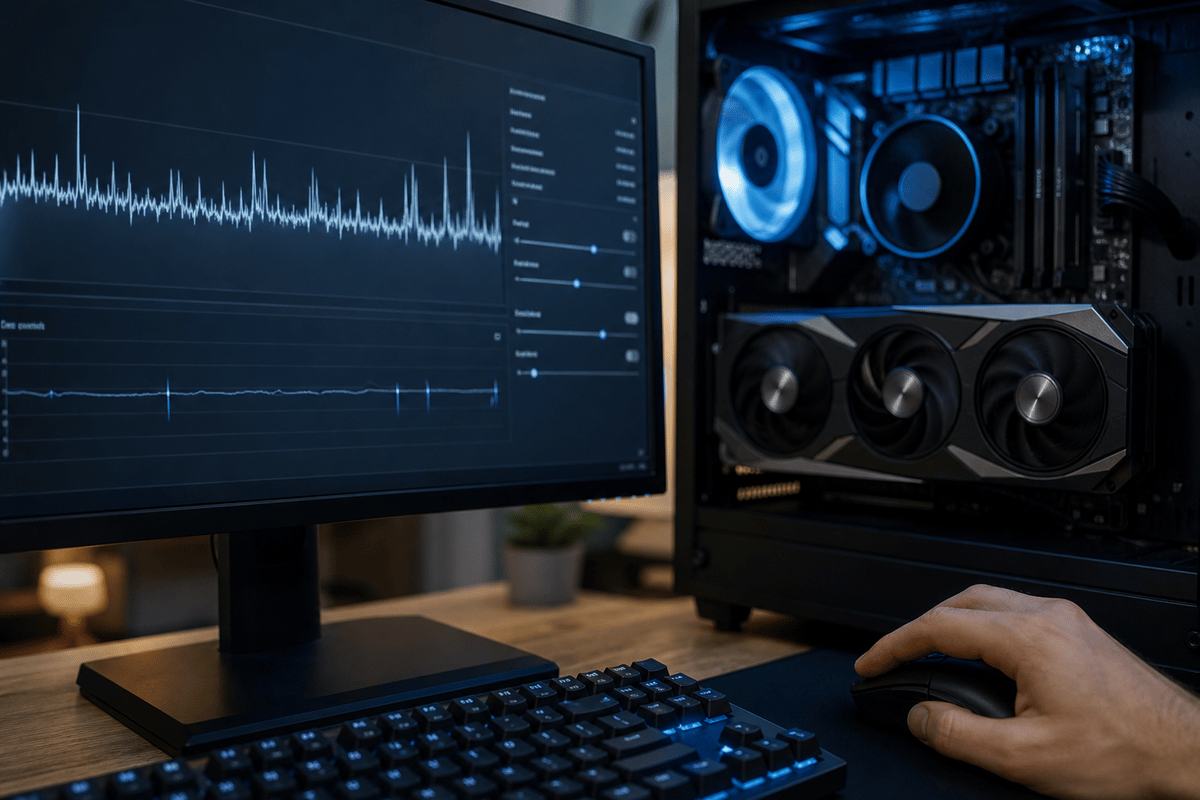
This guide applies to Windows 10 and Windows 11 gaming PCs using DirectX 12 or Vulkan games, particularly titles that build shaders or pipeline state objects during first use. A PSO, short for pipeline state object, is one of the pre-baked bundles modern graphics APIs use to tell the GPU how to render something. When a game has to create one on the fly, it can briefly stall rendering and produce a sharp frame-time spike even when the average frame rate still looks healthy.
That distinction matters because “stutter” is a bucket term. Some hitches really are temporary cache rebuilds after a driver update. Some are asset-streaming problems. Some are plain old low performance. Treating every one of them like a shader-cache issue wastes time and can make the original problem worse.
Table of Contents (18)
First, identify the kind of stutter
“Stutter” gets used for three very different problems. Treating all of them as a shader-cache issue wastes time and can make the original problem worse.
| Problem | What it looks like | Typical trigger | Useful first check |
|---|---|---|---|
| Shader compilation or PSO stutter | Short, sharp hitches when seeing a new effect, material, enemy, weather effect, or area for the first time | New driver, game update, first launch, new graphics API mode | Replay the same route or scene two to three times after compilation completes |
| Traversal stutter | Hitches while driving, sprinting, flying, or moving the camera through a dense world | Asset streaming, slow storage, VRAM pressure, excessive view distance | Check whether the game is installed on an HDD rather than an NVMe SSD; reduce streaming-heavy settings |
| Low sustained FPS | Frame rate stays low across every scene, but frame-times are broadly consistent | GPU or CPU limit, too-high settings, ray tracing, resolution | Lower demanding settings or resolution and check CPU/GPU utilisation |
Shader stutter is usually repeatable in a useful way: an explosion, a spell effect, a specific street corner, or a new biome causes a one-off hitch, then behaves better once revisited. Traversal stutter follows movement through the world. Low FPS does neither; it simply persists.
If you want a practical test, do not wander randomly and then declare the game broken. Pick one route. Run it once. Run it again. Then run it a third time. If the hitch happens at the same fountain, same enemy introduction, same weather transition, or same doorway the first time and then softens or disappears, that is classic shader or PSO behavior. If it keeps firing every time you move quickly through a busy district, forest, or open road, you are probably looking at streaming pressure instead.
This is also where players get tripped up by average FPS counters. A game can show a healthy average and still feel miserable if it is producing sharp frame-time spikes. Shader compilation is a frame-time problem first. It does not care that the benchmark graph still looks flattering.
Let the game compile shaders before playing
If a game shows “Compiling Shaders,” “Building Shaders,” or a similar progress bar, wait until it reaches 100%. Intel’s current guidance for Arc A-Series graphics specifically advises allowing shader processing to complete before starting gameplay. That process can take several minutes depending on the game and system configuration.
Keep the game window active during this step. Some engines pause or slow background compilation when the window loses focus, so alt-tabbing through the process can leave work unfinished and push those stalls into the opening hour of gameplay.
Games that provide a documented in-game option to rebuild shaders or a pipeline cache are the exception where a manual rebuild makes sense. Use the game’s own control, then let it complete. It is reversible, targeted, and far preferable to randomly removing files from Windows folders.
This is the point where impatience causes half the “new driver ruined my game” posts. A driver update often means the old compiled work is no longer the work the game wants to use. The cache is not a sacred relic; it is a compatibility layer between the game, the driver, and the API. Change one of those pieces and some or all of the old work may need to be rebuilt.
If the game offers no visible shader-compilation step, that does not prove it has none. Some titles still compile or prepare shaders during gameplay. In those cases, the best evidence is behavior. New effect, one-time hitch, better on the second pass: warm-up. Same route, same hitch, same severity over multiple sessions: time to keep digging.
Why a new driver can cause familiar hitches again
Driver updates can invalidate or rebuild parts of the shader cache. The game then needs to prepare shader variants and PSOs again for the new driver environment. That is why a game can hitch through effects and locations it handled cleanly before the update.
The key distinction is duration. A cache warm-up should improve after the first few minutes or a handful of repeat runs through the same content. If the exact same route keeps hitching over multiple sessions without another game or driver update, stop calling it normal shader compilation. Investigate traversal, storage, VRAM use, graphics settings, overlays, or a game-specific bug instead.
That last part matters with new releases. Not every launch-week hitch is your fault, your SSD’s fault, or your driver’s fault. The Blood of Dawnwalker, for example, received an early PC patch from Rebel Wolves that addressed blocked quest progression, tutorial flow, and some controller behavior problems, while the developers also indicated that stuttering and shader crash issues were still being worked on. In other words: sometimes the correct diagnosis is “the game still needs fixes.” Your job is to separate that from temporary post-update cache rebuilds so you do not end up “fixing” the wrong thing.
Safe checks after the update
- Run the affected game normally first. Allow any visible pre-compilation to finish, then play enough to revisit the same demanding area. Two or three passes are enough to show whether stutters are diminishing.
- Check the game’s graphics API after an update. A game switching between DirectX 11, DirectX 12, Vulkan, or a separate ray-tracing mode can create a fresh cache and change both performance and stutter behaviour.
- Use a sensible frame cap if movement triggers hitches. Capping performance 5 to 10 FPS below the system’s sustained average can leave CPU headroom for streaming work. This addresses frame-time stability; it does not compile shaders faster.
- Check where the game is installed. Traversal-heavy games on an HDD are much more likely to hitch while loading new world data. Moving a game to an NVMe SSD can help streaming far more than any shader-cache tweak.
- Reduce streaming pressure before lowering everything. View distance, foliage density, texture streaming limits, and ray tracing can increase CPU, VRAM, and storage demands. A blanket “Low” preset hides the cause rather than identifying it.
- Compare your in-game settings with what you used before the driver update. Some updates or game patches can reset options, flip a renderer, or re-enable heavier effects. If the frame-time problem began alongside a silent settings change, that is not a shader issue at all.
That last bullet is more common than players like to admit. One driver update later, the game is suddenly back to native resolution instead of using an upscaler, or ray tracing has been re-enabled, or the render scale got bumped. If your “stutter” is actually a system under heavier load than yesterday, the fix is not cache surgery. It is restoring the settings you meant to use.
If the hitching does not fade, strip out easy conflicts first
Once the simple warm-up test fails, move to reversible checks that change one thing at a time.
Toggle Hardware-accelerated GPU scheduling
Hardware-accelerated GPU scheduling, often shortened to HAGS, can help in some setups and make frame pacing worse in others. If the game keeps hitching after the normal cache warm-up window, toggle HAGS once, reboot, and test the same route again. Do not judge it by vibes after five seconds in a menu. Use the same area, same scene, same movement pattern.
If the route behaves exactly the same, move on. HAGS is not a miracle switch, but it is a clean troubleshooting step because it is easy to reverse and does not involve tearing apart caches or reinstalling half your PC.
Close overlays and capture tools
Overlays are another low-risk suspect. If you have Discord overlay, the NVIDIA App overlay, Xbox Game Bar capture, OBS, or an FPS or hardware-monitor overlay running, close them and retest. Yes, this includes the tools many PC players leave on by habit. They are useful until the day they are not.
The point is not that overlays are bad across the board. The point is that a fresh driver branch plus a game patch plus a capture hook is exactly the sort of stack that can create ugly frame-time behavior. Remove the extra layer, retest the same spot, and keep the result if it helps.
Recheck per-game driver settings
Driver updates can reset or alter per-game profiles. If you had custom power management, latency, V-Sync, shader-cache, or frame-limit settings, confirm they survived the update. A clean-looking driver install can still quietly undo the part of your setup that kept frame pacing sane.
Be boring here. Boring is good. Restore known-good settings, reboot if needed, and test again. Avoid piling on ten speculative changes at once, because then you learn nothing from the result.
Vendor-specific checks: keep them vendor-specific
Intel Arc A-Series on Windows
For Intel Arc A-Series GPUs, Intel’s support guidance is straightforward: install the appropriate current driver and let shader processing reach 100% before playing. Intel does not tell Arc owners to routinely delete shader caches. Give the documented compilation stage time to finish before changing anything else.
That guidance is one reason patience belongs at the top of the checklist. Shader processing can take several minutes. If a game or driver has clearly signaled that it is doing that work, let it do the work. Interrupting it, force-closing it, or starting a benchmark loop halfway through is a great way to create the exact hitching you are trying to avoid.
NVIDIA GeForce on Windows
NVIDIA users can inspect the Shader Cache Size option in NVIDIA Control Panel or the NVIDIA app under Manage 3D Settings. Where the control is available, using a less restrictive value such as 10 GB or Unlimited is a reversible configuration check for players who see repeated cache-related behaviour across several games.
Windows shader-cache folders commonly include %LOCALAPPDATA%\NVIDIA\DXCache, %LOCALAPPDATA%\NVIDIA\GLCache, and %PROGRAMDATA%\NVIDIA Corporation\NV_Cache. Their presence is normal. Inspecting them is harmless; deleting them routinely is counterproductive because it discards compiled work and guarantees more compilation on the next launch.
NVIDIA’s Vulkan environment variables, including __GL_SHADER_DISK_CACHE_SIZE and __GL_SHADER_DISK_CACHE_SKIP_CLEANUP, are Linux-focused developer controls. They are not general Windows fixes and do not apply to Intel or AMD hardware.
If you do move beyond basic testing on GeForce, the cleanest official-style next step is a normal reinstall using NVIDIA’s installer with Custom (Advanced) and Perform a clean installation, then reapplying the game-specific settings you actually use. That is still a measured response. It is very different from throwing third-party “optimizer” tools at the problem.
AMD Radeon on Windows
Do not apply NVIDIA cache paths, Control Panel options, or Linux environment variables to Radeon systems. Start with the game’s own shader compilation, repeatable-route testing, storage checks, and graphics settings. If a Radeon driver update causes persistent visual corruption or stutter across multiple games, use AMD’s documented driver support path rather than copying a workaround designed for another vendor.
The larger rule is simple: vendor-specific advice stays vendor-specific. PC troubleshooting gets weird fast when someone with a Radeon card follows a GeForce fix written for a different cache system, or when a Windows player borrows a Linux developer variable and expects magic.
When a clean driver reinstall or rollback is worth the trouble
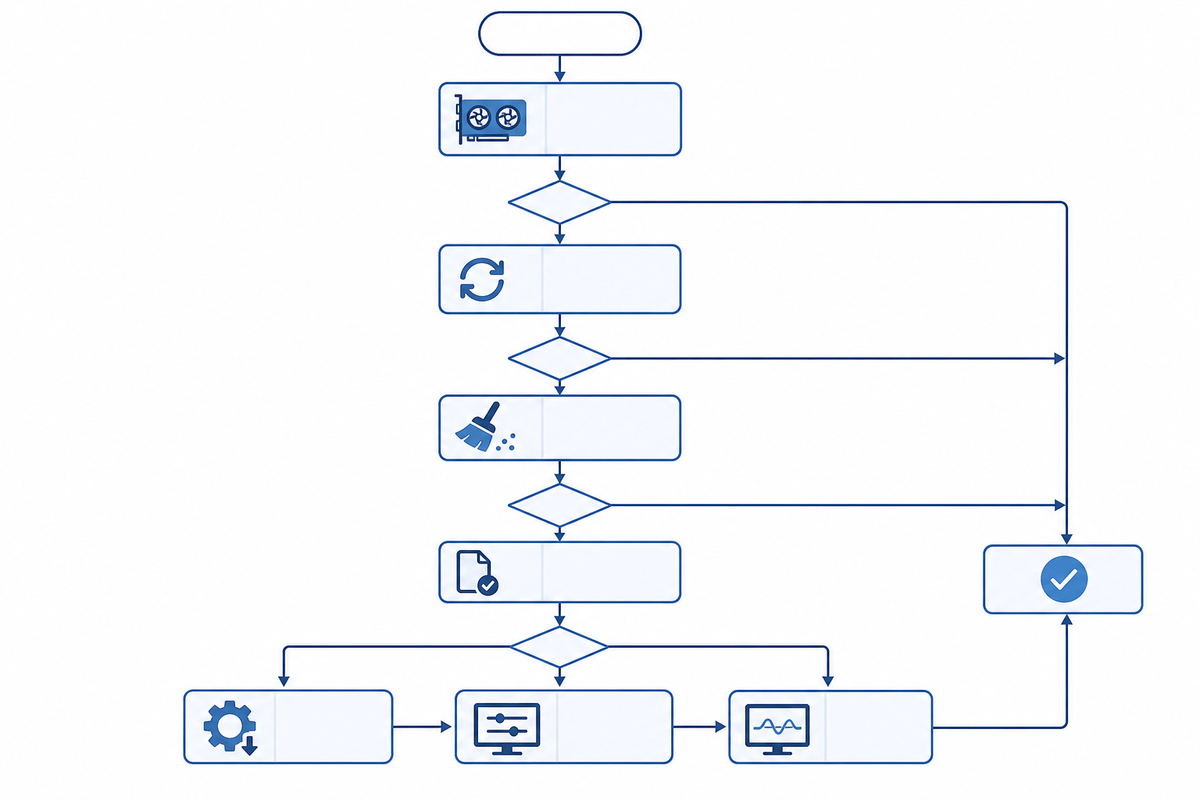
If repeated-route testing shows no improvement, overlays are closed, HAGS has been tested, and your settings still look correct, then a clean reinstall or rollback becomes reasonable.
A clean reinstall is the better first escalation when the driver update and the stutter arrived together and you suspect a broken profile or corrupted install. Install the same branch again using the vendor’s normal package and clean-install option if it offers one. Then reboot and test the same in-game path you have been using all along.
A rollback makes more sense when the game was stable on the previous driver and the new branch is the only major variable. Before rolling back, write down the exact driver version you are on. After the rollback, do not bounce between five games and trust memory. Test the same scene in the same game. If the hitching is unchanged, the driver probably was not the root cause.
This order matters because it protects you from superstition. PC troubleshooting becomes nonsense the moment every result is measured against a different area, a different weather state, or a different hour of the campaign. Keep the comparison clean.
Windows Update can muddy the waters
Windows itself can complicate this process. A recent cumulative update may coincide with your driver change, or Windows Update may try to push a different display driver than the one you intended to keep. If performance changed immediately after “updating the driver,” confirm that the installed version is still the one you think it is.
This is especially important after a rollback. If Windows replaces your chosen driver in the background, you can waste an evening testing the wrong build and blaming the wrong culprit. Check the driver version before and after major tests instead of assuming the system obeyed.
None of that means Windows Update is the villain every time. It means you should verify the environment before making bigger changes. Troubleshooting without version control is how people end up “fixing” a problem that never stayed fixed.
When clearing a shader cache is justified
Cache deletion has a narrow role: persistent stutter, freezing, or visual corruption that began immediately after a driver update and remains after documented compilation has completed and the same scenes have been replayed. Even then, start with the game’s own rebuild option if it has one.
A routine cache purge after every driver update is bad maintenance. It forces every supported game to rebuild work that may otherwise have been reused. Likewise, avoid Safe Mode driver removals, registry edits, OS “optimisers,” and disabling security features merely because a game hitches after an update. Those are heavyweight interventions for a problem that is often temporary cache warm-up.
If you do clear a cache as a last resort, treat it like a controlled test, not a ritual. Make one change. Relaunch the affected game. Let any shader build finish. Re-run the same route. If the first pass is predictably worse and later passes improve, that is exactly what you asked the system to do by throwing away compiled work.
In other words, cache clearing is not proof of success when the first launch stutters harder. That is the expected cost of rebuilding.
A launch-week example of where this checklist helps
This sort of triage matters most when a new PC game launches into the usual mess of hotfixes, day-one patches, and fresh driver recommendations. The Blood of Dawnwalker is a good example of the environment, not because every hitch in that game has the same cause, but because it shows how multiple issues can overlap. Rebel Wolves has already pushed an early PC patch to address quest blockers, tutorial rough edges, and controller behavior, while stuttering and shader crash issues remain in progress.
For players, that means restraint is useful. If a new driver lands on the same week as a patch and the opening town starts hitching, you may be seeing any mix of cache rebuilding, changed settings, launch bugs, or streaming pressure. The disciplined response is still the same: let documented compilation finish, repeat the same route, strip out overlays, check settings, and only then escalate to reinstall or rollback.
That is less dramatic than “delete everything in AppData and pray,” but it is also how you avoid turning temporary shader compilation into a self-inflicted permanent routine.
Useful official references
- Intel support: Performance Issues (Stuttering) When Trying to Play a Game Using an Intel Arc A-Series Graphics
- NVIDIA driver downloads
- AMD driver and support page
The Intel article above is the clearest official reminder of the main point here: if a game is compiling shaders, let it finish. That advice is not glamorous, but it beats most of the “fixes” people try first.
Practical takeaway
Post-driver-update shader stutter is usually a temporary frame-time problem, not proof that the new driver has ruined performance. Let compilation finish, test a repeatable route two or three times, and separate one-off shader hitches from streaming stutter or genuinely low FPS.
If the problem persists after that warm-up period, change one reversible setting at a time — starting with the game’s own cache tools, graphics API, storage location, HAGS, overlays, and streaming settings. If those checks fail, a clean reinstall or rollback is the next sensible step. What you should not do is nuke caches by default, mash together vendor-specific fixes that do not apply to your hardware, or mistake a launch-week game bug for a universal driver catastrophe.
Most of the time, the boring diagnosis is the right one: the driver changed, the cache needs to warm back up, and the best fix is to let the system finish the job.
FinalBoss // Gear
Level up your setup
01Graphics cardson Amazon→02Gaming laptopson Amazon→03High-refresh gaming monitorson Amazon→04Discounted game keyson Kinguin→Affiliate links · As an Amazon Associate, FinalBoss earns from qualifying purchases.
Want to Level Up Your Gaming?
Get access to exclusive strategies, hidden tips, and pro-level insights that we don't share publicly.
Ultimate Tech Strategy Guide + Weekly Pro Tips