
Table of Contents (15)
Pragmata PC & Handheld Performance: What You Actually Need to Change
If you just want Pragmata to run well without reading a novel, here’s the short version: on NVIDIA PCs, install the latest Game Ready driver (596.21 or newer), turn on DLSS with Ray Reconstruction, and only enable path tracing on RTX 40/50 cards with DLSS set to Performance. On Steam Deck, forget ray tracing entirely, drop to 800p, use FSR 3 on Balanced, and aim for a mostly-locked 30-40fps instead of chasing 60.
Everything else is about how you tune those pieces. Capcom’s new Aria Engine is gorgeous, but it’s also very “next‑gen” in how it leans on modern upscalers and frame generation. With the right settings, Pragmata scales surprisingly well from a 5090 desktop monster down to a Steam Deck, but the default presets don’t always get you there.
Let’s turn this into a practical checklist: which NVIDIA features to actually use, how to think about DLSS vs native resolution, and the exact Steam Deck settings that currently hit the best balance of clarity, performance, and battery life.
[SPECS_TABLE]
| Item | Details (Pragmata PC/Handheld) |
|---|---|
| Engine | Capcom Aria Engine, heavy use of modern lighting, GI, and volumetrics |
| Upscaling (PC) | DLSS Super Resolution (RTX), DLSS Ray Reconstruction, DLSS Multi Frame Generation (DLSS 4.x), FSR 3, XeSS |
| Ray Tracing Modes | Standard RT (reflections, shadows, GI) and full path tracing option on PC |
| Recommended NVIDIA Driver | GeForce Game Ready 596.21 or newer (adds Pragmata profile, DLSS 4.5 features, optimization) |
| RTX 50 Series Highlight | PC-exclusive path tracing with DLSS Multi Frame Generation + Ray Reconstruction; up to ~3x perf at 2560×1600 vs native |
| Example: RTX 5080 Desktop | 4K, maxed (no path tracing): >100fps; with path tracing: use DLSS Performance to stay >60fps |
| Example: RTX 5090/5080 Laptop | 2560×1600, ultra, path tracing + DLSS SR + Frame Gen: up to ~200fps; 1080p up to ~260fps with ~3.1x multiplier |
| Steam Deck Targets | 1280×800, FSR 3 Balanced, low-medium mix, RT off; ~35-45fps typical, ~60fps in lighter scenes |
| Steam Deck Battery (LCD) | Roughly 1h10–1h30 at 50% brightness, 40fps cap, tuned settings |
| Handheld Focus | Steam Deck (LCD/OLED), plus guidance that maps cleanly to ROG Ally / Legion Go / other x86 handhelds |
That table is the bird’s-eye view. The interesting part is how you get from “default presets” to those actual experiences, especially when you start layering DLSS, frame generation, and handheld quirks on top.
DLSS in Pragmata: What Each Piece Really Does
The moment it clicked for me with Pragmata on PC was when I stopped thinking about “DLSS on/off” and started treating each DLSS feature as a separate lever. The game exposes several under the DLSS umbrella, and they’re not interchangeable.
Here’s the simplified breakdown:
- DLSS Super Resolution – The core upscaler. Renders at lower internal resolution, reconstructs to your chosen output (1440p/4K, etc.). Biggest raw FPS gains, some trade-off in fine detail depending on mode (Quality vs Performance).
- DLSS Ray Reconstruction – Replaces parts of the classic denoiser for ray-traced effects. In Pragmata, this is what cleans up noisy RT reflections and GI, especially in motion, and helps path-traced scenes look sharper instead of smeared.
- DLSS Multi Frame Generation (DLSS 4.x) – Generates extra interpolated frames between real ones using motion vectors. This is where that “3x performance” marketing comes from: you’re rendering fewer “real” frames, then filling the gaps.
On an RTX 5080/5090 system, NVIDIA’s own numbers point to roughly a 3x effective FPS boost at 2560×1600 when you stack Super Resolution + Ray Reconstruction + Multi Frame Generation together, pushing Pragmata up toward ~200fps on capable laptop GPUs. At 1080p, they quote around a 3.1x multiplier and frame rates north of 260fps in optimal conditions.
That sounds ridiculous until you remember those are not all fully rendered frames; some are generated. Still, the end result on a 165–240Hz G‑Sync/FreeSync display is that the game feels absurdly fluid, even with aggressive path tracing enabled.
On mid-range hardware, the picture is simpler: you care much more about DLSS Super Resolution and Ray Reconstruction, and usually skip Frame Generation unless you have enough headroom to handle the extra latency and occasional artifacting.
NVIDIA Driver 596.21: Why You Should Actually Care
Most people treat driver versions like Windows updates: they click “install” eventually and hope nothing breaks. For Pragmata on NVIDIA cards, the 596.21 Game Ready driver (or newer) is genuinely worth hunting down specifically.
This driver adds:
- A specific Pragmata profile, which usually means tuned shader compilation behavior, better default texture streaming heuristics, and saner defaults for latency and VRR.
- Support for the game’s latest DLSS 4.5 features, including the current iteration of Multi Frame Generation and updated Ray Reconstruction logic.
- Official “Game Ready” support – which in practice tends to reduce the weird hitching you see the first time you enter a new area or trigger heavy particle effects.
On my own RTX 4070 machine, the difference between a pre‑Pragmata driver and 596.21 wasn’t night-and-day in raw FPS, but it was very noticeable in frame pacing. Those little 100–200ms spikes when the engine streams in dense city scenes smoothed out, especially once shaders had cached properly after a run or two.
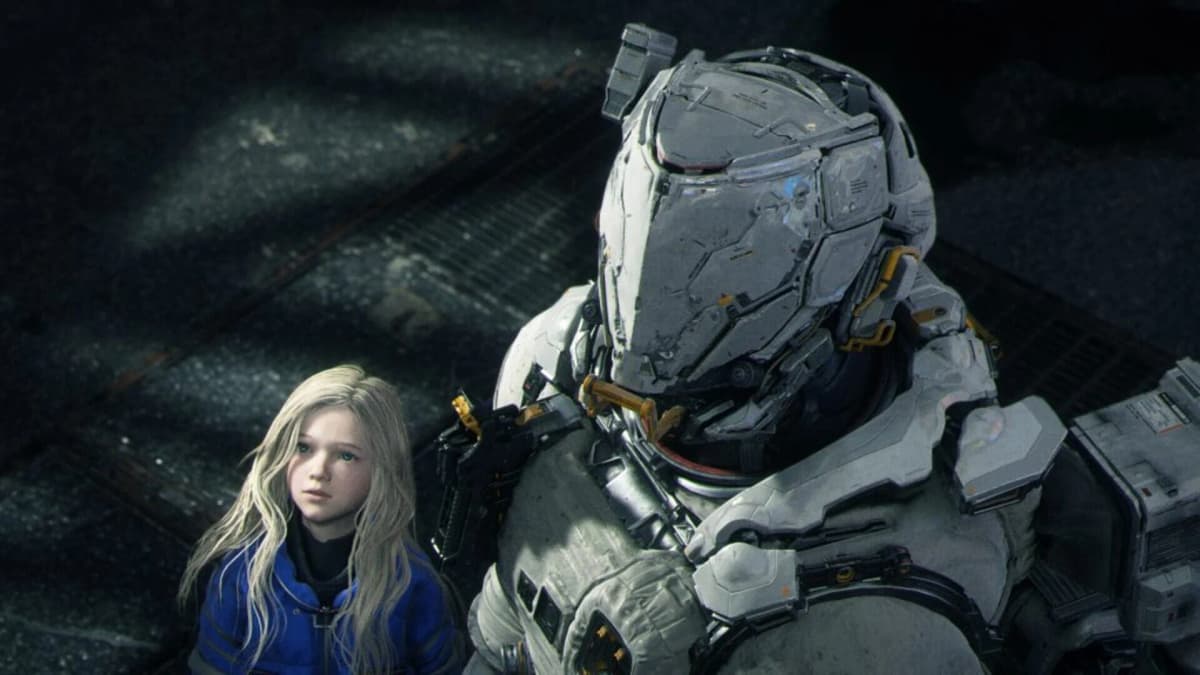
If you’re seeing occasional half-second stutters or random drops that don’t correlate with GPU usage, the driver update is the first thing to tick off the list before you start turning every setting down.
PC Settings: Sensible Targets by GPU Class
Instead of obsessing over every individual slider, it helps to pick a target and then back into it: 60fps minimum? 120Hz VRR? Path tracing at any cost? I’ll split things into three practical tiers and what’s realistic for each.
High-End RTX (RTX 4070 / 4070 Ti / 5070 and up)
This is where Pragmata starts to feel “how Capcom intended” without brutal compromises. For 1440p and 4K, I’d tune like this:
- Resolution: 2560×1440 or 3440×1440 (ultrawide) on 4070-class cards; 4K is comfortable on 4080/5080 and above.
- Preset: Start from the “High” or “Ultra” preset.
- Ray Tracing: Standard RT On, but keep full path tracing for 4080/5080+ only.
- DLSS Super Resolution: “Quality” at 1440p, “Balanced” at 4K. Avoid Performance at 1440p unless you’re chasing 120–144fps and don’t mind some shimmering.
- DLSS Ray Reconstruction: On, if you’re using any ray-traced mode. The cleaner lighting and reflections are worth it.
- DLSS Frame Generation: On for 120Hz+ displays where you can keep the native FPS above ~60. If you’re sitting in the 45–60fps native range, frame gen can still help, but you’ll feel the added latency.
- Heavy Hitters to Watch: Global Illumination quality, volumetrics, hair / strand density, and screen-space reflections all bite deeply into performance at 4K. Dropping these one notch often buys you 15–25% FPS without obvious visual carnage.
On an RTX 5080 desktop, for example, you can realistically run at 4K, all the classic settings maxed, path tracing off, and see >100fps. If you enable path tracing, swap DLSS to Performance, keep Ray Reconstruction on, and you’ll usually stay above 60fps with image quality that’s frankly overkill for most monitors.
Mid-Range RTX (RTX 3060 / 3070 / 4060 / 4060 Ti)
This is the sweet spot many people are actually on, and Pragmata does run well here if you respect its lighting budget.
- Resolution: 1080p or 1440p, depending on your monitor. If you’re on 1440p, DLSS is basically mandatory.
- Preset: Begin at “Balanced” or “High”. “Ultra” is mostly for top-end cards.
- Ray Tracing: I’d keep RT to a minimum here. Standard RT reflections + shadows on “Low” or “Medium” at 1080p are doable; at 1440p, RT Off or very limited RT is recommended.
- DLSS Super Resolution: At 1080p, if you use it, stick to “Quality”. At 1440p, “Balanced” is generally the best compromise; “Quality” might not give you enough uplift in busy city scenes.
- DLSS Ray Reconstruction: Worth enabling if you have any RT at all; skip it if you’re running entirely rasterized settings.
- DLSS Frame Generation: Use cautiously. Great if you’re on a 120Hz display and can keep real FPS >50; otherwise, it’s safer to turn this off and just lower traditional settings.
- Cut These First: Global Illumination, volumetric fog quality, contact shadows, and high-end hair simulation. Texture quality you mainly tune by VRAM amount, not raw performance.
This tier is where ray tracing turns into a luxury. The game still looks excellent with RT off, especially if you’re using DLSS at a solid mode and keeping shadows and GI at a sensible quality.
Older / Non-RTX GPUs
If you’re on a GTX 1660, older Radeon, or anything without DLSS, your job is both simpler and harsher: you rely on FSR or XeSS and keep your expectations in check.
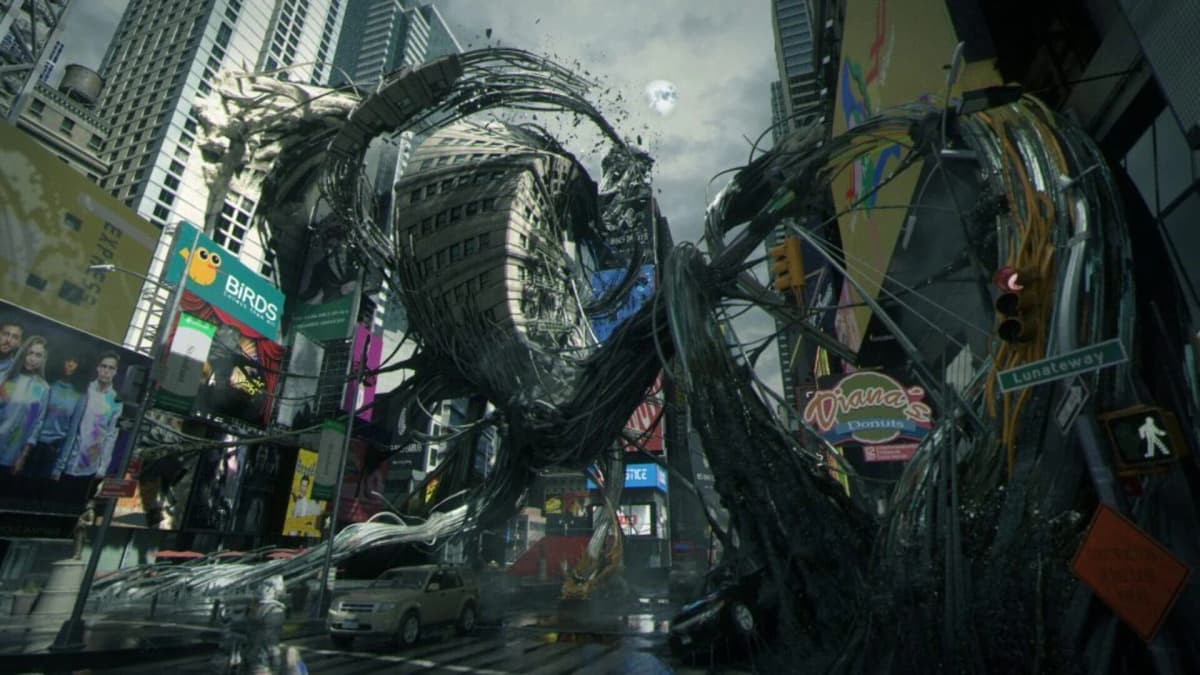
- Resolution: 1080p, often with FSR at “Quality” or even “Balanced” depending on how old the card is.
- Ray Tracing: Completely off. Don’t even flirt with it.
- Upscaler: Prefer FSR 3 in Quality mode; Balanced only if you really need the extra 20–30% uplift.
- Preset: Start at “Medium” and nudge individual settings up or down from there.
- Biggest Wins: Disable or cut back screen-space reflections, volumetrics, and high-end post-processing like motion blur and depth-of-field.
You can still get a good-looking game here, but the visual showcase elements – especially Aria’s fancier lighting modes – are essentially off the table.
Steam Deck: Making Pragmata Work on Valve’s Handheld
On Steam Deck, the story flips: you’re no longer asking whether you can run ray tracing, you’re asking how much of the “big machine” look you can keep while hitting a playable 30–40fps and not murdering your battery in under an hour.
Current testing from multiple reviewers lines up pretty consistently: with smart settings, Pragmata is playable on Steam Deck, but not “locked 60fps” playable. You’re trading framerate ambition for stability and battery.
Baseline Steam Deck Settings (LCD or OLED)
As a starting point, this has been a very solid “set it and forget it” profile:
- Resolution: 1280×800 (native for Deck). Avoid 720p; it doesn’t buy much versus 800p but looks noticeably softer.
- Refresh Rate: 40Hz in the Deck’s Performance overlay. This is the sweet spot between smoothness and power draw.
- Frame Rate Cap: 40fps in the Deck menu (or in-game, but I prefer doing it at the OS level here).
- Upscaling: FSR 3 on Balanced. Quality mode looks nicer but doesn’t give enough headroom in heavy combat; Balanced is the current pragmatic choice.
- Graphics Preset: Start from “Low” and then raise select settings instead of starting higher and cutting down.
- Texture Quality: “Medium” is usually fine on Deck’s VRAM; only drop lower if you see obvious streaming stutter.
- Shadows: Low or Medium. Pragmata’s high shadow modes are brutal on handheld GPUs.
- Volumetrics / Fog: Low. These are very expensive at all resolutions.
- Reflections: Screen-space reflections OFF or Low. Full-quality reflections are not handheld-friendly here.
- Ray Tracing: Completely Off. Path tracing and RT are a non-starter on Deck-level hardware.
- Hair / Strand Quality: Low. Fancy hair is one of those options that eats GPU time for surprisingly small real-world impact on a small screen.
With that setup, most reports land Pragmata around 35–45fps in complex outdoor areas, sometimes climbing toward 60fps in smaller indoor spaces. The trade-off is that in very busy scenes you might dip below the 40fps cap briefly, but the overall experience stays reasonably smooth.
On an LCD Deck at 50% brightness, players are seeing something like 1h20m of battery life from a full charge with this profile, which honestly isn’t bad for a heavy modern title with demanding lighting. On the OLED Deck, you get a meaningful bump in perceived contrast at the same resolution, so the lower settings don’t feel as harsh visually.
Tweaks If You Want Stability Over Everything
If your priority is “never drop under 30fps” rather than “sometimes hit 45–50fps”, a few extra sacrifices make a difference:
- Switch FSR 3 from Balanced to Performance. This will soften the image, but you gain more headroom in city hubs and boss fights.
- Lock the Deck to 30Hz / 30fps instead of 40. This reduces GPU load dramatically and can add 15–20 minutes of battery in my experience across similar games.
- Drop ambient occlusion and contact shadows to their lowest settings.
- Turn off any extra motion blur and high-end depth-of-field to save a bit of power and keep the image cleaner on the small screen.
At that point, you’re squarely in “PS4‑era 30fps cinematic” territory, but with the advantage of having it in your hands. Given the size of the Deck’s panel, the overall image still holds together pretty well, especially on OLED.
Other PC Handhelds (ROG Ally, Legion Go, etc.)
Windows handhelds built around modern Ryzen APUs (Z1 Extreme, 7840U, 8840U and friends) land somewhere between Steam Deck and a very low-end gaming laptop. They don’t have DLSS, but they do have much better raw CPU performance and often slightly more flexible GPU clocks.

A sane baseline that has mapped well from Deck to Ally/Legion in other recent AAA games looks like this:
- Resolution: 720p or 900p internal, depending on your screen size. On a 7-inch 1080p panel, 900p with FSR looks fine.
- Refresh Rate: 45–60Hz if the device supports it; I like 45–50Hz as a compromise for Ryzen APUs.
- Frame Rate Cap: Match the refresh rate; 45fps cap at 45Hz is a good sweet spot.
- Preset: Start from “Low” and then bump textures to Medium, maybe shadows to Medium if you have headroom.
- Upscaling: FSR 3 on Quality or Balanced, depending on how aggressive you want to be.
- RT / Path Tracing: Again, completely off; these handheld GPUs are not built for it.
Battery behavior will vary wildly based on TDP settings, but if you’re trying to keep your device under ~18W package power, consider 30fps as your realistic cap and treat everything above that as a bonus you pay for in heat and noise.
Frame Generation, Latency, and VRR: When DLSS 4 Helps or Hurts
DLSS Frame Generation is the most misunderstood part of the whole stack. In Pragmata, it can feel magic on the right setup and almost pointless on the wrong one.
A few ground rules that have held up well in testing and line up with how NVIDIA’s tech behaves in other engines:
- Don’t use frame generation to rescue a 30–40fps base framerate. If your “real” FPS is that low, you’ll get input lag and weird artifacts. Frame gen works best when the underlying FPS is already ~60 or higher.
- Pair frame gen with VRR. On a G‑Sync or FreeSync display at 120–240Hz, the combination of higher effective FPS and variable refresh hides a lot of the temporal oddities and makes motion feel extremely smooth.
- Competitive play is the worst place for it. Pragmata is not an esports shooter, but if you’re sensitive to input latency, you may still prefer good old-fashioned 90–120fps native without frame gen over 150–200fps effective with it.
- Generated frames don’t fix CPU bottlenecks. If you’re main-thread limited (high CPU usage, GPU chilling), frame gen can’t conjure CPU time out of nowhere. You’ll still feel hitches from asset streaming and AI spikes.
On RTX 50-series laptops running Pragmata at 2560×1600, the combo of DLSS Super Resolution + Ray Reconstruction + Multi Frame Generation is exactly the scenario NVIDIA is showing off with those ~200fps claims. The hardware is powerful enough that your “real” FPS is already high, and the high refresh laptop panel smooths the rest.
On a 60Hz 4K TV, I’d be far more conservative: aim for a solid native 60fps with DLSS Quality or Balanced and Ray Reconstruction, and only turn frame gen on if you can feel the added smoothness outweighing the extra latency in your own hands.
The important part is that Pragmata rewards a bit of tinkering. Install the right NVIDIA driver, treat DLSS features as individual tools instead of a single switch, and don’t be afraid to aim for a clean 40fps on handhelds instead of an unstable 60. Once you find that balance for your hardware, the game’s dense sci‑fi world finally feels like it’s working with your system instead of fighting it.
FinalBoss // Gear
Level up your setup
01Graphics cardson Amazon→02Gaming laptopson Amazon→03High-refresh gaming monitorson Amazon→04Discounted game keyson Kinguin→Affiliate links · As an Amazon Associate, FinalBoss earns from qualifying purchases.