
Table of Contents (5)
PS5 Pro’s beta changes the default image pipeline
The current PS5 system software beta enables Enhance PSSR Image Quality by default on PS5 Pro. For compatible games, the console now uses Sony’s newer PlayStation Spectral Super Resolution path automatically rather than waiting for the player to opt in.
That sounds like a small settings change. It is more consequential than it first appears because it can alter the image presentation of PS5 Pro games already installed on the console, including titles that support the earlier PSSR implementation and have not received a new game patch. The setting remains reversible, but it is a console-wide switch rather than a per-game preference.
The relevant control is located at Settings > Screen and Video > Video Output > Enhance PSSR Image Quality. Beta participants should assume it is enabled after installing the update, then evaluate it on their own display instead of relying on still screenshots or generic sharpness claims.
| Item | PS5 Pro beta behavior | What it means in practice |
|---|---|---|
| Enhanced PSSR Image Quality | Enabled by default | Compatible PS5 Pro games can use the newer PSSR reconstruction path automatically. |
| Compatibility | Applies to titles with PSSR support | Older supported games may benefit without requiring a dedicated patch. |
| Manual control | Still available | The setting can be disabled in Video Output if the enhanced image introduces artifacts or an undesirable presentation. |
| Frame-rate modes | No new mode indicated | The toggle is an image-reconstruction change, not a new performance or resolution preset. |
| Scope of the setting | Console-wide | Turning it off affects the compatible PSSR library rather than one selected game. |
What “Enhance PSSR Image Quality” changes
PSSR is Sony’s reconstruction system for PS5 Pro. Its job is to create a cleaner final image from the game’s rendered output and temporal image data. The newer model is intended to improve the difficult parts of that task: retaining fine detail without making moving edges sparkle, crawl, smear, or acquire harsh outlines.
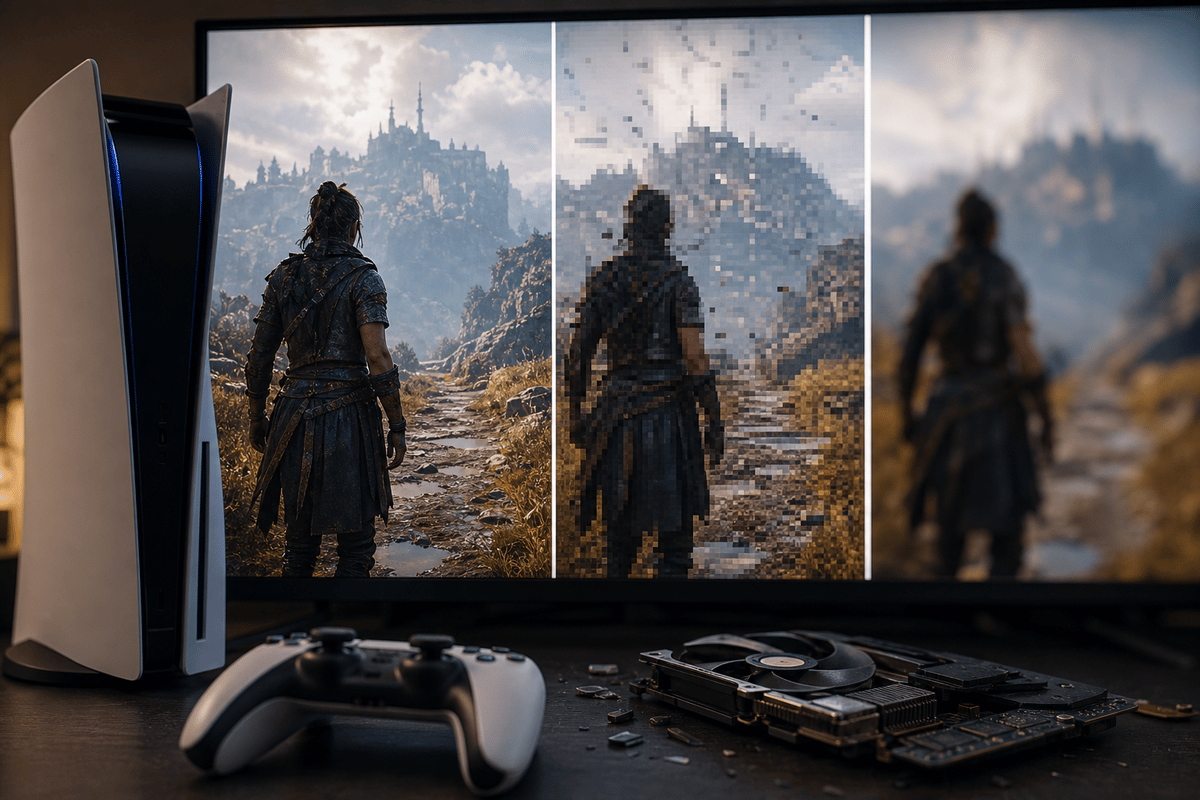
That points to four visible changes worth checking. Fine foliage, fence lines, hair, distant geometry, repeated textures, and small environmental detail may look sharper. During camera movement, those same elements may also look steadier if the newer reconstruction better controls temporal shimmer. HUD elements and menus can appear clearer, although aggressive edge treatment can produce ringing or a brittle, over-defined look on some displays.
The beta does not change game assets, unlock a higher frame-rate cap, or rewrite a title’s built-in Quality and Performance modes. A game’s internal resolution targets, ray-tracing options, and rendering choices still govern most of its visual character. PSSR sits later in the image chain, so a better reconstruction result can clean up the output without changing the game’s underlying workload.
The first problems to look for
Sharper reconstruction is only useful if it remains stable. The first failure points are usually temporal rather than obvious resolution losses: edges that crawl during a pan, detail that pulses as the camera moves, and halos around high-contrast objects. A static pause screen can make either setting look acceptable. Motion reveals whether the reconstruction is behaving.
| Test area | Signs the enhanced PSSR path is helping | Signs to disable it |
|---|---|---|
| Motion clarity | Railings, architecture, foliage, and distant objects remain coherent through camera pans. | Edges smear, crawl, break apart, or appear to sharpen and soften from frame to frame. |
| Fine detail | Thin geometry and distant scenery look more defined without glittering movement. | Fences, wires, leaves, hair, and patterned surfaces develop persistent shimmer. |
| UI readability | Text and HUD lines remain clean at rest and while the scene moves behind them. | Letters show bright halos, ringing, or overly harsh edges that create visual fatigue. |
| Perceived smoothness | The presentation remains stable in demanding scenes and during rapid movement. | The image feels less settled or visually noisier despite no documented new performance mode. |
The smoothness check needs careful interpretation. The beta’s PSSR setting is focused on image quality, not a newly advertised frame-rate option. Still, unstable detail can make an unchanged frame rate look worse because the eye reads shimmering and reconstruction noise as motion instability. Run the same route twice before attributing that feeling to performance.
A controlled PSSR 2.0 test takes ten minutes
A useful comparison needs a familiar PS5 Pro game with PSSR support and a repeatable scene. Dense foliage, distant buildings, railings, wires, a readable HUD, and regular camera movement give the enhanced mode enough difficult material to expose its strengths and weaknesses.
- Standardize the display first. Disable or reduce motion smoothing, noise reduction, dynamic contrast, and excessive sharpness. These features can add their own edge enhancement or temporal processing, making it impossible to isolate the console’s reconstruction behavior.
- Use the same game mode and scene. Keep the game’s graphics preset unchanged. A fixed checkpoint, photo-mode location, or short route through a dense area is more useful than comparing unrelated sections.
- Run one pass with the setting enabled. Check thin geometry while moving the camera, then stop and inspect fine detail and HUD text.
- Disable Enhance PSSR Image Quality and repeat. Return to Settings > Screen and Video > Video Output, turn the setting off, and rerun the identical sequence.
- Choose the more stable image. A slightly softer result that holds together in motion is generally preferable to a sharper image that continually sparkles, rings, or breaks apart.
Display type changes the recommendation
The same PSSR result can read differently depending on screen size, seating distance, panel behavior, and the display’s own processing. This is why a default-on system setting needs a practical opt-out rather than a blanket claim that every compatible title will look better.
| Display setup | Prioritize during testing | Practical guidance |
|---|---|---|
| 4K OLED at couch distance | Fine-detail stability, shimmer reduction, HUD clarity | Keep the enhanced mode enabled if foliage and distant geometry become cleaner without introducing edge noise during pans. |
| Large LCD television | Ringing, artificial outlines, panel sharpening interaction | Set the television’s sharpness conservatively before comparing. LCD processing can exaggerate a reconstruction pass that is already edge-focused. |
| Monitor at desk distance | Text clarity, UI edges, close-range temporal noise | Favor a stable interface and clean motion over maximum apparent sharpness. Minor haloing is much easier to notice at close range. |
Monitor users have the least room to ignore artifacts. At a desk, ringing around small text or instability in repeated patterns becomes obvious quickly. Large television owners may instead notice the benefit first in foliage and distant scenery, where cleaner temporal reconstruction can reduce the distracting glitter that shows up during normal camera movement.
The beta also changes the behavior around PS5 Bluetooth controls, but that setting is unrelated to PSSR image quality. The Bluetooth disable option is intended for controlled controller-management scenarios such as esports-style venues; it should not be treated as part of display troubleshooting.
FinalBoss // Gear
Level up your setup
01Best-selling PS5 gameson Amazon→02DualSense controllerson Amazon→03PS5 SSD upgrades (M.2 NVMe)on Amazon→04Discounted game keyson Kinguin→Affiliate links · As an Amazon Associate, FinalBoss earns from qualifying purchases.
Want to Level Up Your Gaming?
Get access to exclusive strategies, hidden tips, and pro-level insights that we don't share publicly.
Ultimate Tech Strategy Guide + Weekly Pro Tips