
PS5 Pro’s August 2026 system software beta turns Enhance PSSR Image Quality on by default after installation. To disable the upgraded PSSR 2.0 behavior, go to Settings → Screen and Video → Video Output → Enhance PSSR Image Quality and switch it off.
The toggle only exists on PS5 Pro and only affects games that already support PlayStation Spectral Super Resolution. It does not add PSSR to unsupported games, and it does not affect the base PS5.
Table of Contents (6)
What Enhance PSSR Image Quality Changes on PS5 Pro
PSSR 2.0 is Sony’s updated image reconstruction and upscaling technology for PS5 Pro. The system-level Enhance PSSR Image Quality option applies that upgraded behavior to compatible games that used the earlier PSSR implementation, including games that have not received a separate PSSR 2.0 game patch.
The practical target is a sharper, clearer image with less shimmer and flicker around fine details. Thin objects, distant geometry, grass, tree leaves, hair, railings, wire fences, and high-contrast edges are the places where the difference is easiest to spot. Results still vary by game, scene, display, output resolution, and how sensitive you are to temporal artifacts during movement.
Do not confuse this with PS5 Pro’s PS4 image enhancement setting. That is a separate feature for backward-compatible PS4 games. The PSSR setting discussed here is for PS5 Pro games that already use PSSR.
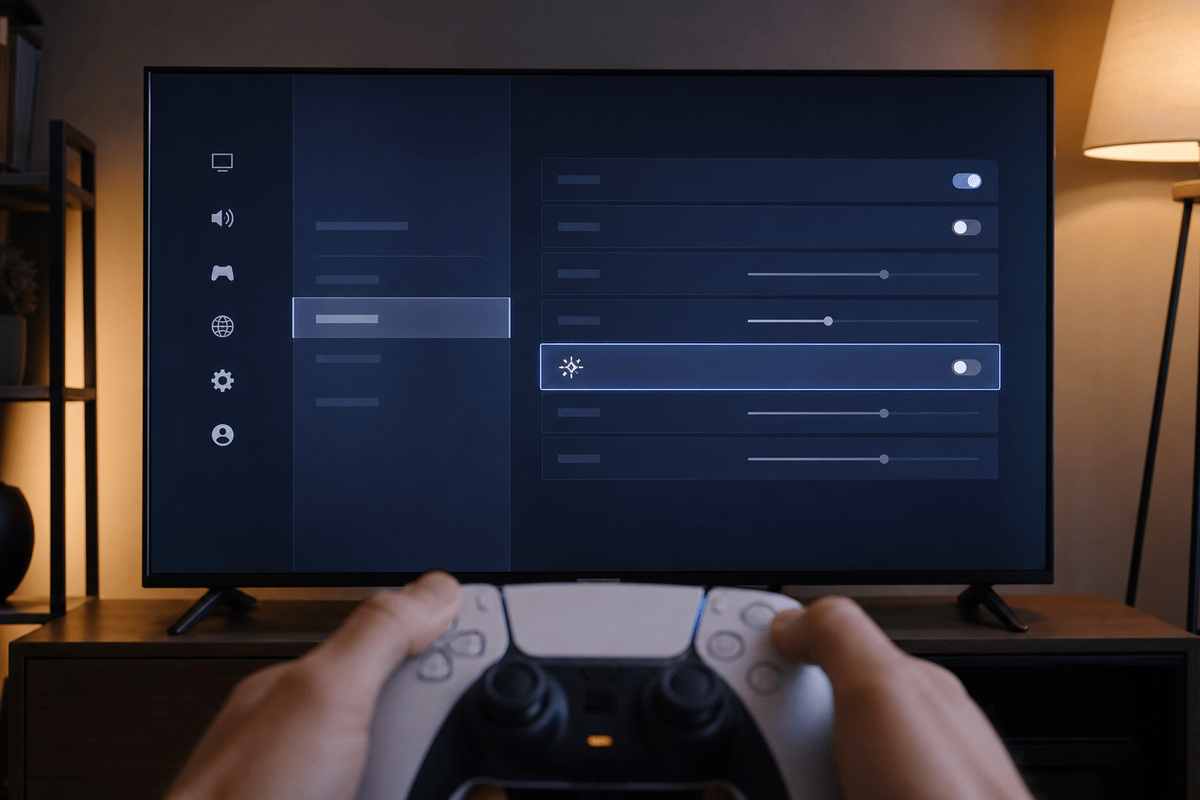
How to Turn Off Enhance PSSR Image Quality
Open Settings → Screen and Video → Video Output → Enhance PSSR Image Quality on PS5 Pro, then set the option to off. The August 2026 public beta enables it automatically, so checking this menu is worthwhile if an older comparison or a preferred game-specific image setup no longer looks the way you remember.
Turning the setting off does not disable every form of upscaling in a game. It removes the upgraded PSSR behavior from the system setting. Depending on the title’s rendering implementation, the result may use the earlier PSSR path or a different native reconstruction path chosen by that game.
Run an On-and-Off PSSR 2.0 Comparison Properly
A quick menu check rarely tells you much. Use the same game, the same area, the same camera angle, and the same display settings for both passes. Changing HDR, output resolution, performance mode, VRR, or the game’s own graphics preset during the test makes the result useless because you are no longer comparing PSSR alone.
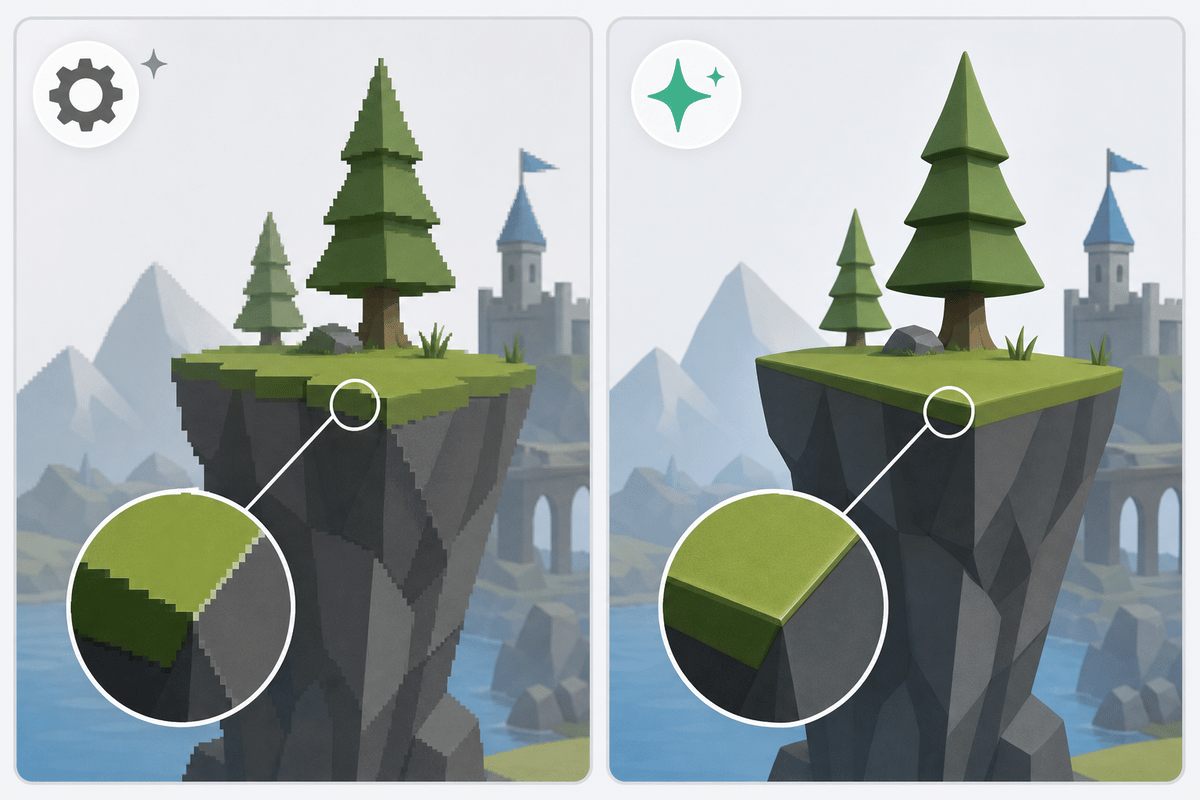
- Keep the PS5 Pro on the same display for both tests, whether that is a 4K TV or a 1440p monitor.
- Use the same PS5 output resolution, HDR state, game mode, VRR setting, and in-game graphics preset.
- Start with a static frame, then repeat the test while moving the camera slowly and while moving quickly through the same scene.
- Capture matching screenshots or short clips with Enhance PSSR Image Quality on and off.
- Judge the result from your normal seating distance before zooming into screenshots.
What to Look For During the Test
| Test area | PSSR 2.0 enabled | PSSR 2.0 disabled | What matters most |
|---|---|---|---|
| Static detail | Check distant scenery, foliage, stonework, signs, and small geometry for added definition. | Check whether the older presentation looks softer or cleaner in the same frame. | Fine detail without artificial edge noise. |
| Slow camera pan | Watch railings, branches, hair, grass, and thin lines for steadier reconstruction. | Watch for whether edge crawl or shimmer is more noticeable without the enhanced mode. | Temporal stability while panning. |
| Fast movement | Look for clarity during sprinting, driving, combat, or rapid turns. | Check whether the alternate presentation produces fewer distracting artifacts in motion. | Whether sharpness holds up once the scene is moving. |
| HUD and menu text | Inspect small text, map labels, objective markers, and thin UI lines. | Compare readability at your normal distance from the screen. | Clear text without halos, flicker, or softness. |
Slow camera movement is the most revealing part of the test. A still image can make either setting look good, while a controlled pan exposes the problems players actually notice: sparkling foliage, crawling edges, unstable distant detail, or UI text that changes character as the image reconstructs.
When to Leave PSSR 2.0 On or Turn It Off
Leave Enhance PSSR Image Quality enabled when the supported game looks clearer in motion and the extra sharpness does not introduce artifacts you notice during normal play. This will likely be the right setting for most PS5 Pro owners because the beta makes it the default specifically for the improved reconstruction behavior.
Turn it off for a specific comparison when a game’s image looks overly processed on your display, when fine details shimmer more than you can tolerate, or when the older presentation looks more natural at your usual viewing distance. A 1440p monitor and a large 4K TV can reveal different strengths and weaknesses, so there is no universal screenshot verdict that replaces a test on your own screen.
Supported titles are the key limitation. If a game never used PSSR on PS5 Pro, flipping this option will not create a new PSSR 2.0 mode for it.
Other PS5 Beta Changes to Keep Separate From PSSR
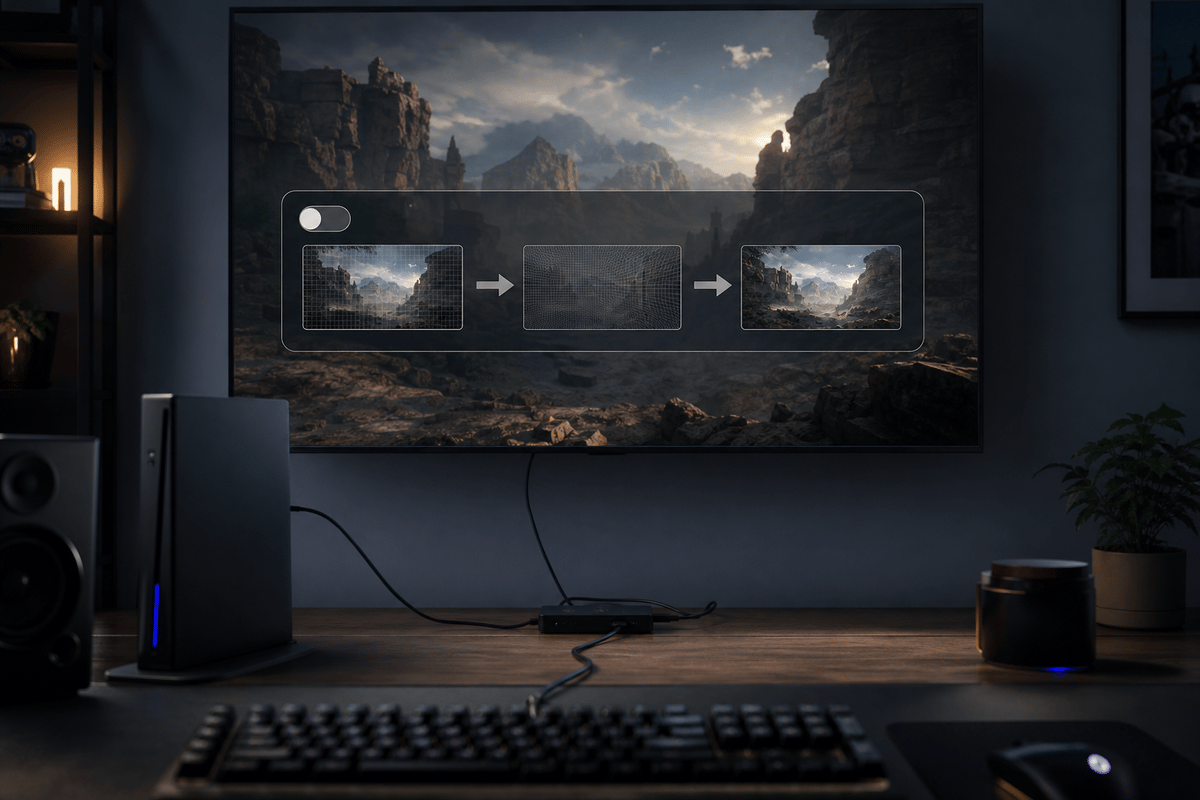
The public beta also includes system software performance and stability improvements. In limited countries and regions, it adds Turn Off Bluetooth under Settings → Accessories → General → Advanced Settings for controller-management scenarios at esports venues and similar event setups.
That Bluetooth option is unrelated to PSSR and is not a general image-quality or latency setting. Sony reserves it for venue-style controller management. When Turn Off Bluetooth is enabled, the console cannot enter rest mode, and HDMI link functionality is affected. Leave Bluetooth enabled for normal home use.
The useful default is simple: keep Enhance PSSR Image Quality on, then disable it only long enough to compare the same supported game scene under identical output settings. If the enhanced image is clearer in motion without visible artifacts on your display, switch it back on and leave it there.
FinalBoss // Gear
Level up your setup
01Best-selling PS5 gameson Amazon→02DualSense controllerson Amazon→03PS5 SSD upgrades (M.2 NVMe)on Amazon→04Discounted game keyson Kinguin→Affiliate links · As an Amazon Associate, FinalBoss earns from qualifying purchases.
Want to Level Up Your Gaming?
Get access to exclusive strategies, hidden tips, and pro-level insights that we don't share publicly.
Ultimate Guide Strategy Guide + Weekly Pro Tips