
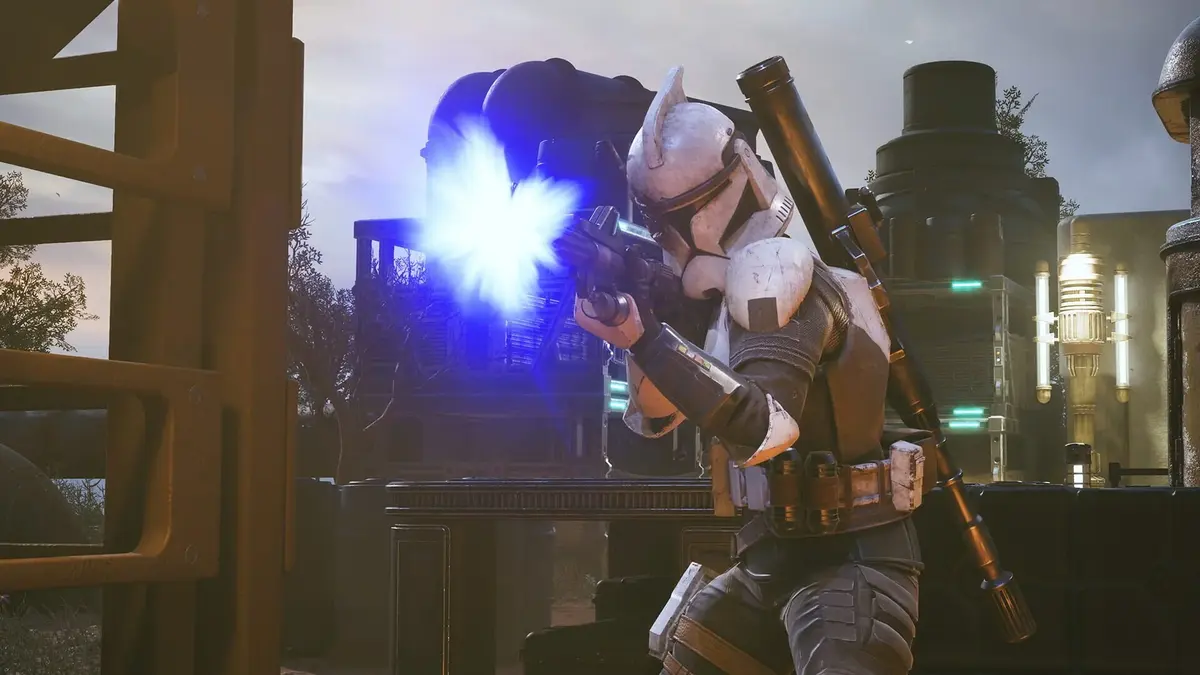
Start with a 60 FPS cap, Borderless Windowed mode, 1080p medium settings, DLSS or FSR on Quality, and frame generation disabled. That is the safest baseline for Star Wars Zero Company on PC while you isolate crashes, freezes, and tactical-view microstutter. Do not change five graphics options at once: the game can hitch during enemy turns, hang at mission completion, or crash after a camera pullback, and a controlled settings ladder makes the trigger easier to identify.
Star Wars Zero Company is a single-player, Clone Wars-era turn-based tactics game built in Unreal Engine. That gives PC performance problems an especially painful edge: a hard lock near extraction or at the end of an operation can wipe the entire mission. Stabilize the game first, then raise image quality one setting at a time.
Table of Contents (12)
Use This Stable PC Baseline First
Apply these settings before retrying the mission or enemy turn that previously caused trouble. The goal is consistent frame times and lower GPU spikes, not the highest possible frame rate.
- Display mode: Borderless Windowed. Use Windowed mode if Borderless still crashes after alt-tabbing.
- Resolution: 1920×1080 on minimum-spec or mid-range hardware.
- Graphics preset: Medium.
- Anti-aliasing: TAA or the lowest available anti-aliasing setting during testing.
- Upscaling: DLSS Quality on supported Nvidia RTX cards; FSR Quality on AMD Radeon cards. Use Balanced only if Quality cannot hold a stable cap.
- Frame generation: Off.
- V-sync: Off in the game.
- Frame-rate cap: 60 FPS, using the in-game limiter where available or the Nvidia/AMD driver control panel.
- Motion blur: Off.
- Depth of field: Off.
- Low-latency setting: Leave ultra-low-latency modes off while testing. Nvidia users should use
Low Latency Mode → On, notUltra, in the Nvidia Control Panel.
A 60 FPS cap matters more here than an uncapped average. Tactical battles can force the camera to zoom out across a large combat space, then resolve several enemy actions in sequence. Leaving the GPU uncapped can create sharp utilization and frame-time swings precisely during those transitions. A stable 60 is preferable to a fluctuating 90-140 FPS that ends in a driver reset or a freeze.
Fix Crashes Before Tweaking Graphics
Graphics options cannot repair a corrupted install, an unstable driver, or a slow storage bottleneck. Work through these checks before assuming the preset is the problem.
Repair the Game Installation
On the EA App, open Library → Star Wars Zero Company → three dots → Repair, then restart the PC when the repair finishes. This should be the first move after a crash on startup, a black screen, missing UI, or a repeatable mission-end crash.
On Steam, use Library → Star Wars Zero Company → Properties → Installed Files → Verify integrity of game files. Verification is particularly worthwhile after a patch, a forced shutdown, or a crash that happened while the game was saving.
Update Windows and the Graphics Driver
Install pending Windows updates, then update the GPU driver. If the game is still producing driver crashes after a normal update, use a clean driver reinstall rather than layering a new driver over an old one. A Display Driver Uninstaller cleanup in Safe Mode followed by the current Nvidia Game Ready or AMD Adrenalin package removes damaged profiles and older driver components that can conflict with a new Unreal Engine release.
Intel ARC B580 is listed among the supported minimum GPUs, but driver version matters heavily on ARC hardware. Keep the Intel graphics package current and test the conservative 1080p/60 FPS baseline before attempting higher presets. XeSS support is not confirmed by the currently documented graphics options, so only use it if it is explicitly present in your own display menu.
Install the Game on an NVMe SSD
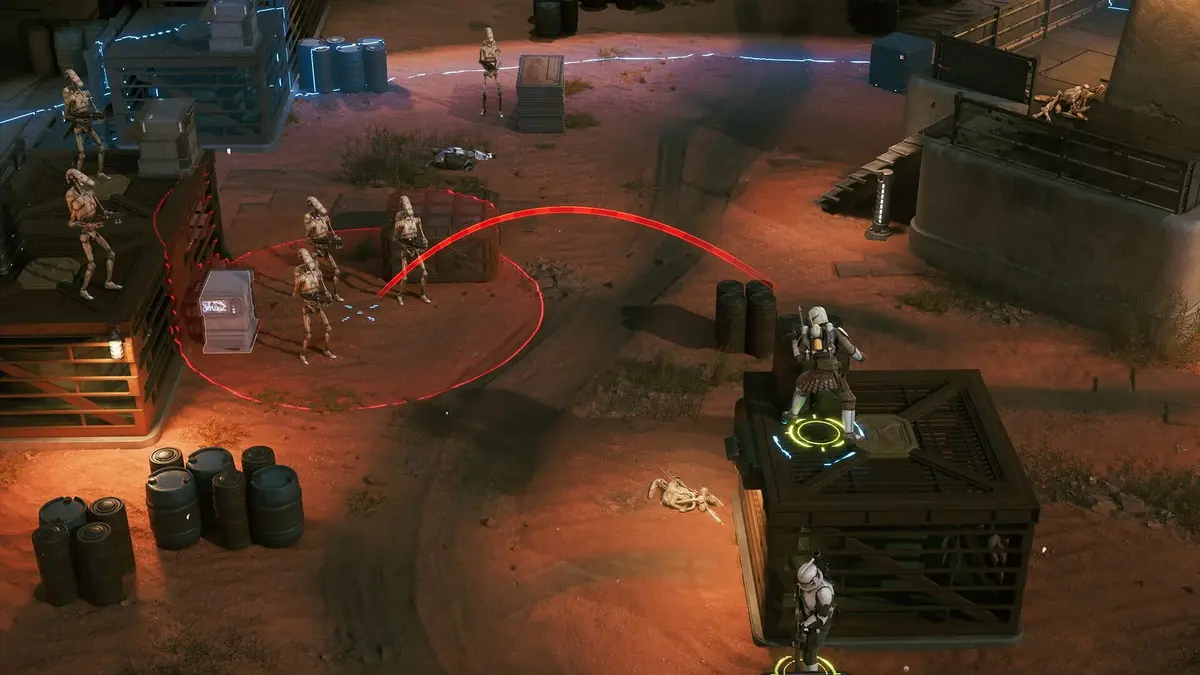
Star Wars Zero Company requires 50 GB of free space and performs best from a Gen 3 or Gen 4 NVMe M.2 SSD. A mechanical hard drive can worsen loading hitches, mission-transition pauses, and turn-resolution stalls because the game is continually streaming level data, effects, animations, and tactical camera assets.
Free additional space on the SSD as well. Filling the drive to its limit leaves less room for Windows paging, shader caches, and temporary game files, which can turn an already rough mission transition into a lengthy freeze.
Disable Overlays and Fullscreen Conflicts
Overlays are a common crash multiplier in a game already using a demanding rendering pipeline. Turn off the EA App overlay, Steam overlay, Discord in-game overlay, and GeForce Experience overlay before testing. Also close frame-rate monitors, RGB utilities, capture software, and GPU-tuning tools one at a time if the crashes persist.
Then find the game executable, right-click it, and open Properties → Compatibility. Enable Disable fullscreen optimizations. For startup-only crashes, also enable Run this program as an administrator. These compatibility changes are most useful when the game crashes after an alt-tab, opens to a black screen, loses focus during a loading screen, or stutters badly in exclusive fullscreen.
Keep the game in Borderless Windowed mode during this test. Exclusive fullscreen can be revisited later if the baseline is stable, but it adds another Windows display-mode handoff to a setup that is already being troubleshot.
Choose the Right Upscaling Mode for Your GPU
Upscaling should reduce render load without making the tactical field too soft to read. Quality mode is the sensible starting point at 1080p and 1440p because it preserves more detail while still easing GPU pressure. Performance mode is mainly a 4K fallback, and it should not be the first answer to a crash.
| Hardware | Start with | Move to if needed | Avoid during crash testing |
|---|---|---|---|
| Nvidia RTX GPU | DLSS Quality | DLSS Balanced at 1440p or 4K | Frame generation and aggressive Performance mode |
| AMD Radeon GPU | FSR Quality | FSR Balanced at 1440p or 4K | Frame generation and aggressive Performance mode |
| Intel ARC GPU | Native resolution or any confirmed in-game upscaler on Quality | Balanced only after a stable 60 FPS test | Assuming XeSS is available when it is absent from the menu |
Use the following resolution rule of thumb once the game is stable: Quality at 1080p, Balanced at 1440p, and Performance only when targeting 4K on hardware that needs the extra headroom. If a switch from Quality to Balanced creates new hitching, UI flicker, or a crash during a cutscene, revert immediately. The lower rendering load is not worth introducing an unstable reconstruction path.
Leave Frame Generation Off Until the Game Is Stable
Frame generation can make the FPS counter look much better while leaving the underlying simulation and render frame times unstable. In a turn-based tactics game, that trade is usually poor while diagnosing freezes. The real test is whether enemy turns resolve cleanly, the camera behaves properly, and a completed mission reaches its result screen without a lockup.
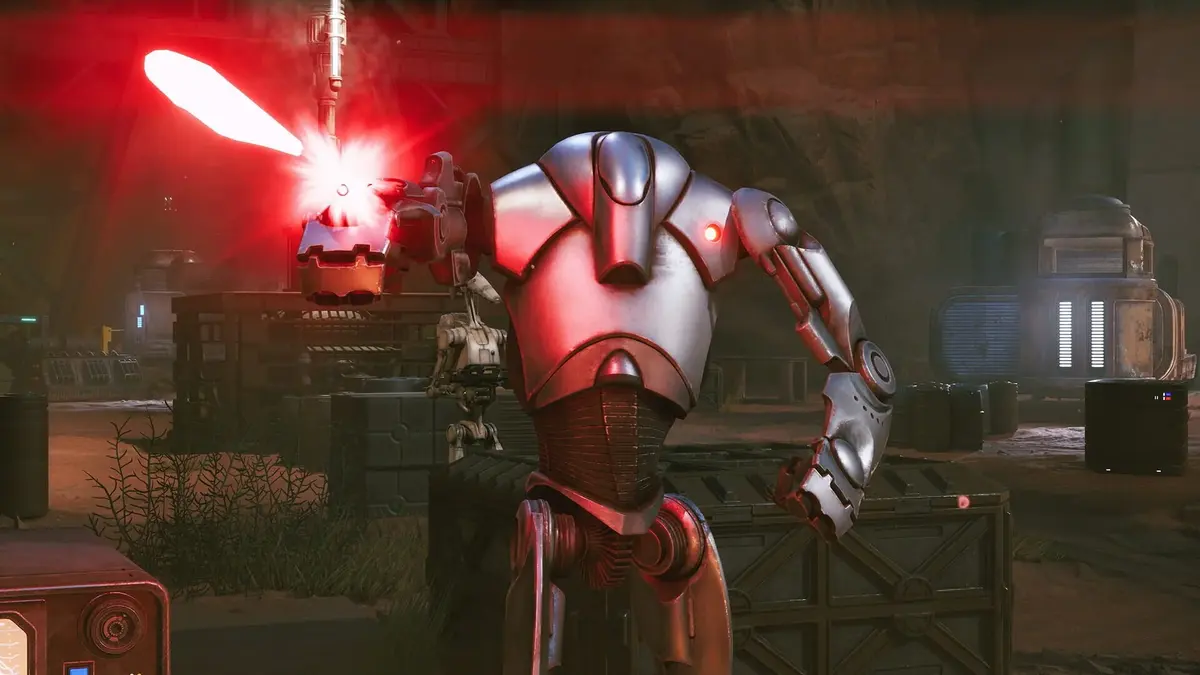
Only enable frame generation after completing several missions at the baseline settings without a crash. Re-enable it with the 60 FPS cap still active, then test a busy combat encounter. Disable it again if you notice camera swings through geometry, character animation glitches after attacks, visual artifacts, or fresh stutter at the beginning and end of turns.
Use Latency Settings Conservatively
Input latency is a lower priority than stability in Star Wars Zero Company. The game’s key slowdowns occur around turn starts, turn ends, AI resolution, camera movement, and mission transitions rather than from controller or mouse delay. Ultra-low-latency features can alter frame queuing and complicate diagnosis when the actual problem is a GPU spike, shader hitch, or driver conflict.
- Nvidia: Set driver-level Low Latency Mode to
On. Do not useUltrauntil the game is stable. - In-game Reflex or equivalent: Enable it only after completing stable tests without frame generation. The exact label can vary by build and hardware.
- V-sync: Keep it off in-game while using a 60 FPS cap. If screen tearing is unacceptable after stability is confirmed, test driver-level V-sync separately.
- Frame generation: Keep it disabled while determining whether the game is crashing from baseline load, driver behavior, or a specific graphics feature.
Do not confuse EA or platform server checks with the main cause of tactical-mission crashes. Server status is worth checking if the EA App cannot connect or the game fails to launch through its platform, but freezes during local single-player missions are primarily a PC performance, driver, file, or storage problem.
How to Raise Settings Without Bringing Back Stutter
After the 1080p medium baseline survives several missions, increase only one variable per test. Run a mission with multiple enemies, effects, and camera transitions rather than judging performance from the menu or the opening cinematic.
- Raise resolution from 1080p to 1440p while keeping the 60 FPS cap, medium preset, and Quality upscaling.
- If that remains stable, compare Quality and Balanced upscaling at the same resolution.
- Raise individual graphics options gradually instead of jumping from Medium to Ultra.
- Test motion blur, depth of field, and other post-processing effects last.
- Enable frame generation only after base rendering is stable with the desired resolution and preset.
- Change low-latency settings after frame generation, never before.
Recommended-spec hardware gives more room to climb: an Intel Core i7-10700K or AMD Ryzen 7 3700X, paired with an RTX 3080 or Radeon RX 7800 XT and 32 GB of RAM. Minimum-spec systems — Core i5-8400 or Ryzen 5 2600X, GTX 1080, RX 5600 XT, or ARC B580 with 16 GB RAM — should treat 1080p medium and a 60 FPS cap as the practical target rather than assuming the minimum label guarantees smooth performance.
Match the Fix to the Symptom
| Problem | Most useful first response | Next setting to test |
|---|---|---|
| Crash at mission end or during extraction | Verify or repair files, update GPU drivers, disable overlays | 60 FPS cap with frame generation off |
| Long hang during an enemy turn | Install on NVMe SSD and close background overlays/apps | 1080p medium with DLSS/FSR Quality |
| Microstutter when the tactical camera zooms out | Set V-sync off and cap the game at 60 FPS | Disable motion blur and depth of field |
| Crash after alt-tabbing or changing focus | Use Borderless Windowed and disable fullscreen optimizations | Try Windowed mode if Borderless fails |
| Black screen or crash on startup | Repair files, update Windows, clean-install GPU driver | Run the executable as administrator |
| Flickering UI, warped characters, or camera glitches | Disable frame generation and overlays | Lower AA and revert upscaling to Quality |
Protect Mission Progress While Troubleshooting
Mission-end crashes are the worst failure state because the squad may finish the objective only for the PC to lock before progress is safely recorded. Until the game is stable, avoid treating a long operation as a benchmark run. Test after repairs or settings changes with a shorter mission first, then return to difficult objectives.
This matters in missions where positioning and action economy have already taken time to set up. Every operator begins a turn with three Action Points, while Advantage can be spent without consuming AP and builds up to 10 from damage and eliminations. A crash after carefully banking Advantage, setting Overwatch, using a free assist, or lining up a knockback into a void wastes more than a few minutes of combat.
Once the game holds a stable 60 FPS through enemy turns, extraction, and the results screen, keep that configuration saved. Raise resolution, post-processing, frame generation, and latency features separately from that known-good baseline rather than rebuilding the entire settings profile at once.
FinalBoss // Gear
Level up your setup
01Graphics cardson Amazon→02Gaming laptopson Amazon→03High-refresh gaming monitorson Amazon→04Discounted game keyson Kinguin→
Affiliate links · As an Amazon Associate, FinalBoss earns from qualifying purchases.
Want to Level Up Your Gaming?
Get access to exclusive strategies, hidden tips, and pro-level insights that we don't share publicly.
Ultimate Guide Strategy Guide + Weekly Pro Tips