
The short version: on base PS5, set Graphics Mode to Performance with a 60 FPS Frame Rate Target, V-Sync On, Motion Blur Off, Film Grain 0, Depth of Field Off and FOV around 80 in first person / 75 in third. On PS5 Pro, use Pro Performance (4K/60 with PSSR) unless you have a 120 Hz display, in which case the 40 FPS enhanced option is the better-looking compromise.
For HDR, there is one thing you need to know up front: Starfield has no in-game HDR calibration screen on PS5. All of your HDR adjustment happens in the console’s system settings, and the game’s HDR implementation is genuinely weak — Digital Foundry’s analysis describes it as effectively SDR delivered in an HDR container. That changes what “best HDR settings” even means here, so the HDR section below is about damage control, not chasing a wow factor the game cannot deliver.
Table of Contents (25)
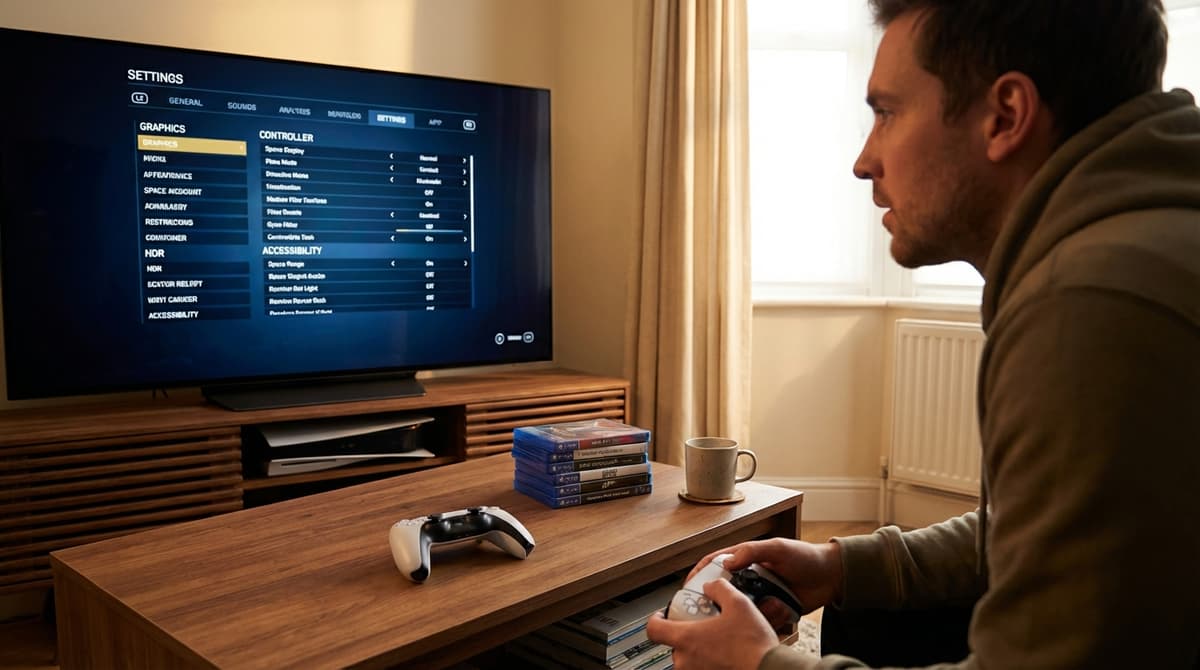
What Starfield’s PS5 Settings Menu Actually Contains
A lot of Starfield settings advice floating around is PC advice wearing a console hat. If a guide tells you to set Volumetric Lighting, Indirect Lighting, GTAO or Shadow Quality on PS5, it is describing the PC build — those individual quality sliders do not exist in the console menu. The PS5 version ships a deliberately trimmed set of options:
| PS5 option | Choices | Recommended |
|---|---|---|
| Graphics Mode | Performance / Quality | Performance |
| Frame Rate Target | 30 / 60 | 60 |
| V-Sync | On / Off | On |
| Motion Blur | On / Off | Off |
| Film Grain Intensity | Slider | 0 |
| Depth of Field | On / Off | Off |
| Field of View (first person) | Slider | ~80 |
| Field of View (third person) | Slider | ~75 |
That is the whole graphics toolbox. Render resolution and upscaling controls are PC-side; on console the graphics mode decides those for you. HDR calibration is handled by the PS5 itself, not by Starfield.
Best Starfield HDR Settings on PS5
Because Starfield gives you no in-game HDR wizard, everything happens one level up, in the console. Do it in this order — the sequence matters, because the game inherits whatever the system tone mapping hands it.
Step 1: Calibrate HDR at the system level
Go to PS5 Settings → Screen and Video → Video Output → Adjust HDR. You get a three-screen wizard:
- Screen 1 (bright detail): lower the brightness until the logo is just about to vanish, then nudge it up one click. Do not stop while the logo is still comfortably visible — that is the single most common calibration mistake and it is what produces washed-out space in Starfield.
- Screen 2 (peak brightness): same procedure. On OLED panels this typically settles far lower than people expect.
- Screen 3 (black level): raise until the logo disappears, then back off one click.
Run this wizard in the same lighting you actually play in. A calibration done at midday in a bright room will look badly crushed at night.
Step 2: Fix the source of the “grey space” problem
Starfield’s black space reading as dark grey soup is the number one HDR complaint, and it is only partly your calibration. The game’s HDR output is thin, so most of the correction has to come from your display:
- Set your TV picture mode to Game Mode (or an HDR Game preset). This bypasses the processing that is smearing your blacks and adding input lag.
- Turn off dynamic contrast, dynamic tone mapping and any “black enhancer” style feature. These fight the console calibration you just did.
- Set colour temperature to Warm or Neutral, not Cool. Starfield’s grade already skews slightly yellow-green; a cool preset makes the imbalance more obvious rather than less.
- Leave local dimming on if your set has it. On a mini-LED or OLED panel this does more for Starfield’s blacks than any in-game option could.
Step 3: Sanity-check in three places
Never judge HDR from one scene. Check the cockpit in orbit (blacks and HUD brightness), a bright planet surface (sky clipping and terrain contrast), and a dim interior or cave (shadow detail). If two of the three look right and one looks wrong, adjust by a single click and re-test — do not overhaul the whole calibration for one scene.
Honest expectations
If, after all of this, Starfield’s HDR still looks flat compared to a first-party PS5 showcase, you have not done anything wrong. The technical consensus is that the game’s HDR implementation is underbaked. Some players get a better result by turning HDR off entirely and letting the display handle a clean SDR signal, and on sets with strong SDR processing that is a legitimate choice rather than a defeat. Try both for one evening each before deciding.
Best Graphics Mode on Base PS5
Two modes, and the choice is less close than it looks:
- Performance — targets 60 FPS at roughly 1080p internally, with variable rate shading helping hold the frame rate.
- Quality — targets 30 FPS at roughly 1440p internally.
Take Performance. Starfield is a first-person shooter for a large share of its runtime, and the responsiveness gain is worth far more than the resolution. Quality mode’s extra sharpness is real, but the moment you spin the camera in a crowded New Atlantis street the 30 FPS cadence makes aiming feel heavy and the extra pixels stop mattering.
The one defensible case for Quality is a large 4K set, a close seating position, and a playthrough that is mostly exploration and dialogue rather than combat. Even then, try Performance for an hour first.
Leave V-Sync On. Starfield’s frame delivery is not clean enough for tearing to be a good trade, and if your display supports VRR the console handles that at system level regardless.
Best PS5 Pro Graphics Settings for Starfield
PS5 Pro is where the choice gets genuinely interesting, because there are more than two options and the best one depends on your display.
Bethesda’s own PS5 feature documentation describes two Pro-exclusive modes:
- Pro Visual Mode — 4K target at 30 FPS, using PSSR.
- Pro Performance Mode — 4K target at 60 FPS, using PSSR.
Technical analysis since launch has found a wider matrix in practice: frame rate targets of 30, 40, 60 and unlocked, an enhanced mode running around 1800p, and system-level toggles for VRR and upscaling. Digital Foundry notes the enhanced mode can run at 40 FPS inside a 120 Hz container, and that even the 60 FPS option dips toward 30 in dense city areas.
Which Pro mode to pick
- 60 Hz display: Pro Performance. It is the only way to get a genuinely 60-flavoured experience, and PSSR does enough heavy lifting that it still looks clean.
- 120 Hz display: the enhanced mode at a 40 FPS target is the sweet spot. 40 FPS in a 120 Hz container is dramatically smoother than 30 while keeping the higher internal resolution — for a game as visually dense as Starfield, this is the mode most worth having a 120 Hz set for.
- VRR display: enable VRR at system level and consider the unlocked target. Starfield’s frame rate wanders enough that VRR smooths out precisely the dips a hard cap turns into judder.
- Screenshot and exploration focus: Pro Visual at 30. Only if you genuinely do not mind 30 FPS gunfights.
One PS5 Pro warning worth reading
Starfield’s PS5 Pro launch was not smooth, and some of the upscaling-related toggles have caused real problems rather than improvements. We covered how the PSSR2 toggle was quietly breaking Starfield and what was behind the wave of PS5 Pro crashes. If you are hitting instability on Pro, change one upscaling setting at a time and test for a full session before changing another — the failure modes here are not always immediate. Bethesda’s PS5 hotfix addressed some of it, but not everything.
Field of View: Where to Set It
Starfield’s default FOV is claustrophobic, especially indoors and in cockpits. It is also one of the few genuine image-quality levers you have on console, so it is worth spending a few minutes on.
- First person: around 80. Opens up corridors and firefights without the edge distortion that creeps in higher up. Past roughly 85 the fish-eye effect becomes distracting on a TV at couch distance.
- Third person: around 75. Slightly tighter keeps your character readable and stops the camera feeling detached during exploration.
Change FOV before you tune look sensitivity, not after. Widening the FOV changes how fast the world appears to move for the same stick input, so any sensitivity work you do first gets invalidated.
DualSense Aim and Sensitivity
Starfield’s gunplay goes from floaty to solid almost entirely through controller tuning, and the defaults are not doing you any favours.
- Look sensitivity: start around the middle-to-upper range and match your vertical value to your horizontal one. Mismatched axes are the reason so many players overshoot vertical corrections while under-correcting horizontally on headshots.
- ADS sensitivity: set it slightly below hip-fire — roughly 5–10% lower. Quick turns stay snappy while scoped adjustments stop feeling twitchy.
- Look acceleration: low or off if the option is available. Acceleration makes slow tracking feel sticky and fast flicks unpredictable.
- Deadzone: if there is a slider, take it down one step from default so small stick movements register. Go too low and stick drift becomes your new problem.
- Adaptive triggers: pure preference. The resistance is a great first hour and a tiring fifth one — plenty of players turn it down for weapon-heavy sessions.
Test changes on low-stakes enemies, not in a story fight. And give any change one full encounter before judging it; your thumbs need a few minutes to recalibrate.
Accessibility and Comfort
- Subtitles and text size: turn subtitles on and increase text size for couch play. Starfield throws a lot of small text at you.
- Motion Blur and Depth of Field Off are comfort settings as much as clarity ones — both help significantly if fast panning or zero-G sections make you queasy.
- PS5 system accessibility:
Settings → Accessibility → Displaygives you colour filters and high contrast, useful if Starfield’s muted palettes make loot and enemies hard to pick out.Accessibility → Controllers → Custom Button Assignmentslets you rebind any DualSense input at system level, which is the answer if clicking sticks for sprint and crouch is uncomfortable. - Difficulty is an accessibility tool. Starfield’s sliders let you lower combat pressure without touching exploration or the story.
The Complete Recommended Setup
- Graphics Mode: Performance (base PS5) / Pro Performance or 40 FPS enhanced on 120 Hz (PS5 Pro)
- Frame Rate Target: 60 — or 40 on a 120 Hz Pro setup
- V-Sync: On
- Motion Blur: Off
- Film Grain Intensity: 0
- Depth of Field: Off
- FOV: ~80 first person, ~75 third person
- HDR: calibrated via
PS5 Settings → Screen and Video → Adjust HDR, display in Game Mode, dynamic contrast and dynamic tone mapping off, colour temperature Warm or Neutral - Look sensitivity: horizontal and vertical matched, ADS slightly lower, acceleration off
The through-line here is simple: on PS5, Starfield rewards stability over spectacle. The art direction carries the game beautifully at Performance settings, and the frame rate consistency does more for immersion than any resolution bump. For more on how the console version has held up since launch, see our take on the PS5 port as a 1.5 relaunch and the PS5 vs PS5 Pro mode comparison. Everything else Starfield lives on our Starfield hub.
FAQ
Does Starfield have HDR calibration on PS5?
Not in the game. Starfield does not expose an HDR calibration screen or a brightness slider on PS5 — you calibrate through PS5 Settings → Screen and Video → Video Output → Adjust HDR, and then correct further using your TV’s picture settings.
Why does space look grey instead of black in Starfield?
Two causes stack. The console HDR calibration is usually set too bright, and Starfield’s own HDR output is weak enough that analysts have described it as SDR in an HDR container. Redo the Adjust HDR wizard properly, switch your TV to Game Mode, and disable dynamic contrast. If it still bothers you, playing in SDR is a reasonable alternative.
Is Performance or Quality mode better in Starfield on PS5?
Performance, for almost everyone. Roughly 1080p at 60 FPS beats roughly 1440p at 30 FPS in a game with this much first-person shooting. Quality mode only makes sense on a large 4K display for exploration-heavy play.
What are the best PS5 Pro settings for Starfield?
Pro Performance (4K/60 with PSSR) on a 60 Hz display. On a 120 Hz display, the enhanced mode at a 40 FPS target gives you a higher internal resolution while still feeling far smoother than 30. Enable VRR at system level if your display supports it.
Can I change resolution or shadow quality on PS5?
No. Those are PC-only controls. On PS5 the graphics mode determines resolution and internal quality settings — your console-side levers are motion blur, film grain, depth of field and FOV.
FinalBoss // Gear
Level up your setup
01Best-selling Xbox Series X|S gameson Amazon→02Xbox controllerson Amazon→03Top-rated gaming headsetson Amazon→04Discounted game keyson Kinguin→Affiliate links · As an Amazon Associate, FinalBoss earns from qualifying purchases.
Want to Level Up Your Gaming?
Get access to exclusive strategies, hidden tips, and pro-level insights that we don't share publicly.
Ultimate Guide Strategy Guide + Weekly Pro Tips