
Set the grip sensors before editing any bindings, then make gyro active while the controller detects your grip. For reliable ratcheting, release your fingers briefly to disable gyro, recenter the controller in your hands, and re-engage the grips to aim again. Keep one-shot shortcuts such as map or pause on a different grip from your gyro ratchet input; assigning Release Press to the same grip can fire a menu command every time you deliberately recenter.
A first usable Grip Sense setup takes roughly 10-20 minutes. The important part is matching the sensor’s range to your natural hand position before trying to build weapon wheels, overlays, or layer shifts around it. Steam Input gives the Steam Controller enough flexibility to make these shortcuts useful, but loose calibration is what makes them feel inconsistent.
Table of Contents (8)
What Grip Sense detects and why it matters for gyro
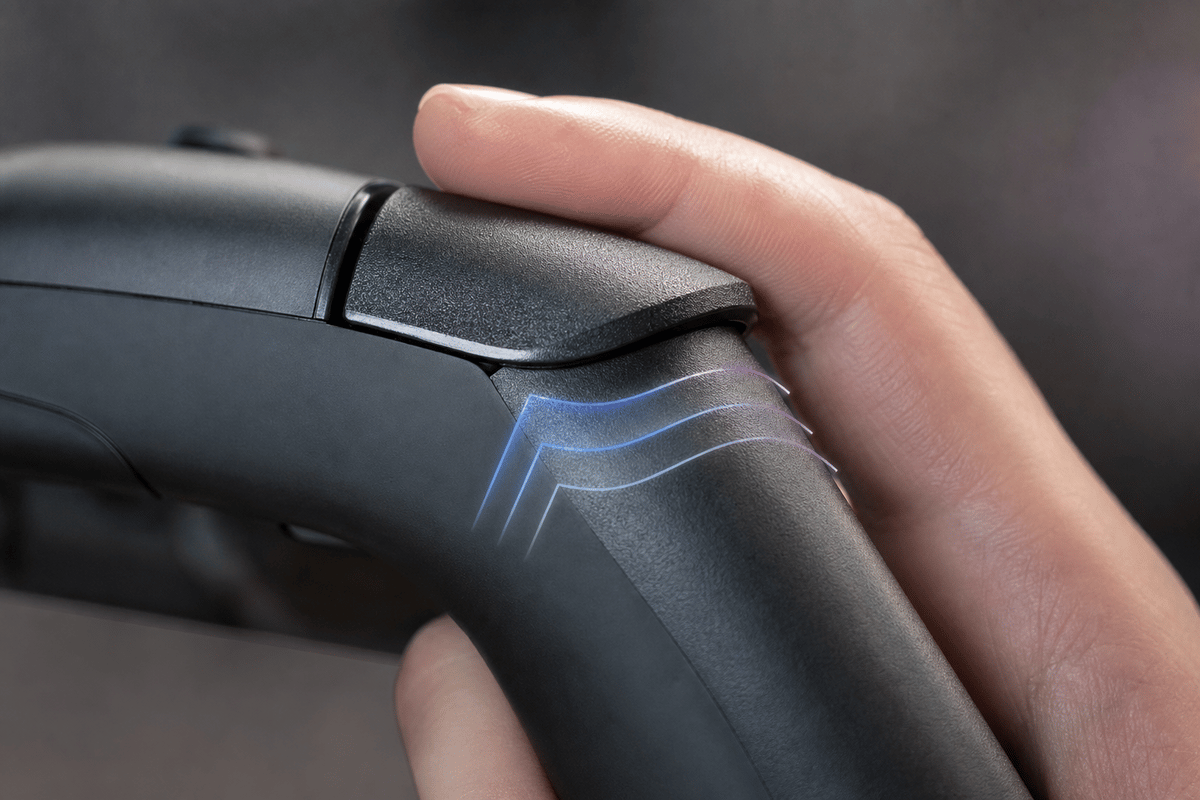
Grip Sense uses capacitive sensors in the Steam Controller’s handles to detect whether your fingers are touching the grips. When you extend or lift your fingers far enough away, the controller stops reading that grip as active. Steam Input can use that change of state to trigger an action, hold a command, switch a layer, or control when gyro aim is enabled.
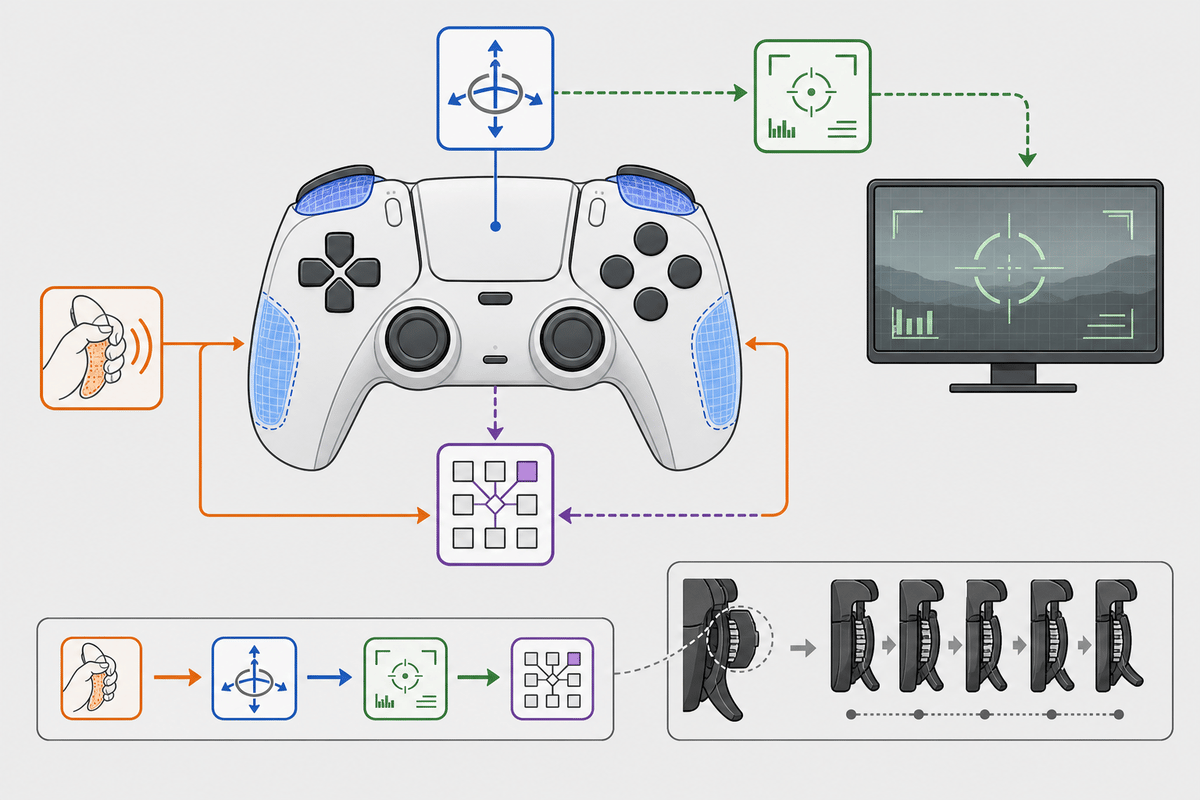
Gyro ratcheting is the cleanest use case. Aim with gyro while the grip is sensed, briefly break contact to turn gyro off, physically return the controller to a comfortable center position, then touch the grip again. That prevents the familiar problem where a large gyro turn leaves your hands twisted at an awkward angle.
The sensor follows your hand state, so the setup feels more predictable than a separate gyro-toggle button. The downside is that every accidental loss of contact can interrupt your aim. Calibration comes first for that reason.
Open the Grip Sensors calibration screen
Make sure the Steam Controller is connected and visible in Steam’s controller details screen. Then follow this path:
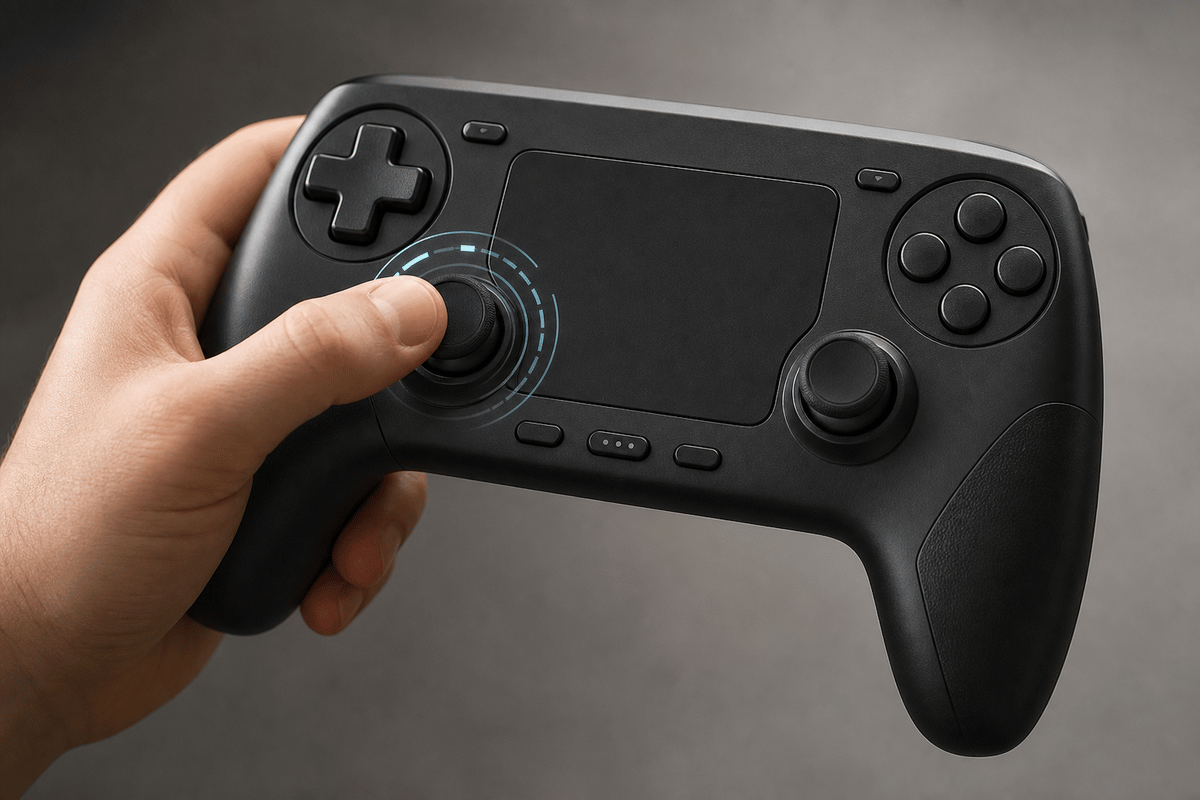
Steam → Settings → Controller → Details → Calibration & Advanced Settings → Grip Sensors
The exact wording can vary slightly between the PC Steam client and Steam Deck’s interface, but the target is the controller-specific Grip Sensors page inside the advanced calibration area.
- Grip Sensor Range controls how far your fingers can move away before the controller decides you have released the grip.
- Grip Responsiveness controls how stable that detection is. Lower responsiveness makes the sensor react more readily; higher responsiveness adds more resistance to tiny, accidental hand movements.
Calibrate the grips for your normal hold first
Start with the range behaving conservatively. Hold the Steam Controller as you would during regular play, with both thumbs on the controls you normally use, then adjust Grip Sensor Range until both grips remain detected without any deliberate squeeze. Once the range is close, increase or decrease Grip Responsiveness until small thumb movements and normal hand shifts stop making the signal flutter.
For gyro ratcheting, use a slightly curved grip with gentle inward pressure. Your middle finger can rest around the lower rear contact area while the ring finger stabilizes the handle. Letting the pinky hang loosely or slide behind the rear grip area can make it easier to intentionally break contact for a ratchet reset without changing your whole hand position.
A useful calibration test is to stand in a quiet in-game area, aim at a fixed object with gyro, lift your grip fingers enough to disable the sensor, rotate the controller back to center, then re-grip and resume aiming. Repeat this several times before opening a match or difficult encounter. The sensor should disengage only when you choose to release it and should re-engage immediately when you return to your normal hold.
Fix the two common calibration failures
- Gyro drops out while aiming: Increase Grip Sensor Range slightly, then check whether your fingers are relaxing off the lower rear contact area during fast movement. A loose grip can mimic a deliberate ratchet release.
- Shortcuts fire too easily: Reduce Grip Sensor Range or raise Grip Responsiveness. A wide range combined with very sensitive detection can register normal hand repositioning as an intentional input.
- The grip state flickers during menu or overlay testing: Reopen the calibration screen and test away from the game’s overlay. If the controller behaves erratically while it is connected through the puck, disconnecting it from the puck during calibration can help stabilize the Steam interface.
- One grip is reliable and the other is not: Tune around your actual hand placement rather than forcing both hands into identical positions. Most players support the two handles slightly differently.
Bind Grip Sense to gyro aim in Steam Input
Once the sensor is stable, open the game you want to configure in Steam. Use its controller settings icon and select Edit Layout. Find the gyro configuration area and set gyro activation to use the relevant Grip Sense input. The practical target is simple: gyro is active while the chosen grip is sensed and stops when you release it.
Use one grip consistently for this job while you learn the motion. A right-grip gyro activation is a natural starting point for players who aim primarily with the right thumb and want their left hand to remain steady on movement controls, but either side can work if it matches your grip and your game’s other bindings.
Keep the threshold tight enough that a small hand adjustment does not shut off gyro during a fight. Ratcheting depends on an intentional release, followed by a deliberate re-grip. If gyro turns off whenever you tense your hands, revisit calibration before changing the layout again.
Set up weapon wheels, maps, pause, and overlay shortcuts
Grip Sense can also control commands beyond gyro. In the game’s Steam Input layout, select LG or RG from the input list, bind the action you need, then open that binding’s gear icon to change its input behavior. For desktop-wide shortcuts, use the Desktop Layout instead of a specific game layout; the sensor logic remains the same.
Choose the trigger behavior based on what the command does. The default behavior is rarely the best choice for a grip sensor because the controller may detect your hands for most of a session.
| Grip Sense use | Recommended behavior | Best use case | Important limitation |
|---|---|---|---|
| Gyro ratchet | Gyro active while grip is sensed; release disables gyro | Precision aiming and quick recentering | Do not attach a one-shot menu command to the same release unless it is intentional. |
| Weapon wheel | Hold | A wheel or radial menu that should remain open only during a deliberate grip state | Use a contact motion outside your relaxed default grip, or the wheel can stay open continuously. |
| Map or pause | Release Press | A single shortcut that fires when you intentionally let go of the grip | Keep it away from your ratchet grip, since every gyro reset also includes a release. |
| Layer shift | Hold | Temporary alternate controls while maintaining grip contact | Make the shifted controls easy to recognize so accidental activation does not scramble familiar inputs. |
A weapon wheel works best when the grip action is easy to perform deliberately and maintain briefly. A map or pause shortcut works better as a release action because it only needs a single clean trigger. Layer shifts benefit from hold behavior because the alternate bindings disappear as soon as you return to your usual grip state.
A reliable two-grip layout for gyro and shortcuts
Separate precision control from one-shot shortcuts. Assign one grip to gyro activation and ratcheting, then reserve the opposite grip for an overlay-style action. This avoids the most frustrating conflict in Grip Sense layouts: a deliberate gyro reset also opening a map, pausing the game, or sending an unwanted menu input.
- Grip used for gyro: Keep its role focused on sensed-grip gyro activation and release-to-ratchet behavior.
- Opposite grip: Use it for a weapon wheel, map, pause, menu command, or temporary control layer.
- First test binding: Choose an action with an obvious result, then verify that it triggers only when you perform the intended finger movement.
- Final test: Move, aim, ratchet, open the shortcut, and return to aim in one sequence. This catches bindings that work in isolation but conflict during normal play.
Keep the first layout simple before adding more commands
Start with one gyro grip and one shortcut grip. Adding a weapon wheel, map, pause command, and layer shift all at once makes it difficult to tell whether a bad trigger comes from sensor range, responsiveness, or the behavior assigned in Steam Input. Once gyro ratcheting is dependable, add one overlay action and test it in the same gameplay situations where you expect to use it.
The practical goal is a layout where your hand state clearly communicates the controller state: grip to aim, release to reset, and use the opposite grip for a deliberate shortcut. With the sensors calibrated around your natural hold, Grip Sense becomes a fast way to manage gyro and overlays without sacrificing access to the Steam Controller’s regular controls.
FinalBoss // Gear
Level up your setup
01Graphics cardson Amazon→02Gaming laptopson Amazon→03High-refresh gaming monitorson Amazon→04Discounted game keyson Kinguin→Affiliate links · As an Amazon Associate, FinalBoss earns from qualifying purchases.
Want to Level Up Your Gaming?
Get access to exclusive strategies, hidden tips, and pro-level insights that we don't share publicly.
Ultimate Guide Strategy Guide + Weekly Pro Tips