
Table of Contents (14)
Why Steam Deck Optimization Matters in 2026
After spending dozens of hours tweaking my Steam Deck (primarily the OLED 512 GB model) for different games, the pattern became obvious: good defaults get you playing, but smart optimization is what makes the Deck feel like a premium handheld instead of a compromised mini-PC. The ecosystem is mature now, developers care about Deck performance, and many top games can hit 60-90 FPS with great battery life if you set them up right.
This guide focuses on real-world presets I use for 2026’s best Deck games – from ultra-light indies like Stardew Valley to demanding beasts like Baldur’s Gate 3 – plus the global tweaks that give you smoother performance and longer sessions. The goal is simple: fewer trips into menus, more time actually playing.
Step 1: Dial In Your Global Steam Deck Settings
The breakthrough for me came when I stopped trying to “fix” each game in isolation and instead built a solid global baseline. Once this is done, most Deck-verified titles just work, and the rest need only small nudges.
Here’s the global setup I recommend (and personally use) on Steam Deck OLED, which also works well on the LCD model:
- Refresh rate: Set to 90 Hz globally, then limit FPS per-game. The OLED panel loves 90 Hz, but you don’t need 90 FPS for everything.
- Performance Overlay: In the Quick Access Menu (
…button) →Performance, set overlay to Level 2. It shows FPS and frame-time without clutter. - Per-game profiles: Toggle “Use per-game profile” for each title in the Performance tab. This is crucial so heavier games can have their own caps and TDP limits.
- Thermal Power (TDP): Leave uncapped globally. You’ll cap it only for specific games where you want extra battery life.
Don’t make my early mistake of forcing 60 FPS globally. On the Deck, 40 and 45 FPS caps paired with VRR and a 90 Hz screen often feel almost as smooth as 60 FPS, while saving a lot of power and heat.
Step 2: Fast Presets for Top Steam Deck Games in 2026
This next part is where most people waste time – trial-and-error settings for each game. Below are presets that actually work on my Deck, with a focus on smooth frame pacing and comfortable battery life rather than max visuals at all costs.
Stardew Valley (and Similar 2D Indies)
On Steam Deck OLED, Stardew Valley is basically a “set and forget” showcase: it happily hits 90 FPS with tiny power draw and can run for many hours.
- Refresh rate: 90 Hz
- FPS limit (Deck performance tab): 90 FPS (or 60 FPS if you want maximum battery)
- TDP limit: 6–7 W (I run 7 W for zero hitching)
- In-game resolution: Native (no need to downscale)
With this setup I regularly see 6+ hours of play on OLED. The main thing to avoid is leaving TDP uncapped – the Deck will still sip power, but there’s no reason to let it ramp when 2D pixel art barely needs anything.
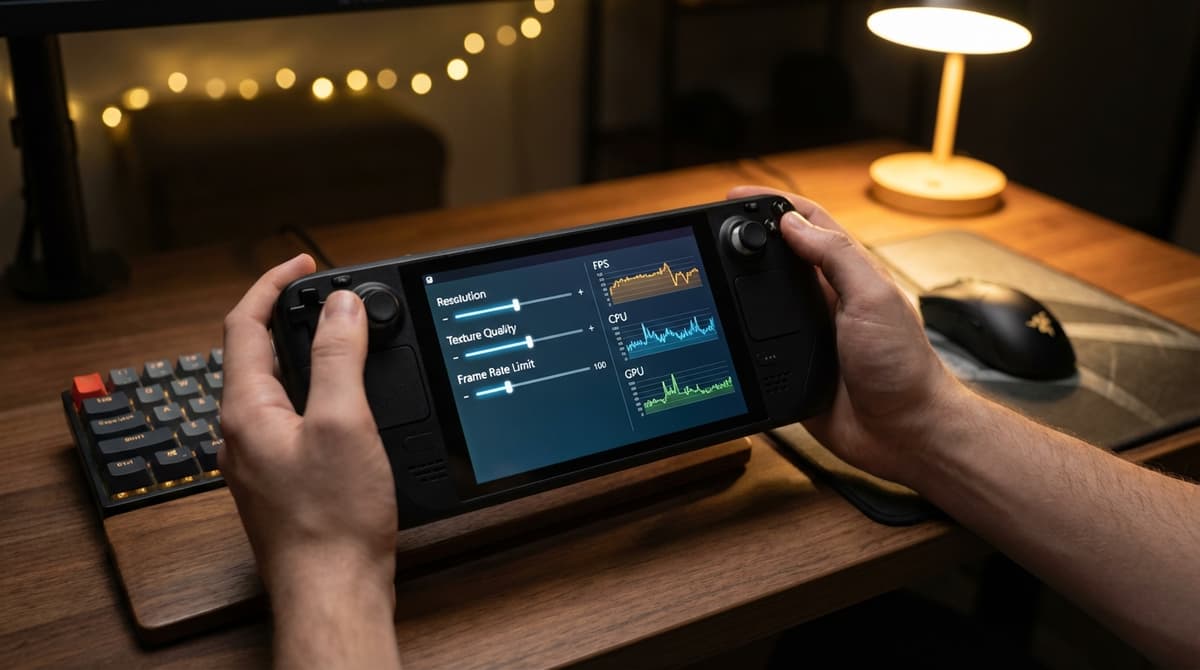
Hades 2 – 90 FPS with Good Battery
Hades 2 feels built for the Deck. It runs comfortably at 90 FPS on high settings, and the OLED’s contrast makes combat incredibly readable during chaos.
- Refresh rate: 90 Hz
- FPS limit: 90 FPS (drop to 60 if you want quieter fans)
- TDP limit: 10–12 W (I settled on 11 W as a sweet spot)
- In-game settings: High across the board; turn off any heavy motion blur if you dislike it
With this, I usually get around 4.5–5 hours of battery. I wasted a lot of time trying to lock it at 60 FPS to “save power,” but at 11 W the difference wasn’t dramatic, and the responsiveness at 90 FPS is worth it.
Hollow Knight: Silksong – Maximum Smoothness, Minimal Power
Hollow Knight: Silksong is one of the most Deck-friendly games I’ve played. It hits 90 FPS on max settings and still stretches past 6 hours of battery on OLED.
- Refresh rate: 90 Hz
- FPS limit: 90 FPS
- TDP limit: 8–9 W (I use 8 W and never see performance issues)
- In-game settings: Everything maxed; no need to compromise
This is a great reference title: if your Deck fans are screaming or frames are dipping in Silksong, something is off with your global settings or background processes.
Baldur’s Gate 3 – Playable 30 FPS on the Sofa
Baldur’s Gate 3 was where I learned to stop chasing 60 FPS. The game is perfectly enjoyable at 30 FPS on Deck because it’s turn-based, and pushing any higher just made the fans roar and the battery melt.
- Refresh rate: 60 Hz (no reason to run 90 Hz here)
- FPS limit: 30 FPS (set on the Deck, not in-game)
- TDP limit: Uncapped, but enable “Enable GPU Clock Control” and let the Deck manage it
- In-game video preset: Start with Low, then bump a few items to Medium (textures, models) if VRAM allows
- FSR / Upscaling: Use FSR in-game on Quality mode; avoid “Ultra Performance” – it looks rough on the Deck screen.
Act Three is still the stress test. I learned not to panic when frames dip into the high 20s in the busiest city areas; as long as frame pacing is stable, the experience remains fine for this style of game.
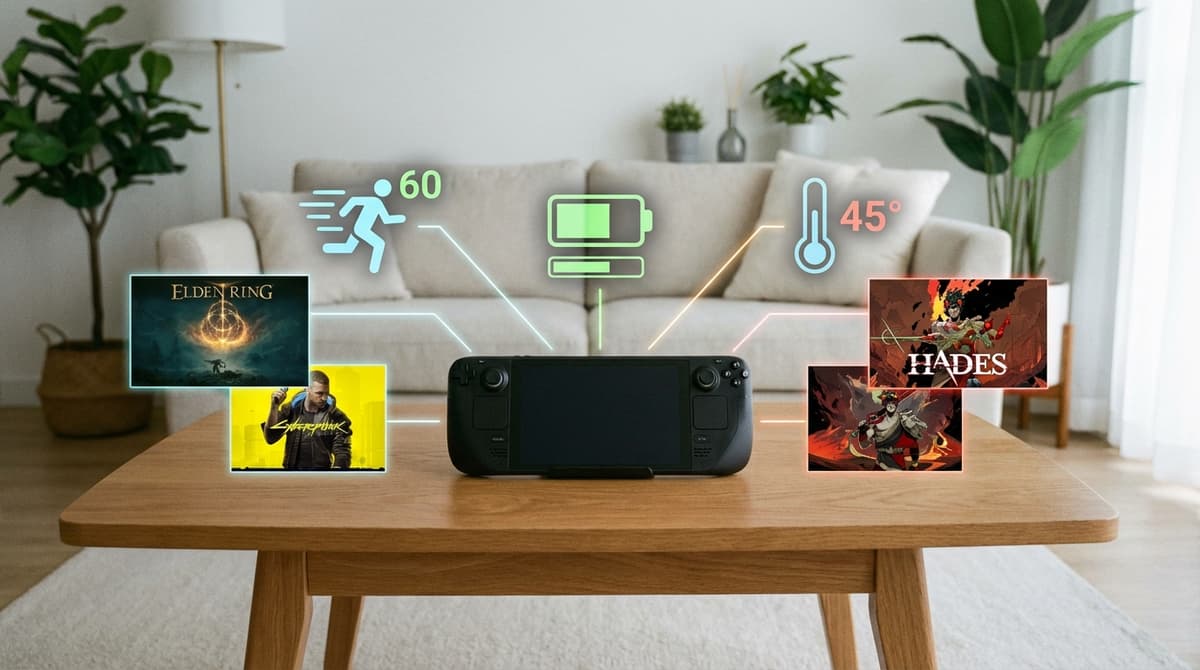
Arc Raiders – 90 FPS Co-op Shooter
Arc Raiders surprised me with how well it scales. On Steam Deck OLED it can hit 90 FPS at high settings while still giving around 5–6 hours of play, which is wild for a co-op shooter.
- Refresh rate: 90 Hz
- FPS limit: 90 FPS for solo, 60 FPS if you play long co-op sessions and want extra battery
- TDP limit: 12–13 W (anything lower and big firefights can dip)
- In-game settings: High preset, drop shadows and post-processing to Medium if you want headroom
The big mistake I made early was leaving everything on Ultra “just to see” – it ran, but micro-stutters popped up when lots of effects triggered. High is the sweet zone on Deck.
Sonic Racing: Crossworlds (and Sonic X Shadow Generations)
Racers and Sonic games live or die on consistent frame rate. Both Sonic Racing: Crossworlds and Sonic X Shadow Generations run well on Deck if you prioritize stability over eye candy.
- Crossworlds
- Refresh rate: 60 Hz
- FPS limit: 60 FPS
- In-game: Near-maximum visuals; drop only superfluous effects like heavy depth of field
- Sonic X Shadow Generations
- Main campaign: 60 FPS target is realistic
- Shadow content: Aim for a locked 40 FPS instead of unstable 60
- Use a 80 Hz refresh (Deck) + 40 FPS cap combo for very smooth motion
I wasted time trying to brute-force 60 FPS in Shadow’s levels. Locking 40 FPS with an 80 Hz panel mode made it feel dramatically smoother and stopped the wild frame swings.
Cronos: The New Dawn – Survival Horror at 30 FPS
Cronos: The New Dawn is heavier than it looks, but it still runs well on Deck at 30 FPS with lowest settings while keeping a solid atmosphere.
- Refresh rate: 60 Hz
- FPS limit: 30 FPS
- TDP limit: Uncapped (the game needs the GPU freedom)
- In-game: Lowest preset, but keep texture quality one notch above rock-bottom if VRAM allows – it helps maintain visual clarity in dark scenes
Survival horror tolerates 30 FPS well, and the trade-off is worth it for a consistent experience. I found that chasing better visuals here only made controls feel muddy when things got hectic.
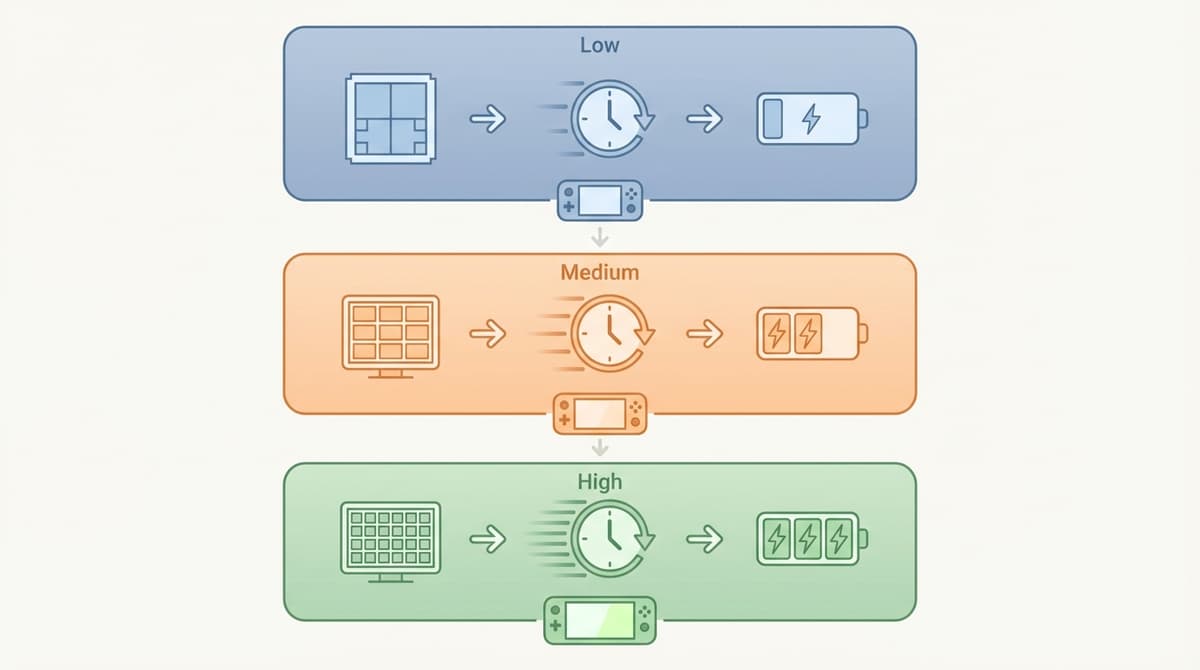
Step 3: Balancing Battery Life vs Performance
Once your favorite games are dialed in, the real art is picking the right performance mode for each situation. Here’s what I use day to day:
- Travel mode (max battery):
- 40 FPS cap
- Refresh: 80 Hz
- TDP: 7–9 W for 2D/indies, 10–12 W for 3D
- Home mode (plugged in or short sessions):
- 60–90 FPS depending on game
- Refresh: 60 or 90 Hz to match
- TDP: Uncapped, fans are allowed to work
The important mindset shift for me was accepting that not every game needs the same target. Stardew at 40 FPS feels fine and gives insane battery life; Hades 2 or Silksong feel significantly better at 90 FPS.
Step 4: Comfort, Controls, and Quality-of-Life Tweaks
Technical performance is only half the story. I only really settled into the Deck once I started tailoring controls and UI per game.
- Custom layouts: In each game’s Steam page, go to
Controller → Edit Layout. I map back paddles for:- BG3: End turn, jump, or quick save
- Hades 2 / Silksong: Dash or special attack
This removes awkward claw grips during long sessions.
- Text size: In RPGs and strategy titles, immediately bump up UI and font size. I ignored this at first and found myself leaning in constantly.
- Gyro aiming: For shooters like Arc Raiders, try a hybrid: right stick for coarse movement, gyro for fine adjustments. Enable it under
Controller → Layout → Gyro.
Small tweaks like these add up. After adjusting a few favorites, I started building new layouts as soon as I installed a game instead of suffering through defaults.
Common Mistakes to Avoid
- Chasing 60 FPS in every game: Some titles (BG3, survival horror) are totally fine at 30 FPS. Forcing 60 just eats battery and creates unstable performance.
- Ignoring per-game profiles: A single global setup cannot fit Stardew Valley and Cronos: The New Dawn at the same time. Per-game profiles are mandatory.
- Overusing aggressive upscaling: Extreme FSR modes save a few watts but can make text and UI look awful on a 7–8″ screen. Quality or Balanced modes are the sweet spot.
- Leaving background downloads on: I lost an hour of battery to Steam quietly updating games in the background. Pause downloads before long handheld sessions.
Wrapping Up: A Deck That Feels “Tuned”
Once I locked in these presets for my core library, using the Steam Deck changed from “PC tinkering on the couch” to “pick up and play.” Games like Stardew Valley, Hades 2, Hollow Knight: Silksong, Arc Raiders, and Baldur’s Gate 3 all feel tailored to the hardware now instead of barely squeezed onto it.
If you mirror the approach here-strong global defaults, smart FPS caps, reasonable TDP, and per-game profiles-you’ll skip a lot of the trial and error I went through. From there, it’s just incremental refinement as new patches and games land. The Deck in 2026 is a seriously capable handheld; a bit of optimization is all it needs to shine.
FinalBoss // Gear
Level up your setup
01Graphics cardson Amazon→02Gaming laptopson Amazon→03High-refresh gaming monitorson Amazon→04Discounted game keyson Kinguin→Affiliate links · As an Amazon Associate, FinalBoss earns from qualifying purchases.
Want to Level Up Your Gaming?
Get access to exclusive strategies, hidden tips, and pro-level insights that we don't share publicly.
Ultimate Guide Strategy Guide + Weekly Pro Tips