
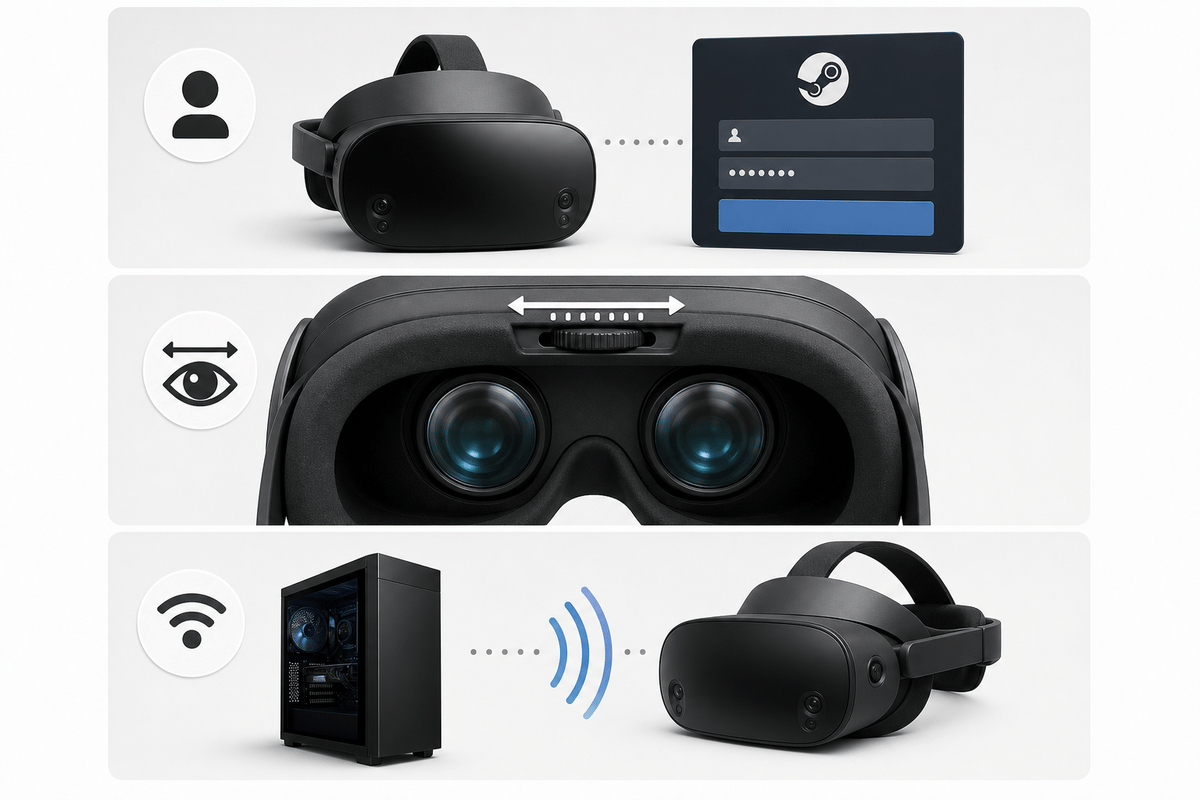
Steam Frame changes the familiar Valve Index-style PCVR setup in one important way: there is no DisplayPort or HDMI cable running from the headset to your graphics card. Its PCVR connection is built around the included 6 GHz wireless adapter, so the first session comes down to three essentials: use the same Steam account on the headset and PC, set the 60-70 mm lens spacing correctly, and complete the SteamVR pairing flow with the adapter connected to a USB 3 port.
The order matters. A sharp, stable wireless session starts with fit and account access before SteamVR pairing. Trying to diagnose blurry lenses, a Steam Guard approval, and a missing PC connection while the headset is already on is the fastest way to turn straightforward onboarding into a confusing loop.
Table of Contents (7)
Start With Power, Controllers, and the Box Contents
Steam Frame ships in a power-saving state. Connect the included USB-C cable to a power source, then hold the headset power button until its LED turns white. The USB-C port sits on the rear-mounted 21.6 Wh battery, so check that the cable is seated at the back of the head strap rather than looking around the front visor.
The standard box includes the Steam Frame headset, two VR controllers, an eye-relief spacer for glasses wearers, the wireless adapter, a USB-C cable, and an information booklet. Once the headset is powered, turn on each controller by pressing its Steam button. Each controller uses one AA battery, so keep spare batteries nearby rather than assuming they recharge through USB-C.
- Charge or connect the headset before beginning account setup.
- Install AA batteries in both controllers and wake them with their Steam buttons.
- Set aside the included wireless adapter for the PC portion of setup.
- Use the included eye-relief spacer before adjusting fit if you wear glasses.
Important: Steam Frame’s rear battery helps balance the headset’s weight, but it also means a loose rear strap can make the front optics drift downward. Get the strap stable before judging the image or changing IPD.
Use the Same Steam Account on Both Devices
Wireless PCVR pairing depends on the Steam Frame and the PC being signed into the same Steam account. Treat that as a hard requirement, not a preference. A PC logged into a secondary account, a family member’s account, or a different testing account can prevent the headset from appearing as a valid streaming device even when SteamVR is open.
Complete the headset’s Steam sign-in before moving to the wireless connection. Keep access to your normal Steam Guard approval method ready during this stage. Steam Frame’s exact Steam Guard screen and prompt order are not confirmed for retail onboarding, but account verification can still interrupt setup if the account needs approval.
The pairing process itself uses a code rather than a one-touch headset connection. SteamVR generates the pairing request on the PC, then Steam Frame accepts the displayed code through its in-headset virtual keyboard. That code confirms the wireless relationship between this particular PC and headset.
Set the Lens IPD Before Judging Image Quality
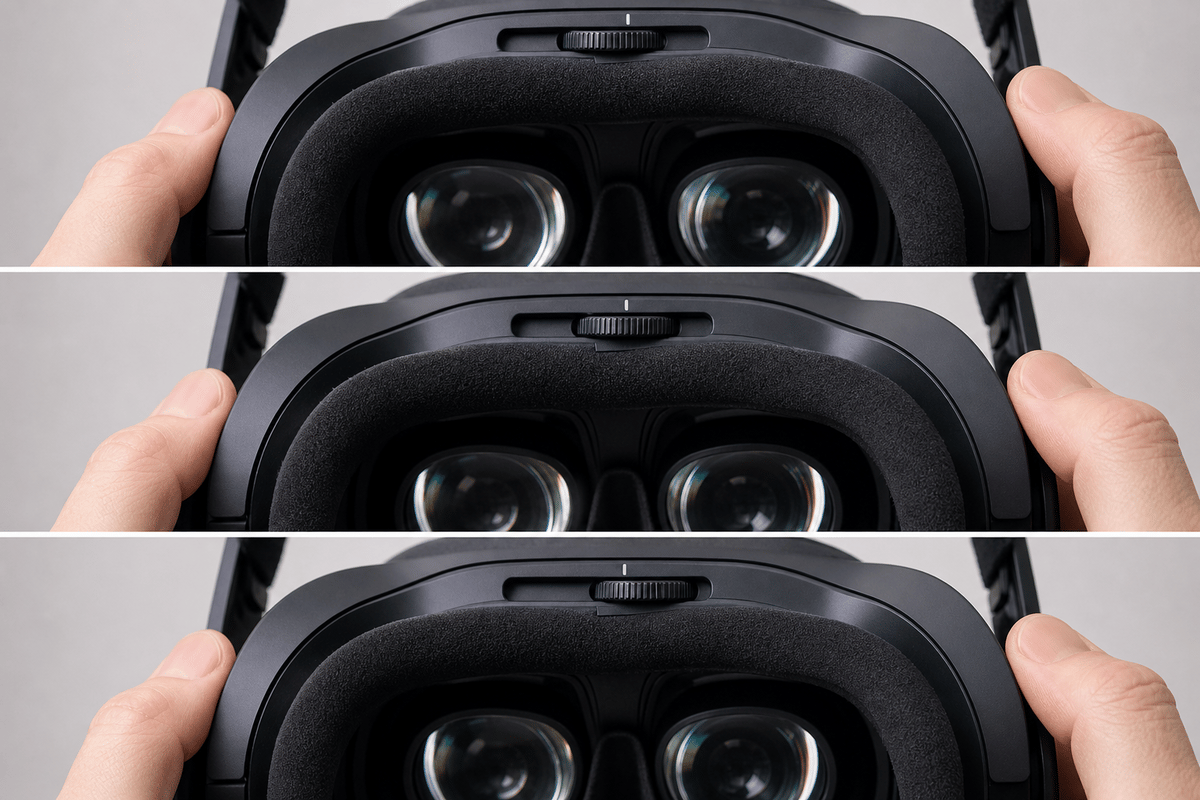
Steam Frame has manual interpupillary-distance adjustment from 60 mm to 70 mm. IPD is the distance between the centers of your pupils, and matching the lenses to that spacing gives you the clearest central image, more comfortable text reading, and a more reliable position for the headset’s two internal eye-tracking cameras.
Fit the headset so the rear battery and strap hold the visor level. Then use the manual IPD adjustment to bring text and interface elements into focus without forcing your eyes inward or outward. A good setting produces a stable, clear image across the area you naturally look through. If the center is clear but the image feels strained after a few minutes, re-seat the headset first and then make a small IPD correction.
- Use the eye-relief spacer if your glasses need extra clearance from the lenses.
- Keep the headset level; a visor sitting too low can mimic an incorrect IPD setting.
- Prioritize clear menu text and a relaxed view over chasing the widest-looking edge clarity.
- Do not expect the 60-70 mm adjustment range to fully accommodate an IPD outside that range.
Fit affects more than comfort on Steam Frame. The headset uses four outward-facing cameras for inside-out tracking and two internal cameras for eye tracking. That eye tracking supports foveated streaming, which concentrates image quality where you are looking. A headset that has slipped out of position can therefore reduce visual comfort and undermine one of the wireless system’s main efficiency advantages.
Players who need more support can add Valve’s separate $59 USD Ergonomic Accessories Kit. It includes a top headset strap, an extended light blocker, and controller straps with compatible battery doors. The included fit hardware is enough for first-run setup, but the top strap is the meaningful upgrade for players whose headset tends to settle lower during longer sessions.
Connect the Included Adapter for Wireless SteamVR
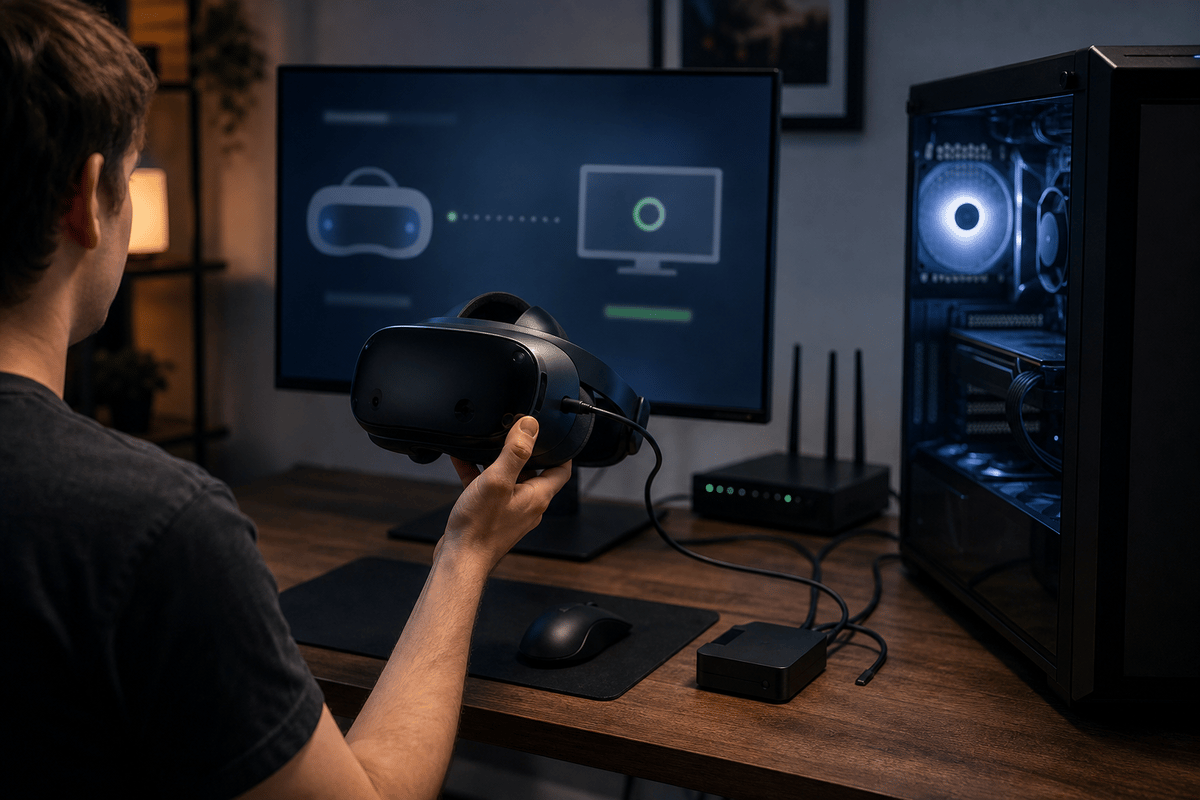
Steam Frame’s intended PCVR path is the included wireless adapter. Plug it into the PC, preferably through a USB 3 port, and then launch SteamVR. SteamVR handles the adapter driver installation; accept the driver-install prompt when it appears so the PC can create the dedicated headset connection.
The adapter provides the dedicated 6 GHz Wi-Fi 6E streaming link between the PC and Steam Frame. The headset also has a separate radio for ordinary network connectivity. That two-radio design means the crucial PC-to-headset video and audio path does not rely on your home router carrying the entire wireless PCVR stream.
This is why Steam Frame should not be treated like a headset that needs a wired video cable as a fallback. Its streaming-first design is built to deliver PCVR through SteamVR and the included adapter. The Qualcomm Snapdragon 8 Gen 3 chipset and 16 GB of LPDDR5X RAM handle headset-side work, while the gaming PC continues to render the VR game.
Complete the SteamVR Pairing Flow
With the adapter recognized by SteamVR, select Pair on the PC. Steam Frame then asks for the pairing code, which you enter with the headset’s virtual keyboard. Once the code is accepted, open the Steam menu in the VR dashboard and look for the PC’s name. Selecting that PC connects the headset to wireless streaming.
The same PC-name entry in the VR dashboard is also the connection toggle. Select it again when you want to disconnect from the PC and return to the headset’s own interface. This avoids unplugging the adapter or closing SteamVR simply to end a session.
Connection check: Seeing the PC name in the Steam Frame VR dashboard is the useful confirmation point. SteamVR running on the desktop by itself does not guarantee that the headset has completed its wireless pairing.
Fix the Common First-Run Problems
| Problem | Most likely cause | Practical fix |
|---|---|---|
| No pairing request appears | The headset and PC are on different Steam accounts, or SteamVR is not ready to use the adapter. | Confirm both devices use the same Steam account, restart the headset, reopen SteamVR, and accept any pending adapter-driver prompt. |
| The PC does not appear in the VR dashboard | The adapter is not connected properly or is using a slower USB connection. | Check that the included adapter is connected directly to a USB 3 port, then return to SteamVR and complete pairing again. |
| Menus look blurry or tiring | The headset has shifted, the lenses are set to the wrong IPD, or glasses need more clearance. | Re-seat the rear strap, use the eye-relief spacer if needed, and adjust manual IPD within the 60-70 mm range. |
| Streaming feels less precise than expected | Eye tracking and lens alignment can be affected by a poor fit. | Stabilize the headset first. Steam Frame’s foveated streaming works best when the internal eye-tracking cameras can maintain a consistent view. |
Know What Steam Frame Is Optimized For
Steam Frame is strongest when you treat it as a wireless extension of a capable SteamVR PC. The dedicated adapter, 6 GHz link, eye-tracked foveated streaming, and inside-out tracking are all aimed at making PCVR less dependent on a cable route across the room. The standalone Snapdragon hardware gives the headset its own operating environment, but the PCVR setup is where the wireless architecture is doing its most distinctive work.
The main practical limits are equally clear. The IPD range stops at 60–70 mm, the controllers require replaceable AA batteries, and the wireless stream requires the included adapter plus a functioning SteamVR installation. Retail onboarding labels may differ from current setup documentation, but the essential flow remains the same: sign into one Steam account, establish a correct physical fit, pair through SteamVR, then select the PC from the VR dashboard.
FinalBoss // Gear
Level up your setup
01Graphics cardson Amazon→02Gaming laptopson Amazon→03High-refresh gaming monitorson Amazon→04Discounted game keyson Kinguin→Affiliate links · As an Amazon Associate, FinalBoss earns from qualifying purchases.
Want to Level Up Your Gaming?
Get access to exclusive strategies, hidden tips, and pro-level insights that we don't share publicly.
Ultimate Guide Strategy Guide + Weekly Pro Tips