
Use wired Gigabit Ethernet before testing Pyrowave, and leave the conventional Remote Play codec available for comparison. For the interface changes, open Big Picture: Big Art Mode is under Settings > Home, while the Personal Calendar sits in the home screen’s Recommended tab.
The release discussed here was published on October 14, 2026, with update notes dated October 13. Its interface additions are straightforward to explore; Pyrowave needs more care because its experimental availability and network requirements affect whether it is worth enabling.
Table of Contents (8)
Pyrowave: check your network before enabling it
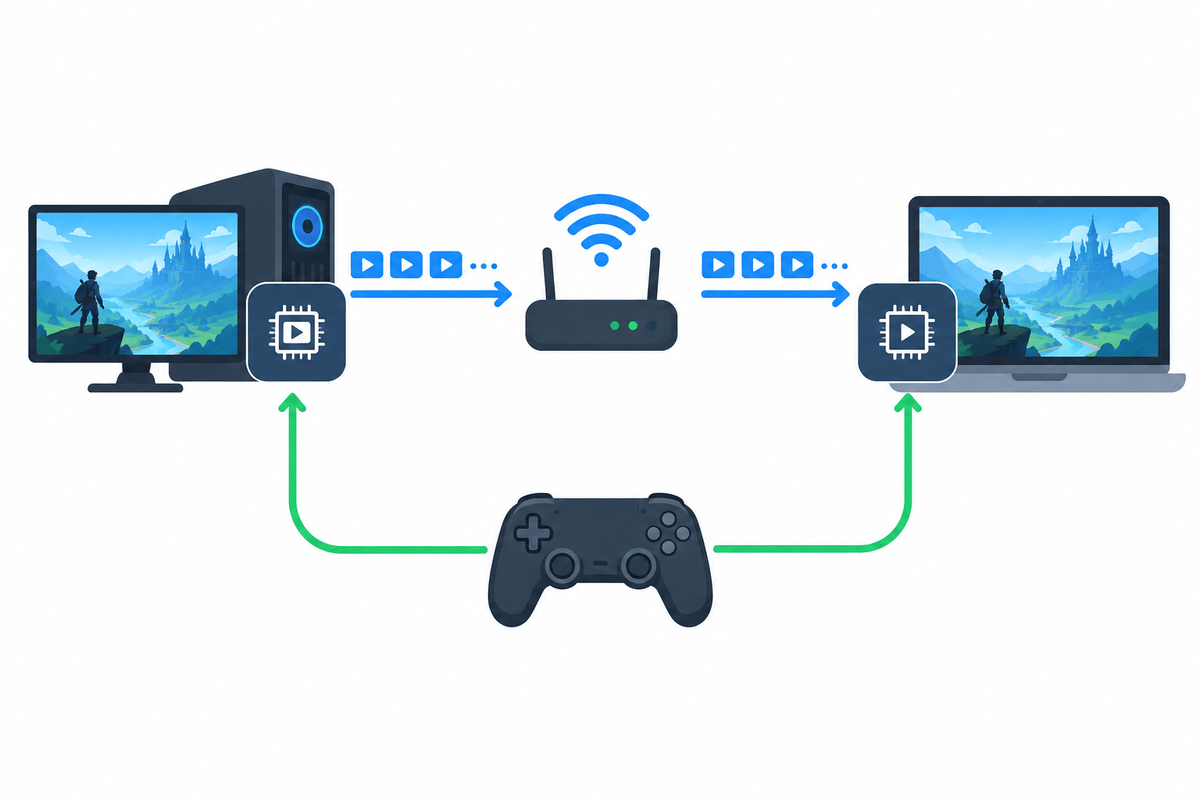
Created by Hans-Kristian Arntzen, Pyrowave simplifies video encoding to reduce Remote Play latency. The trade-off is substantial: it uses roughly five to ten times the bandwidth of conventional Remote Play codecs.
Plan around approximately 100 Mbps of sustained throughput at the lower end, with Gigabit Ethernet recommended. The beta client’s manual bitrate range is approximately 100-500 Mbps. Those figures describe streaming traffic, so a fast internet subscription does not solve a weak connection between your gaming PC and the receiving device.
- Best fit: a gaming PC streaming to another device on the same local network, ideally with both connected through Gigabit Ethernet.
- Worth testing carefully: a wired host with a wireless receiver. The receiver’s Wi-Fi connection still has to carry the much larger stream.
- Keep the conventional codec: congested Wi-Fi, capped connections or internet streaming where sustained throughput is limited.
A router with Gigabit ports helps only if the rest of the connection can keep up. Check the host connection, any intervening switch and the receiving device rather than relying on the router’s headline specification.
Where to find the Pyrowave toggle
Pyrowave is experimental and disabled by default. On the receiving device, open Steam Settings > Remote Play, then inspect the advanced client options for Pyrowave. Enable it before starting the stream.
If the toggle is missing, check the client channel. On desktop Steam, beta participation is under Settings > Interface > Client Beta Participation; select Steam Beta Update and restart Steam. SteamOS places beta participation under Settings > System > Beta Participation.
Linux has an additional distinction: Pyrowave’s experimental rollout used the SteamRT3 client. If the standard Linux beta does not expose the codec, check the experimental SteamRT3 client rather than assuming the Remote Play menu alone is the problem. Availability can depend on the participating builds, so check both the host and receiver when the toggle or connection is missing.
Test responsiveness without saturating the connection
Begin with automatic bitrate. Use the conventional codec for a baseline, then enable Pyrowave and repeat the same game scene at the same streaming resolution and frame rate. Keeping those settings unchanged makes the codec comparison useful.
- Check input response: repeat camera turns and menu navigation, looking for a meaningful reduction in delay.
- Check movement: pan quickly through a detailed scene and watch for stutter or dropped frames.
- Check fine detail: inspect small menu text, desktop windows and dark areas for sharpness, color and brightness.
- Check network contention: repeat the test during normal household network use. A stream that works only when everything else is idle may be too demanding for your setup.
If you switch to manual bitrate, begin at the lower end of the available range. Raising it immediately makes it harder to separate the codec’s responsiveness benefit from congestion caused by the larger stream.
Disable Pyrowave if it introduces stutter, packet loss or inconsistent response. Its faster encoding cannot compensate for a connection that cannot carry the resulting video reliably.
Enable Big Art Mode in Big Picture
Open Big Picture > Settings > Home and enable Big Art Mode. It reduces the size of the recently played carousel and uses the highlighted game’s key artwork across the background.
The benefit is easiest to appreciate on a television or controller-driven setup, where large artwork is readable from farther away. The trade-off is information density: the selected game gets more visual space, while the carousel becomes less prominent. Switch it off if your priority is scanning several recent games at once.
Configure the Big Picture screensaver
Look for screensaver controls under Settings > Interface > Screensaver. The available interface details also place them under Settings > Customization, so check that section if the first route is absent. The submenu location is less certain than the available screensaver features.
The screensaver starts after five minutes of inactivity, and its settings let you change the idle interval. The game-art slideshow can draw from several image sources:
| Image source | What it displays | When to use it |
|---|---|---|
| Recently played game artwork | Artwork associated with your recent games | For a library-themed idle display |
| Your screenshots | Captured in-game images | For a gallery of your own gameplay moments |
| A custom image folder | Images stored in a folder you choose | For direct control over the displayed collection |
Preview your chosen source on the actual display. Wide game artwork, screenshots and custom images can frame differently, so check whether important details are cropped before leaving the slideshow enabled.
A second preset uses a bouncing Steam logo that changes color when it hits an edge. It is separate from the default slideshow. Choose it in the screensaver controls if you want the retro-style animation rather than rotating images.
Find the Personal Calendar
The Recommended tab on the Big Picture home screen now includes a Personal Calendar showing new and upcoming games. Check that tab rather than searching the screensaver or Home settings: the calendar is part of the browsing interface.
Steam Input: controller reshuffling happens later
Steam moves controller-input reshuffling from game launch to the moment the last running game exits. This reduces unnecessary reassignment when multiple applications are active.
If you use several controllers or keep another game running in the background, test assignment after closing the final game. Closing one title while another remains open no longer marks the same reshuffling point. This is a controller-routing change; it does not require rebuilding your button layout.
Remote Play quality changes and Linux warnings
Remote Play also receives changes to color accuracy, sharpness and brightness. Where HEVC is unavailable, Steam can automatically fall back to H.264. A stream connecting through H.264 therefore does not necessarily indicate a failed setup.
The update includes fixes affecting the in-game overlay, game recording and Steam Input. Keep those changes separate from the Pyrowave comparison: improvements elsewhere in the client do not establish that the experimental codec is faster on your network.
On desktop Linux, Steam now displays the SteamOS unsupported-game dialog when installing a title known not to work with Proton. Read that warning before downloading. It improves compatibility messaging; it does not change the game’s Proton support.
FinalBoss // Gear
Level up your setup
01Graphics cardson Amazon→02Gaming laptopson Amazon→03High-refresh gaming monitorson Amazon→04Discounted game keyson Kinguin→Affiliate links · As an Amazon Associate, FinalBoss earns from qualifying purchases.
Want to Level Up Your Gaming?
Get access to exclusive strategies, hidden tips, and pro-level insights that we don't share publicly.
Ultimate Guide Strategy Guide + Weekly Pro Tips