
Table of Contents (17)
Steam Input Has Solved Controller Compatibility — and Added a New Failure Point
Steam Input began as Valve’s answer to an annoying PC reality: every controller arrived with its own quirks, drivers, button layouts, and half-supported games. Its translation layer remains valuable in 2026, especially for DualSense, Switch Pro, 8BitDo, Steam Controller, gyro controls, touch menus, and games that only understand an Xbox-style XInput pad.
The trade-off is simple: a game can receive the same physical button press through more than one route. That creates genuine double inputs. Wrong button prompts are a separate problem. A game showing Xbox A/B/X/Y icons while a DualSense is connected does not mean the controller is sending two presses; it usually means Steam or the game has selected an Xbox-style virtual controller, or the game only includes Xbox glyphs.
The fastest reliable rule is to diagnose the symptom before changing settings. Fixing a glyph mismatch by disabling Steam Input can remove useful controller features without changing a single on-screen icon. Treating a real duplicate-input issue as a prompt problem leaves menus skipping two entries at a time.
That distinction matters because the two failures feel similar for about five seconds and then diverge hard. If a menu moves two lines when you tapped once, you are dealing with duplicate input. If the game plays perfectly but insists that your PlayStation cross button is an Xbox A button, the problem is visual mapping, not control fidelity. One needs you to eliminate an extra signal path. The other usually needs a layout reset, a controller-recognition check, or acceptance that the game only shipped one icon set.
Identify the Symptom Before Changing Anything
| What happens | Likely cause | Fastest check | Most useful first fix |
|---|---|---|---|
| One face-button press produces two jumps, attacks, or menu selections | Steam Input and the game’s native controller support are both active | Use Steam’s Input Test; one registered press there points to a game-side conflict | Disable Steam Input for that game, then relaunch it |
| D-pad or stick moves two menu entries, sometimes with a short delay | Multiple devices, desktop mouse/keyboard mapping, or Linux input-layer conflict | Check whether Steam or the game sees two controllers | Disable extra controller mappings and ensure only one Player 1 device is active |
| Xbox prompts appear on a PlayStation controller | The game sees an XInput-style virtual pad, or only ships Xbox icons | Check the controller type Steam identifies in Settings | Reset to the official layout; accept Xbox glyphs if the game lacks PlayStation assets |
| Nintendo A/B or X/Y actions feel swapped | Nintendo Button Layout is disabled | Compare physical button position with the Steam layout | Enable Use Nintendo Button Layout before launching the game |
| Steam Deck and an external controller both affect an emulator | Two active controller devices are mapped to the same player | Open the emulator’s input settings | Limit input to the first controller and reorder Player 1 |
If you only remember one table from this guide, make it this one. It keeps you from applying the loudest fix to the wrong problem. Steam Input has enough switches, templates, and support toggles to create a false sense that everything is one giant controller bug. It isn’t. Some problems live in Steam, some in the game, and some in the operating system underneath both.
The Safe Five-Minute Test for Double Inputs
Start with Steam’s own controller test rather than uninstalling drivers or changing operating-system files. The current Steam client path on Windows, SteamOS 3.x, Linux, and macOS is Steam → Settings → Controller. Select the connected pad, open Input Test, and press the affected button repeatedly.
- Steam registers one press; the game registers two: the hardware is usually fine. The conflict sits between Steam Input and the game’s own input handling, or inside that game’s saved controller configuration.
- Steam itself registers two presses: Steam is receiving duplicate events. Check for a second controller, a virtual device, an unusual controller mode, or desktop keyboard-and-mouse mapping.
- Only icons are wrong: stop troubleshooting duplicate input. Move to Steam’s controller recognition and game glyph support instead.
- Reproduce the problem after a full Steam restart: exit Steam fully, launch it again, then connect the controller. This matters for some Xbox pads that have historically enumerated twice when already connected during Steam startup.
One clean Input Test result is a useful dividing line. It prevents the classic bad fix: stripping out controller drivers when the game was simply reading Steam’s virtual controller and its own native XInput device at the same time.
A few details make this test more trustworthy. Disconnect every extra gamepad, wheel, fight stick, handheld, and Bluetooth controller first. Close remapping tools that can create virtual pads. Do not alt-tab between three launchers and an emulator front end while testing. You want one controller, one Steam session, and one affected game. Clean tests beat heroic tests.
Also pay attention to where the duplication starts. If Steam menus are normal and the issue appears only after the game reaches its title screen, the overlap is probably game-side. If the Steam overlay itself starts skipping entries, the extra input is reaching Steam before the game ever gets involved. That narrows the hunt fast.
What a clean Steam test does and does not prove
A single press in Steam’s tester means the button, cable, and wireless link are probably not the problem. It does not prove the game is blameless. Modern PC games often support controllers natively, usually through XInput, Microsoft’s common Xbox-style controller API. If Steam Input is translating the same physical controller into another virtual gamepad or into keyboard keys, the game can receive both paths at once.
That is why duplicate inputs often look absurdly specific. You can navigate the Steam client just fine, then open one game and every confirm press becomes a double confirm. The hardware did not suddenly go bad at the title screen. The input stack simply changed.
Choose One Controller Layer for Each Game
Steam Input is a translation layer. It can expose a standardized virtual gamepad, keyboard keys, mouse movement, gyro controls, touch menus, or action layers. A modern Windows game with clean native Xbox controller support may already read an XInput controller perfectly. Enable Steam Input on top of that, and one physical A-button press can reach the game twice.
| Input layer | What it does | Duplicate-input risk | Prompt mismatch risk |
|---|---|---|---|
| Game-native controller support | Game directly reads XInput, DirectInput, or a supported controller API | High when Steam Input also sends controller or keyboard events | Medium when the game assumes Xbox glyphs |
| Steam Input per-game configuration | Maps a physical controller to a virtual gamepad, keyboard, mouse, or custom action set | High when native support remains active | High when Steam presents a controller as generic Xbox-style input |
| Steam desktop configuration | Applies system-level controller-to-keyboard or mouse mappings outside games | Medium to high if it leaks into a game session | Low |
| Operating-system pointer and keyboard mode | Lets a controller act like a mouse or keyboard | High because it creates another signal path | Low |
| Virtual devices and remapping drivers | Creates additional HID, XInput, or DirectInput devices | High if a game sees both physical and virtual pads | Low |
For a single affected game, use Steam’s per-game setting first: Library → right-click the game → Properties → Controller → Override for [game] → Disable Steam Input. Launch the game again and test the same menu or action.
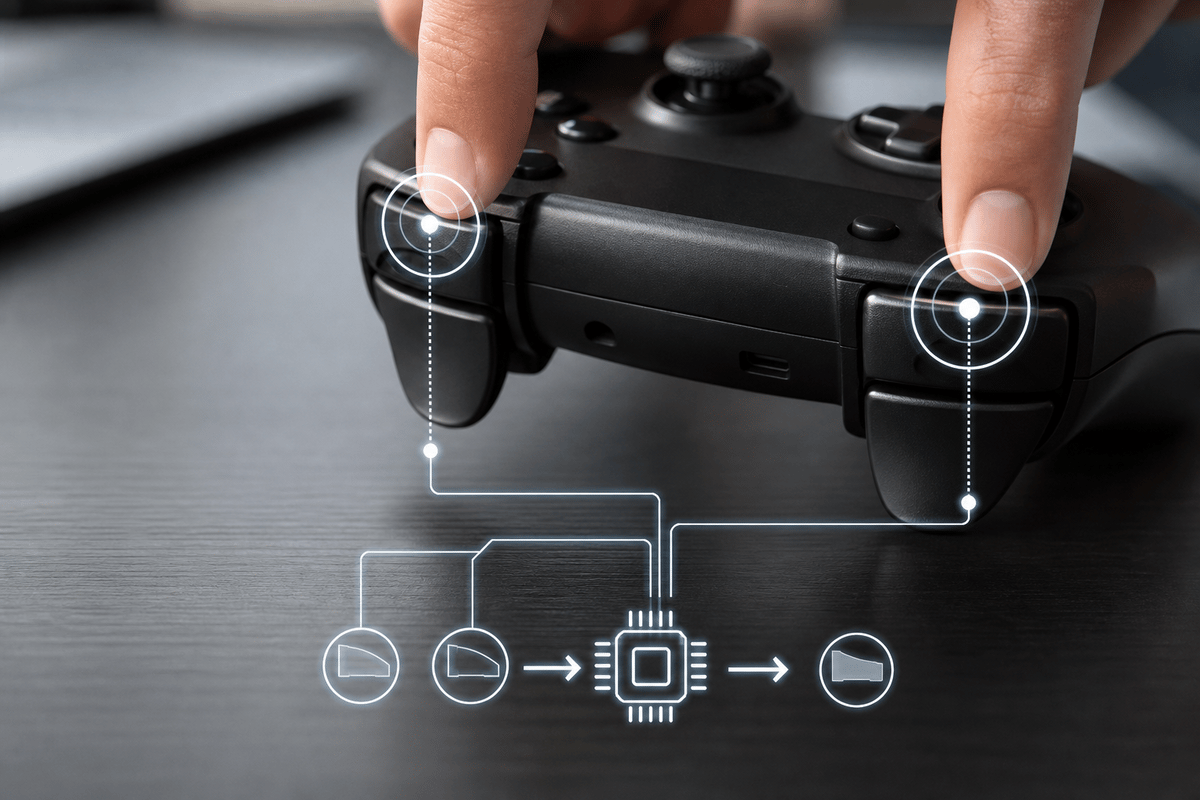
That setting is often the correct answer for an Xbox One or Xbox Series controller in a game with strong native controller support. It can also help with PlayStation controllers when the game genuinely supports them on its own. It is a poor blanket rule for every game. Older titles, games with unreliable controller support, Switch-style pads, and Steam Controller owners often need Steam Input to work properly in the first place.
The goal is not to prove Steam Input guilty. The goal is to pick one boss for each game. Either the game handles the controller directly, or Steam does. When both try to be helpful, you get the familiar mess: two jumps, two menu moves, or a camera that feels like someone else has a thumb on the stick.
Use Global Controller Toggles Carefully
If disabling Steam Input for one game fixes the issue, leave the global settings alone. If the same controller creates duplicate events across several games, open Steam → Settings → Controller and check the support toggles for Xbox, PlayStation, Switch Pro, and Generic Gamepad controllers. Disable the support layer only for the controller type causing the conflict, exit Steam fully, and relaunch it so devices are enumerated again.
Global changes trade convenience for certainty. Steam Input features such as gyro aiming, radial menus, touch menus, action layers, and consistent mappings across older PC games can disappear when support is turned off. Per-game overrides remain the cleaner option whenever one title is the problem.
There is another reason to start per-game: global fixes can hide the pattern you actually need to see. If only one Unreal Engine game is doubling inputs, or one Unity game is reacting to both joystick bindings and Steam actions, nuking support for every controller type across your whole library is overkill. Better to isolate the offender, confirm the cause, and preserve the rest of your layouts.
Watch out for desktop layouts leaking into games
Steam also has desktop mappings, which are great until they are not. If a controller is set to behave like a mouse or keyboard outside games, and that mapping leaks into a windowed game or a launcher, one stick can become both camera input and mouse input. One face button can become both a game action and a keyboard confirm. The symptom feels haunted. The cause is usually boring.
If duplication appears only in launchers, menus, or borderless-window situations, check whether Steam’s desktop layout or an operating-system pointer mode is still active. That is especially relevant on Linux desktop environments that can expose a controller as pointer and keyboard input.
When the Game’s Own Configuration Is Duplicating Actions
Some double-input failures survive a Steam Input override because the game has saved duplicate action mappings. Unreal Engine games are a familiar example. Their input configuration can be stored in an Input.ini file under a path resembling:
C:\Users\[UserName]\AppData\Local\[GameName]\Saved\Config\WindowsNoEditor\
Close the game, rename Input.ini to Input.ini.backup, then launch the game so it can generate a clean configuration. Renaming is safer than deleting because the old file remains available. This reset clears custom bindings, so players need to set their preferred controls again afterward.
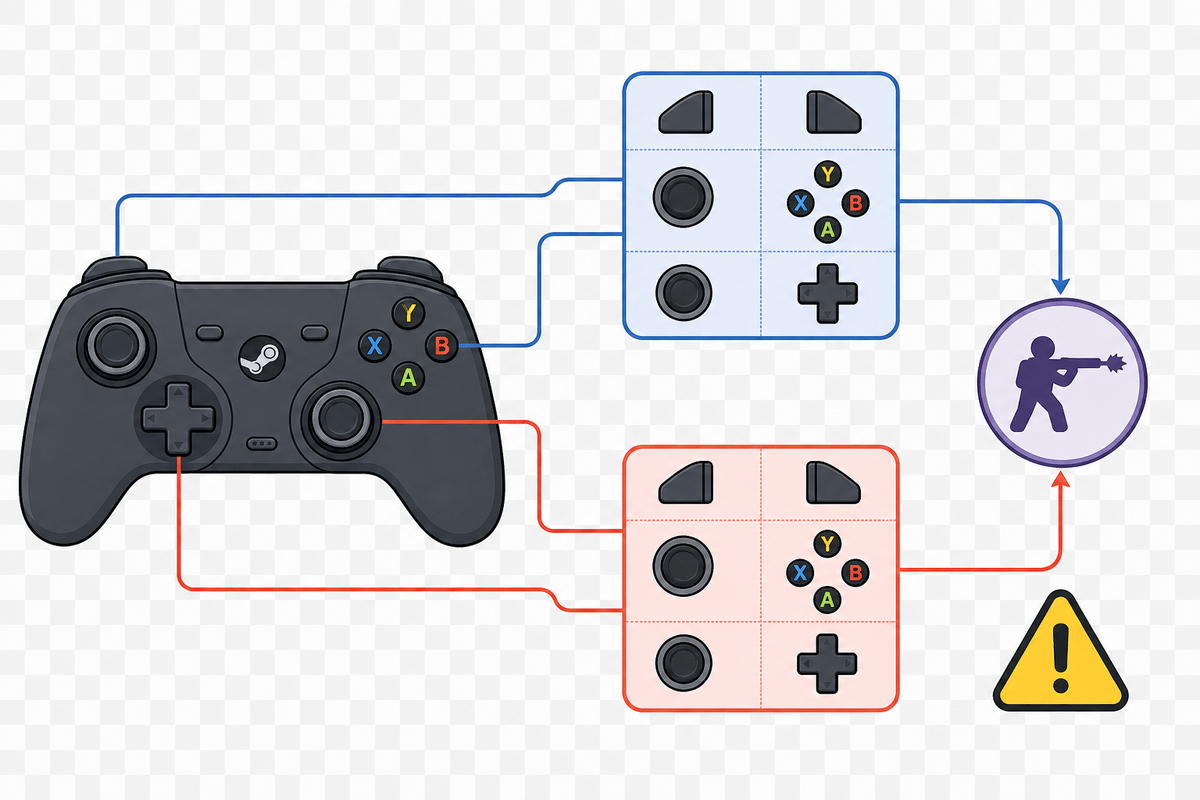
Unity games can hit the same wall from the other direction. A developer project using Steam Input alongside joystick bindings in its Input Action Asset can fire both actions. That is a game-side implementation problem: the duplicated joystick entries need to be removed or separated from Steam Input-driven actions. Players cannot repair that from Steam’s controller layout page alone.
This section matters because not every controller bug is yours to solve. If Steam’s Input Test is clean, Steam Input is disabled for the game, and duplicate actions still happen, the game may be storing bad bindings or handling multiple action sources internally. At that point the player fix is limited: reset the game’s configuration, verify files if needed, and test with a default controller layout. Anything deeper belongs to the developer.
A quick reality check before you blame the pad
If one game is broken and ten others are fine with the same controller, that pattern strongly favors a game-side configuration issue over a failing button or stick. Hardware faults usually travel with the controller. Saved-config problems stay married to the one title causing the drama.
Steam Deck, Linux, and macOS Need a Different Check Order
Windows tends to fail through overlapping native XInput and Steam Input paths. Steam Deck and desktop Linux add another complication: the operating system may be exposing controller input as a pointer or keyboard while Steam is also sending gamepad input. KDE Plasma’s controller settings include an option to allow controllers to operate as pointer and keyboard devices. Disable it for the affected controller when a game is receiving both mouse/keyboard and gamepad actions.
On Steam Deck, emulators and front ends can treat the built-in controls and an external pad as two active inputs for Player 1. In EmulationStation, set input handling to accept input from the first controller only, then reorder controllers so either the Deck controls or the external pad owns Player 1. Leaving both active is a reliable route to doubled menu navigation and phantom actions while the Steam overlay is open.
Desktop Linux users may encounter duplicate virtual devices associated with Steam’s udev rules, including 70-steam-input.rules. Do not delete or modify that file as a routine fix. It is an unofficial community workaround, can be undone by updates, and can break device support elsewhere. Disable Steam Input globally and per-game for testing first, remove pointer-and-keyboard controller behavior, and verify whether the game still sees more than one device.
macOS follows the same basic logic as Windows: confirm Steam receives a single event, then remove the extra layer. Steam Input remains useful for controllers that macOS games do not recognize reliably, but a native gamepad path plus custom desktop mappings can still create a duplicate-action mess.
Why the Steam Deck can look like two controllers at once
The Steam Deck is unusually good at pretending to be several things. It is a handheld with built-in controls, a PC running SteamOS, and often a launch point for emulators and front ends that each want their own controller order. Add an external pad and you can end up with the Deck controls and the pad both fighting for Player 1. That is not the same problem as a bad button. It is an assignment problem.
So the Deck check order should be stricter than on desktop: first confirm which device is Player 1, then confirm whether the front end accepts only the first controller, then test Steam Input. If you reverse that order, you can spend half an hour tweaking Steam layouts while the emulator keeps happily reading two devices.
Wrong Button Prompts: Fix the Layout, Then Accept the Game’s Limits
Button prompts are artwork and interface logic, not proof that the underlying input is wrong. Many PC games only include Xbox glyphs because XInput remains the baseline controller API on Windows. Steam cannot create PlayStation triangle, circle, cross, and square prompts if the game did not ship those assets. A DualSense that works flawlessly while showing Xbox icons is behaving normally from an input perspective.
- Confirm controller recognition: Steam should identify the device as an Xbox Controller, PlayStation Controller, Switch Pro Controller, or Generic Gamepad. A PlayStation pad detected as generic Xbox-style input will often trigger Xbox prompts in games that otherwise support PlayStation icons.
- Reset the game’s Steam layout: use Library → right-click game → Manage → Controller Configuration, then select the official layout or a recommended template. Custom remaps can make the actions feel wrong even when the prompts are technically accurate.
- Enable Nintendo Button Layout for Switch-style pads: this aligns Steam’s button positions with Nintendo’s physical arrangement, where A is on the right and B is on the bottom.
- Set the controller before launch: switching from an Xbox controller to a Switch Pro pad mid-session can leave a game using stale prompts or the wrong assumed layout.
Nintendo Button Layout fixes physical-position confusion. It does not force every game to redraw its UI with Nintendo glyphs. The same limitation applies to PlayStation button prompts: the game must support them and must recognize the connected controller type rather than only Steam’s Xbox-compatible virtual output.
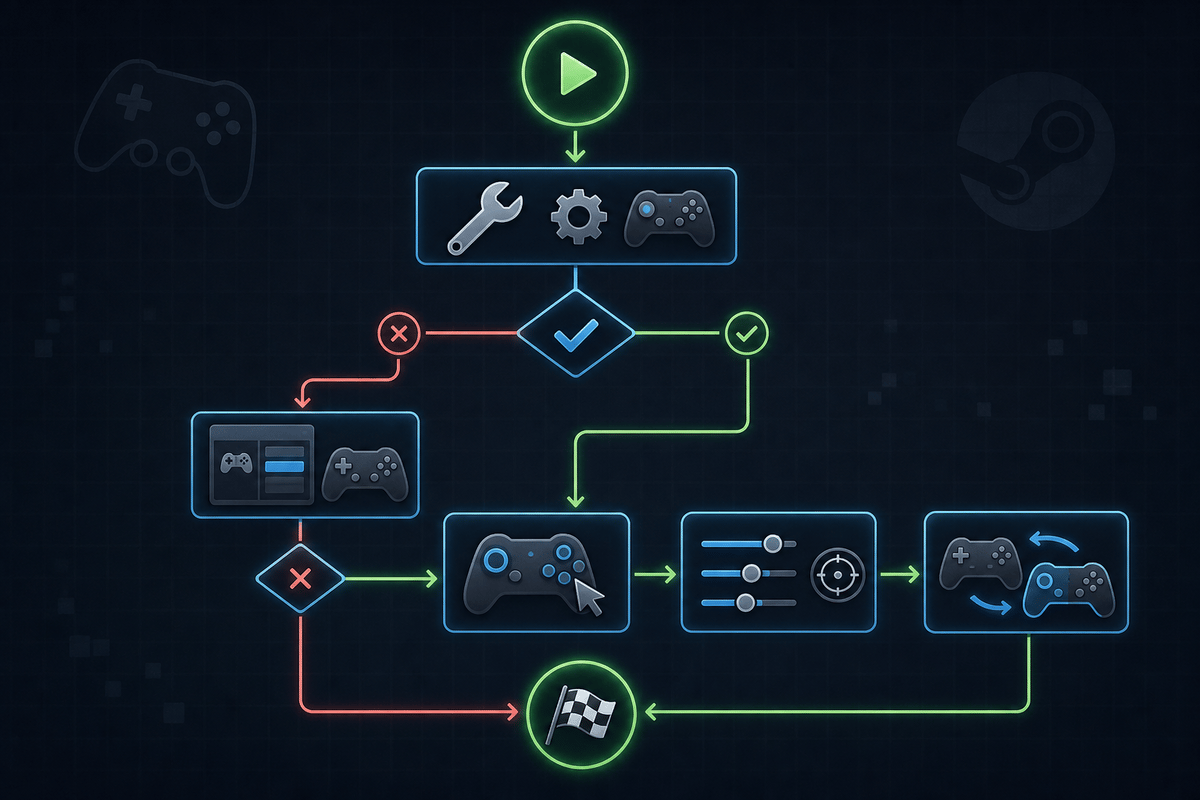
There is one uglier variant worth calling out. Sometimes wrong prompts are not wrong prompts at all, but broken prompt rendering: blank squares, question marks, or missing icons after a Steam client or game update. That still is not double input. Treat it as a UI problem. Reset the layout to the official template, restart Steam, relaunch the game, and test another title with the same controller. If only one game is showing missing icons, the problem is almost certainly in that game’s prompt support rather than in the physical pad.
Xbox icons are not a failure by themselves
This is the part players hate hearing because it feels like surrender, but it is often the truth: Xbox prompts in a working game are frequently normal on PC. If the actions match the physical button positions you expect, and only the artwork is Xbox-themed, you may already be done. Chasing PlayStation glyph purity by disabling Steam Input, changing support toggles, and reordering devices can cost you features without improving a single icon.
Controller-Specific Cases That Still Matter in 2026
| Controller or setup | Common failure pattern | Best first action |
|---|---|---|
| Xbox One or Xbox Series controller on Windows 10/11 | Steam or the game sees two instances of one controller | Start Steam first, then connect or power on the controller; check Steam Input Test before changing anything else |
| DualShock 4 or DualSense | Xbox prompts despite correct physical input | Confirm PlayStation controller detection; use Steam Input only when the game needs it or when its native support is weak |
| Switch Pro Controller and Nintendo-style 8BitDo pad | A/B and X/Y feel reversed against Xbox-oriented prompts | Enable Nintendo Button Layout and reset to an official controller layout |
| 8BitDo Ultimate 2 | Steam receives double input because the controller exposes an unsuitable mode | Use the controller’s documented X + Home combination to enter 8BitDo Ultimate 2C mode, then run Steam Input Test again |
| Steam Controller with official Puck charger | Double or phantom inputs while the controller is charging | Update Steam and controller firmware; 2026 updates address this charging-related behavior |
| Steam Deck with external controller or emulator | Built-in controls and the external pad both control Player 1 | Assign a single first controller and disable all-controller input in the emulator front end |
The Steam Controller deserves separate treatment from generic “Steam controller” advice written a decade ago. Steam Input is fundamental to its design, so disabling Steam Input wholesale can make its trackpads, gyro, touch menus, and unusual bindings substantially less useful. Update firmware first, especially when using the official Puck charger, then inspect the active Steam layout and any duplicate desktop mappings.
8BitDo pads also deserve a slightly suspicious eye, not because they are bad, but because many of them support multiple operating modes. If a controller can present itself differently depending on a switch position or startup button combo, Steam may interpret one mode cleanly and another badly. That is why the Input Test matters so much: it tells you whether the controller mode itself is feeding duplicate events before the game adds any confusion.
Changes Worth Avoiding
Do not begin by deleting Linux udev rules, installing virtual-device hiders, or wiping controller drivers. Those steps can turn one bad game profile into a system-wide controller problem. They also make it harder to identify the actual cause because Steam Input, operating-system devices, and game-native input all change at once.
Keep the test narrow: one controller connected, no controller hot-swapping, no desktop keyboard/mouse profile applied to the game, and a per-game Steam Input override. Once the double event disappears, restore only the features that matter. That approach preserves gyro and custom bindings where they are genuinely useful rather than treating Steam Input as the culprit every time a menu skips.
The same caution applies to community fixes that involve registry edits, hidden-device purges, or permanent file removals. Some of those tricks have helped specific edge cases over the years. They are not good opening moves. A safe troubleshooting ladder starts with reversible changes: restart Steam, disconnect extra devices, test in Steam, switch the per-game override, reset the game layout, and only then escalate.
A Clean Escalation Path Beats Random Tinkering
If you want the short version, it is this: confirm the symptom, test it inside Steam, then remove only one input layer at a time. Start with the per-game Steam Input override. Move to controller-type support toggles only if the problem spans several games. Reset a game’s saved input config if Steam itself is clean but one title stays broken. On Steam Deck and Linux, check Player 1 assignment and pointer/keyboard behavior before you touch anything deeper.
That order works because it matches the way these failures are created. Double inputs are usually additive. Something extra is feeding the game. Wrong prompts are usually descriptive. The game is naming or drawing the buttons differently than your hands expect. Those are different classes of bug, and they deserve different fixes.
Useful official starting point
- Steam Support — the safest official place to start before changing system files or device rules.
Steam Input remains one of the best things to happen to oddball controllers on PC. It is also one of the easiest ways to accidentally make a good controller feel broken. The fix is usually not dramatic. It is usually one layer too many.
FinalBoss // Gear
Level up your setup
01Graphics cardson Amazon→02Gaming laptopson Amazon→03High-refresh gaming monitorson Amazon→04Discounted game keyson Kinguin→
Affiliate links · As an Amazon Associate, FinalBoss earns from qualifying purchases.
Want to Level Up Your Gaming?
Get access to exclusive strategies, hidden tips, and pro-level insights that we don't share publicly.
Ultimate Tech Strategy Guide + Weekly Pro Tips