
Table of Contents (28)
Arc Raiders Error Code 30005 & Anti-Cheat Fix: The Complete Launch Error Playbook
The first time I saw Arc Raiders throw up Error Code 30005 on launch, I knew exactly what kind of evening it was going to be. Not “drop into a raid with friends” evening – “wrestle with Easy Anti-Cheat and Windows security until your patience runs out” evening.
If you’ve landed here, you’re probably in the same boat: Arc Raiders refusing to start, a cryptic Easy Anti-Cheat (EAC) popup about error 30005, maybe an anti-cheat initialization failed message, or that lovely ARMR0002 code. The game is installed, your PC can absolutely run it, but the launcher never makes it to the title screen.
Under the hood, almost all of these early PC launch problems come down to the same messy intersection: EAC’s low-level driver, Windows 10/11 security features, and whatever cocktail of overlays, antivirus, and drivers you’re running. Once you understand that, the whole troubleshooting process starts to make a lot more sense.
This article is exactly what the mouthful keyword suggests – arc raiders error code 30005 and anti-cheat fix – all launch error solutions in one place. We’ll go from quick, safe repairs to deeper system tweaks, and I’ll explain why each step works rather than just dumping a list of rituals and hoping one of them magically fixes it.
I’m going to assume you’re on Windows 10 or 11, playing via Steam or the Epic Games Store. If your situation matches that, this guide will cover you.
Specifications
What Error Code 30005 Actually Means (And Why It Keeps Coming Back)
Easy Anti-Cheat runs a small driver and a background service that spin up before Arc Raiders itself. If anything in that chain fails, you get kicked out before the game even draws a frame.
Error Code 30005 is EAC’s way of saying: “I tried to start my driver or service, and Windows said no.” You’ll usually see one of two detailed messages attached:
- “CreateFile failed with 32” – EAC tried to open its driver file (usually
EasyAntiCheat.sys) and something else had it locked, or it was corrupted. - “StartService failed with 1275” – Windows refused to load the EAC driver, often due to permissions, security policies, or compatibility flags.
The nasty part is that this error isn’t unique to Arc Raiders. You’ll see it across other EAC games like Fortnite, Apex Legends, Rust, and more. Same anti-cheat, same low-level hooks, same kinds of conflicts. That’s actually good news: there’s a well-established pattern of fixes that work.
The other codes you might see – like ARMR0002 – are more Arc Raiders-specific, usually pointing to the game’s own runtime or service failing to initialize properly. But in practice they often travel with the same root causes: corrupted install, blocked anti-cheat, or permission issues.
Key idea: If EAC can’t start cleanly and with admin-level privileges, Arc Raiders will not launch. Everything in this guide is about giving EAC a clean, unblocked path to run, and then making sure the game’s files and drivers match what it expects.
Step 0: Quick Prep Before You Start Debugging
Before getting into the heavy fixes, it’s worth spending five minutes on basic prep. It sounds boring, but skipping these is one of the biggest “I’ve tried everything and nothing works” traps.
- Check that your PC actually meets requirements. Arc Raiders expects modern hardware: 64-bit Windows 10/11, a reasonably recent quad-core CPU with SSE4.2 support, 16GB RAM, and an SSD. If you’re on very old hardware (Core 2, early Phenom, etc.), the game may simply not support your CPU’s instruction set, and no amount of EAC magic will fix that.
- Close overlays and hardware tools. Things like Discord overlay, Nvidia GeForce Experience overlay, MSI Afterburner, Rivatuner, ReShade, and RGB control apps love to inject themselves into games. They also love to trip anti-cheat. Shut them down completely from Task Manager before troubleshooting.
- Make sure you have administrator access. Many of the following steps involve repairing services and drivers. If you’re on a locked-down work or school PC, you’re going to hit a wall quickly.
- Restart your PC at least once. I know, it’s cliché. But EAC hooks into Windows at a low level. If you’ve just installed the game or a big Windows update, a restart can flip half the relevant switches on its own.
- Back up any Arc Raiders settings/saves. If you’ve already played a bit, grab anything in
%LOCALAPPDATA%\Raiders\Savedand copy it somewhere safe. We’re not going to delete this folder in most fixes, but it’s nice insurance.
With that out of the way, let’s hit the most effective fixes first. We’ll start with repairing Easy Anti-Cheat itself, move through game file integrity, then into drivers and security software.
Fix 1: Repair Easy Anti-Cheat’s Service the Clean Way
This is my default first move whenever I see 30005. We’re essentially telling EAC: “Forget whatever broken state you’re in and rebuild your service configuration from scratch.”
Recent EAC installations for Arc Raiders use an executable called EasyAntiCheat_EOS.exe. It supports a factory reset mode that’s not well-advertised, but it’s incredibly useful.
- Open Command Prompt as administrator.
Press the Windows key, typecmd, right-click Command Prompt, and choose Run as administrator. Accept the UAC prompt. - Navigate to the EAC install folder.
On most systems it will be one of these:C:\Program Files (x86)\EasyAntiCheat_EOS- or inside your Arc Raiders folder, e.g.
...\steamapps\common\ARC Raiders\EasyAntiCheat_EOS
In Command Prompt, type something like:
cd "C:\Program Files (x86)\EasyAntiCheat_EOS"
and press Enter. - Run the EAC factory reset.
In the same window, type:
EasyAntiCheat_EOS.exe qa-factory-reset
and press Enter. You probably won’t see much output – that’s fine.Then check status with:
EasyAntiCheat_EOS.exe qa-factory-reset status
If you see a success code (often “0”), you’re good. - Restart your PC.
Yes, again. The EAC service and driver are much happier after a reboot. - Launch Arc Raiders from Steam or Epic.
Don’t use a desktop shortcut for this first test – go through the launcher in case it needs to re-register anything.
If 30005 disappears after this, you were likely dealing with a corrupted or misconfigured EAC service – one of the most common launch problems after a new install or a patch.
If you still get 30005 or a generic anti-cheat error, the next step is to go a bit more nuclear on the driver file itself.
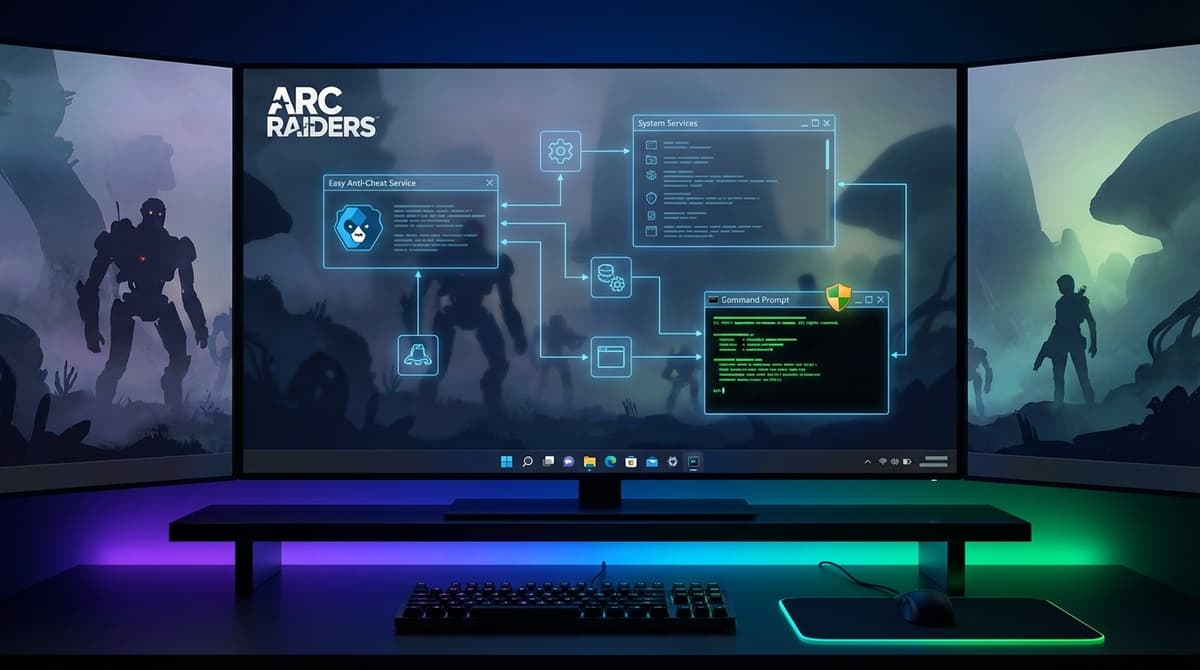
Fix 2: Delete and Regenerate EasyAntiCheat.sys (The Stubborn Driver Fix)
When you see “CreateFile failed with 32” attached to 30005, it usually means EAC’s driver file is either in use, corrupted, or stuck in some zombie state that Windows won’t let it re-open. Deleting the file and letting EAC recreate it is often what finally clears the blockage.
- Stop the Easy Anti-Cheat service.
Press Win + R, typeservices.msc, and press Enter.
In the list, look for Easy Anti-Cheat (or similar). Right-click it and choose Stop if it’s running. - Find and delete the driver file.
Common locations include:C:\Program Files (x86)\EasyAntiCheat- or inside your Arc Raiders install:
...\ARC Raiders\EasyAntiCheat
Inside that folder, look for
EasyAntiCheat.sys. Right-click and Delete it.
If Windows complains that the file is in use, double-check that the EAC service really is stopped. Worst case, you can do this step in Safe Mode (more on that in a second). - Clear EAC temp data.
Press Win + R, type%temp%, and hit Enter.
If you see any folders named EasyAntiCheat, delete them. This wipes cached junk that can sometimes drag old, broken configs back into life. - Repair EAC from the game folder (if available).
In your Arc Raiders install folder, there’s often a setup tool:EasyAntiCheat_Setup.exe- or
EasyAntiCheat_EOS.exewith an install/repair UI
Right-click it, choose Run as administrator, and pick Repair or Install when prompted.
- Restart your PC and try launching again.
If you had the file locked and couldn’t delete it, booting into Safe Mode usually does the trick:
- Press Win + R →
msconfig→ Enter - Go to the Boot tab → check Safe boot → Minimal → OK → Restart
- Delete
EasyAntiCheat.sysas above - Run msconfig again in Safe Mode to uncheck Safe boot, then reboot normally
This sounds like extra work, but when 30005 is being really stubborn, manually nuking and rebuilding the EAC driver is often what finally gets you back into the game.
Fix 3: Verify Arc Raiders’ Game Files (Steam & Epic)
At this point, you’ve beaten on EAC directly. If you’re still stuck, there’s a decent chance the problem is a missing or corrupted file inside the Arc Raiders install itself – maybe an outdated EAC component, maybe a broken runtime library the game depends on.
Good news: the Steam and Epic clients are actually pretty good at spotting this kind of damage and fixing it without you having to reinstall everything.
On Steam
- Open your Steam Library.
- Right-click Arc Raiders → click Properties.
- Go to the Installed Files tab.
- Click Verify integrity of game files….
- Wait for the scan to reach 100% (this can take several minutes depending on your SSD and CPU).
- When it’s done, close the window and try launching the game again.
On Epic Games Store
- Open the Epic Games Launcher and go to your Library.
- Find Arc Raiders and click the three dots next to it.
- Choose Manage (or Verify directly if the option appears).
- Click Verify and let the process complete.
- Once finished, hit Launch.
Under the hood, this basically redownloads any missing or corrupted files and re-syncs bundled redistributables (Visual C++ runtimes, DirectX bits, and yes, EAC components). If you’ve seen the ARMR0002 error, this is one of the highest-value steps: that code often disappears once the game’s runtime files are put back into a known-good state.
Fix 4: Fix Permissions – Run Game, Launcher, and EAC as Admin
Here’s where Windows 10/11 security can quietly sabotage you. EAC wants to operate at a very low level; Windows wants to protect you from programs doing exactly that. If your launcher or game doesn’t run with the right privileges, you end up with 30005 or generic anti-cheat errors even if your files are perfect.
I’ve lost more time than I want to admit to this on my own Windows 11 box – games would work fine one week, then a cumulative update landed and suddenly anti-cheat initialization failed until I re-applied admin permissions.
- Set Arc Raiders to always run as admin.
Navigate to your Arc Raiders install folder. For Steam, that’s usually something like:
C:\Program Files (x86)\Steam\steamapps\common\ARC Raiders
Find the main executable (oftenRaiders.exeor similar). Right-click → Properties → Compatibility tab.
Check Run this program as an administrator → click Apply. - Do the same for your launcher.
For Steam: go toC:\Program Files (x86)\Steam, right-clicksteam.exe→ Properties → Compatibility → enable Run this program as an administrator.
For Epic: findEpicGamesLauncher.exe(usually underC:\Program Files (x86)\Epic Games\Launcher\Portal\Binaries\Win64) and set it to run as admin. - Give the EAC setup tool admin rights.
In your Arc Raiders folder, right-clickEasyAntiCheat_Setup.exe(orEasyAntiCheat_EOS.exe) → Properties → Compatibility → tick Run this program as an administrator. - Restart the PC and try again.
This one change – making sure the game, launcher, and EAC all have full admin rights – has fixed “random” anti-cheat errors for a lot of players across multiple EAC titles. It’s not glamorous, but it matters.
Fix 5: Update Windows and GPU Drivers (Low-Level Compatibility Fix)
Easy Anti-Cheat lives down in kernel-land with your GPU and chipset drivers. When Windows or your GPU drivers update, EAC sometimes ends up trying to hook into an interface that’s changed underneath it. When your drivers are behind instead of ahead, that mismatch gets even worse.
Even if you don’t care about extra FPS, keeping your system current massively reduces weird anti-cheat behavior.
Step 1: Get Windows up to date
- Open Settings (Win + I).
- Click Windows Update.
- Hit Check for updates and install everything important/critical.
- Restart if asked (don’t skip this – some low-level components don’t apply until reboot).
Step 2: Install fresh GPU drivers
Use the official tools from your GPU vendor rather than random driver-packs.
| GPU Brand | Recommended Tool | What to Do |
|---|---|---|
| NVIDIA | GeForce Experience or standalone driver installer | Check for updates, install the latest Game Ready or Studio driver. A “clean install” is often worth it if you’ve had crashes. |
| AMD | Radeon Software (Adrenalin) | Use the built-in updater to grab the latest driver. Again, a clean install can clear out odd behavior. |
| Intel | Intel Arc Control / Intel Driver & Support Assistant | Update to the latest stable driver, especially if you’re on newer Arc GPUs or integrated graphics. |
Step 3: (Optional) Update your chipset drivers
This is a bit more advanced, but if you’ve built your own PC, it’s worth going to your motherboard manufacturer’s support page and grabbing the latest chipset drivers and Intel Management Engine / AMD equivalent. These govern a lot of the low-level behavior that anti-cheat tools hook into.
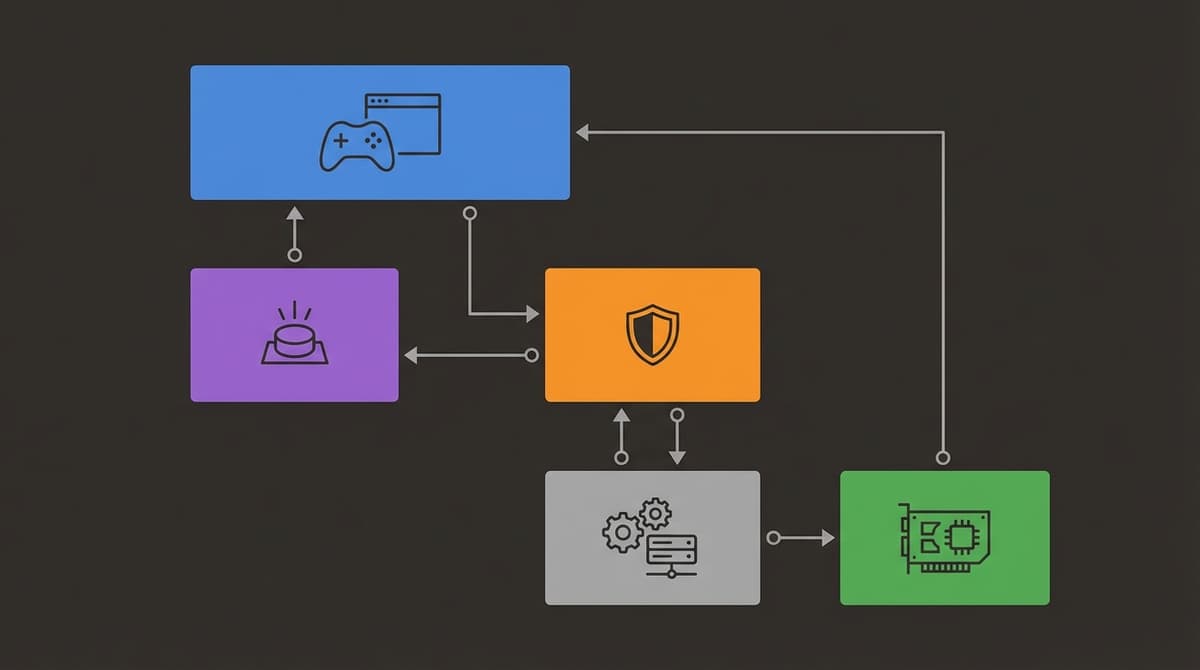
After updating Windows and drivers, reboot and try Arc Raiders again. If 30005 suddenly vanishes after this, the root cause was almost certainly some combination of stale drivers and a recent EAC/game update.
Fix 6: Tame Antivirus, Firewalls, VPNs, and Overlays
From EAC’s perspective, anything that injects code into a running process, inspects memory in real time, or filters network traffic is a potential cheat. That includes exactly the things your security software and overlays are designed to do.
I’ve personally seen error 30005 vanish the moment I whitelisted a game folder in Windows Defender – after an hour of chasing my tail with driver updates. It’s not always the fix, but it’s common enough that it deserves its own section.
Add Arc Raiders and EAC as antivirus exceptions
- Windows Security (Defender):
- Open Windows Security → Virus & threat protection.
- Click Manage settings under Virus & threat protection settings.
- Scroll down to Exclusions → Add or remove exclusions.
- Add the Arc Raiders install folder and your EAC folder (e.g.
C:\Program Files (x86)\EasyAntiCheatorEasyAntiCheat_EOS).
- Third-party AV (Norton, Bitdefender, etc.):
Every interface is different, but look for “Exceptions”, “Exclusions”, or “Allow list”. Add:- The Arc Raiders install folder
- The game executable (e.g.
Raiders.exe) - Any EasyAntiCheat executables in the game or system folder
Temporarily disable VPNs and aggressive firewalls
EAC also wants to talk to its own servers and Arc Raiders’ backend. A VPN with a strict kill switch, or a firewall that blocks unknown outbound connections, can look a lot like a man-in-the-middle attack from EAC’s point of view.
- Temporarily disconnect from your VPN while testing launches.
- If you run a third-party firewall, try switching it to a less restrictive mode for the duration of your test.
Kill overlays and injection-happy tools
- Close Discord completely (system tray → right-click → Quit), or disable its in-game overlay.
- Disable overlays from GeForce Experience, Radeon Software, Steam, and Xbox Game Bar.
- Shut down overclock/monitor tools like MSI Afterburner and RivaTuner for testing.
- If you use ReShade or similar injection-based mods, remove them from the Arc Raiders folder entirely until you get a clean launch.
Important: Don’t leave your antivirus or firewall disabled permanently. The goal here is to see whether they’re the blocker. If they are, exclusions and allow rules are the long-term answer.
Fix 7: Full Clean Reinstall of Arc Raiders and EAC (Last Resort)
If you’ve repaired EAC, cleaned its driver, verified files, updated drivers, wrangled antivirus, and 30005 or ARMR0002 still refuse to die, it’s time for the nuclear option: a clean reinstall.
- Uninstall Arc Raiders from your launcher.
In Steam or Epic, uninstall the game the normal way (Manage → Uninstall). - Manually delete leftover folders.
After uninstalling, check for:- Your old Arc Raiders install folder under
steamapps\commonorEpic Games\Arc Raiders. %LOCALAPPDATA%\Raiders(keep yourSavedfolder if you want to preserve configs/saves).- EAC folders like
C:\Program Files (x86)\EasyAntiCheatorEasyAntiCheat_EOS(only if you’re comfortable reinstalling EAC for other games later, or if Arc Raiders is your only EAC title).
- Your old Arc Raiders install folder under
- (Advanced) Clean EAC registry entries.
This is dangerous if you’re not careful, so I only recommend it if you know your way around the Registry:- Press Win + R → type
regedit→ Enter. - Before anything else, File → Export to back up your registry.
- Use Edit → Find searching for
EasyAntiCheatandRaiders, and carefully remove obviously related leftover keys.
If that sentence made you nervous, skip the registry part – the rest is usually enough.
- Press Win + R → type
- Restart your PC.
- Reinstall Arc Raiders fresh.
Download again via Steam or Epic. Let it complete fully – don’t interrupt or pause a lot during install if you can avoid it. - Launch once as admin.
Before adding overlays or mods back, run both the launcher and Arc Raiders as administrator for your first test launch.
This is obviously the most time-consuming approach, but it also wipes away 90% of the accumulated cruft that can cause version mismatches and half-updated components.
Advanced Fixes: Virtualization, Overclocking, and Other Edge Cases
If you’re still fighting with error code 30005 or ARMR0002 after all the above, you’re well into edge-case territory. At this point, it’s usually some combination of virtualization features, exotic overclocks, or security hardening tools that EAC really doesn’t like.
Virtualization-Based Security (VBS) and Hyper-V
Windows 10/11’s Virtualization-Based Security, Hyper-V, and related features like Core Isolation / Memory Integrity can sometimes clash with kernel-mode anti-cheat drivers.
If you’re running virtual machines, WSL2, or enterprise security policies, it’s worth testing whether dialing these back solves your problem. But be very clear: disabling VBS or Hyper-V can reduce your system’s security posture. Only do this if you understand the trade-offs and preferably re-enable them afterwards.
- To quickly test Hyper-V impact, you can use an elevated Command Prompt:
bcdedit /set hypervisorlaunchtype off
Then reboot. To turn it back on later:
bcdedit /set hypervisorlaunchtype auto - For Core Isolation, go to Windows Security → Device security → Core isolation details and test with Memory integrity temporarily off. Reboot after toggling.
Again: treat this as a diagnostic step, not a permanent “gaming mode” unless you’re absolutely comfortable with the implications.
GPU and CPU overclocks
EAC doesn’t inherently hate overclocks, but unstable or software-based tweaks can push it over the edge. If you’re running aggressive GPU or CPU OCs:
- Reset your GPU to stock clocks in MSI Afterburner, Radeon Software, or your vendor’s tool.
- If your CPU is manually overclocked in BIOS, consider backing off to either a milder OC or stock for testing.
- Disable on-the-fly undervolt tools (especially those that hook into the kernel) while you troubleshoot.
I’ve seen cases where a perfectly “stable” overclock according to synthetic benchmarks still caused anti-cheat to freak out or crash during initialization. It’s worth ruling out.
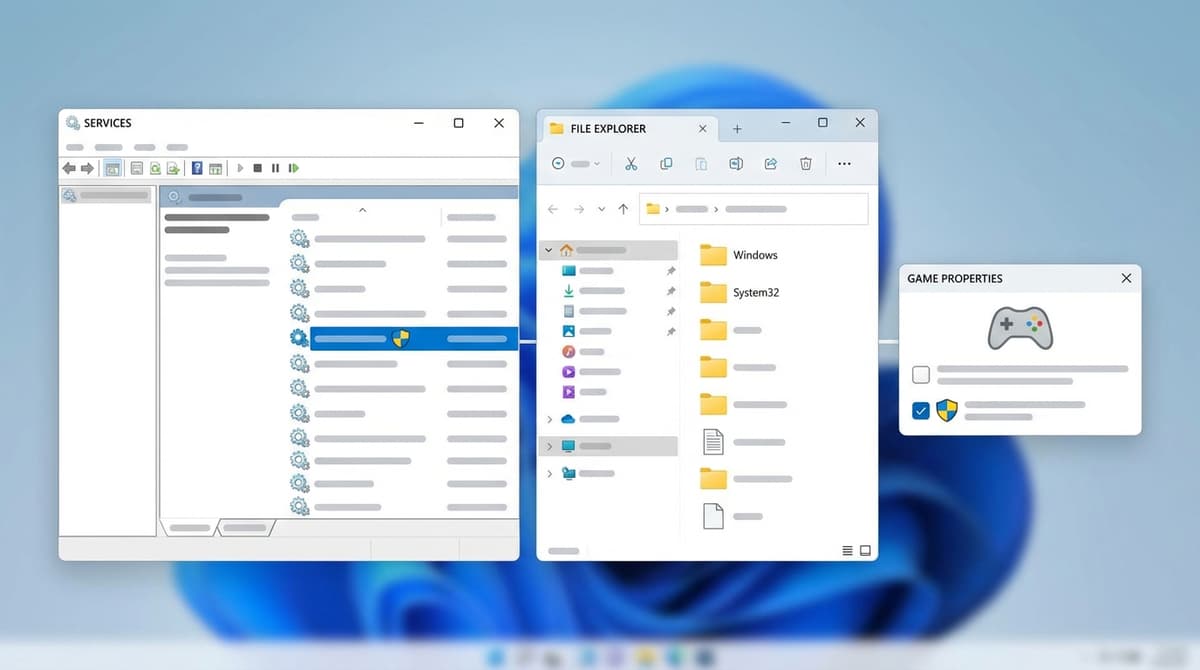
Conflicts with other EAC games
If you play multiple EAC-based games, they can occasionally step on each other’s toes – especially if one of them ships an older EAC runtime.
- Make sure no other EAC games are running in the background when you start Arc Raiders.
- If another title starts EAC on boot (some launchers love doing this), shut it down fully from Task Manager.
When in doubt, a clean boot (disabling non-Microsoft startup items and services) can be a good sanity check to see if something weird is interfering.
Quick Reference: Errors vs Likely Fixes
| Error / Symptom | Likely Root Cause | Best First Fixes |
|---|---|---|
| Error Code 30005 (CreateFile failed with 32) | EAC driver file locked, corrupted, or blocked by AV | Fix 2 (delete/regenerate EasyAntiCheat.sys), then Fix 6 (AV exclusions) |
| Error Code 30005 (StartService failed with 1275) | EAC service can’t start due to permissions or driver issues | Fix 1 (EAC factory reset), Fix 4 (admin permissions), Fix 5 (drivers/Windows) |
| Generic “Anti-cheat not initialized” popup | Permissions, overlays, or security software interference | Fix 4 (run as admin), Fix 6 (overlays/AV/VPN), Fix 1 (service repair) |
| ARMR0002 | Arc Raiders runtime / service files missing or mismatched | Fix 3 (verify game files), then Fix 7 (clean reinstall) if persistent |
| Game won’t launch at all, no error popup | Launcher issue, missing dependencies, or aggressive firewall | Fix 3 (verify), Fix 5 (Windows/driver updates), Fix 6 (firewall/VPN) |
This table isn’t exhaustive, but it reflects the most common combinations I see repeated across EAC games and early Arc Raiders reports.
✓ PROS
+
Centralized, step-by-step path to fix Arc Raiders error code 30005 and anti-cheat launch issues
+
Most fixes apply to other Easy Anti-Cheat games too
+
Emphasizes safe, reversible changes before risky tweaks
✗ CONS
–
Some steps (registry edits, VBS changes) are advanced and can be risky if done carelessly
–
Full reinstall and driver updates can be time-consuming on slow connections
–
Running games as admin and loosening security features has security trade-offs
When It’s Probably Not Your Fault (And What to Do Then)
There are rare days when you can do everything right on your end and Arc Raiders will still refuse to behave because something is broken server-side or in a recent patch. Kernel-level anti-cheat is touchy enough that even small changes can blow up on specific hardware or OS builds.
If you’ve methodically gone through:
- EAC repair and driver regeneration
- Game file verification
- Admin permissions for game, launcher, and EAC
- Windows and driver updates
- Antivirus, overlay, and VPN clean-up
- (Optional) Clean reinstall
…and you’re still staring at 30005 or ARMR0002, you might have hit a genuine bug in Arc Raiders’ anti-cheat integration for your particular setup.
At that point, your best moves are:
- Grab your DxDiag output and system info (CPU, GPU, RAM, Windows version) so you can share them.
- Check the official Arc Raiders Discord or forums for a support or tech-help channel – look for other players with the same error code and compare notes.
- Watch for patch notes mentioning Easy Anti-Cheat fixes or launch stability – devs know anti-cheat issues are high-priority, especially in a free-to-play PvPvE shooter.
One silver lining: the same logs and troubleshooting you’ve done here will make it much easier for support staff to figure out what’s going wrong if it is a genuine bug rather than a local config issue.
8.5/10 for fixability
VERDICT
Arc Raiders’ error code 30005 and related anti-cheat launch failures are annoying but rarely fatal. Once you treat Easy Anti-Cheat like the low-level driver it is-repairing its service, cleaning its files, aligning permissions, and working with Windows instead of against it-you can usually turn a “game won’t launch at all” night into a “back in the raid” night without waiting on a new patch.
Final Thoughts: Living with Kernel Anti-Cheat in 2024 and Beyond
I’m not going to pretend kernel-level anti-cheat is my favorite part of modern PC gaming. It’s invasive, it’s fragile, and when it breaks, it breaks in exactly the way you’re seeing now: vague error codes and a game that never gets to show you whether it’s actually any fun.
But I also get why Arc Raiders uses it. A free-to-play extraction shooter lives or dies on fairness. If raids turn into aimbot showcases, the population evaporates. That’s the tightrope we’re all walking: more protection against cheaters means a heavier, more temperamental launch stack on our PCs.
The upside is that once you’ve gone through this troubleshooting once, you’ve basically learned a reusable skill. These exact same patterns – repairing EAC, cleaning its driver, taming antivirus, aligning permissions, updating low-level drivers – will carry you through launch issues in a ton of other games that use Easy Anti-Cheat.
So if tonight was supposed to be “first night in Arc Raiders” and it turned into “deep dive into EAC internals”, I feel your pain. But the moment it clicks – the launch error disappears, the splash screen finally shows up, and you actually load into your first match – it’s worth it.
And when 30005 inevitably shows up again in some other game six months from now? You’ll know exactly where to start.
FinalBoss // Gear
Level up your setup
01Top-rated gaming headsetson Amazon→02High-refresh gaming monitorson Amazon→03Gaming chairson Amazon→04Discounted game keyson Kinguin→Affiliate links · As an Amazon Associate, FinalBoss earns from qualifying purchases.