
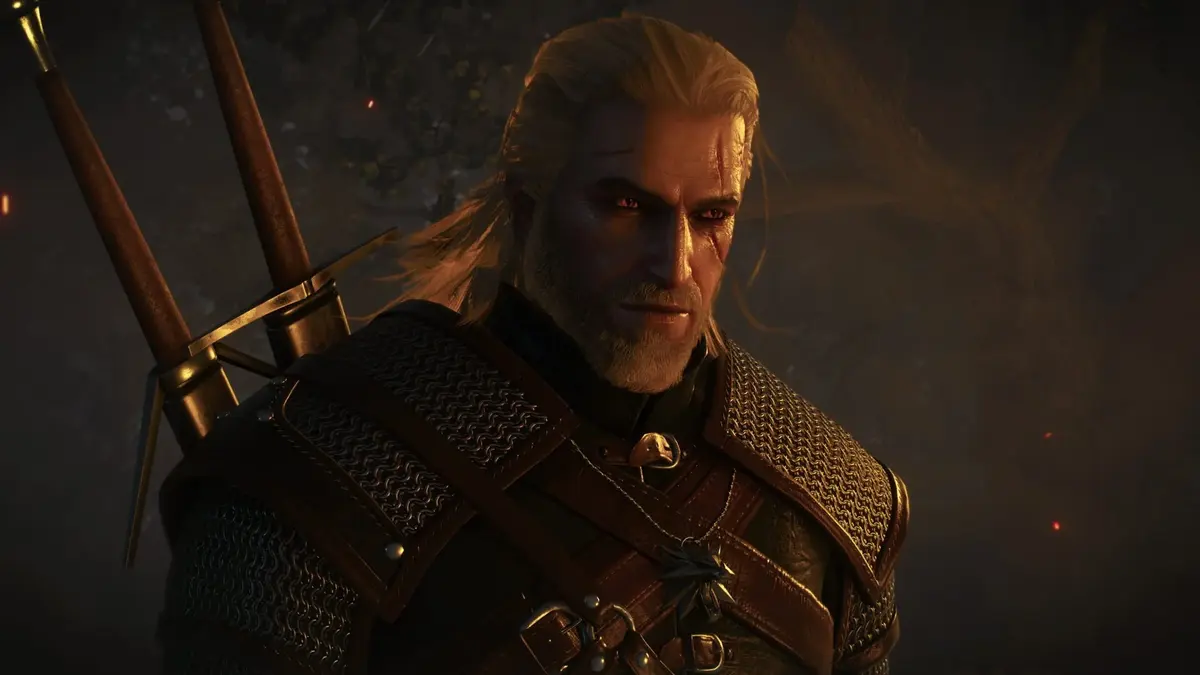
Geralt can leave a pause screen, return to a dialogue scene, and suddenly sound as if he is speaking from the far end of Kaer Morhen. Or a fresh save can look fine until the next launch turns it into a real progress-risk moment. Run the post-update checks before committing to a long quest session: make sure the correct build is installed, prove that a new manual save survives a restart, then check voice balance and platform-specific graphics features.
Table of Contents (7)
Install the update for the edition you are actually playing
The first trap is treating every PC release as the same build. The Witcher 3: Wild Hunt Remastered has separate storefront editions, and CD PROJEKT RED’s fixes have not always landed as one universal update. Hotfix 5.00c addressed the PC save/load and voiceover issues, while the DLSS fix in 5.00b specifically matters to the Xbox Play Anywhere version running through the Xbox app.
- Fully close the game rather than returning only to the title screen.
- Restart the launcher that owns the installation: Steam, GOG, Epic Games Store, Battle.net, or the Xbox app.
- Check for updates again after reopening it. A launcher notification can lag behind the available patch.
- Confirm that the version matches the store and device in use before troubleshooting settings or saves.
- On PlayStation 5, Xbox Series X|S, and Nintendo Switch 2, confirm the console has completed the game update before loading an important file.
Steam, GOG, Epic Games Store, and Battle.net count as distinct PC installations. Xbox Play Anywhere on PC is the Microsoft Store/Xbox app build, and it needs its own update check. DLSS appearing in a Steam copy does not prove that the Xbox app version has received its specific fix.
Test saves first, before advancing a main quest
Hotfix 5.00c fixes a PC issue that prevented saving or loading when the path to the Windows Documents folder contained special or multibyte characters. The affected path can include accented characters, non-Latin characters, symbols, or unusual punctuation anywhere in the full Documents destination, not only in the Windows account name.
A Documents location such as C:\Users\José\Documents is the kind of path that matters here. If a newly updated PC installation still cannot save or load, inspect the complete Documents path before assuming that an old save itself is damaged.
Use a disposable test before returning to your real progression. Load a recent manual save, create a fresh manual save in a new slot, exit to the main menu, and reload that new file. Then fully close the game, relaunch it, and load the same test save again. Confirm that autosaves and quicksaves are also being created afterward.
- Back up existing saves before verifying or repairing the installation through the launcher.
- Do not delete old saves while checking the special-character issue. A failed load after the patch can still be a missed update, an installation problem, or a path issue.
- On Xbox Play Anywhere PC, prove that local saves work before judging Xbox cloud synchronization.
- On console, create a fresh manual save, reload it, then restart the console and load it again.
A successful local save is the first green light. It does not prove cross-progression is working, and it does not prove that a cloud copy has finished uploading.
Keep local saves and cross-progression as separate checks
The remaster supports cross-progression, but it depends on account linking and synchronization in addition to the game creating a valid local file. Treat it as a second test, performed only after the new manual save has survived a relaunch on the original device.
- Sign in to the same CD PROJEKT RED account on every platform used for the same progression.
- Enable the game’s cross-progression or cloud-save function in the account settings.
- Create a fresh manual save after account sign-in rather than relying on an older file.
- Allow synchronization to complete before closing the game or switching hardware.
- Check for that new save on the second platform, then repeat in the other direction if progression moves between PC, Xbox, and PlayStation.
Xbox cloud saves, a linked CD PROJEKT RED account, and a working manual save are three different systems. A failure in one does not identify the others as broken. That separation saves time when an Xbox console and Xbox Play Anywhere PC copy are both in the same rotation.
Reproduce the quiet voiceover issue before changing every audio setting
Hotfix 5.00c addresses voiceover volume becoming significantly quieter after moving through pause-menu tabs. Test it in a dialogue-heavy scene, because a quiet ambient stretch will hide the difference. Let spoken lines play, open the pause menu, move across several tabs, return to the game, and compare the dialogue level against music and effects.
If Geralt and other voices remain low after the patch, check the dialogue or voice slider independently rather than raising the master volume. The problem is an imbalance, so increasing every channel can turn music and combat effects into the new problem.
- Confirm the intended language and voice-over package are installed.
- Temporarily disable headset-specific mixing, spatial-audio processing, and volume-normalization features.
- Test through TV speakers or a second headset to establish whether the imbalance follows the game or the audio device.
- Restart the game after changing audio output modes.
- On console, repeat the pause-menu test with both TV and headset output when available.
If the same pause-menu sequence still drops dialogue volume, record the platform, game build, selected language, audio-output device, and the exact menu navigation that triggered it. Those details distinguish a persistent game issue from a console or headset mixing conflict.
Verify DLSS correctly on each PC version
DLSS is a PC feature for compatible NVIDIA hardware. It is not a PlayStation or Xbox Series console setting, so its absence in a console graphics menu is expected. The important post-update check is whether it appears in the correct PC build and remains enabled after settings are applied.
Open the graphics menu after updating and look for DLSS under the upscaling options. Apply the selected mode and restart the game if the menu requests it. Check that the NVIDIA driver is current, then test the available DLSS quality modes. Frame generation should also be checked where the GPU and selected configuration support it.
The current PC feature set includes Path Tracing and NVIDIA DLSS 4.5 with Ray Reconstruction. These are demanding rendering options, so they should be treated as separate graphics checks. DLSS visibility, Path Tracing availability, and performance stability do not rise or fall as one setting.
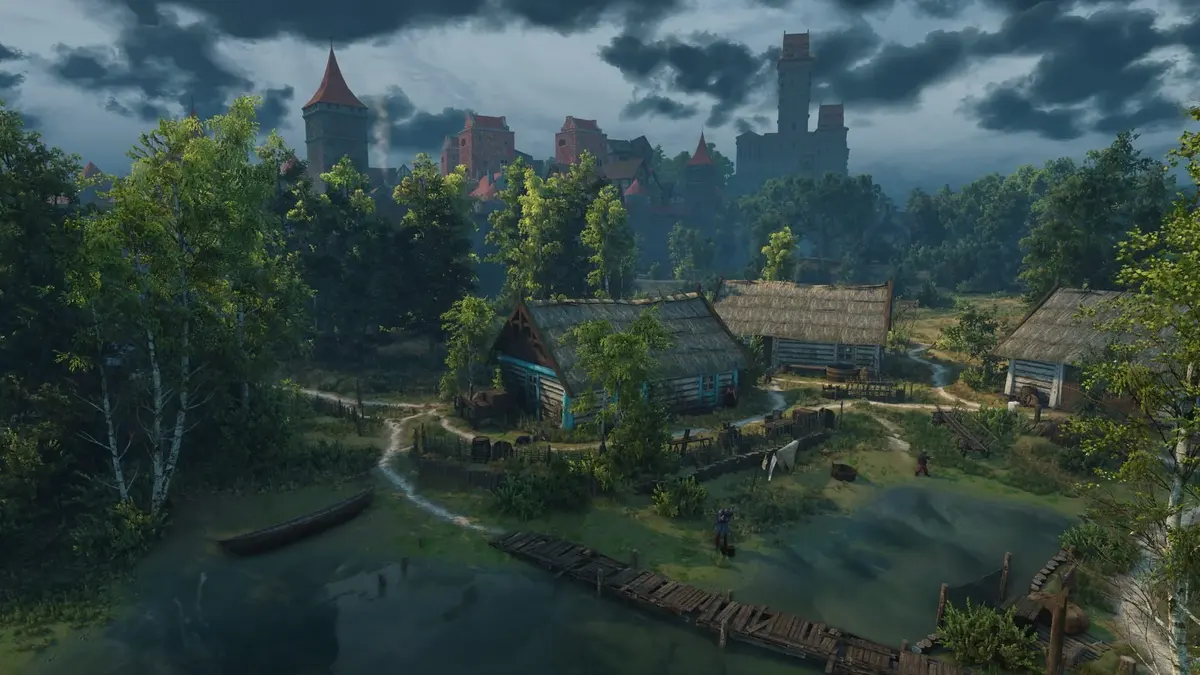
For Xbox Play Anywhere PC users, launch from the Xbox app and verify DLSS there. Patch 5.00b fixes the issue that made DLSS unavailable in that specific edition. A compatible NVIDIA card plus a working Steam install is not enough; the Xbox app build itself must show the option.
PC players dealing with an extreme performance hit or obvious visual corruption should also confirm that hotfix 5.00c is installed before rebuilding an entire graphics setup. That hotfix includes a fix for NVIDIA HairWorks-related performance and visual problems.
Check parity by platform, not by matching every menu item
Parity means that each platform has the update and the features intended for that hardware. It does not mean a PlayStation 5, Xbox Series X|S, Switch 2, Steam PC build, and Xbox Play Anywhere PC installation should expose the same rendering menu.
| Check | Steam, GOG, Epic, Battle.net PC | Xbox Play Anywhere PC | PlayStation 5 and Xbox Series X|S | Nintendo Switch 2 |
|---|---|---|---|---|
| Save and load | Test a new manual save after relaunching; inspect the full Documents path if save/load still fails. | Confirm the Xbox app build is updated, then test local saving before cloud synchronization. | Create a fresh manual save, reload it, and repeat after a console restart. | Confirm the game update, then test a new manual save and reload before extended play. |
| Voiceover | Test dialogue after pause-menu tab navigation and check dialogue mixing plus output-device processing. | Run the same pause-menu test in the Xbox app edition rather than assuming another PC build covers it. | Test through TV and headset output where possible; verify dialogue after pause-menu navigation. | Use the same dialogue and pause-menu check with the active handheld or docked audio output. |
| DLSS and graphics | DLSS requires compatible NVIDIA hardware; verify it under upscaling settings. | Specifically confirm that the 5.00b DLSS fix has restored the option on compatible NVIDIA hardware. | DLSS does not apply. Check the available Performance and Quality or Ray Tracing modes instead. | Check the visual options exposed by the Switch 2 version rather than looking for PC-only DLSS controls. |
| Cross-progression | Check the linked CD PROJEKT RED account and allow the fresh save to synchronize. | Separate Xbox cloud-save behavior from linked cross-progression behavior. | Confirm account linking only after local saving works reliably. | Confirm the linked account and wait for synchronization before switching devices. |
On PlayStation 5 and Xbox Series X|S, compare the visual modes that the console supports. Performance Mode targets smoother play at about 60 FPS, while quality-oriented or ray-tracing modes prioritize image quality and target about 30 FPS. Xbox Series S does not include ray-tracing features, so expecting the Series X or PlayStation 5 graphics menu there creates a false parity problem.
Recheck lighting and graphics after every patch
The early updates changed more than stability. Lighting adjustments affect Bloom, vegetation lighting, saturation, interior brightness, and Path Tracing presentation in Velen. A visual difference immediately after patching can be an intended update rather than a corrupted installation.
- Check whether the update reset the chosen upscaling, ray tracing, performance, or quality settings.
- Visit a dark interior and an exterior area in Velen to judge shadow detail, Bloom, and brightness after the patch.
- Confirm that textures and draw distance have settled after the game rebuilds shaders or resources.
- On console, compare the intended visual modes rather than trying to match PC-only options.
- Use the same location and time of day when comparing two platforms, since lighting changes are easiest to misread during different weather or daylight conditions.
The clean post-update result is straightforward: a fresh manual save loads after a full relaunch, dialogue stays balanced after pause-menu navigation, DLSS appears on compatible PC hardware including the Xbox app edition, and each console exposes its intended performance and visual modes. Once those checks pass, the remaster’s updated movement, combat options, visuals, photo mode, accessibility settings such as Bard’s Ballad, and mod.io integration can be enjoyed without wondering whether an old patch problem is still hiding in the background.
FinalBoss // Gear
Level up your setup
01Top-rated gaming headsetson Amazon→02High-refresh gaming monitorson Amazon→03Gaming chairson Amazon→04Discounted game keyson Kinguin→Affiliate links · As an Amazon Associate, FinalBoss earns from qualifying purchases.
Want to Level Up Your Gaming?
Get access to exclusive strategies, hidden tips, and pro-level insights that we don't share publicly.
Ultimate Guide Strategy Guide + Weekly Pro Tips