
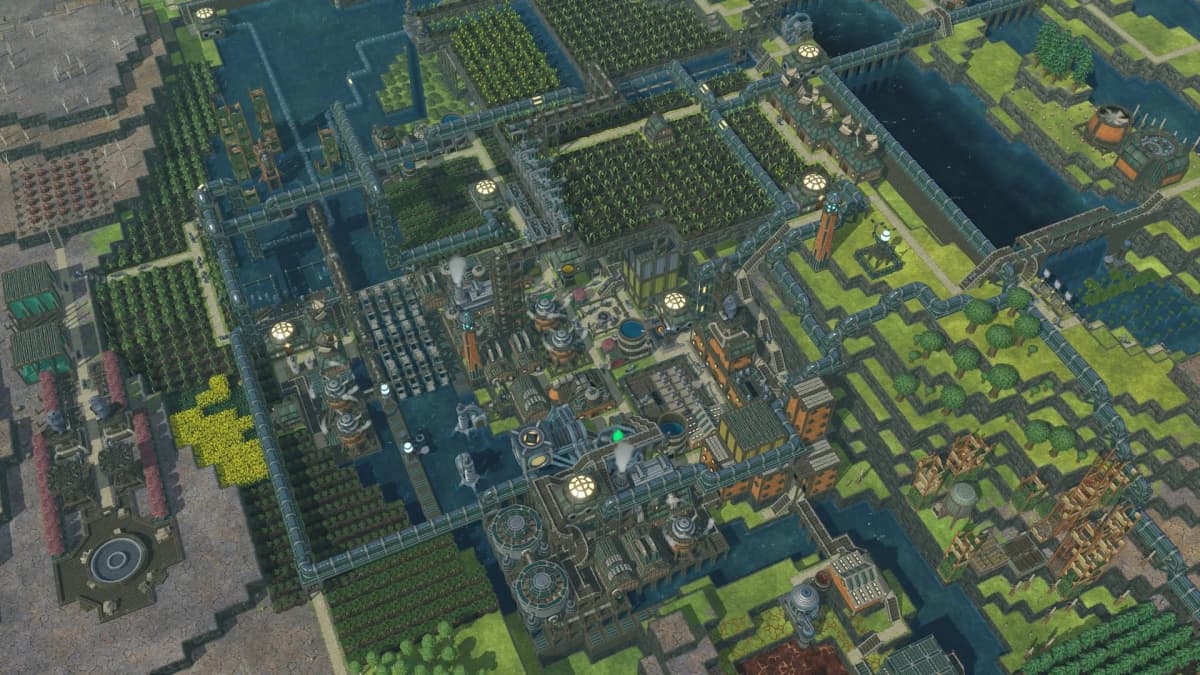
Early Timberborn coverage blurred three terms together: cheats, console commands, and developer mode. In practice, they all point to the same built-in testing tools rather than a classic cheat-code screen. If you want the short version, open the developer console with Alt + Shift + Z and open the broader debug panel with Alt + Shift + X. From there, Timberborn exposes clickable tools for science, speed, camera control, water simulation, and a handful of more technical debug actions.
That distinction matters because a lot of players search for a Timberborn cheat expecting typed money codes or a hidden menu. Timberborn is not structured that way. The game’s built-in options are closer to sandbox and testing utilities: useful for planning a city, stress-testing production, fixing a broken experiment, or skipping research when you want to prototype a settlement instead of grind through the opening cycles again.
Table of Contents (16)
What counts as a cheat in Timberborn
When public guides talk about Timberborn cheats, they are usually describing the same internal toolset with slightly different labels. Some call it a cheat console, some call it console commands, and the Timberborn wiki-style documentation tends to frame it as Developer Mode. The important part is not the label. The important part is that these are built-in debug features exposed through keyboard shortcuts, and most of them are activated from an on-screen panel instead of typed in like old-school PC cheat codes.
That also explains why the feature set feels uneven. A few tools are immediately useful in normal play, like adding science or speeding the simulation up. Others are clearly aimed at testing, performance checks, camera work, or simulation debugging. If your goal is to get a practical advantage in a real colony, you will probably use only a small subset of the full list.
How to enter Timberborn cheats
On PC, the standard entry method is straightforward once you know the shortcuts. Timberborn does not use the typical tilde key console that many strategy and simulation games use, which is why new players often assume the feature is missing.
Open the developer console
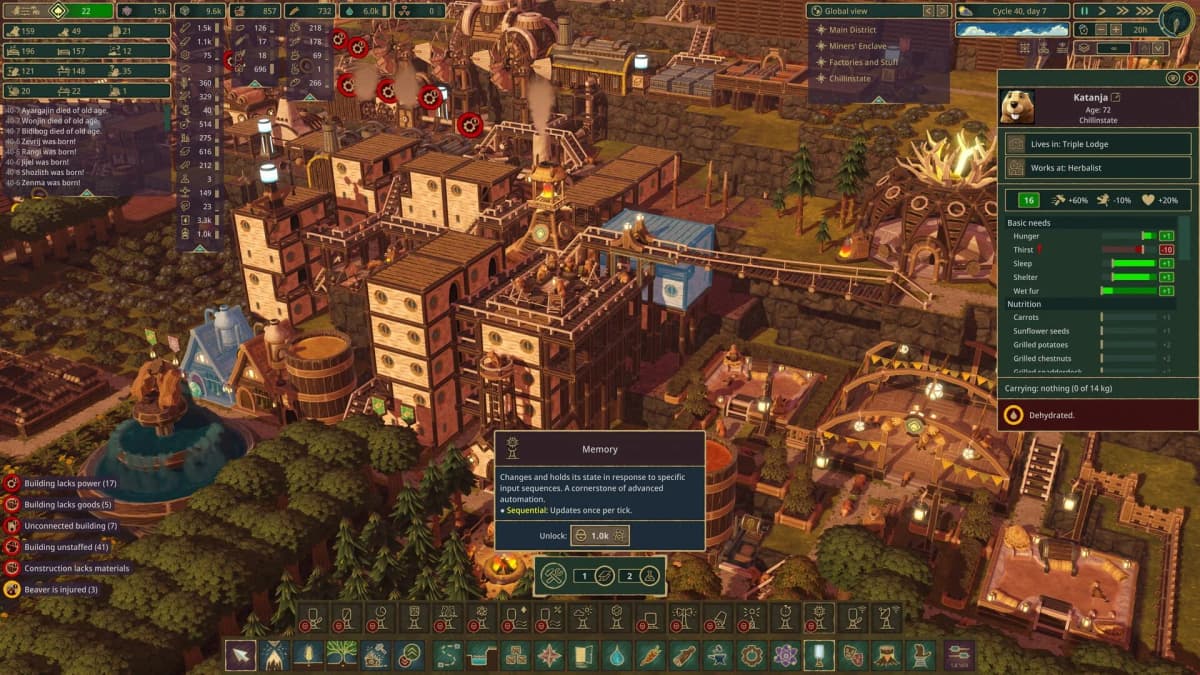
Press Alt + Shift + Z. This is the most consistently reported shortcut for opening Timberborn’s developer console. After it opens, the game shows a command list on screen, and the commands are generally used by clicking them rather than typing long strings manually.
Open the debug panel
Press Alt + Shift + X. This opens a broader debug panel with extra tinkering options beyond the base console. Current public documentation treats this as the second half of Timberborn’s cheat functionality, and it is the panel most relevant if you want deeper testing tools.
If the shortcut does not work
The first thing to check is your keyboard layout. One community-documented exception reports Alt + Shift + W for debug mode on AZERTY layouts. That is not as consistently documented as the default PC shortcuts, so treat it as a fallback rather than the main rule. If you still get no response, make sure you are testing on the PC version and not looking for a console-style input method that Timberborn does not use.
Full Timberborn cheat list from current verified public guides
The list below is the full set of built-in cheats and debug tools consistently surfaced by current public guides and developer-mode references. A few names vary slightly between sources, and some options may appear differently depending on version or panel, so this is best read as the full verified public list rather than a promise that no hidden internal developer tools exist beyond it.
Science and resource tools
Add 1000 science– adds 1000 science points instantly.Modify Inventory– reported in debug mode through the district center, allowing direct resource changes in district storage.
Camera and viewing tools
Camera State: Save– saves your current camera position.Camera State: Restore— returns the camera to the saved position.Camera: Free mode— unlocks freer camera movement for inspection or screenshots.Camera: FOV +— increases field of view.Camera: FOV -— decreases field of view.
Time and speed control
Speed x0.25— slows the simulation to a quarter speed.Speed x30— sets the game to very fast simulation.Speed x99— pushes the simulation to an extreme fast-forward state.
Population and unit control
Kill selected beaver— removes the currently selected beaver.Kill 30% of population— instantly reduces colony population by roughly a third.Kill all characters instantly— removes all characters immediately.Kill all characters except selected— removes every character except the selected one.Kill all except selected— a similarly named variation reported in public guides; effectively the same idea, with the naming depending on source/version.
Rendering and technical debug tools
Toggle models: Beavers— turns beaver models on or off.Toggle GC— toggles a GC-related debug function.Dump Mesh Metrics— creates a mesh metrics file for technical analysis.Highlight resource reproduction spots— marks spots tied to resource reproduction behavior.
Water and simulation tools
Water simulation: Reset all— resets the water simulation.Water wheels: increase max speed— raises the cap on water wheel speed.Water wheels: decrease max speed— lowers the cap on water wheel speed.
Which Timberborn cheats are most useful in real play
If you only want the best practical cheat, start with Add 1000 science. It is the cleanest shortcut because it speeds up research without rewriting the entire colony state. That makes it ideal for build testing. You can unlock the tech you need, place the structures you want to evaluate, and still watch the settlement behave in a mostly normal way.
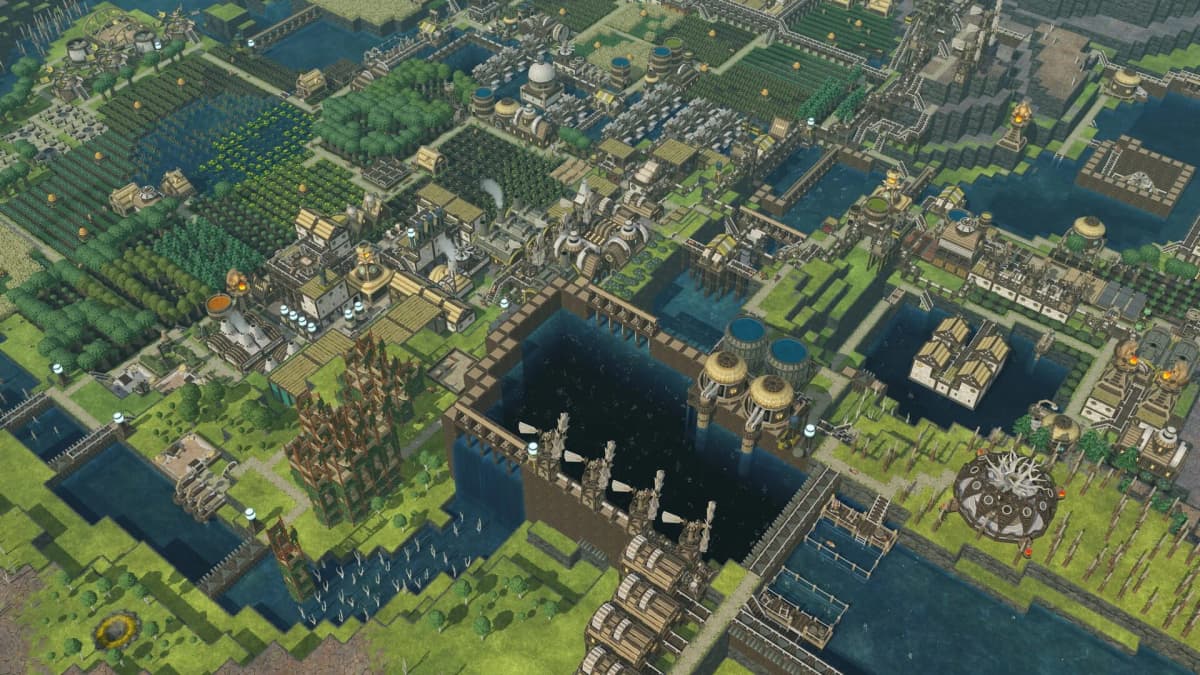
Camera: Free mode is the next best choice for builders. Timberborn’s verticality can make dams, terraces, stacked housing, and late-game engine layouts awkward to inspect from the standard view. Free camera fixes that immediately, especially if you pair it with Camera State: Save and Restore so you can scout a project and then snap back to your working angle.
The speed commands are excellent for stress testing. Running at x30 or x99 tells you very quickly whether your food chain is stable, whether water storage is sufficient for drought, and whether power output collapses when the map shifts from wet season to dry season. The reason these speeds are so useful is simple: Timberborn failures are often delayed. A colony can look healthy for several in-game days before a hidden bottleneck wipes it out.
Water simulation: Reset all is less of a convenience cheat and more of a recovery tool. If you are experimenting with levees, floodgates, pumps, and unusual terrain edits, this is the command most likely to save time when the hydrology behaves unexpectedly. Treat it as a lab tool, not a routine part of a normal survival run.
The kill commands are the least useful for ordinary play but still valuable in testing. They can help if you want to simulate labor shortages, housing pressure, or population collapse without waiting through multiple cycles. Just remember that these commands are far more destructive than the science or camera tools, and some of them are effectively irreversible unless you reload a save.
Common mistakes when using Timberborn cheats
- Expecting typed cheat codes. Timberborn’s cheat tools are mostly panel-driven, so opening the interface matters more than memorizing text commands.
- Using the wrong shortcut.
Alt + Shift + Zis the developer console, whileAlt + Shift + Xis the debug panel. If you want broader testing options, make sure you opened the second one. - Assuming every command works without a selection. Population and target-based tools may need a selected beaver, district center, or relevant object before they do anything visible.
- Testing in a live save. Science cheats are relatively safe, but inventory edits, water resets, and population deletion can leave a colony in a state you do not want to untangle manually.
- Overusing extreme speed.
x99is great for stress tests, but it is a bad way to monitor a delicate colony because small failures can snowball before you spot them.
Troubleshooting if the console or debug panel will not open
If nothing happens when you press the shortcuts, start with the simplest explanation: you may be trying the wrong kind of input. Timberborn does not rely on the usual tilde console, so pressing ~ or other common PC console keys will not help. Use the exact key combinations first, then test for layout issues.
If the console opens but a command seems to do nothing, check whether the action is contextual. Commands like killing a selected beaver or modifying inventory need a valid target. This is also why some players think a tool is broken when the real issue is that the correct building or unit was never selected.
Finally, treat community-documented extras with caution if you are playing on a different version. The core shortcuts are consistent across public sources, but some UI paths and panel-specific behaviors can shift as Timberborn evolves. When in doubt, rely on the built-in console and debug panels first and avoid third-party trainer claims that are not part of the game’s own developer tools.
Practical takeaway
The most accurate way to think about Timberborn cheats is this: they are developer tools for sandboxing and testing, not a traditional cheat-code system. Use Alt + Shift + Z for the console, Alt + Shift + X for the debug panel, start with Add 1000 science if you want the safest practical boost, and keep a backup save before touching destructive options like population kills or water resets. If your goal is faster colony planning rather than outright save-breaking experimentation, that small set of tools will cover almost everything worth using.
FinalBoss // Gear
Level up your setup
01Graphics cardson Amazon→02Gaming laptopson Amazon→03High-refresh gaming monitorson Amazon→04Discounted game keyson Kinguin→
Affiliate links · As an Amazon Associate, FinalBoss earns from qualifying purchases.
Want to Level Up Your Gaming?
Get access to exclusive strategies, hidden tips, and pro-level insights that we don't share publicly.
Ultimate Guide Strategy Guide + Weekly Pro Tips