
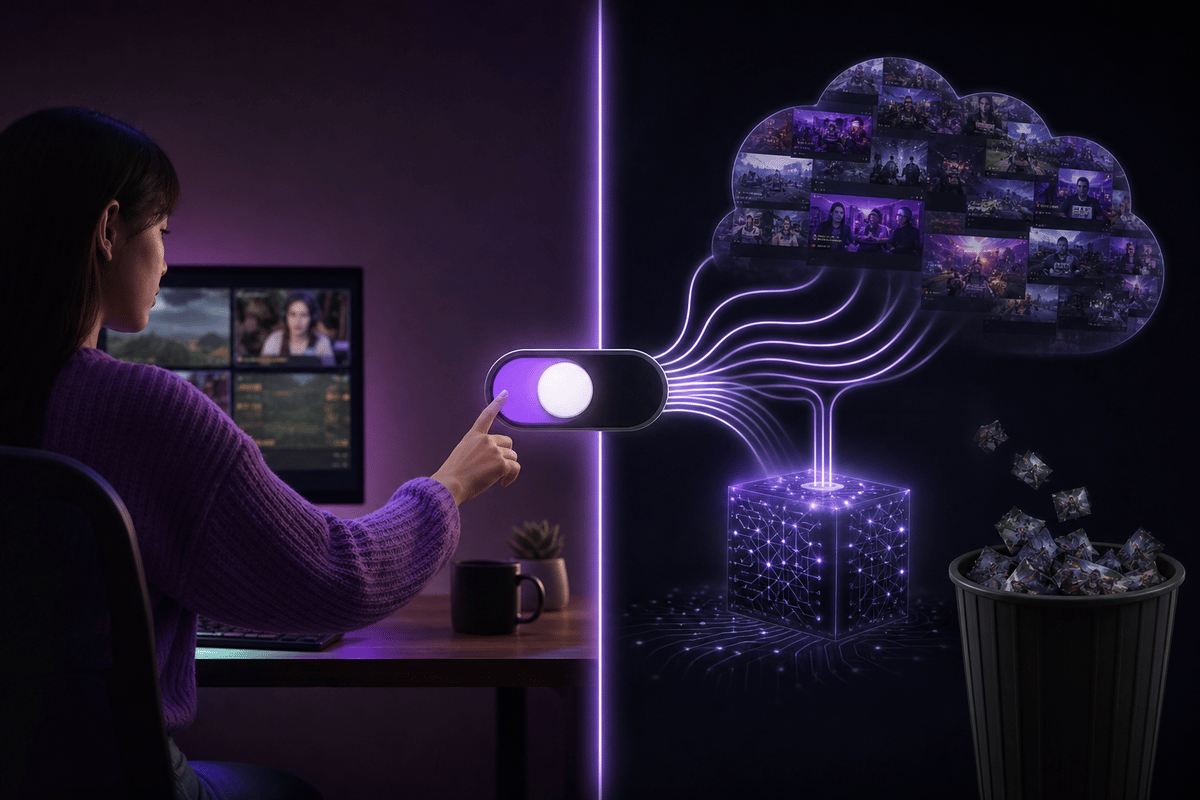
Twitch’s Training for Generative AI setting is enabled by default. Turn it off in Settings → Security and Privacy if you do not want content from your own channel used for future training of Amazon generative-AI models. Captions, AutoMod, safety tools, recommendations, and sponsorship assistance remain separate features.
Table of Contents (6)
What Turning Off Twitch AI Training Changes
The setting controls whether Twitch can use your channel content to train Amazon models that generate or synthesize text, audio, images, or video. It applies to more than archived broadcasts. The covered material includes live streams, VODs, clips, stream chat, and channel text and image assets.
That channel-page scope matters. Panels, profile or channel art, written information attached to the channel, and similar text or image elements fall under the content Twitch describes for generative-AI training. Streamers who only think about gameplay footage can miss that broader setting.
| Feature or content | What switching training off does | Practical result |
|---|---|---|
| Streams, VODs, and clips | Blocks use for future Amazon generative-AI model training | Your channel video and audio are removed from this future-training permission |
| Channel chat, text, and images | Blocks use for future training when attached to your own channel | Panels, written channel information, and visual assets are covered by the setting |
| Captions | Remains available | Accessibility tools can stay enabled after opting out |
| AutoMod and community safety tools | Remains available | Chat filtering and enforcement support continue to function |
| Recommendations and sponsorship assistance | Remains separate from the training choice | Discovery and growth or monetization support are not switched off by this control |
Where to Find the Training for Generative AI Setting
Open your Twitch account settings and go to Security and Privacy. The relevant control is labeled Training for Generative AI, with wording that describes allowing channel content to train Amazon generative-AI content models. It is placed in the Privacy or Opt-out Preferences area, near the bottom of the page.
- Sign in to the Twitch account that owns the channel.
- Open Settings, then Security and Privacy.
- Find Training for Generative AI in the Privacy or Opt-out Preferences section.
- Set the toggle to off.
- Reopen the page after saving and confirm that the control remains disabled.
Check the setting after major account changes or a Twitch settings redesign. The control sits in account privacy settings rather than the Creator Dashboard, which is why it is easy to overlook while managing a channel.
Keep These Twitch Features Enabled
Disabling generative-AI training does not remove every system on Twitch that uses AI or machine learning. The opt-out governs a specific future-training permission for Amazon content-generation models. Twitch can still process data for features built around accessibility, safety, discovery, and streamer support.
- Captions: Keep captions enabled if viewers rely on them. The training toggle does not remove caption support, including auto-generated captions connected to clips.
- AutoMod and moderation: Leave moderation and safety tools configured for your channel. The toggle does not disable chat filtering or AI-supported community safety systems.
- Recommendations: Viewer discovery and stream recommendations remain separate from this training choice.
- Sponsorship support: Real-time campaign assistance and sponsorship targeting tools are also outside the training toggle.
This distinction is important for creators who want to limit generative-AI training while preserving the practical systems that protect chat, help viewers follow a stream, and support channel discovery.
The Limits of the Opt-Out
The control protects content tied to your own channel. It does not give you a universal opt-out for everything you post across Twitch. When you chat in another streamer’s channel, that streamer’s training preference governs whether that chat can be used for training. A creator who leaves the default enabled can so control the treatment of chat posted in their stream.
The setting also applies to future generative-AI training. It does not provide a retrospective record of whether prior VODs or other material had already been used. Twitch Chief Product Officer Mike Minton said he did not know whether VODs had already been used by Amazon for model training, so creators should treat the toggle as forward-looking protection rather than a history or deletion tool.
Twitch’s privacy language also keeps other data uses separate from this setting. Turning training off removes permission for this particular channel-content training use, while Twitch can still use data for purposes covered elsewhere in its privacy framework, including platform safety, discovery, and streamer-support functions.
Why the Default Setting Caused Friction
The setting launched enabled, placing the burden on streamers to find and disable it. Minton described the business reason bluntly during a livestream: “If it was opt-in, nobody would opt in. That’s the honest answer.”
That default makes a quick privacy check worthwhile even for channels that rarely stream. Old VODs, clips, chat history on your own broadcasts, and channel-page assets can still be attached to an account that has not been actively used in months.
Safe Twitch Privacy Setup Checklist
- Set Training for Generative AI to off under Security and Privacy.
- Keep captions active if accessibility is part of your stream setup.
- Keep AutoMod, moderation filters, and safety tools active for chat protection.
- Review the setting again after account changes, app updates, or privacy-menu changes.
- Remember that chats posted in other channels follow that channel owner’s preference, not your own channel setting.
FinalBoss // Gear
Level up your setup
01Capture cards (Elgato & more)on Amazon→02USB microphoneson Amazon→03Gaming keyboardson Amazon→04Gaming deskson Amazon→Affiliate links · As an Amazon Associate, FinalBoss earns from qualifying purchases.
Want to Level Up Your Gaming?
Get access to exclusive strategies, hidden tips, and pro-level insights that we don't share publicly.
Ultimate Guide Strategy Guide + Weekly Pro Tips