
Table of Contents (15)
Why These Darktide Twitch Drops Are Worth Your Time
After losing an entire evening to a Twitch drops campaign that never paid out (wrong category, wrong account, the whole disaster), I’ve become paranoid about making sure these campaigns actually work. With Warhammer 40,000: Darktide’s Zealots of Tertium Twitch drops, I went in prepared – linked everything cleanly, double-checked progress, and had all three cosmetics sitting in my inventory in about an hour.
This guide walks you through exactly how I did it, step by step, so you do not waste time watching the wrong streams or lose rewards because you forgot to hit a single button.
What you can earn in the Zealots of Tertium campaign:
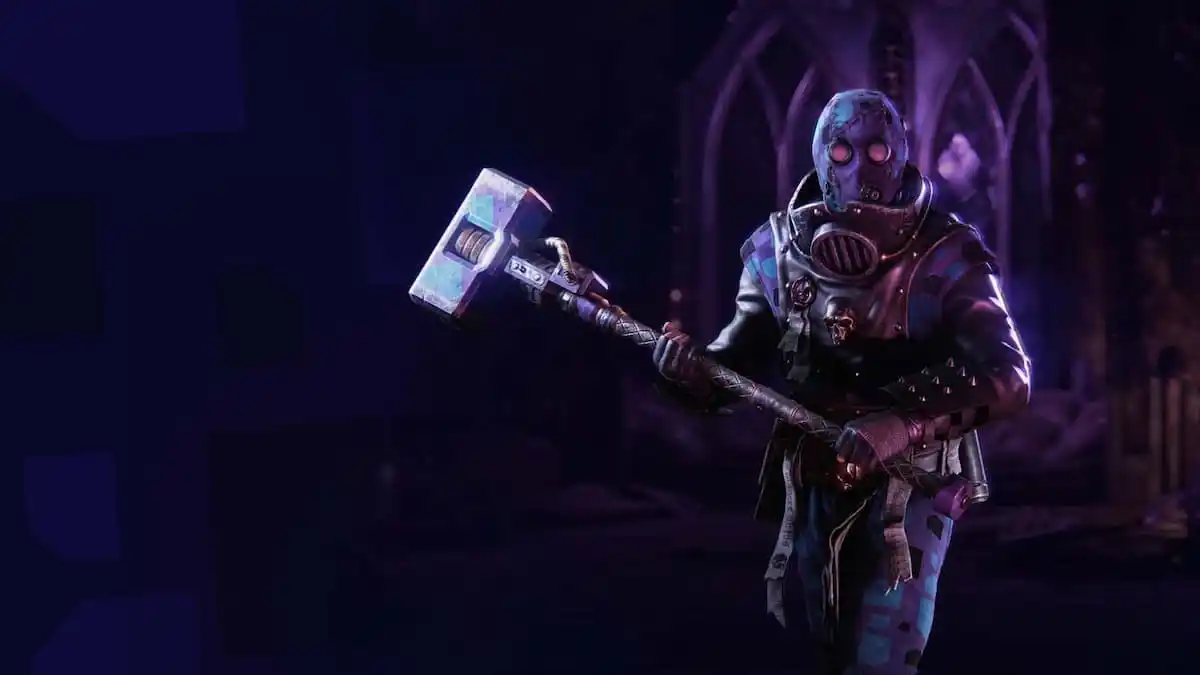
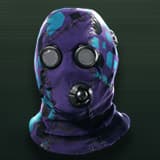
- Militia Garb – a full outfit with purple/blue accents.
- Trousers – matching lower-body cosmetic for the same look.
- Thunderhammer skin – a cosmetic skin for the Thunderhammer weapon (you must own the base weapon to equip it).
The whole campaign needs roughly about one hour of watch time, split into time tiers shown on Twitch (typically 30–60 minute chunks). The key isn’t just watching; it’s linking your accounts correctly and claiming at the right places.
Step 1 – Understand the Event Window (and Why You Shouldn’t Wait)
The Zealots of Tertium drops campaign is tied to the Beyond the Hive update and runs from March 19, 2026. There’s some confusion about the exact cutoff date (different sources list April 7 and April 9), so I played it safe and treated April 7 as the “real” deadline.
My honest advice: do not push this to the final days. Twitch drops break, links get weird, and support tickets are never fun. Plan to earn all three rewards at least a few days before the earliest end date.
Quick reality check before you start:
- You must own Darktide on one of these platforms: Steam, Microsoft Store / Game Pass (PC or Xbox), or PlayStation 5.
- You need a Twitch account.
- You need enough time for about 60 minutes of watch time, plus a couple of minutes to click through menus.
Step 2 – Link Your Platform Account to Twitch (Do This Before Watching)
This is where most people mess up. I’ve watched literal hours of streams in other campaigns on the wrong account and gotten nothing. Do this first, then start watching.
2.1 – Start from the Official Darktide Drops Page
From your browser, go to the official Darktide Twitch Drops / account linking page on the game’s main site. This page is usually linked from the news post about Zealots of Tertium or from your Fatshark account hub. You’re looking for a button or link labeled something like “Twitch Drops” or “Link Accounts”.
On that page you will see an option to sign in with your platform account:
- Steam – for the Steam version.
- Microsoft / Xbox – for Microsoft Store or Xbox Series X|S.
- PlayStation – for PS5.
2.2 – Log In With the Platform You Actually Play On
This sounds obvious, but I’ve seen friends link their old Game Pass PC account while playing on Steam, then wonder where the cosmetics went.
- If you play on Steam, log in with Steam.
- If you play on Xbox or Game Pass PC, log in with your Microsoft account that owns Darktide.
- If you play on PS5, use the PlayStation login option.
Once you authenticate, you will either be creating or signing into your Fatshark / Darktide account. Many Vermintide or older Darktide players already have one, so don’t panic if it says the email is in use – just log in.
2.3 – Connect Twitch to Your Fatshark Account
On the same page, there should now be a button like “Connect with Twitch” or “Link Twitch”. Click it and:
- A Twitch window opens asking you to authorize Fatshark / Darktide.
- Pick the correct Twitch account if you have multiple (I personally alt-tabbed to Twitch first to be sure I was logged into the right one).
- Approve the permissions and wait until you see confirmation that Twitch is linked.
Important: if you have linked your accounts for previous Darktide or Vermintide campaigns, you may already be set. The drops page should show your Twitch name as connected. I still recommend hitting any available “Check connection” or re-link option once, just to be sure.
Step 3 – Pick the Right Darktide Streams (So Your Time Counts)
The next trap I used to fall into was watching the wrong stream: no drops enabled, wrong category, or VODs instead of live. For Zealots of Tertium, you want to do this:
- Open Twitch and go to the Warhammer 40,000: Darktide game directory.
- Look for streams with the “Drops Enabled” tag or a clear drops notice under the video title.
- Click a live stream (not a VOD or clip).
- Prefer streams with stable viewership – they’re less likely to randomly end and break your watch streak.
You can absolutely leave the stream in the background while you do other things. From my runs:
- Background viewing does count as long as you stay logged into Twitch.
- Muting the Twitch player is fine; just avoid muting the entire browser tab in some browsers, as that can sometimes interfere.
- If one stream ends, your progress continues on the next drops-enabled Darktide stream you join.
Step 4 – Track Your Watch Time and Claim on Twitch
The breakthrough moment for me, years ago with another game, was realizing that progress often pauses at 100% until you click “Claim”. Darktide’s Zealots of Tertium works the same way.
4.1 – Use the Twitch Drops Inventory
While you’re watching:
- Click your profile icon on Twitch (top right).
- Select “Drops & Rewards” or the equivalent “Inventory” section.
- You should see the Zealots of Tertium campaign listed with progress bars for each reward.
Each item will show its required watch time (for example, 30 or 60 minutes) and a percentage bar that fills as you watch any drops-enabled Darktide stream.
4.2 – Claim Each Reward as Soon as It’s Ready
This is critical. The campaign is structured in tiers. From my experience:
- You unlock the first cosmetic (usually the outfit or trousers) after its required watch time.
- A “Claim Now” button appears in your Twitch inventory or as a popup on Twitch.
- You must click “Claim” for that drop before progress on the next reward begins.
If you let the bar sit at 100% without claiming, you’re basically wasting watch time – the next tier will not start tracking. I kept the inventory page open in a separate tab and alt-tabbed every 15–20 minutes to check my progress.
Repeat this until you’ve claimed all three:
- Militia Garb
- Trousers
- Thunderhammer skin
Once each one is marked as “claimed” on Twitch, Twitch sends that information over to Fatshark’s servers. In my case, the items appeared in-game within a couple of minutes, but give it up to 10–15 minutes if servers are busy.
Step 5 – Find and Equip Your New Cosmetics In-Game
It’s surprisingly easy to get the drops, log in, and then not see anything because you’re looking in the wrong place. Here’s exactly where my items appeared.
5.1 – Militia Garb and Trousers
From the Mourningstar hub:
- Open the Character or Appearance menu for your operative.
- Go to the cosmetics / outfit section.
- Look for the Militia Garb as a body outfit option.
- The Trousers appear under lower-body / leg cosmetics, depending on your class and UI layout.
If you run multiple characters, remember each operative has its own cosmetic slots. I opened the wrong class the first time and thought the drop bugged out.
5.2 – Thunderhammer Skin (Weapon Requirement)
This one trips people up because it is only a skin, not the weapon itself.
- You must own a Thunderhammer in your inventory to use the skin.
- Open your Weapons menu and select a Thunderhammer you own.
- Look for a “Weapon Skin” or cosmetic submenu.
- The Zealots of Tertium Thunderhammer skin should be selectable there.
If you don’t see it, double-check that:
- The skin is marked as claimed in your Twitch inventory.
- You are on the same platform account you linked (Steam vs Xbox vs PS5).
- You actually own at least one Thunderhammer for that character.
Troubleshooting: When Drops Don’t Show Up
I have yet to go through a major drops event without something acting weird once, so here’s the checklist I run when rewards don’t appear:
- Check Twitch inventory: Is each Zealots of Tertium reward marked as “Claimed”? If not, claim it there first.
- Confirm connections on Twitch: In your Twitch settings under “Connections” or “Other Connections”, make sure Fatshark / Darktide is listed and authorized.
- Confirm connections on the Darktide account page: Revisit the official Darktide Twitch Drops / account page and see if your Twitch account is shown as linked.
- Restart the game: Fully quit Darktide to desktop / console home, then relaunch. I’ve had items pop in only after a complete restart.
- Give it time: In busy windows, I’ve had cosmetics take 10–20 minutes to arrive after claiming on Twitch.
- Check platform mismatch: If you linked Steam but you’re playing on Xbox (or vice versa), the items will be on the linked account, not where you’re currently playing.
If you’ve gone through all of that and still see nothing, take screenshots of your linked accounts and Twitch inventory, then check the game’s official support channels. But in every Twitch campaign I’ve done for Darktide so far, a simple relink + restart has fixed it.
Efficiency Tips to Finish the Campaign Fast
Once I stopped treating drops like a mystery box and started treating them like a checklist, I got everything in under an hour without thinking about it. Here’s what I’d recommend:
- Link before you watch: 5 minutes of setup saves you from wasting 60 minutes of invalid watch time.
- Leave Twitch inventory open: Put it on a second monitor or alt-tab occasionally so you never forget to click “Claim”.
- Pick stable, high-viewer streams: They’re less likely to drop offline in the middle of a run, which can sometimes confuse progress tracking.
- Stack it with something else: I just left a stream running on my second screen while doing chores and checking back every 25–30 minutes.
- Do it early in the campaign window: With the minor confusion around whether it ends on April 7 or April 9, the safest plan is to finish a few days early.
FinalBoss // Gear
Level up your setup
01Capture cards (Elgato & more)on Amazon→02USB microphoneson Amazon→03Gaming keyboardson Amazon→04Gaming deskson Amazon→
Affiliate links · As an Amazon Associate, FinalBoss earns from qualifying purchases.
Want to Level Up Your Gaming?
Get access to exclusive strategies, hidden tips, and pro-level insights that we don't share publicly.
Ultimate Guide Strategy Guide + Weekly Pro Tips