
The fast version. Four passes, in this order: (1) trim startup apps in Settings → Apps → Startup; (2) run Settings → System → Storage → Cleanup recommendations and switch on Storage Sense; (3) scan the drive with a treemap tool like WizTree to find the actual space hogs; (4) clear launcher caches and move big game installs to a second drive. Budget 30–60 minutes for the first run. On a game-stuffed SSD this routinely frees 50–150GB without a single registry hack or third-party “miracle” cleaner.
One important change from older guides: Microsoft’s current documented workflow lives in the Settings app, not in the legacy Disk Cleanup applet. Both still work, but Settings is where the supported tooling is.
Table of Contents (24)
First, check which Windows 11 you’re on
Paths shifted between versions, so confirm before you start: Settings → System → About.
- Windows 11 25H2 is the current general release for existing PCs and the version this guide is written against.
- 26H1 is a device-scoped release — it ships on new Snapdragon X2-class hardware and is not offered as an in-place upgrade from 24H2 or 25H2. If you are on 25H2 and 26H1 has not appeared in Windows Update, nothing is wrong.
- 26H2 is slated for later in 2026 as the next broad release.
If you are still on Windows 10 or an older 11 build, the steps below still broadly apply, but menu names will differ slightly.
Step 1: Tame Startup Apps
Always my first move: fully reversible, and the payoff is immediate — faster boot and fewer background processes nibbling RAM and CPU while you game.
The current path: Settings → Apps → Startup. This is where Microsoft documents startup management in Windows 11. You get a toggle per app plus a startup-impact rating.
The Task Manager route still works too: Ctrl + Shift + Esc → Startup apps → right-click → Disable. Sort by Startup impact to find the worst offenders fast. Use whichever you prefer; they edit the same list.
My rule: if it does not need to run all the time, it gets switched off. Game launchers (Battle.net, EA, Ubisoft Connect) and chat apps are usually safe — you can still open them manually. Steam is the one I sometimes leave on, purely because I launch it every session anyway.
Why this is safe: disabling a startup entry does not uninstall anything. The program simply stops auto-starting. Flip it back on any time.
Leave alone: Microsoft components, graphics drivers (NVIDIA, AMD, Intel) and your antivirus. And do not chase a “zero entries” score — aim for “only what I use.”
Reboot once when you are done. If the desktop appears faster and the tray is less crowded, that is the win banked.
Step 2: Let Windows Do the Heavy Lifting
There is a lot of invisible junk — temp files, old update leftovers, previous Windows installations, delivery-optimisation cache — that Windows will clear for you. This is the part most people skip and it is usually the biggest single win.
Cleanup recommendations (the current tool)
- Open
Settings → System → Storage. - Click Cleanup recommendations.
- Work through the grouped categories: Temporary files, Large or unused files, Files synced to the cloud, and Unused apps.
- Under Temporary files, the ones I always tick: Windows Update Cleanup, Delivery Optimization Files, DirectX Shader Cache, Temporary Internet Files and the Recycle Bin (if you are sure).
Two categories need a moment’s thought:
- Previous Windows installation(s) — often tens of gigabytes, and the single fattest item on a recently upgraded PC. Only clear it once you are certain you will not roll back. Once it is gone, the rollback option goes with it.
- Downloads — Windows will happily offer to empty this. I never let it. Clean Downloads by hand so you do not lose an installer or a save archive you actually wanted.
Turn on Storage Sense
Settings → System → Storage → Storage Sense.- Enable it, then click through to configure.
- Set the cleanup schedule — monthly is fine, weekly if you are always tight on space.
- Allow it to delete temporary files.
- Set the Recycle Bin threshold. Leave the Downloads setting at “Never” and manage that folder yourself.
Storage Sense does not replace a proper clean-out, but it stops the drive silently re-filling between them.
What about the old Disk Cleanup (cleanmgr)?
It is still present: press Win, type Disk Cleanup, pick C:, then click Clean up system files for the full list. Microsoft’s current Windows 11 storage documentation, though, points at the Settings app and Storage Sense rather than cleanmgr. Treat the legacy applet as a fallback for anything Cleanup recommendations does not surface — not as your default tool.

Step 3: Find the Real Space Hogs with a Treemap Scanner
My actual breakthrough was realising I did not have a performance problem — I had a storage problem. Games, captures and old installers quietly eat an SSD. Windows’ own tools will not show you a 90GB folder of forgotten recordings; a treemap scanner will, in seconds.
WizTree is what I use: it reads the NTFS master file table directly, so a full drive scan takes seconds rather than minutes, and it is free for private use. Note that this is a third-party tool — Microsoft does not endorse or ship it. WinDirStat and TreeSize Free do the same job if you prefer; WinDirStat is slower but open-source.
- Run the scanner, ideally as administrator so it can read protected folders.
- Select
C:and scan. - You get a size-sorted folder tree plus a coloured treemap where bigger blocks mean bigger files.
Then do two passes.
Pass one — largest folders. Sort by size and check the usual suspects:
C:\Users\<You>\Videos— screen captures and recordings. Almost always the biggest surprise.C:\Users\<You>\Downloads— old installers, ZIPs, ISOs.C:\Users\<You>\Documents— backups and save archives.- Your Steam library folder, usually
C:\Program Files (x86)\Steam\steamapps.
Pass two — largest individual files. Switch to the file list sorted by size. This is where the 30–100GB of forgotten captures and disc images live.
Rules before you delete anything:
- If it belongs to a game or app installed via Steam, Epic, Game Pass or similar, uninstall through the launcher, never by deleting the folder. Manual deletion leaves the launcher convinced the game is still installed.
- Do not touch anything under
C:\Windows,C:\Program FilesorC:\Program Files (x86)unless you are certain what it is. - For recordings and downloads, move to a second drive rather than deleting if there is any chance you want them later.
This step alone has freed 100GB+ on machines I have cleaned, purely from captures and an overflowing Downloads folder.
🎮 Get This Game at the Best Price
Compare prices instantly and save up to 80% on Steam keys with Kinguin — trusted by 15+ million gamers worldwide.
*Affiliate link — supports our independent coverage at no extra cost to you
Step 4: The Gaming-Specific Cleanup Nobody Does
This is the section most Windows cleanup guides miss entirely, and on a gaming PC it is often worth more than everything above combined.
Steam
- Clear the download cache.
Steam → Settings → Downloads → Clear Download Cache. This removes cached download data without uninstalling anything. It also fixes a surprising number of stuck or failing downloads. - Shader pre-caching. Steam stores compiled shaders in a
shadercachefolder inside your Steam library. It grows steadily and is safe to let Steam regenerate. Manage it viaSettings → Downloads → Shader Pre-Cachingrather than deleting folders by hand — and if you are short on space, turning pre-caching off costs you some first-run stutter but reclaims real gigabytes. - Move games instead of deleting them.
Steam → Settings → Storagelets you add a second library folder and move installed games between drives. Right-click a game → Properties → Installed Files → Move install folder does one at a time. Always use this rather than cutting and pasting directories.
Epic Games Launcher
The launcher keeps a webcache folder in its local AppData profile that can balloon over time. The standard community fix is to close the launcher completely, then delete that webcache folder — it is regenerated on next start. This is not documented by Microsoft or Epic as an official maintenance step, so treat it as a known-good community practice rather than a supported procedure, and close the launcher first.
Xbox app and Microsoft Store games
Store and Game Pass titles install to a protected location by default. Do not try to move those folders manually — use Settings → Apps → Installed apps, find the game, and use its Move option, or set a different default install drive under Settings → System → Storage → Advanced storage settings → Where new content is saved. That last setting is the one to change before you install a 150GB game, not after.
The general principle
Keep the OS drive for Windows and the two or three games you are actively playing. Everything else lives on a second SSD. Modern games load fine from a secondary NVMe, and it converts a recurring cleanup chore into a one-time decision.
Optional: Trim Background Services and Unused Apps
This intimidated me at first. The trick is to be conservative and only touch things you can clearly identify.
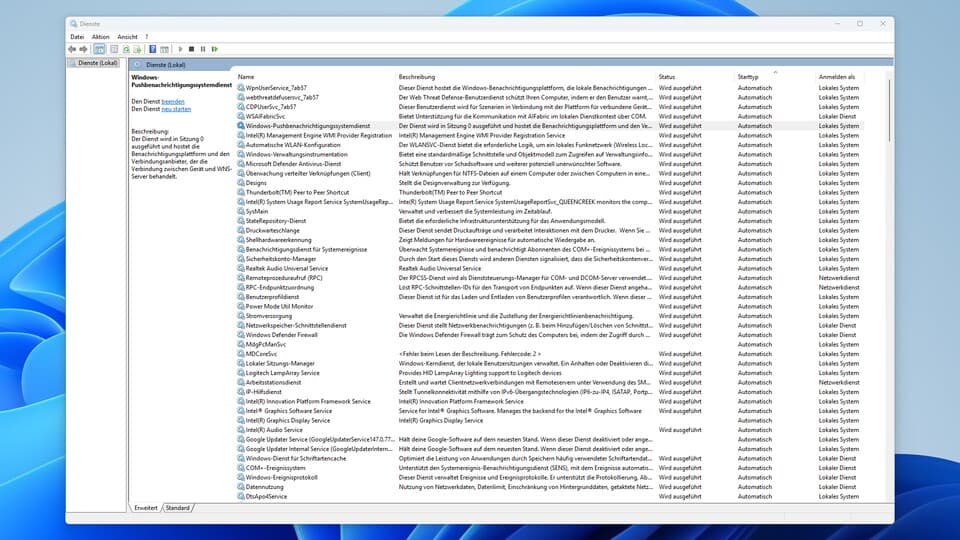
Services
- Press
Win + R, typeservices.msc, Enter. - Sort by Startup Type and scan the Automatic entries.
- For each, ask: do I recognise it, and does it need to run constantly?
- If both answers are no: double-click, change Startup type from Automatic to Manual, OK.
Manual means it will not start at boot but can still be started on demand — far safer than Disabled. Leave alone anything from Microsoft, GPU services (NVIDIA/AMD/Intel), audio drivers, security tools, and anything a quick search does not clearly explain. If something breaks later, set it back to Automatic and restart.
Uninstall what you do not use
Settings → Apps → Installed apps.- Sort by Size or Install date.
- Clear out old games and demos, OEM bloatware, and duplicate utilities (three screenshot tools is three too many).
Uninstall games through their own launchers first, then use the Windows list for everything else.

If You’re Still Unhappy
msconfigfor advanced boot and service options — troubleshooting only.- Third-party “cleaner” suites — convenient, but you are granting deep system access to someone else’s software. Never let one “tune” settings you do not understand.
- Reset this PC (Keep my files) —
Settings → System → Recovery. The nuclear option. Back up first.
For most people, running the routine above twice a year is plenty.
FAQ
Is Disk Cleanup (cleanmgr) gone in Windows 11?
No, it still launches. But Microsoft’s current Windows 11 storage documentation centres on Settings → System → Storage with Storage Sense and Cleanup recommendations, so use those first and treat cleanmgr as a fallback.
Why can’t I install Windows 11 26H1?
Because it is device-scoped. 26H1 ships on new Snapdragon X2-class hardware and is not offered as an in-place upgrade from 24H2 or 25H2. Staying on 25H2 is correct and supported; the next broad release is 26H2, expected later in 2026.
Disk Cleanup seems stuck — is it broken?
Windows Update Cleanup can genuinely take several minutes with no visible progress. Let it run. If it is still going after 30–40 minutes, restart and try again later.
Is it safe to delete the shader cache?
Yes. Shaders are regenerated automatically. The cost is some first-run stutter in affected games while they rebuild, and slightly longer initial load times. On a tight SSD it is a good trade.
I deleted a game folder manually and the launcher is confused
Use the launcher’s Verify / Repair or uninstall function. If neither works, reinstall to the same folder and then uninstall properly through the launcher.
Wrap-Up
Run the four passes — startup apps, Cleanup recommendations plus Storage Sense, a treemap scan, then launcher caches and game relocation — and you should end up with noticeably faster boot and login, dozens of gigabytes reclaimed, fewer background processes during play, and a clear picture of what actually lives on your drives.
The first run takes the longest. After that it is a quick maintenance pass every few months. And if the honest answer is that you have simply outgrown the drive, that is worth accepting: storage is the constraint that quietly shapes modern PC gaming, as our piece on Valve’s Steam Machine hitting the same RAM and SSD wall as the Steam Deck OLED lays out. If a handheld is where your library actually lives, our 2026 emulation handheld comparison and Steam Deck docking station rankings are the next stops.
FinalBoss // Gear
Level up your setup
01Graphics cardson Amazon→02Gaming laptopson Amazon→03High-refresh gaming monitorson Amazon→04Discounted game keyson Kinguin→
Affiliate links · As an Amazon Associate, FinalBoss earns from qualifying purchases.
Want to Level Up Your Gaming?
Get access to exclusive strategies, hidden tips, and pro-level insights that we don't share publicly.
Ultimate Guide Strategy Guide + Weekly Pro Tips