
Table of Contents (9)
Why tune Resident Evil Requiem on Steam Deck?
After a few long train rides with Resident Evil Requiem on my Steam Deck, I bounced between “wow, this looks great for a handheld” and “why is this suddenly stuttering?”. The breakthrough came when I stopped trusting the auto-detect settings and built a 40 FPS-focused setup around FSR 3.1. Since then, Requiem has been consistently playable, even in the heavier Raccoon City sections.
This guide walks you through the exact steps and settings I ended up using:
- A 40 FPS target that feels much smoother than 30 FPS
- Low-Medium visuals that still look good on the Deck’s small screen
- Decent battery life (roughly 75-80 minutes on an original LCD Deck)
- Minimal stutter, even with Requiem’s higher RAM demands
If you follow along, you should be able to get very similar results: 40-45 FPS in most indoor areas, mid-30s in the worst outdoor scenes, without the game ever feeling like a slideshow.
Step 1 – Set your Steam Deck up for a 40 FPS target
The first mistake I made was trying to run Requiem uncapped. It can hit 50–60 FPS in narrow corridors, but the swings down into the 30s outdoors feel awful. Capping to 40 FPS evens everything out and makes frame pacing much smoother.
Here’s how I configure the Deck side of things:
- Boot the game, then press the
…(Quick Access) button. - Go to
Performance (battery icon) → Performance Overlayand pick level 2 or 3 so you can see FPS and frame time. - In the same menu, set:
- Refresh Rate:
40 Hz - Frame Limit:
40 - TDP / Power: I leave it on the default (unlimited) for consistency; if you need more battery, you can experiment with 10–12W limits later, but start stock.
- Refresh Rate:
Running at 40 Hz / 40 FPS means each frame has about 25ms to render, versus 33ms at 30 FPS. That might sound minor, but in practice aiming and camera motion feel noticeably tighter at 40 FPS while still giving the Deck enough headroom to avoid constant dips.
Step 2 – Fix the default graphics setup (FSR and caps)
On my first launch, Requiem’s auto-detect stuck me with older FSR upscaling and a 30 FPS cap. That explains a lot of “it feels sluggish” impressions people get out of the box.
From the main menu or in-game, go to:
Options → Display / Graphics (exact naming may vary slightly, but it’s the video settings screen).
- Resolution: Set to
1280×720- Requiem doesn’t support 16:10, so you’ll get thin black bars on the Deck’s 1280×800 screen. There’s no way around this right now, but the image is still crisp.
- V-Sync / Frame Cap:
- Turn off any in-game 30 FPS cap.
- If there’s an in-game 60 cap, you can leave it on; the Deck’s 40 FPS limiter will take precedence anyway.
- Upscaling:
- Change Upscaling Technology to
FSR 3.1(or the latest FSR option available). - Set Upscaling Mode / Quality to
Qualityfor a clean image and stable performance. - Avoid the older FSR 1 modes; they look worse and don’t perform any better in my testing.
- Change Upscaling Technology to
- Frame Generation:
Off- The Deck’s current driver stack and CPU/GPU balance just don’t play nicely with frame generation here. It tends to add latency and artifacts for very little gain.
Once you’ve done this, the game will already feel a lot better than the auto settings. Now we can build on top of the Low preset and selectively push visual quality where it matters.
Step 3 – My tested graphics settings for 40–45 FPS
I started from the Low preset then went through each option to see what I could afford to raise without murdering the frame rate. Many of Requiem’s toggles barely move the needle on Deck, so you might as well make the game look better where you can.
Here’s the configuration I settled on, with notes on why each one matters:
- Motion Blur:
Off- Personal preference, but it also helps clarity on a small screen.
- Ray Tracing:
Off- This is non-negotiable on Steam Deck. Even though RE Engine’s RT is relatively light on desktop GPUs, it’s a huge drag on this APU.
- Hair Strands:
Off- This is one of the biggest performance hits. Yes, Grace and Leon’s hair looks flatter, but turning this off frees up a lot of frames in busy scenes.
- Texture Quality:
High- Surprisingly affordable. With 16 GB shared memory, the Deck can handle high textures, and they make a big difference to overall “next-gen” feel.
- Texture Filter Quality:
High (Anisotropic 16x)- Also cheap performance-wise, and it really improves ground and wall sharpness at angles.
- Mesh Quality:
Low- This is where I claw back FPS. Higher mesh quality didn’t look dramatically better on the small screen but did cost frames in open areas.
- Screen Space Reflections:
Off- SSR is another heavy hitter like hair strands. The Deck runs smoother without it, especially in rainy or wet environments.
- Subsurface Scattering:
High- Skin and materials look much less plasticky with SSS up. I was surprised how little FPS this used, so I kept it on High.
- Depth of Field:
On- Cinematic and cheap; leave it on unless you personally dislike the effect.
- Shadow Quality:
Normal- Low shadows look rough. Normal is a good compromise; going higher started to eat into performance in my Leon city benchmarks.
- Contact Shadows:
On - Ambient Occlusion:
High- AO does more for depth and atmosphere than most other toggles. High AO plus contact shadows helps Requiem retain its moody look even at 720p.
- Volumetric Fog Generation:
Normal- Fog is a big part of the atmosphere. Normal looks fine; High can cost a couple of FPS in fog-heavy scenes.
- VFX Quality:
High- Gunfire, explosions, and sparks benefit from this. I didn’t see a meaningful FPS drop versus Normal.
- Particle Lighting:
On - Lens Distortion:
On (+ Chromatic Aberration) - Lens Dirt:
On - Lens Flare:
Standard
These settings matched the performance of a full Low preset for me, while looking noticeably better. Expect your average to sit around 40–45 FPS in Grace’s indoor segments and high 30s to low 40s as Leon in broader outdoor zones.
Step 4 – Performance expectations: Grace vs Leon sections
Requiem is a tale of two campaigns, and the Steam Deck feels that difference.
- Grace (early game, mostly indoors)
- Here I regularly see 40–45 FPS locked to the Deck’s 40 Hz cap, sometimes spiking into the 50s or even 60 if I remove the cap (which I don’t recommend).
- The tighter corridors and more controlled lighting are very friendly to the Deck’s GPU.
- Leon (later game, Raccoon City streets)
- Wide streets, lots of enemies, extra effects, and weather knock things down into the mid-30s occasionally.
- With the 40 FPS cap, though, the drops are less jarring; it mostly feels like a slightly softer 40 rather than a stutter-fest.
This is why I push so hard for the 40 FPS cap. At 60 Hz uncapped, those same Leon sections hitch and fluctuate a lot more, even if the average FPS number looks similar on paper. Smooth frame times beat a higher raw FPS every time on handheld hardware.
Step 5 – Battery life, heat, and the 16:10 issue
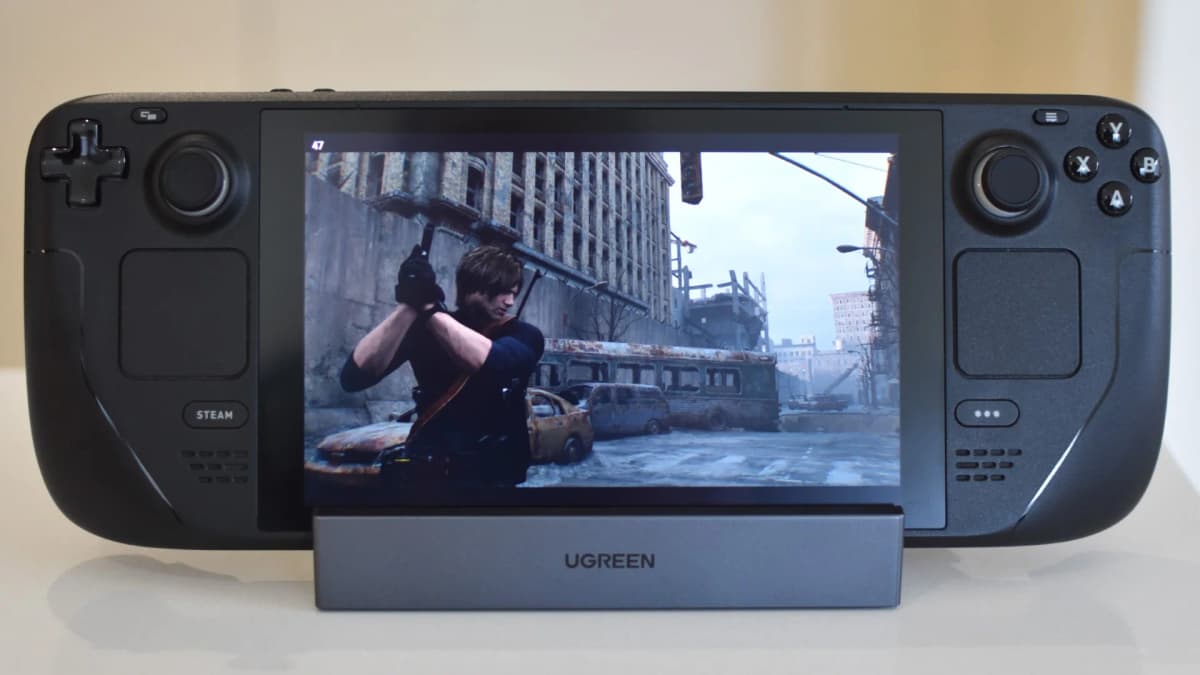
Requiem is slightly harder on the Deck than the Resident Evil 4 remake. On my original LCD Deck, a full charge with these settings gave me about 1 hour 15–20 minutes, versus just under 1 hour 30 for RE4 with similar visual compromises.
- With the Deck OLED, expect a bit better efficiency thanks to the newer APU, but you’re still in “one long session per charge” territory.
- Power draw with these settings usually sits in the mid-teens (around 16–18W), spiking higher if you remove the FPS cap indoors.
To stretch the battery further without murdering responsiveness:
- Lower screen brightness a notch or two.
- Drop the Deck’s TDP limit to
10–12Win the Performance menu and keep the 40 FPS cap. In my experience, this only mildly affects frame stability in heavy scenes but does save power. - If you’re really desperate for battery, you can switch to a 30 Hz / 30 FPS setup, but the game doesn’t feel as nice to play, especially when aiming.
As for the 16:10 problem: Requiem currently only exposes 16:9 resolutions, so on Deck you’re stuck with 1280×720 and slim black bars top and bottom. It’s not ideal, but the bars are small enough that I stopped noticing them after a chapter or two.
Step 6 – Controls, aiming, and comfort tweaks
The good news: Requiem’s default gamepad layout feels like it was built for a controller first, PC second. On Deck, the default bindings are already solid. Where I saw the biggest improvement was precision aiming.
Here’s the setup I use:
- In the Steam overlay, open
Controller Layoutfor Requiem. - Start from the official gamepad template.
- Set the right trackpad to behave as a mouse with low sensitivity.
- Enable gyro aiming on the right stick or right trackpad click:
- I use “Gyro: Mouse” and set it to activate while touching the right trackpad.
- Dial sensitivity down until small wrist movements equal small in-game aim adjustments.
This hybrid stick + gyro setup makes headshots much easier at 40 FPS, without fighting the deadzones that always come with pure stick aiming.
In-game, under Options → Controls, I also recommend:
- Lowering aim sensitivity slightly if you’re overshooting targets.
- Leaving aim assist on its default setting; it’s subtle enough not to feel like cheating, but it helps counter the inevitable small FPS dips.
Step 7 – Troubleshooting stutters and hitching
Requiem has higher RAM demands than older RE Engine titles, and the Deck’s 16 GB shared memory (CPU + GPU) means you’re right at the edge of the spec. I did see occasional micro-stutters, especially during big new-area loads or effect-heavy sequences.
Here’s what helped smooth those out:
- Let shaders compile: The first time you enter a new area, you may see more hitching. Second and third passes are usually smoother as shaders get cached.
- Close background stuff: Make sure no downloads or background apps are running in SteamOS while you play.
- Drop a couple of heavier settings if stutters persist:
- Set Volumetric Fog to
Low. - Lower Ambient Occlusion to
Normal. - Change FSR 3.1 from
QualitytoBalanced. This will soften the image a bit but can give you a crucial performance bump in the busiest scenes.
- Set Volumetric Fog to
- Check for Deck/Proton updates: Requiem ran fine for me on the default Proton, but Valve often sneaks in small performance and compatibility tweaks over time.
Nothing I tried completely eliminated every micro-stutter (they’re tied to the game’s memory behavior as much as GPU load), but with the settings above, they were short and rare enough not to break the flow of combat.
Wrap-up – What to expect with these settings
With this setup, Resident Evil Requiem on Steam Deck won’t feel like a high-end PC or PS5 Pro experience, but it will feel like a genuinely solid handheld version:
- 40–45 FPS in most indoor sections, rarely dropping below the mid-30s outdoors.
- Image quality that looks sharp and atmospheric at 720p on a 7-inch screen.
- Roughly 75–80 minutes of play on an OG Deck, a bit more on OLED, per full charge.
- Controls that feel precise enough for tight headshots once you add gyro aiming.
It took a few hours of trial and error to land on this balance of frame rate, visuals, and battery life, but once dialed in, I stopped thinking about performance and just played. If I can squeeze a comfortable run of Requiem out of the Deck’s modest hardware, you can too-just follow the steps, don’t chase 60 FPS, and let 40 FPS be your friend.
FinalBoss // Gear
Level up your setup
01Graphics cardson Amazon→02Gaming laptopson Amazon→03High-refresh gaming monitorson Amazon→04Discounted game keyson Kinguin→Affiliate links · As an Amazon Associate, FinalBoss earns from qualifying purchases.
Want to Level Up Your Gaming?
Get access to exclusive strategies, hidden tips, and pro-level insights that we don't share publicly.
Ultimate Guide Strategy Guide + Weekly Pro Tips