
Table of Contents (15)
What the Ship Optimization Terminal Actually Is
In Starfield, the “Ship Optimization Terminal” is functionally the Ship Builder interface you access through Ship Service Technicians. It is where you swap in X-Tech reactors, engines, shields, and weapons, run flight checks, and validate that your layout is legal. Any serious long-term ship build will pass through this interface repeatedly, so understanding how it behaves with X-Tech modules is essential.
The key points to keep in mind:
- You access optimization through Ship Service Technicians at major hubs.
- X-Tech parts are just high-end manufacturer modules, but with specific unlock rules.
- Once an X-Tech part line is unlocked, it becomes available in your catalog for future layouts.
- Actual “permanence” comes from catalog unlocks and universal skill perks, not from hidden upgrade flags.
How to Access the Ship Optimization Terminal
Ship optimization is always done while docked at a Ship Service Technician. The exact NPC changes by city, but the flow is the same in all major hubs:
- New Atlantis (Jemison) – Technician is near the landing pads in the spaceport.
- Akila City (Akila) – Technician works the pads just inside the city gates.
- Neon (Volii Alpha) – Technician is at Neon landing area; also where you are closest to X-Tech showrooms.
Step-by-step usage:
- Land at a major hub and exit your ship.
- Speak to the Ship Service Technician.
- Select the dialog option similar to
I'd like to view and modify my ships. - On the ship list screen, choose your active ship and select
Ship Builder. - You are now in the functional “Ship Optimization Terminal” environment.
Core controls once inside Ship Builder (default PC bindings):
G– Add (place) modules.F/R– Move a selected module vertically along the Z-axis.Left-click + drag– Box-select multiple modules for group moves.Shift(held) – Fine movement in small increments.T– Run Flight Check to validate the build.
Every X-Tech upgrade you do to engines, shields, or weapons will use this interface. There is no separate “upgrade terminal” screen; it is all part of Ship Builder.
Prerequisites: Skills, Credits, and X-Tech Access
Optimizing with X-Tech is not a starter activity. Before you sink credits into upgrades via the Ship Optimization Terminal, you should meet at least these baselines:
- Skills
- Piloting – Determines what class of ship you can effectively fly.
- Ship Command – Higher ranks unlock more powerful ships and synergize with high-end modules.
- Starship Design – Expands the pool of advanced and experimental modules, including additional X-Tech variants.
- Credits
- X-Tech parts are among the most expensive components. Expect significant credit outlay per module swap.
- Have a buffer beyond the bare minimum, so you can adjust configuration without fully stripping parts for funds.
- Vendor access
- Standard technicians have a limited inventory. To unlock X-Tech lines, you often need specialty vendors.
- Neon Core is especially important; there are dedicated ship showrooms with X-Tech hardware.
You do not need to keep physical X-Tech modules in a separate inventory. Once purchased (or otherwise acquired) and installed through Ship Builder, that module line is effectively added to your Ship Builder catalog for future use, subject to skill checks.
Understanding X-Tech Modules and “Permanent” Unlocks
X-Tech is a manufacturer line in Starfield covering high-performance reactors, engines, and weapon systems. Their modules typically trade higher cost and power requirements for better output and efficiency.
There are two separate “permanence” concepts that matter when you use the Ship Optimization Terminal:
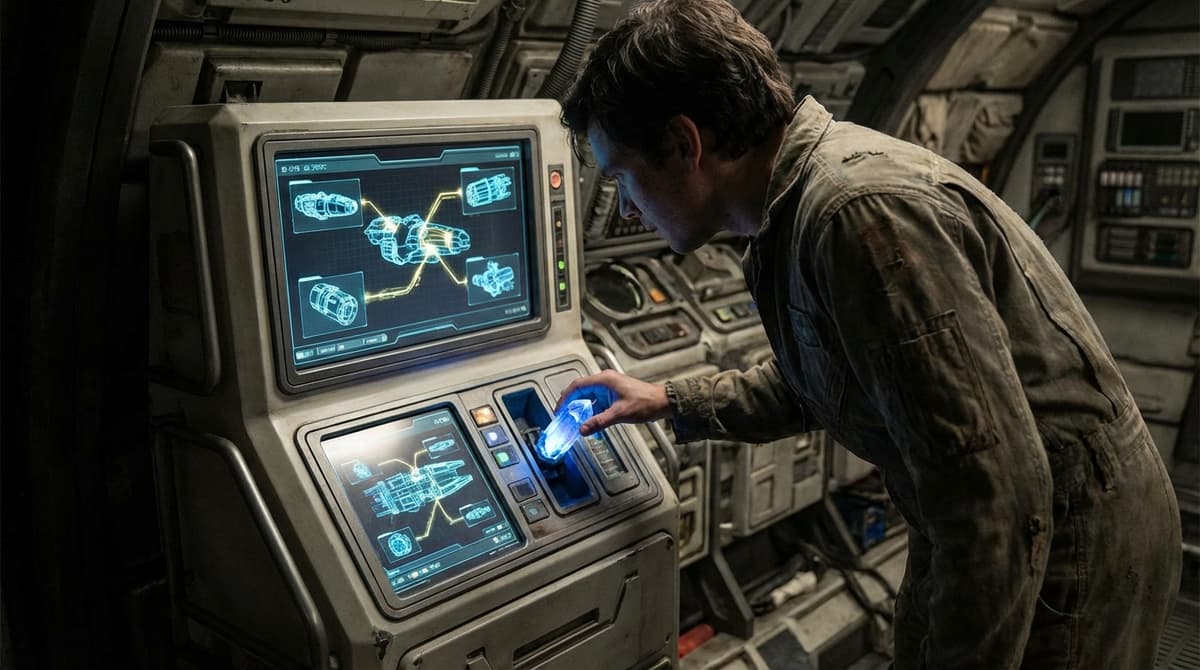
- Catalog unlocks – Once you have purchased and installed an X-Tech module at least once (for example, via a Neon Core showroom), that part type appears in your Ship Builder part list whenever skill and ship class requirements are met. Changing ships later does not generally remove this catalog entry.
- Active-ship configuration – The specific modules currently bolted to your hull. These persist across saves and loads, but if you heavily redesign the ship (removing cores, reworking the spine), you may need to re-add the X-Tech modules from the catalog.
Some community guides describe X-Tech swaps as “one-time permanent upgrades”. In practice, post-2023 patches behave more like:
- The knowledge of that X-Tech line is permanent once unlocked.
- You are free to reconfigure or reapply X-Tech modules on future ship layouts, as long as you meet skill and class requirements.
- Large patches occasionally require a quick re-verify of weapon assignments or docker alignment, but not a full re-unlock.
If you stick to the Ship Optimization Terminal (Ship Builder) rather than external mods or glitches, your X-Tech upgrades behave predictably: they are bound to the current hull layout, with catalog unlocks allowing you to recreate them whenever needed.
Engine Optimization with X-Tech
Engine optimization is where X-Tech modules show immediate, visible impact. Higher thrust and better maneuverability change how you engage, escape, and dock.
When working at the Ship Optimization Terminal:
- Enter
Ship Builderwith your intended combat ship active. - Highlight an existing engine cluster and select
Removeto see your current thrust and mobility values drop in the stats panel. - Press
Gto open the parts catalog and filter to Engines. Look for the X-Tech manufacturer tag. - Compare:
- Thrust – Governs forward acceleration.
- Maneuvering – Yaw/roll/pitch response, important for dogfights.
- Mass – High thrust but heavy engines can slow your grav jump spin-up indirectly.
- Power – Extra engine pips compete with shields and weapons for reactor output.
- Place the chosen X-Tech engines on valid attachment points, adjusting with
F/Rif needed to satisfy symmetry and clearance. - Run
Flight Checkto ensure there are no unattached modules or center-of-mass issues.
Practical engine optimization priorities:
- For dogfighting, favor higher maneuvering even if thrust gains are modest.
- For hit-and-run, pursue raw thrust and accept slightly slower handling.
- Always verify that your reactor can supply full engine power while still feeding shields and your main weapon group.
Most players feel the benefit of engine-focused X-Tech swaps immediately: faster strafes, tighter turns, and shorter chase windows for enemy AI.
Shield Upgrades: Capacity, Recharge, and X-Tech Choices
Shield upgrades via the Ship Optimization Terminal are largely about three interacting stats:
- Total capacity – How much damage your shields can soak before collapsing.
- Recharge rate – How quickly they rebuild once they begin recharging.
- Recharge delay – The downtime between taking damage and shields starting to recharge.
To optimize shields:
- In
Ship Builder, select your current shield generator and check its stats in the right panel. - Press
G, filter to Shields, and scroll through available X-Tech options (if unlocked). - Compare capacity, recharge delay, and recharge rate against your current shield, not just the capacity number.
- Consider your playstyle:
- Long engagements benefit from stronger recharge.
- Alpha strike builds may want maximum upfront capacity.
- Verify power draw; stronger shields often demand more reactor pips.
- Apply the new shield, then redistribute power in the normal flight HUD after you exit the builder.
In practice, a moderate-capacity X-Tech shield with good recharge can outperform a heavier, slower module, because you spend less time flying “naked” after a shield break. The optimization terminal makes these trade-offs visible in a controlled environment before you commit the credits.
Weapon System Upgrades and Grouping
Weapon system upgrades through Ship Builder are where many layouts fail validation, especially once X-Tech modules are involved. You are managing:
- Weapon types – Lasers, ballistics, missiles, particle weapons, etc.
- Power allocation – Each weapon bank consumes reactor power.
- Weapon groups – Up to three groups you can fire independently.
To handle weapon system upgrades cleanly:
- In
Ship Builder, remove one existing weapon bank you plan to replace. - Press
Gand choose a weapon type that fits your intended combat role. Look for X-Tech variants if unlocked. - Place the new weapons on valid hardpoints, ensuring symmetry to avoid odd recoil visuals and to maintain aesthetics.
- Open the Weapon Groups assignment interface (builder sub-menu) and:
- Assign lasers to Group 1 (for shields).
- Assign ballistics or particle weapons to Group 2 (for hull).
- Assign missiles or torpedoes to Group 3 (for finishing or long-range bursts).
- Check for Missing Weapon Assignment warnings, especially after swapping to X-Tech weapons; post-2023 patches reduced but did not entirely eliminate this issue.
- Run
Flight Checkafter each major weapon overhaul.
Weapon system upgrades are heavily constrained by reactor output. It is common to discover that a full rack of X-Tech weapons exceeds your power budget. Use the optimization terminal iteratively: add weapons, test power draw in the stats panel, and back off until you can sustain your preferred power distribution in normal flight.
X-Tech Costs per Upgrade and Recommended Upgrade Order
There is no single universal “X-Tech cost per upgrade” number. Instead, costs scale with module class, tech tier, and manufacturer premium. However, some reliable patterns emerge once you begin using the Ship Optimization Terminal regularly:
- Reactors – Usually the most expensive X-Tech modules. Upgrading a reactor is a major credit commitment but increases your total power budget for everything else.
- Engines – High-end X-Tech engines are also costly, especially those with superior maneuverability stats.
- Shields – Mid-to-high cost, but the price-performance curve is more forgiving; moderate X-Tech shields can be efficient buys.
- Weapons – Individual X-Tech weapons might be cheaper than reactors, but full broadside replacements add up quickly.
Because of that cost structure, a practical optimization order when credits and skills are limited is:
- Step 1: Reactor upgrade
- Use Ship Builder to swap to an X-Tech reactor that your skills and ship class allow.
- Verify that you gain enough additional power to justify the credit cost.
- Step 2: Engine optimization
- Upgrade to X-Tech engines to exploit the new power budget.
- Ensure that maneuvering and thrust match your intended role.
- Step 3: Shield upgrades
- Invest in an X-Tech shield that balances capacity and recharge against power draw.
- Because shields draw constant power during combat, you want them sized after reactor and engines are set.
- Step 4: Weapon system upgrades
- Finally, use whatever power headroom remains for high-output X-Tech weapons.
- This avoids overspending on weapons you cannot fully power.
Within Ship Builder, always check the credit cost shown before confirming module placement. The game surfaces per-module costs clearly in the optimization interface, allowing you to sequence upgrades based on your current budget instead of guessing.
Common Ship Optimization Terminal Errors and Fixes
High-end X-Tech builds are more likely to trigger Ship Builder validation errors because they push size, mass, and layout boundaries. Three errors appear frequently:
- Unattached Modules
- Cause: Modules not snapped to a valid attach node (common after fine-tuning positions with
F/R). - Fix: Zoom in, select the floating module, and move it until the attachment outline turns blue and snaps to the hull.
- Cause: Modules not snapped to a valid attach node (common after fine-tuning positions with
- Overweight or Mass Imbalance
- Cause: Excessive mass far from the centerline, often due to multiple large X-Tech engines or reactors on one side.
- Fix: Mirror heavy components, move them closer to the core spine, or downgrade one class to reduce extreme offsets.
- Invalid Docker / Ladder Path
- Cause: Docking ports or access paths blocked by large X-Tech modules.
- Fix: Use
F/Rto move the obstructing modules up or down by half-steps until the docker/ladder path shows valid in Flight Check.
After any substantial X-Tech swap, especially reactors or central structural changes, run a Flight Check. Resolving errors inside the Ship Optimization Terminal is always cheaper than realizing a layout is invalid after leaving the planet.
Advanced Alignment and Glitch-Based Precision
Some community builds make use of post-patch alignment quirks to place X-Tech modules in ways that standard snapping does not easily allow, such as half-step adjustments along the Z-axis for perfect symmetry or tighter stacking.
General principles if you choose to push layout precision:
- Work with group selection (
left-click + drag) to move entire engine banks or wing structures together, keeping symmetry intact. - Use fine movement (typically holding
Shift) to nudge modules into visually consistent positions while still respecting valid snap points. - Re-run Flight Check after every fine-tune pass; some visually pleasing arrangements hide ladder or docker conflicts.
- Be cautious with any glitch-based placement techniques; Bethesda patches have historically targeted unstable geometry and may “break” older layouts, requiring you to re-enter Ship Builder and re-validate.
For long-term stability, it is usually better to prioritize legal snap points and clear access paths over extreme min-max placement tricks. The Ship Optimization Terminal is most reliable when you let its snapping and validation systems do what they are designed to do, and reserve X-Tech modules for raw performance rather than layout exploits.
FinalBoss // Gear
Level up your setup
01Best-selling Xbox Series X|S gameson Amazon→02Xbox controllerson Amazon→03Top-rated gaming headsetson Amazon→04Discounted game keyson Kinguin→Affiliate links · As an Amazon Associate, FinalBoss earns from qualifying purchases.
Want to Level Up Your Gaming?
Get access to exclusive strategies, hidden tips, and pro-level insights that we don't share publicly.
Ultimate Guide Strategy Guide + Weekly Pro Tips